
Quick Summary: Yes, your PlayStation 5 has built-in Bluetooth, BUT it’s primarily for controllers and accessories.
For wireless headphones, the PS5 doesn’t natively support most standard Bluetooth audio devices. You’ll typically need a USB Bluetooth adapter or specific “PS5 compatible” wireless headsets to enjoy wireless audio. This guide breaks down your options so you can game with great sound without wires.
Does PS5 Have Bluetooth For Headphones: Your Essential Guide to Wireless Audio

Hey everyone, Edward Cavitt here from headphonehorizon! If you’re diving into the exciting world of the PlayStation 5 and wondering about silencing the world with your favorite wireless headphones, you’re in the right place. Many of us love the freedom of untethered gaming audio. So, the big question on your mind is likely: “Does the PS5 have Bluetooth for headphones?”
The short answer is a bit nuanced, but let’s break it down together. The PS5 does have Bluetooth technology, but it’s not quite as straightforward for connecting standard wireless headphones as you might expect. Don’t worry, though! We’ll explore exactly how you can achieve that sweet wireless audio experience, whether you’re on a budget or looking for premium sound. Let’s get your PS5 sounding amazing!
The innovation and immersion offered by the PlayStation 5 are truly next-level. From stunning visuals to the haptic feedback of the DualSense controller, Sony has packed this console with cutting-edge technology. However, when it comes to audio, understanding how to connect your preferred headphones can sometimes feel like navigating a maze. Many gamers assume that because a device has Bluetooth, all Bluetooth headphones will work seamlessly.
While that technology is indeed present in the PS5 for connecting controllers like the DualSense and other accessories, it’s a different story for Bluetooth audio. Sony designed the PS5’s Bluetooth to prioritize its own ecosystem of peripherals.
So, when you try to pair your standard Bluetooth earbuds or headphones, you’ll likely find they don’t connect for audio output. This isn’t a flaw; it’s a design choice aimed at ensuring a stable, low-latency gaming experience, which standard Bluetooth can sometimes struggle with. Fortunately, there are very effective workarounds, and we’re going to cover them all so you can enjoy your gaming sessions with the best possible sound.
Understanding PS5 Bluetooth: What You Need to Know

Before we jump into solutions, let’s get a clearer picture of how Bluetooth works on the PS5. The console does indeed have Bluetooth capabilities built-in. You use this technology for essential functions like pairing your DualSense wireless controller, PlayStation VR peripherals, and some third-party accessories. However, Sony has intentionally limited the Bluetooth audio profile support. This means that most generic Bluetooth headphones, even those designed for mobile phones or PCs, won’t be recognized by the PS5 as an audio output device.
This limitation is primarily about latency and audio quality. For a smooth gaming experience, especially in fast-paced games, minimal delay between on-screen action and the sound you hear is crucial. Standard Bluetooth connections can sometimes introduce a noticeable lag, which is undesirable for gaming. Sony’s approach prioritizes reliability and a dedicated, low-latency connection for compatible headsets.
Why Standard Bluetooth Headphones Don’t Work (Usually)

It’s frustrating, I know! You’ve got your favorite comfy Bluetooth headphones, and you just want to plug them into your PS5 and go. The biggest hurdle is the way Bluetooth is implemented on the PS5. The PS5 uses specific Bluetooth profiles (like those for HID – Human Interface Devices for controllers) but doesn’t actively support generic A2DP (Advanced Audio Distribution Profile) for audio playback to standard headphones. This is a common point of confusion.
Think of it like this: the PS5 has a special key (Bluetooth) but it only fits certain locks (compatible accessories). It’s not that the technology isn’t there, but it’s reserved for specific uses. This system helps maintain a robust connection for gaming essentials.
How to Connect Wireless Headphones to Your PS5: Your Options

So, if your everyday Bluetooth headphones won’t connect directly, what are your options for wireless audio on the PS5? Don’t despair! You still have several excellent ways to go wireless. Let’s explore the most common and effective methods:
Option 1: Use a USB Bluetooth Adapter/Dongle
This is often the most popular and cost-effective solution for using your existing Bluetooth headphones with the PS5. A USB Bluetooth adapter, sometimes called a dongle, plugs into one of your PS5’s USB ports. This adapter essentially “translates” the PS5’s audio output into a Bluetooth signal that your headphones can understand.
What to Look For in a USB Bluetooth Adapter:
- Low Latency Support: This is CRITICAL for gaming. Look for adapters that specifically mention support for low-latency codecs like aptX Low Latency.
- Companion App: Some adapters come with a companion app that allows you to manage connections, update firmware, and sometimes even adjust EQ settings.
- Plug-and-Play: Most good adapters are designed to be simple plug-and-play devices, requiring minimal setup.
- Microphone Passthrough: If you want to use your headphones’ microphone for in-game chat, ensure the adapter supports this feature. Some adapters use a separate 3.5mm jack for mic input.
Steps for Using a USB Bluetooth Adapter:
- Purchase a Compatible USB Bluetooth Adapter: Ensure it supports low-latency audio and is advertised as working with PS5 or PlayStation consoles.
- Plug the Adapter into a PS5 USB Port: The front USB-A port is usually the most accessible.
- Put Your Headphones in Pairing Mode: Follow your headphone manufacturer’s instructions to make them discoverable.
- Pair Your Headphones with the Adapter: This process varies by adapter. Some might have a button to press, while others prompt you via an app or automatically scan.
- Configure PS5 Audio Settings:
- Turn on your PS5.
- Navigate to Settings (gear icon) on the home screen.
- Go to Sound.
- Select Audio Output.
- Under Output Device, select the USB Bluetooth adapter (it might be named after the adapter or simply listed as “USB Headset”).
- Under Output to Headphones, select “All Audio” to hear game sound and chat, or “Chat Audio Only” if you have a separate wired connection for game sound.
- Adjust the Volume Control (Headphones) slider if needed.
- Test Your Audio: Play a game or part of a video to ensure sound is coming through your headphones with minimal delay. Test your microphone if applicable.
A prime example of a popular adapter is the Sony PlayStation DualSense Edge Wireless Controller, which includes features for audio Passthrough, though it’s designed for controllers specifically. However, this points to Sony’s focus on proprietary solutions. For general audio adapters, brands like Avantree and TP-Link offer reliable options. Always check recent reviews and compatibility lists before purchasing.
Option 2: Invest in “PS5 Compatible” Wireless Gaming Headsets
This is the most straightforward, albeit often more expensive, solution: purchase a wireless gaming headset that is specifically designed and marketed as compatible with the PS5. These headsets typically use proprietary wireless technology (often 2.4 GHz wireless via a USB dongle) that Sony has certified to work seamlessly with the console.
Advantages of PS5-Compatible Headsets:
- Guaranteed Compatibility: They are built from the ground up to work with the PS5.
- Low Latency: The proprietary wireless connections ensure minimal lag.
- Plug-and-Play Simplicity: Just plug in the USB transmitter, and they usually connect automatically.
- Optimized Audio and Mic: Often feature superior sound quality, dedicated game/chat mix controls, and high-quality microphones.
- Integrated PS5 Features: Some high-end models might even offer integration with the PS5’s UI for battery status or audio settings.
Popular PS5-Compatible Wireless Headsets:
- Sony PULSE 3D Wireless Headset: This is Sony’s own official headset and offers excellent value, Tempest 3D AudioTech support, and seamless integration.
- SteelSeries Arctis Series: Several Arctis models (like the Arctis 7P/7P+) are designed for PlayStation and offer fantastic audio.
- Logitech G PRO X Wireless LIGHTSPEED: A premium option known for its comfort and audio fidelity.
- HyperX Cloud Alpha Wireless: Offers incredible battery life and great sound performance.
Steps for Using a PS5-Compatible Headset:
- Purchase a PS5-Compatible Wireless Headset: Check product descriptions and reviews carefully to ensure it explicitly states PS5 compatibility.
- Connect the USB Transmitter: Plug the headset’s USB dongle or transmitter into a USB port on your PS5.
- Turn On the Headset: Your headset and the transmitter should automatically pair.
- Configure PS5 Audio Settings (Usually Automatic): The PS5 should automatically detect the headset. You can verify by going to Settings > Sound > Audio Output. Your headset should appear as the default Output Device.
- Adjust Volume and Chat Mixer: Use the controls on the headset itself or, if supported, the PS5’s quick menu to adjust volume and the game/chat audio balance.
Option 3: Use Headphones with the DualSense Controller’s Headset Jack
This option isn’t fully wireless, but it’s a great way to use many standard wired headphones and even some wireless headsets that have a wired mode or a separate Bluetooth transmitter for their microphone. The DualSense controller has a standard 3.5mm headset jack. You can plug in any headphones with a 3.5mm connector directly into the controller.
For wireless users, some Bluetooth headphone transmitters are designed to plug into a 3.5mm audio source (like the controller) and then transmit audio wirelessly to your headphones. This is similar to Option 1 but uses the controller as the audio source rather than the PS5’s USB port directly.
Steps for Using the DualSense Controller Jack:
- Ensure Your Headphones Have a 3.5mm Jack: If they do, plug them directly into the bottom of your DualSense controller.
- Configure PS5 Audio Settings:
- Go to Settings > Sound > Audio Output.
- Under Output to Headphones, select “All Audio” to send both game sound and chat through the headphones connected to the controller. “Chat Audio Only” is an option if you have speakers for your game audio and only want chat through your headphones.
- Adjust the Volume Control (Headphones) slider.
- For Wireless Transmitters: If you’re using a separate Bluetooth transmitter plugged into the controller’s jack, follow the transmitter’s instructions for pairing your headphones to it. Then, ensure the PS5 is set to output “All Audio” to the controller’s headset jack if the transmitter receives audio from there.
This method is good for convenience, especially if you have some excellent wired headphones you love. Just remember that the controller’s battery life will be affected by having headphones plugged in.
PS5 Bluetooth Audio: A Comparison Table
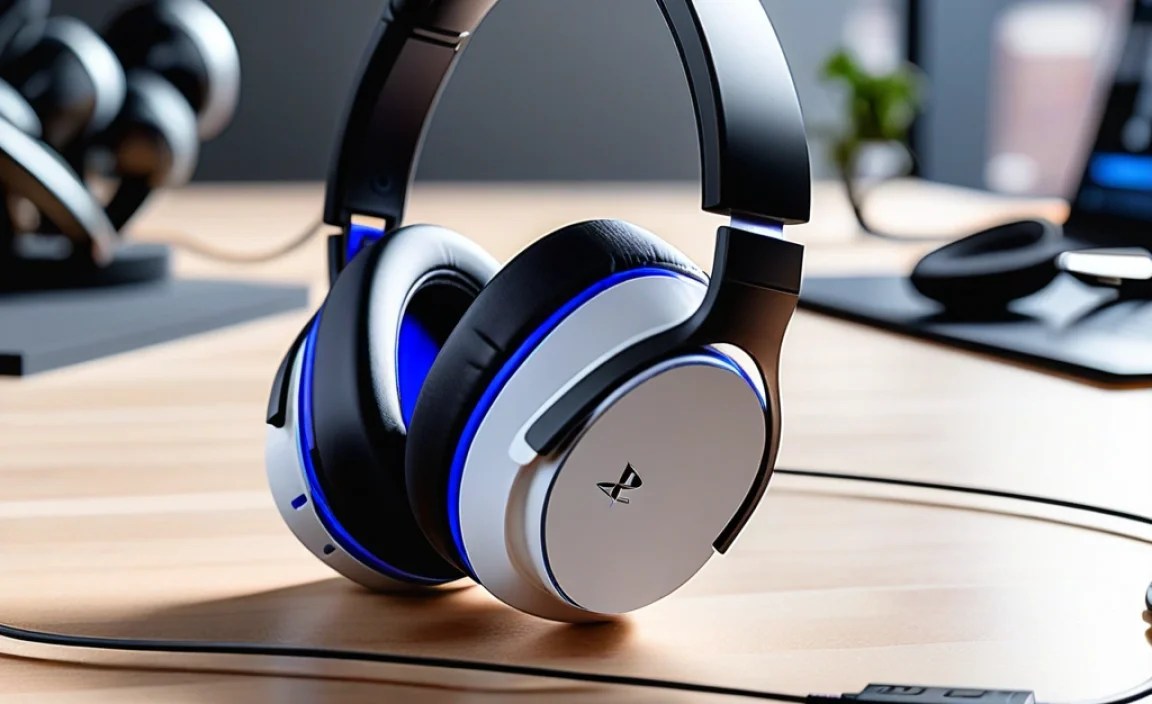
To help you decide which method is best for you, here’s a look at the pros and cons of each approach:
| Method | Pros | Cons | Best For |
|---|---|---|---|
| USB Bluetooth Adapter |
|
|
Gamers who already own good Bluetooth headphones and want a cost-effective wireless solution. |
| PS5 Compatible Wireless Headsets |
|
|
Gamers prioritizing the best possible wireless experience with minimal fuss and are willing to invest in a dedicated gaming headset. |
| DualSense Controller 3.5mm Jack |
|
|
Gamers who own excellent wired headphones or want a quick, simple connection without needing extra dongles. |
Important Considerations for PS5 Wireless Audio
No matter which method you choose, a few things will help ensure your wireless audio experience is top-notch:
- Latency: For gaming, low latency is paramount. This is the delay between an action happening in the game and you hearing the corresponding sound. Standard Bluetooth can have noticeable latency (up to 200ms or more), while dedicated gaming wireless uses 2.4 GHz connections or low-latency Bluetooth codecs (like aptX Low Latency) that reduce this to under 40ms, often imperceptible to the human ear.
- Codec Support: Bluetooth headphones use different codecs (like SBC, AAC, aptX, aptX HD, aptX Low Latency) to transmit audio. The PS5’s standard Bluetooth doesn’t support many of these for audio. USB adapters or dedicated headsets employ codecs that are specifically designed for better quality and lower latency. You can learn more about codecs from resources like Bluetooth’s official technical resources.
- Microphone Quality: If in-game chat is important, pay attention to the microphone. Many dedicated wireless headsets have excellent built-in mics, while some Bluetooth adapters might require a separate mic or have less-than-ideal mic quality for voice communication.
- Battery Life: Wireless devices need charging. Check the battery life of any wireless headset or adapter you consider. Some can last 20-30 hours or more on a single charge, while others might need more frequent topping up.
- Comfort and Fit: You’ll be wearing these for potentially long gaming sessions. Ensure your chosen headphones are comfortable and fit securely.
Frequently Asked Questions (FAQ)
Q1: Can I connect any Bluetooth headphones to my PS5 directly?
A: Generally, no. The PS5’s built-in Bluetooth is primarily for controllers and specific accessories. It does not support audio streaming from standard Bluetooth headphones out of the box. You’ll usually need a USB Bluetooth adapter or a PS5-compatible wireless headset.
Q2: What is the best way to use my AirPods with PS5?
A: AirPods use Bluetooth audio profiles that the PS5 doesn’t natively support for output. To use them, you’ll need a low-latency USB Bluetooth adapter that supports the necessary codecs (like aptX Low Latency if your AirPods are compatible, though often even standard adapters work for basic audio). Plug the adapter into your PS5, pair your AirPods to the adapter. You might not get microphone support for chat this way.
Q3: Does the PS5 support Bluetooth 5.0 or higher for headphones?
A: While the PS5 likely uses a recent Bluetooth standard internally, its audio profile support is the limiting factor, not the Bluetooth version number itself. Even with Bluetooth 5.0 or higher on your headphones, direct connection for audio playback to standard Bluetooth headphones is not supported by the PS5’s system software.
Q4: How do I know if a USB Bluetooth adapter is low latency?
A: Look for the adapter’s product description. It should explicitly mention support for “low latency,” “
