
Quick Summary: Don’t let a broken headphone jack sideline your audio! This guide offers simple, step-by-step troubleshooting for common issues. Learn to identify the problem and apply easy fixes, from cleaning connections to checking software, empowering you to enjoy your music again without needing professional repair.
Fix Broken Headphone Jack Troubleshooting: Your Genius Solution
Hey everyone, Edward Cavitt here from headphonehorizon! There’s nothing quite like settling in for a good listening session, only to be met with silence or crackling static from your headphones. The culprit? Often, it’s a seemingly insignificant, yet utterly frustrating, broken headphone jack. Whether it’s a loose connection, a buildup of gunk, or something a little more serious, a faulty jack can feel like the end of the world for your audio experience.
But before you despair or reach for your wallet for an expensive repair, did you know that many common headphone jack problems can be fixed right at home? This guide is designed to demystify headphone jack issues and equip you with practical, beginner-friendly troubleshooting steps. We’ll walk through simple diagnostics and ingenious solutions, so you can get back to enjoying your favorite tunes, podcasts, or calls with crystal-clear sound.
Understanding the Dreaded Broken Headphone Jack
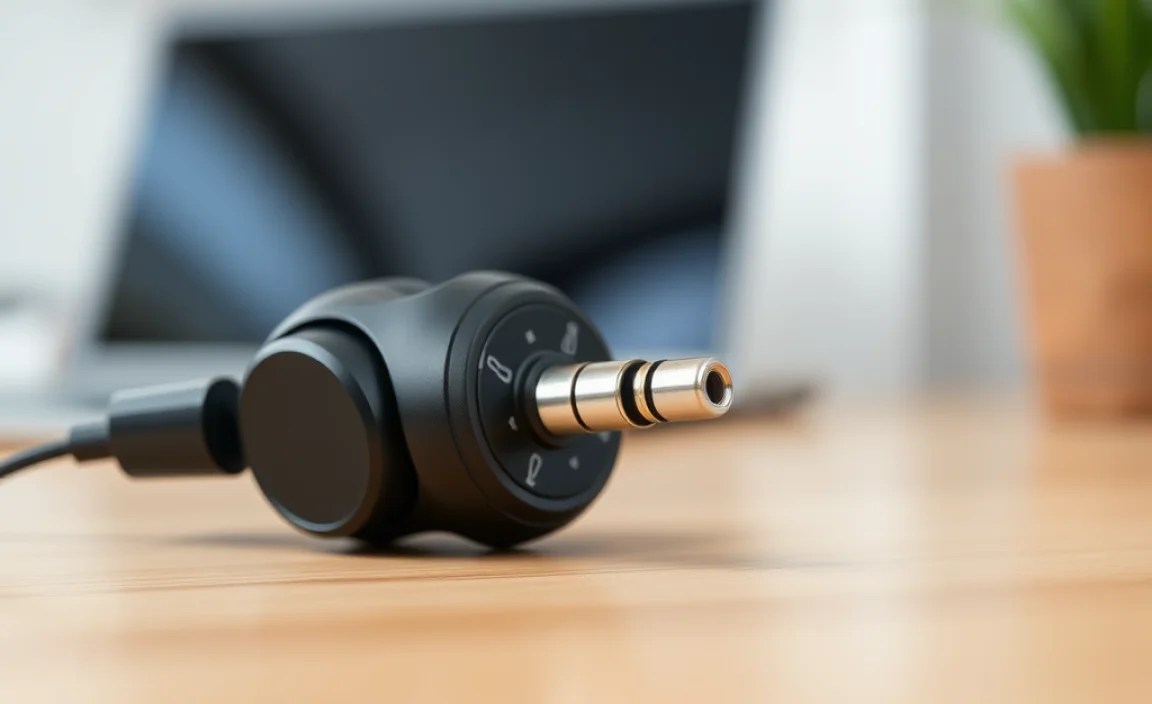
A headphone jack, also known as a 3.5mm audio jack or headphone port, is a small but vital component that allows your headphones to connect to your device. When it’s “broken,” it means the connection isn’t working as it should. This can manifest in several annoying ways:
- No sound at all from one or both earbuds.
- Intermittent audio – sound cuts in and out.
- Static, crackling, or buzzing noises.
- Sound only coming from one side of the headphones.
- The device not recognizing that headphones are plugged in.
These issues can stem from a variety of sources, ranging from simple debris to more complex internal damage. The good news is that most of these are surprisingly common and often have straightforward solutions.
Common Causes of Headphone Jack Problems
Before we jump into fixing, let’s understand what might be causing your headphone jack woes. Identifying the root cause is the first step towards the right solution.
1. Debris and Dust Buildup
This is, by far, the most common offender. Over time, pockets, bags, and even just the air can introduce lint, dust, and other tiny particles into your headphone jack. This buildup acts like an insulator, preventing the headphone plug from making proper contact with the internal pins of the jack.
2. Physical Damage
This can happen in a few ways:
- Bent or Broken Plug: If you’ve accidentally stepped on your headphone cable, yanked it forcefully, or bent the plug at an odd angle, the metal tip could be damaged or the internal wiring could be compromised.
- Worn Jack Port: Repeated insertion and removal of the headphone plug, especially with force, can wear down the internal contacts within the jack itself, leading to a loose connection.
- Impact: Dropping your device can jar the headphone jack internally, sometimes dislodging connections or even cracking the port’s housing.
3. Software Glitches or Settings
Sometimes, the problem isn’t hardware at all! Your device’s operating system or settings might be in a confused state, preventing audio output through the jack. This can happen after software updates, app installations, or due to accidental setting changes.
4. Water Damage
Exposure to liquids, even a small amount of moisture, can cause corrosion on the internal contacts of the headphone jack, leading to poor conductivity and audio issues. This is particularly problematic as corrosion can spread and worsen over time.
5. Amplifier or Audio Chip Issues
Less commonly, the problem might lie with the audio amplifier or the dedicated audio processing chip on your device’s motherboard. These are more serious hardware issues that are typically beyond a DIY fix.
Troubleshooting Your Broken Headphone Jack: A Step-by-Step Guide
Let’s get down to business! Here’s a systematic approach to diagnosing and fixing your headphone jack issues. Remember to be gentle and patient throughout this process.
Step 1: The Simple Test – Rule Out the Obvious
Before we dive deep, let’s confirm the issue isn’t with your headphones or the device itself in another way.
- Try Different Headphones: Plug in a different pair of headphones you know are working correctly into the suspect jack. If these work, the problem is with your original headphones, not the device’s jack.
- Try Different Devices: Plug your original headphones into a different device (e.g., another phone, computer, or MP3 player). If they work fine on another device, the problem lies with the first device’s headphone jack.
- Check Volume and Settings: Ensure your device’s volume isn’t turned all the way down, or set to mute. Also, check if there’s a specific audio output setting in your device’s menu that might be directing sound elsewhere (like Bluetooth speakers that aren’t connected).
If both your headphones and the device’s jack seem fine when tested individually, the issue might be with how they interact, which often points back to a dirty or slightly obstructed jack. If one of these tests points to a faulty component, you’ll know where to focus your efforts. For example, if your headphones don’t work on any device, it’s time to troubleshoot your headphones. If your headphones do work on other devices, then the focus is solely on the device’s headphone jack.
Step 2: Cleaning the Headphone Jack – The Most Common Genius Solution
This is where the magic often happens. A dirty jack is the leading cause of audio woes. Here’s how to clean it safely and effectively.
Tools You Might Need:
- Compressed air can (for electronics)
- Toothpick (wooden or sturdy plastic, not metal)
- Cotton swabs (Q-tips)
- Isopropyl alcohol (90% or higher is best)
- Small flashlight
Cleaning Procedure:
- Power Off: Turn off your device completely before starting. This is a crucial safety step to prevent any short circuits.
- Visual Inspection: Use your flashlight to look inside the headphone jack. Can you see any obvious debris, lint, or dust bunnies?
- Start with Compressed Air: Hold the device so the headphone jack is facing downwards. Give a short, sharp burst of compressed air directly into the jack. This can dislodge loose debris. Do NOT tilt the can, as this can spray propellant which could damage components. Refer to the National Park Service’s guidance on compressed gas safety for general precautions.
- Gentle Scraping (if needed): If compressed air didn’t do the trick, and you see stubborn debris, carefully use a wooden or plastic toothpick. Gently insert it and try to dislodge any visible lint or gunk. Be extremely careful not to scrape the internal contacts or push the debris further in. Think of it as teasing out the obstruction, not digging it out.
- Dampen a Cotton Swab: Dip a cotton swab very lightly in isopropyl alcohol. Ensure it’s not dripping wet – just slightly damp. The alcohol helps to break down grime and evaporates quickly.
- Clean the Port: Gently insert the damp cotton swab into the headphone jack and rotate it carefully. Try to clean the inner walls. You might need to use several swabs, re-dampening as necessary, until you’re no longer picking up dirt.
- Allow to Dry: Let the jack air dry completely for at least 15-30 minutes. It’s essential that all moisture (especially alcohol) has evaporated before you power your device back on and plug in your headphones.
- Test Again: Plug your headphones back in and power on your device. See if the sound is restored and clear.
This cleaning method is often all it takes for an audio miracle and is frequently the “genius solution” people overlook!
Step 3: Check the Headphone Plug Itself
Sometimes, the issue is with the plug on your headphones, not the port on your device. Here’s how to inspect and clean it:
- Look at the metal end of your headphone plug. Is it visibly dirty, corroded, or bent?
- Try cleaning the metal contacts on the plug with a dry, lint-free cloth or a pencil eraser. Be gentle!
- If the plug looks bent or damaged, it might be the culprit. Unfortunately, a physically damaged plug is often difficult to repair yourself and may require replacing the headphones.
Step 4: Testing with Different Audio Sources and Samples
Could it be the audio file or stream? This is a less common cause for a jack issue, but worth a quick check if other steps fail.
- Try playing a different song, podcast, or even a YouTube video.
- If you can, try a known, pure audio file from a downloaded source rather than streaming, to rule out internet connection issues affecting audio playback.
Step 5: Software Troubleshooting
If hardware cleaning didn’t help, let’s look at software.
5.1 Restart Your Device
The simplest software fix! A simple reboot can often clear temporary glitches that might be misdirecting audio output. Simply power off your device and then turn it back on.
5.2 Check Audio Output Settings
On many devices, you can manually select audio output. Ensure “Headphones” or “Speaker” (depending on what you want) is selected. This is especially relevant on computers and some tablets.
5.3 Update Your Device’s Software
Outdated operating systems can sometimes have bugs. Check for and install any available software updates for your device. These updates often include fixes for audio drivers and system performance. For information on how to do this, you can often find official guides on your device manufacturer’s website or consult resources like Android’s official version information or Apple’s iOS update guide.
5.4 Test in Safe Mode (Android) or Recovery Mode (various devices)
This is a more advanced step. Booting into Safe Mode (on Android) temporarily disables third-party apps. If your headphones work in Safe Mode, a recently installed app is likely causing the conflict. For other devices, recovery mode can sometimes offer diagnostic or reset options. Consult your device’s manual for instructions on how to enter these modes.
Step 6: Checking for Physical Damage to the Port
If cleaning did absolutely nothing, and software tweaks didn’t help, it might be time to consider more serious physical damage. This is where DIY becomes riskier.
- Wiggle Test: Gently plug in your headphones, and then carefully wiggle the plug slightly in different directions (up, down, left, right). If the sound comes in and out, it often indicates a loose internal connection where the headphone jack is soldered to the device’s motherboard.
- Look for Cracks: Inspect the exterior of the headphone port. Are there any visible cracks or signs of damage to the plastic housing of the port itself?
If you suspect loose internal connections or visible damage to the port itself, this often means the solder joints inside the device have broken or the port is physically damaged. For most modern smartphones and tablets, the headphone jack is integrated into the motherboard as a single unit. This kind of repair usually requires micro-soldering expertise and specialized tools, which might be best left to a professional repair shop.
When to Seek Professional Help
Not every headphone jack issue has a simple DIY fix. If you’ve gone through the steps above and are still experiencing problems, it might be time to consider professional assistance. This is usually the case if:
- You suspect internal hardware damage (e.g., loose solder joints from the wiggle test).
- The headphone jack port is physically broken or loose.
- Water damage is suspected.
- The issue persists after all software and cleaning attempts.
For laptops and some older devices, the headphone jack might be a modular component that can be more easily replaced. However, for many smartphones and compact devices, it’s an integrated part of a larger circuit board. You can often find reputable electronics repair shops in your area, or check if your device is still under warranty with the manufacturer.
Table: Common Headphone Jack Problems and Likely Causes
Here’s a quick reference to help you diagnose your situation:
| Symptom | Most Likely Cause(s) | DIY Fix Difficulty |
|---|---|---|
| No sound from either earbud | Severe debris blockage, damaged plug, software glitch, faulty jack | Low to High |
| Sound only from one earbud | Debris in one contact, damaged wiring in plug/cable, internal jack contact issue | Low to Medium |
| Intermittent sound / cutting in and out | Partial debris blockage, loose internal connection, damaged plug or cable | Low to High |
| Static, crackling, or buzzing | Dirty contacts, poor connection, presence of moisture, electromagnetic interference | Low to Medium |
| Device doesn’t recognize headphones | Debris preventing full insertion, faulty jack sensor, software issue | Low to Medium |
Frequently Asked Questions (FAQ)
Q1: Can I use a paperclip to clean my headphone jack like I saw online?
A1: It’s generally not recommended to use metal objects like paperclips. They can easily scratch the delicate internal contacts of the jack, or worse, short-circuit your device if there’s power flowing. Stick to non-metallic tools like toothpicks or cotton swabs to avoid causing further damage.
Q2: My device got wet. What should I do about the headphone jack?
A2: If your device has been exposed to liquid, turn it off immediately and do not try to charge it or use the headphone jack. Let it dry completely for at least 48-72 hours in a dry, well-ventilated area. You can also try placing it in a sealed bag with silica gel packets (often found in shoe boxes or electronics packaging) to absorb moisture. After drying, try cleaning the jack as per Step 2. If problems persist, seek professional inspection, as internal corrosion can be a serious issue.
Q3: Is compressed air safe for my headphone jack?
A3: Yes, compressed air designed for electronics is generally safe. However, always hold the device so the jack faces down, and use short bursts. Critically, do NOT tilt the can while spraying, as this can release liquid propellant that can damage sensitive components. Never spray directly into the port for extended periods.
Q4: My phone says headphones are plugged in even when they aren’t. What’s wrong?
A4: This is a common indicator of a dirty or malfunctioning headphone jack. There’s often a small switch or sensor inside the jack that detects when a plug is inserted. Debris can trick this sensor into thinking headphones are always plugged in, or the sensor itself might be damaged or stuck. Thorough cleaning (Step 2) is the first line of defense here. If that doesn’t work, it might be an internal hardware issue.
Q5: How often should I clean my headphone jack?
A5: There’s no set schedule, but it’s good practice to give your headphone jack a quick blast of compressed air every few months, or if you notice any audio issues. If you frequently carry your device in a pocket or bag without a case, or if you live in a dusty environment, a more thorough cleaning might be needed more often.
Q6: My headphones have multiple rings on the plug (TRRS). Does this affect troubleshooting?
A6: Yes, plugs with multiple rings (like TRRS – Tip, Ring, Ring, Sleeve) support stereo audio and often a microphone. If only certain functions work (e.g., sound but no mic, or vice versa), it can point to a specific contact on the plug or within the jack being damaged or dirty. The cleaning steps remain the same, but it highlights the complexity of these jacks.
