
Quick Summary: Don’t ditch your busted gaming headset just yet! This beginner’s guide shows you how to diagnose common issues and apply simple, budget-friendly fixes. Learn to tackle audio problems, microphone glitches, and connection woes with easy steps and readily available tools, saving you money and getting you back in the game.
Hey there, fellow gamers and audio enthusiasts! Edward Cavitt here from headphonehorizon. Nothing can pull you out of an epic gaming session faster than a glitchy headset. Whether it’s crackling audio, a mic that suddenly goes silent, or a cable that’s seen better days, a broken headset can feel like a game-ending situation. But before you reach for your wallet to buy a brand-new, expensive replacement, let’s explore a more satisfying and wallet-friendly option: fixing it yourself! Many common headset problems have surprisingly simple solutions that don’t require fancy tools or deep technical knowledge. This guide is designed to walk you through the most frequent issues and provide clear, step-by-step instructions to get your beloved gaming headset back in tip-top shape. Ready to become a headset hero?
Why Fix Your Gaming Headset Instead of Replacing It?

Choosing to fix your gaming headset offers a multitude of benefits that extend beyond just saving a few bucks. In a world where disposable electronics are increasingly common, opting for repair is a more sustainable choice. It reduces electronic waste, which is a significant environmental concern. According to the United Nations’ Global E-waste Monitor, a staggering 53.6 million metric tons of electronic waste were generated globally in 2019 alone. By repairing your headset, you’re contributing to a circular economy and extending the life of valuable resources.
Beyond environmental advantages, fixing your headset can also be incredibly rewarding. There’s a unique sense of accomplishment that comes with diagnosing a problem and successfully resolving it yourself. It empowers you to understand your gear better and builds confidence for future troubleshooting. Plus, let’s be honest, gaming headsets can be pricey! Even a “cheap” gaming headset can set you back a decent amount. Applying simple fixes can save you a substantial sum, allowing you to allocate your budget to other gaming essentials or even upgrade your setup in ways that matter more to your gameplay.
Common Gaming Headset Problems and What Causes Them
Before we dive into the repairs, it’s helpful to understand the usual suspects when it comes to gaming headset malfunctions. Knowing the common causes can often point you directly to the solution.
1. No Sound or Intermittent Sound
This is perhaps the most frustrating issue. It could stem from several sources:
- Loose Connections: The most frequent culprit. The cable might not be fully plugged into the headset or the audio jack.
- Software/Driver Issues: Your computer or console might not be recognizing the headset correctly, or its audio drivers could be outdated or corrupted.
- Physical Cable Damage: A kink, fray, or break in the headset’s audio cable can disrupt the signal.
- Muted Volume: It sounds simple, but sometimes the in-line volume control or software volume is turned down or muted.
- Headset Not Selected as Default Device: Your operating system might be sending audio to your speakers instead.
2. Microphone Not Working or Poor Quality
Being unable to communicate with your team is a critical disadvantage. This problem can be caused by:
- Mute Switch Engaged: Many headsets have a physical mute button on the cord or earcup.
- Microphone Permissions: Your operating system or specific application might not have permission to access the microphone.
- Software or Driver Conflicts: Similar to audio issues, microphone drivers can also cause problems.
- Microphone Placement: If the mic boom is too far from your mouth, it might not pick up your voice clearly.
- Physical Damage to the Microphone: Debris, or damage to the mic element itself.
3. Static or Buzzing Sounds
An annoying buzz or static can make any audio unbearable. Common causes include:
- Interference: Other electronic devices nearby can sometimes interfere with the audio signal.
- Ground Loop: If you’re using multiple audio devices connected to different power outlets, a ground loop can occur.
- Damaged Cable: Similar to no sound, a damaged cable can also introduce static.
- Faulty Audio Jack: The port your headset is plugged into might be dirty or damaged.
4. One Ear Cup Not Working
When stereo sound is compromised, it can severely impact your gaming experience. This usually points to:
- Cable Damage: This is a very common cause, often affecting one channel of the stereo signal.
- Internal Wiring Issue: A wire inside the headset might have become disconnected or broken.
- Plug Damage: Damage to the plug itself can prevent one side from receiving a proper signal.
5. Physical Damage (Cracked Headband, Loose Earcup)
Wear and tear can lead to cosmetic or structural issues that, while not always affecting sound, can make the headset uncomfortable or unusable.
- Material Fatigue: Plastic can become brittle over time, especially with frequent bending or stress.
- Impact Damage: Dropping your headset can cause cracks or detach parts.
- Loose Components: Screws can loosen, or adhesive can fail on earcups and other parts.
Essential Tools for Cheap Headset Repairs
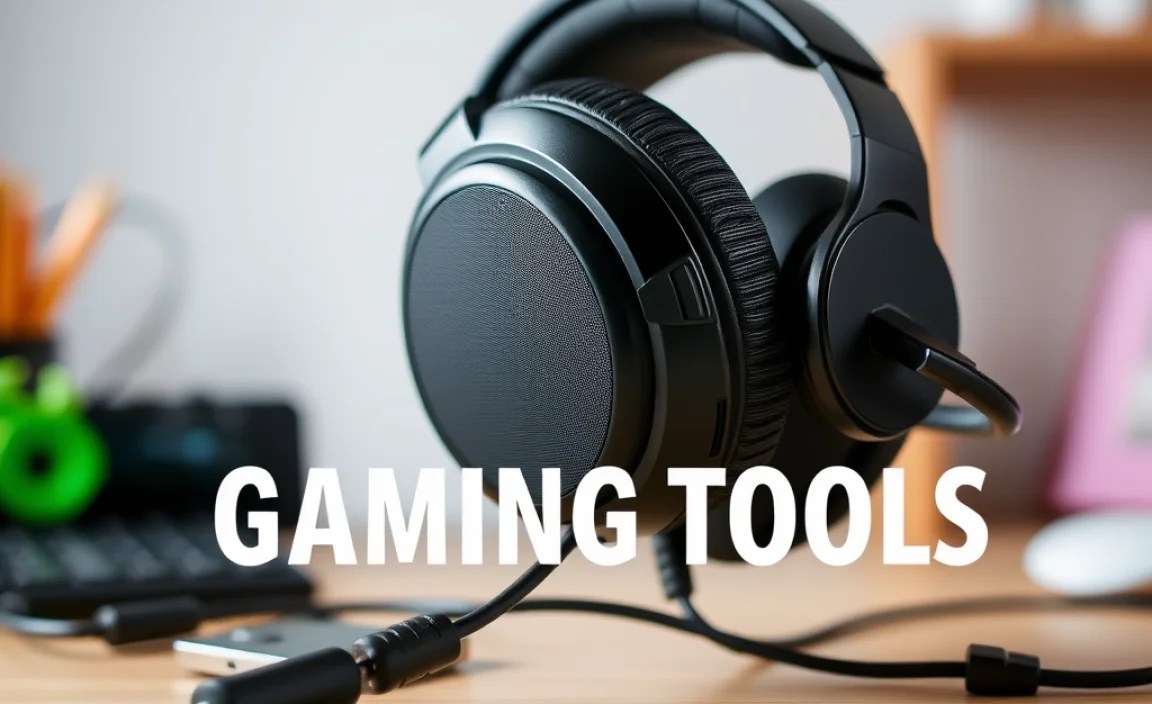
You don’t need a professional electronics lab to fix your headset. Here are some common, low-cost tools that can help you tackle most issues:
- Small Phillips Head Screwdriver Set: Look for a set with precision screwdrivers, as many headset screws are tiny.
- Pliers (Needle-nose): Useful for gripping small parts, cables, or screws.
- Wire Strippers/Cutters: Essential if you need to cut back damaged wire insulation.
- Electrical Tape or Heat Shrink Tubing: For insulating exposed wires after stripping.
- Soldering Iron and Solder (Optional, for advanced repairs): If you’re comfortable with basic soldering, this opens up more permanent fixes.
- Rubbing Alcohol (Isopropyl Alcohol): Great for cleaning dirty ports and contacts.
- Cotton Swabs and Clothespins: For applying alcohol and cleaning small areas.
- Multimeter (Optional, for advanced diagnostics): Can help test continuity of wires.
- A small container or tray: To keep track of small screws.
Troubleshooting and Fixing Common Issues: Step-by-Step
Let’s get your headset fixed! We’ll go through the most common problems and their solutions.
Fix 1: No Sound or Intermittent Sound
This is usually the easiest fix! We’ll start with the simplest checks.
- Check Physical Connections:
- Ensure the headset cable is securely plugged into the headset itself (if detachable) and into the audio jack of your PC, console, or controller. Try unplugging and replugging it firmly.
- If using a 3.5mm jack, try a different port on your device if available. Sometimes the port itself can be the issue.
- Check Volume Controls:
- Look for an in-line volume dial or buttons on the headset cable or earcup. Make sure the volume isn’t turned all the way down or muted.
- Check the master volume and application-specific volumes in your device’s sound settings.
- Test on Another Device:
- Plug your headset into a different device (another computer, a smartphone with a headphone jack). If it works elsewhere, the problem is likely with your original device’s settings or port.
- Check Default Audio Device:
- For Windows: Right-click the speaker icon in the system tray (bottom right of your screen) and select “Open Sound settings.” Under “Output,” make sure your headset is selected as the playback device. You can also find this by searching “Sound” in the Windows search bar and going to the “Playback” tab.
- For macOS: Go to System Preferences > Sound > Output. Select your headset from the list.
- For Consoles: Navigate to your console’s audio or sound settings and ensure the headset is recognized and selected.
- Update or Reinstall Audio Drivers (PC):
- Outdated or corrupted drivers are a common PC issue.
- Search for “Device Manager” on Windows.
- Expand “Sound, video and game controllers.”
- Right-click your audio device (it might be named after your motherboard’s sound card or your headset if it’s USB) and select “Update driver.” Choose to search automatically.
- If updating doesn’t work, try right-clicking again and selecting “Uninstall device.” Then, restart your PC. Windows will usually reinstall the driver automatically upon reboot.
- For USB headsets, you might need to download specific drivers from the manufacturer’s website.
- Inspect the Cable for Damage:
- Carefully examine the entire length of the headset cable, paying close attention to the points where it connects to the headset and the plug. Look for kinks, fraying, exposed wires, or signs of stress.
- If you find minor fraying, proceed to Fix 3.
Fix 2: Microphone Not Working or Poor Quality
Let’s get your voice back into the game.
- Check the Mute Switch:
- Locate any physical mute buttons on your headset cable or earcup. Ensure it’s not accidentally flipped or pressed.
- Check Microphone Permissions:
- For Windows: Go to Settings > Privacy > Microphone. Ensure “Allow apps to access your microphone” is turned ON. Scroll down and make sure the specific apps you’re using (like Discord, your game, etc.) are also allowed to access the microphone.
- For macOS: Go to System Preferences > Security & Privacy > Privacy tab. Select “Microphone” from the left sidebar and ensure the checkboxes for your apps are ticked.
- Check Default Recording Device:
- For Windows: Right-click the speaker icon in the system tray, select “Open Sound settings,” and under “Input,” ensure your headset’s microphone is selected as the input device. You can also access this via the “Recording” tab in the Sound control panel.
- For macOS: System Preferences > Sound > Input. Select your headset microphone.
- Adjust Microphone Position:
- Ensure the microphone boom is positioned correctly – usually about an inch or two from the corner of your mouth, facing your mouth. If it’s too far or too close, your voice might sound faint or distorted.
- Clean the Microphone Port:
- If your microphone attaches via a 2.5mm or similar jack, unplug it and clean the jack and the port on the headset with compressed air or a dry cotton swab to remove dust or debris.
- Update or Reinstall Microphone Drivers (PC):
- Follow the same steps as for audio drivers in Fix 1, looking for your microphone or audio device in Device Manager. Uninstalling and reinstalling can often resolve driver-related microphone issues.
- Test the Microphone:
- Use your operating system’s built-in sound recorder or a voice chat application to test if the microphone is picking up sound. If it’s picking up sound but it’s very quiet, it may be a software setting or a hardware issue with the mic element itself (which might be harder to fix cheaply).
Fix 3: Static or Buzzing Sounds
Let’s silence that annoying noise.
- Check for Interference:
- Try moving your headset cable away from other electronic devices like Wi-Fi routers, power cables, or speakers.
- If you’re using a wireless headset, ensure the receiver isn’t too close to other wireless devices.
- Clean the Audio Jack and Port:
- Dust and debris in the 3.5mm jack or the port on your device can cause poor contact and static.
- Turn off your device. Gently clean the metal tip of the headset plug and the inside of the audio port on your computer/console using a cotton swab lightly dampened with isopropyl alcohol. Ensure everything is dry before plugging back in.
- Test the Cable – The “Wiggle Test”:
- Plug in your headset and play some audio. Gently wiggle the cable at the plug and where it enters the headset, as well as at any inline controls.
- If the static appears or disappears when you wiggle a specific spot, you’ve likely found a point of damage. This usually indicates a break in the internal wiring, which requires either a repair (see damaged cable section) or replacement.
- Try a Different Audio Source/Device:
- Connect your headset to a different device. If the static is gone, the issue might be with your computer’s audio output or a ground loop created by your PC’s power supply.
- Address Ground Loops (PC):
- A ground loop often happens when your computer and speakers or monitor are plugged into different electrical circuits. Try plugging all audio-related devices into the same power strip or surge protector. If that doesn’t help, you might need a ground loop isolator (a relatively inexpensive audio accessory).
Fix 4: One Ear Cup Not Working
Let’s restore that immersive stereo sound.
- Perform the “Wiggle Test” on the Cable:
- This is crucial for this issue. With the headset plugged in and playing audio, gently wiggle the cable at both ends and near all inline controls.
- If moving a specific section of the cable changes whether the left or right ear cup functions, you’ve found a cable break. This is often the most common cause of one earcup failing.
- Check Cable Connections (Detachable Cables):
- If your headset has a detachable cable, unplug it and inspect both the connector on the cable and the port on the headset. Ensure they are clean and free of debris.
- If the cable connector itself looks damaged or bent, it might need replacement.
- Inspect the Plug:
- Look closely at the 3.5mm plug. Is it bent, corroded, or damaged? A damaged plug can fail to make consistent contact with one of the stereo channels.
- Test with a Different Cable (if applicable):
- If your headset uses a detachable cable, try using a known-good replacement cable if you have one. This is the quickest way to determine if the cable is the problem.
- Internal Wiring (More Advanced):
- If the cable tested fine, the issue might be internal wiring within the headset itself. This can involve a wire breaking loose where it connects to the ear cup driver. This repair is more complex and often requires disassembling the earcup and potentially soldering.
Fix 5: Repairing Damaged Cables
This is where things get a bit more hands-on, but it’s often very fixable!
When to Attempt Cable Repair:
You should consider cable repair if you’ve identified a specific kink, fray, or exposed wire and the “wiggle test” shows that moving that spot affects audio. It’s less feasible if the cable is severely crushed, melted, or if the damage is right at the plug. For minor fraying or exposed wires, you can often achieve a durable fix.
Steps for Cable Repair (Minor Fraying/Exposed Wire):
- Identify the Damaged Area:
- Locate the exact spot of damage.
- Cut Away Damaged Section (If Necessary):
- If the wire insulation is significantly frayed or broken, you may need to carefully cut away the damaged section using wire cutters or a sharp blade. You’ll want to expose a small, clean section of the underlying wires.
- Strip Wire Insulation:
- Using wire strippers, carefully remove about 1/2 inch of the colored insulation from the wire(s) you exposed. For most headset cables, you’ll find multiple insulated wires (e.
