
Quick Summary: Having headphone trouble? This guide offers proven, beginner-friendly fixes for common audio problems. Learn to troubleshoot connection, sound, and accessory issues with simple, step-by-step solutions to get your headphones working like new again and avoid common mistakes.
Hey there, audio adventurers! Edward Cavitt here from headphonehorizon, and I get it: there’s nothing quite like the frustration of reaching for your favorite headphones, only to be met with silence, static, or an unbalanced sound. Whether you’re a music aficionado trying to catch every subtle note, a student tuning into a vital lecture, or just someone who enjoys a good podcast on the go, faulty headphones can really disrupt your flow. But before you think about ditching them, know this: many common headphone issues have straightforward fixes. This guide is designed to be your go-to resource, walking you through essential troubleshooting steps with clarity and confidence, so you can get back to enjoying crystal-clear audio without the hassle.
Common Headphone Issues and How to Tackle Them
Headphones, much like any piece of tech we rely on daily, can encounter a few snags. The good news is that most of these problems stem from simple causes that are often easy to resolve. We’ll cover everything from connection hiccups to audio distortions so you can identify the problem and get your sound back on track.
1. No Sound at All: The Silent Treatment

This is perhaps the most disheartening headphone issue. When nothing comes through, it’s easy to panic, but let’s break down the potential culprits.
1.1 Check the Basics: Volume and Mute

It sounds obvious, but have you double-checked your device’s volume and mute settings? On computers, there might be a separate volume slider for your headphones that’s been accidentally lowered or muted. For smartphones and tablets, swipe down from the top or bottom to access quick settings and ensure the volume is up and not in silent mode.
1.2 Physical Connections: Is Everything Plugged In Securely?

For wired headphones, this is the absolute first place to look. Ensure the headphone jack is fully, and correctly, inserted into the audio port. Sometimes, a little wiggle or a firmer push can seat the connector properly. If you’re using a wireless adapter or Bluetooth dongle, make sure that’s also securely connected to its port.
1.3 Different Device Test: Rule Out the Source
To isolate whether the issue is with your headphones or the device you’re using, try plugging them into another audio source. If they work on a different phone, laptop, or tablet, the problem likely lies with the original device’s audio output or settings. If they still produce no sound, continue troubleshooting the headphones themselves.
1.4 Clean the Audio Jack and Port

Dust, lint, and debris can accumulate in both the headphone jack and the corresponding port on your device, preventing a clean connection. Carefully inspect the jack on your headphones and the port on your device. You can gently clean these with a dry, soft brush (like a clean paintbrush) or a can of compressed air. For obstinate build-up, a cotton swab lightly dampened with isopropyl alcohol can be used, but ensure it’s completely dry before attempting to reconnect.
2. Sound Only in One Ear: The Lopsided Soundscape

This frustrating issue means your audio is unbalanced. It can be caused by physical damage or a faulty connection.
2.1 Inspect the Cable for Damage
For wired headphones, carefully examine the entire length of the cable, paying close attention to the areas near the earbuds and the plug. Look for any nicks, cuts, or kinks that might have severed or damaged the internal wires. Repeated bending or pulling can cause strain that leads to this problem. If you find visible damage, it might be time for a replacement, though some minor fixes are possible for the adventurous.
2.2 Check the Connector Alignment
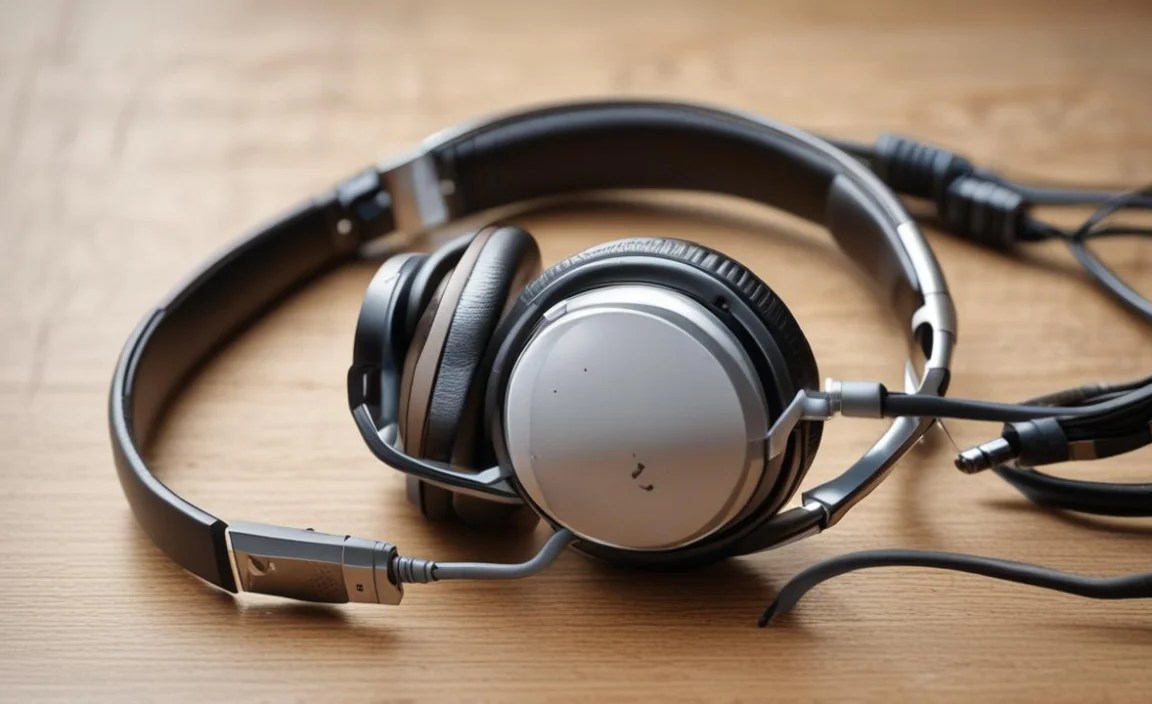
The 3.5mm headphone jack has multiple contacts for stereo sound. If the connector isn’t fully seated, or if it’s slightly angled, it might only be making contact with one of the stereo channels. Ensure the plug is inserted straight and all the way in. For certain devices that use a single-port design for audio and microphone, a TRRS (Tip-Ring-Ring-Sleeve) connector is used. Misalignment with these can also cause one-sided audio.
2.3 Audio Balance Settings on Your Device

Many operating systems have an audio balance setting that allows you to adjust the volume between the left and right channels. On Windows, this is in the Sound settings; on macOS, it’s in Sound Preferences. Ensure the balance slider is centered. For mobile devices, this is often found in accessibility settings, designed to assist those with hearing impairments.
Here’s a quick look at where to find these settings on common platforms:
| Device/OS | Location of Audio Balance Settings |
|---|---|
| Windows 10/11 | Settings > System > Sound > (Select your headphones) > Properties > Levels > Balance |
| macOS | System Preferences > Sound > Output > (Select your headphones) > Balance slider |
| iOS (iPhone/iPad) | Settings > Accessibility > Audio/Visual > Balance |
| Android | Settings > Accessibility > Hearing enhancements > Left-right sound balance (path may vary by device) |
2.4 Testing with Another Pair of Headphones

As with the “no sound” issue, testing with a different pair of headphones on the same device can help determine if the problem is with your headphones or the device. If another pair works fine, your original headphones are the likely source of the one-sided sound.
3. Static, Crackling, or Buzzing Sounds: Unwelcome Noise

Intermittent static or a constant buzz can be incredibly distracting. This can stem from interference, software glitches, or physical issues.
3.1 Wireless Interference (for Bluetooth Headphones)
Bluetooth headphones are susceptible to interference from other wireless devices, microwaves, and even certain building materials. Try moving closer to your paired device, clearing obstructions, and switching off other active Bluetooth devices in the vicinity. Ensuring your headphones and device are updated often helps improve Bluetooth stability.
3.2 Audio Drivers on Computers
Outdated or corrupted audio drivers can cause a host of sound problems, including static and crackling. On Windows, you can update these through Device Manager:
- Right-click the Start button and select “Device Manager.”
- Expand “Sound, video and game controllers.”
- Right-click your audio device (e.g., Realtek High Definition Audio) and select “Update driver.”
- Choose “Search automatically for drivers.” If Windows finds an update, follow the on-screen instructions. You may need to restart your computer.
For other operating systems, consult your manufacturer’s support website for the latest drivers.
3.3 Ground Loop Hum (Wired Headphones on Computers)
A common cause of buzzing or humming, especially when plugged into a computer, is a ground loop. This occurs when your audio device shares the same ground as another powered device, creating an electrical pathway for noise. A simple solution is a ground loop isolator, which is an inexpensive adapter that breaks this loop. Always purchase reputable accessories from trusted brands to ensure quality and safety.
3.4 Faulty Cable or Connector

Similar to the one-sided sound issue, a damaged cable or a loose connection can introduce static. Gently bend and move the cable around the plug and at the earcup/earbud. If the static changes or disappears when you do this, it strongly suggests a cable issue. A poorly seated connector can also cause intermittent static.
4. Low Volume: The Quiet Headphones

When your headphones aren’t as loud as they used to be, it can be disappointing. Let’s pinpoint why.
4.1 Volume Settings on Both Device and Headphones

Double-check all volume controls. Many headphones have their own inline volume controls or touch-sensitive areas. Ensure these are turned up, and compare them with your device’s master volume. Sometimes, a Bluetooth headphone might have a separate volume that gets out of sync.
4.2 Sound Boost/Volume Limiter Settings
Some devices, particularly smartphones and portable music players, have built-in volume limiters to protect hearing. Check your device’s sound settings or accessibility options to see if a volume limiter is engaged and adjust it if necessary. For example, on iOS, this is under Settings > Music > EQ and then Sound Check, or under Accessibility > Audio/Visual. Android settings vary but are typically found in similar Sound or Accessibility menus.
4.3 Low-Quality Audio Source
The volume and clarity of your audio are heavily dependent on the source file. A low-bitrate MP3 or a poorly mixed track will sound quieter and less impressive than a high-quality stream or lossless audio file. Ensure you’re using a good quality audio source. For streaming services, check your audio quality settings and opt for “high” or “lossless” if available.
4.4 Dirty Earbud Grilles
For in-ear headphones, earwax, dust, and debris can accumulate on the grilles, physically blocking sound and reducing volume. Carefully clean the grilles using a dry, soft brush or a clean, dry cotton swab. Ensure no cleaning solution or moisture enters the driver. For stubborn blockages, a small amount of diluted isopropyl alcohol on a swab can be used, followed by thorough drying.
5. Bluetooth Connectivity Problems: The Wireless Woes
When your wireless headphones refuse to pair or keep disconnecting, it can be a real hassle.
5.1 Pairing Mode and Device Visibility
Ensure your headphones are actually in pairing mode. This usually involves holding down the power button or a dedicated Bluetooth button for a few seconds until an indicator light flashes. Also, make sure Bluetooth is enabled on your device and that your device is discoverable.
5.2 Restart Both Devices
The classic IT solution often works wonders for Bluetooth issues. Turn off Bluetooth on your phone or computer, then turn your headphones off. Wait a minute, then turn your headphones back on and put them in pairing mode. Finally, re-enable Bluetooth on your device and try to connect. A full restart of your phone or computer can also clear temporary glitches.
5.3 Forget and Re-pair the Device
If your headphones have been previously paired but are now having trouble connecting, try “forgetting” them from your device’s Bluetooth list and then re-pairing them from scratch. On most devices, you go into Bluetooth settings, find the headphones, and select “Unpair,” “Forget Device,” or “Remove.” Then, re-initiate the pairing process.
5.4 Check Battery Level
Low battery can cause unstable Bluetooth connections or prevent devices from pairing altogether. Ensure your headphones are adequately charged. Many earbuds and headphones will indicate a low battery with a voice prompt or flashing light.
5.5 Distance and Obstructions
Bluetooth has a limited range (typically around 30 feet or 10 meters). Keep your headphones relatively close to your device. Walls, metal objects, and even the human body can interfere with the signal. If you experience frequent dropouts, try staying within a clear line of sight.
5.6 Update Firmware and Software
Manufacturers often release firmware updates for their headphones to improve performance, fix bugs, and enhance connectivity. Check the manufacturer’s app or website for instructions on how to update your headphone’s firmware. Similarly, ensure your smartphone or computer’s operating system is up-to-date, as these updates can include Bluetooth stack improvements.
6. Microphone Not Working: Can’t Be Heard

Clear communication is key, so a non-functional microphone is a significant problem.
6.1 Ensure Microphone is Selected as Input Device
On computers, your system might be defaulting to the wrong microphone (e.g., a built-in laptop mic instead of your headset). Go into your system’s sound or audio settings and ensure your headphones’ microphone is selected as the default input device. On Windows, this is under Sound Settings > Input. On macOS, it’s Sound Preferences > Input.
6.2 Check for Microphone Mute Switch/Setting
Many headsets have an inline mute button on the cable or a gesture (like flipping the boom mic up) to mute the microphone. Double-check that you haven’t accidentally activated this. Some communication apps also have their own internal mute functions.
6.3 Grant Permissions for Microphone Access
Modern operating systems and apps require specific permissions to access your microphone. On smartphones and tablets, go into your device’s privacy settings and ensure the app you’re using has permission to access the microphone. On desktop operating systems, similar permission settings exist, especially for applications like Zoom, Teams, or Skype.
6.4 Test with a Different Application/Device
If the microphone isn’t working in one app, try it in another. If it works in another app but not the first, the issue is likely with the app’s settings or permissions. If it doesn’t work in any application, it might be a hardware problem with the headphones or the device’s audio input.
6.5 Clean the Microphone (if applicable)
If your headphones have a dedicated boom microphone, check if the mic capsule is obstructed by lint or debris. Gently clean it with compressed air or a dry brush.
7. Physical Damage: The Accidental Mishap
Sometimes, headphones fall, get stepped on, or suffer other physical trauma.
7.1 Broken Cables and Connectors
Loose wires, frayed cables, or bent connectors are common after accidents. If the damage is visible and near the plug or earcup, a professional repair might be possible for higher-end headphones, or you might consider a replacement. For minor fraying at the plug, some people have had success with heat-shrink tubing and careful soldering, but this requires technical skill and can void warranties. For more details on cable repair, resources like iFixit offer excellent guides for the electrically inclined.
7.2 Loose Headband or Earcups
If the headband snaps or earcups become loose, it can affect comfort and sound isolation. Many manufacturers offer replacement parts, especially for premium models. Look for repair kits or specific replacement components on the manufacturer’s website or dedicated audio repair sites. For instance, brands like Sony and Bose often provide support for common issues and part replacements.
7.3 Water Damage
If your headphones have gotten wet, turn them off immediately and do not attempt to charge them. For wired headphones, let the cable and plug dry completely before use. For wireless headphones, remove any accessible battery, open as much as you safely can (following manufacturer guidelines or reputable teardown guides), and gently clean any signs of corrosion with isopropyl alcohol. Use desiccant packs (like those found in shoe boxes) to help draw out moisture over a few days. However, water damage is often extensive and can lead to terminal failure.
When to Consider Professional Help or Replacement
While many issues are user-fixable, there are times when a professional touch or a new pair is the best course of action.
- Permanent Internal Damage: If you suspect damage to the drivers (the speaker components) or if multiple troubleshooting steps fail, it’s likely an internal hardware problem.
- Expensive High-End Headphones: For premium models, the cost of specialized repair might be worth it to preserve audio quality.
- Warranty Coverage: If your headphones are still under warranty, contact the manufacturer first. Attempting DIY repairs could void the warranty.
- Time and Skill Constraints: If you’re not comfortable with the repair process or lack the necessary tools, it’s safer and often faster to opt for a replacement.
Frequently Asked Questions (FAQ)
Here are some common questions beginners might have:
Q1: My headphones sound distorted at high volumes. What’s wrong?
Answer: Distortion at high volumes can occur if the audio source is pushing too much signal to the headphones, or if the headphones themselves are being driven beyond their capacity. Try lowering the volume on your device and ensure you’re using a high-quality audio source. If the distortion persists even at moderate volumes, it might indicate damaged drivers within the headphones.
Q2: I just bought new headphones, and the sound is weak. Should I return them?
Answer: Not necessarily. First, check all volume controls on your device and the headphones themselves. Ensure there isn’t a volume limiter enabled on your phone or computer. Also, try testing them with a different audio source or music file, as a low-quality source can sound quiet. If they still sound weak after these checks, consider contacting the retailer or manufacturer.
