
Quick Summary: Elevate your PS4 gaming with the right headphones. This guide breaks down key features like comfort, sound quality, and microphone performance for the best gaming experience. Discover essential tips for choosing and connecting your new headset to immerse yourself fully in every game.
Good Headphones For PS4: Essential Gaming Upgrade
Hey gamers and audio enthusiasts! Edward Cavitt here from Headphone Horizon. So, you’ve got your PlayStation 4, you’re diving into epic adventures, and you’re wondering how to make that experience even better. One of the most impactful ways to level up your PS4 gaming is by investing in a quality pair of headphones. Forget the tinny default earbuds; we’re talking about immersing yourself in the game’s world, hearing every footstep, every whispered clue, and communicating clearly with your teammates. Choosing the right “good headphones for PS4” can seem a little daunting with all the tech jargon out there, but don’t worry! I’m here to break it down, making it super simple so you can find the perfect audio companion for your gaming sessions.
Why You Need Good Headphones for Your PS4

Playing games on your PS4 without dedicated headphones is like watching a movie with the sound muted – you’re missing a huge part of the experience! Good headphones don’t just make games louder; they fundamentally change how you interact with and enjoy your games. Here’s why making this upgrade is so essential:
- Immersive Audio: Hear the subtle nuances of game design, from the rustling leaves in a forest to the distant roar of a dragon. This level of detail pulls you deeper into the game’s atmosphere and narrative.
- Crucial Communication: For multiplayer games, clear voice chat is vital. Good headphones with a quality microphone ensure your teammates hear your strategies and callouts effectively, giving you that competitive edge.
- Environmental Awareness: In games where sound cues are important (like shooters or survival horror), headphones let you pinpoint enemy locations, detect approaching threats, and react faster.
- Reduced Distractions: Block out ambient noise from your surroundings, allowing you to focus entirely on the game. This is especially helpful if you’re gaming in a noisy environment or at odd hours.
- Personalized Experience: Many gaming headsets offer customizable EQ settings, allowing you to tweak the audio to your preference – boost bass for explosions or crisp highs for dialogue.
- Comfort for Long Sessions: Unlike generic earbuds, well-designed gaming headphones prioritize comfort, featuring plush earcups and adjustable headbands for hours of comfortable wear.
Key Features to Look For in PS4 Headphones

When you’re on the hunt for “good headphones for PS4,” it’s easy to get lost in specs. Let’s simplify it by focusing on the most important features an everyday gamer should consider:
1. Comfort and Design
You’ll be wearing these for potentially hours at a time, so comfort is paramount. Look for:
- Padded Earcups: Soft, breathable materials like memory foam or plush fabric prevent ear fatigue.
- Adjustable Headband: A headband that can be easily adjusted to fit your head size ensures a snug but not too tight fit.
- Lightweight Construction: Heavy headphones can cause neck strain. Aim for something that feels balanced and not overly burdensome.
- Swivel or Detachable Mic: A microphone that can be moved out of the way when you’re not using it, or completely detached, adds convenience.
2. Sound Quality
This is where the magic happens. You want audio that is clear, balanced, and capable of reproducing a wide range of sounds:
- Driver Size: Larger drivers (e.g., 40mm or 50mm) generally produce a fuller, more robust sound with better bass response.
- Frequency Response: Look for a broad range (e.g., 20Hz to 20kHz) to ensure you hear both deep bass and crisp treble.
- Surround Sound (Optional but Recommended): While PS4 doesn’t natively support advanced surround sound formats like Dolby Atmos for all games, many headsets offer virtual surround sound (like DTS Headphone:X or Windows Sonic) that simulates a more immersive 3D audio experience. This can significantly help with positional audio cues.
- Clarity: Ensure voices and in-game effects are distinct and not muddled by excessive bass or background noise.
3. Microphone Performance
If you play online multiplayer games, a good mic is a must-have:
- Clear Voice Capture: The mic should pick up your voice clearly without excessive background noise. Some mics offer noise-canceling features.
- Bidirectional or Unidirectional: Most gaming mics are unidirectional, focusing on sound from your mouth. Bidirectional mics pick up sound from two directions, which can be useful but also pick up more ambient noise.
- Mute Function: An easy-to-access mute button on the headset or inline controls is incredibly convenient.
4. Connectivity
How the headphones connect to your PS4 is crucial:
- 3.5mm Audio Jack: This is the most common and versatile connection. Most PS4 controllers have a 3.5mm port, allowing for a direct, plug-and-play connection. It’s simple and requires no batteries or charging for the headset itself.
- USB Dongle (Wireless): Some wireless headsets use a USB dongle for a dedicated, low-latency wireless connection. This offers freedom from wires but requires the headset to be charged.
- Bluetooth: While some headphones offer Bluetooth, it’s often not ideal for gaming due to potential latency (delay between the action on screen and the sound). For critical gaming audio, wired or USB wireless is usually preferred.
5. Durability and Build Quality
A well-built headset will last longer and feel more premium. Look for sturdy materials, reinforced cables (if wired), and a solid overall construction.
Wired vs. Wireless PS4 Headphones
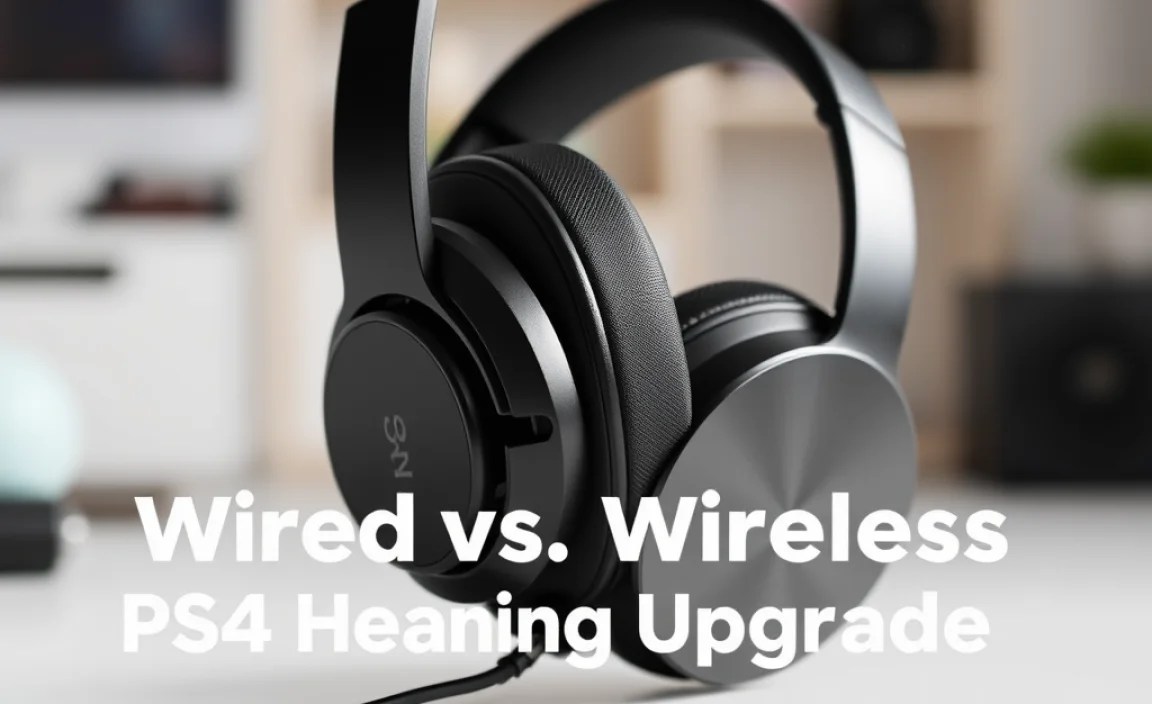
This is a major decision point for many gamers. Both have their advantages:
| Feature | Wired Headphones | Wireless Headphones |
|---|---|---|
| Latency (Delay) | Virtually none. The sound is instant. | Can have slight latency, though modern wireless tech is very good. Best for gaming are USB dongle types, not always Bluetooth. |
| Power Source | Draws power from the controller or PS4. No charging needed for headset. | Requires internal battery. Needs regular charging. |
| Setup | Plug-and-play via 3.5mm jack or USB. Simple. | May require pairing, driver installation (for USB), or charging. Can be more involved. |
| Freedom of Movement | Limited by cable length. Can get tangled. | Unlimited freedom. Great for moving around. |
| Audio Quality | Generally very consistent and high quality. | Can be excellent, but sometimes compression can affect quality over Bluetooth. USB dongles generally maintain high quality. |
| Price | Often more affordable for comparable features. | Tend to be more expensive due to wireless technology. |
Recommendation: For the absolute best performance with zero fuss and latency, wired 3.5mm headphones plugged into your PS4 controller are an excellent and reliable choice for beginners. If you prioritize freedom of movement and don’t mind charging, a good quality wireless headset with a USB dongle is also a fantastic option.
How to Connect Your Headphones to Your PS4

Connecting your new “good headphones for PS4” is usually straightforward. Here’s how:
1. Using a 3.5mm Audio Jack (Wired)
- Locate the 3.5mm audio jack on the bottom of your PS4 DualShock 4 controller.
- Plug the headphone’s 3.5mm connector directly into this port.
- Your PS4 should automatically detect the headset. If not, you might need to go to Settings > Devices > Audio Devices.
- Under Output to Headphones, select “All Audio”.
- Under Volume Control (Headphones), ensure the volume slider is set to a comfortable level.
2. Using a USB Dongle (Wireless)
- First, ensure your headset is fully charged.
- Locate a free USB port on your PS4 (front or back).
- Plug the wireless USB dongle into the USB port.
- Your PS4 will likely display a message indicating the USB headset has been detected.
- Follow any on-screen prompts or instructions that came with your headset for initial pairing if necessary (though most USB dongles are plug-and-play with PS4).
- As with the 3.5mm connection, go to Settings > Devices > Audio Devices and set Output to Headphones to “All Audio”.
Adjusting PS4 Audio Settings
Once connected, you can fine-tune your audio experience:
- Navigate to Settings > Devices > Audio Devices.
- Input Device: Ensure your headset’s microphone is selected (if applicable).
- Output Device: Select your connected headset.
- Output to Headphones: Choose “All Audio” to hear game audio and chat, or “Chat Audio Only” if you prefer game sounds through your TV speakers. For most gamers, “All Audio” is the way to go.
- Microphone Level: Speak into the microphone and adjust the slider until your voice is captured clearly.
- Headphone Volume: Adjust the master volume for your headset here or using inline controls on the headset itself.
Top Picks for Good Headphones for PS4 (Beginner-Friendly Options)

Finding the “best” headphones is subjective, but here are some reliable categories and examples known for their performance and value for PS4 gamers. Remember to check current pricing and availability, as models and deals change!
1. Budget-Friendly Champions (Under $50)
These offer solid performance without breaking the bank.
- HyperX Cloud Stinger: Often praised for its comfort, decent sound, and robust build quality for its price point. It’s a wired, 3.5mm headset that’s incredibly popular among new gamers.
- Logitech G432: A good all-rounder with 7.1 virtual surround sound, comfortable earcups, and a flip-to-mute microphone. It connects via USB or 3.5mm.
Pros:
- Excellent value for money.
- Often feature core gaming necessities like comfort and clear mic.
- Great entry point into dedicated gaming audio.
Cons:
- Sound quality won’t match high-end models.
- Build materials might be less premium.
- Features like advanced surround sound might be basic.
2. Mid-Range All-Rounders ($50 – $100)
These step up in sound, comfort, and features.
- HyperX Cloud Alpha: A legendary headset known for its dual-chamber drivers that deliver clearer audio with better distinction between bass and mids/highs. Fantastic comfort and build. Wired via 3.5mm.
- SteelSeries Arctis 3: Offers a sleek design, comfortable “ski-goggle” headband for even weight distribution, and a clear microphone. Connects via 3.5mm.
Pros:
- Improved audio fidelity and detail.
- Enhanced comfort for longer gaming sessions.
- Better microphone clarity.
Cons:
- Still might lack some premium features like advanced wireless.
- Can be sensitive to source audio quality.
3. Premium Wireless Options ($100+)
For those who want top-tier features and wireless convenience.
- SteelSeries Arctis 7 (or newer models like Arctis 7+): A widely recommended wireless headset for PS4. It uses a lag-free USB dongle, offers excellent comfort, a retractable ClearCast microphone, and a long battery life.
- Sony PlayStation PULSE 3D Wireless Headset: Officially licensed by PlayStation, this headset is designed specifically for the PS4 and PS5. It offers 3D AudioTech support for immersive sound and connects wirelessly via its USB dongle.
Pros:
- Wireless freedom without significant latency.
- Excellent sound immersion and often virtual surround sound.
- Premium comfort and build quality.
- Convenient features like onboard controls and long battery life.
Cons:
- Higher price point.
- Requires charging.
- Some Bluetooth implementations can have noticeable lag, so USB dongle is key for PS4 gaming.
Understanding 3D Audio on PS4
PlayStation has been a big proponent of 3D audio, especially with the PS5’s Tempest 3D AudioTech. On PS4, while the full Tempest engine isn’t present, many headsets and games support technologies that simulate 3D audio through headphones. This virtual surround sound helps you better discern the direction and distance of in-game sounds, giving you a significant advantage and a more immersive experience. For more on how audio works in gaming, the IEEE has extensive research on audio signal processing, which is the backbone of these technologies.
Maintaining Your PS4 Headphones
To ensure your “good headphones for PS4” continue to perform optimally, a little care goes a long way:
- Keep them Clean: Regularly wipe down the earcups and headband with a slightly damp cloth. For removable earpads, consult your manual for gentle cleaning instructions. Avoid harsh chemicals.
- Manage Cables: If you have wired headphones, avoid yanking the cable directly from your controller. Instead, hold the plug when disconnecting. Store cables neatly to prevent kinks or breaks.
- Proper Storage: When not in use, store your headphones in a safe place, away from potential damage, dust, or extreme temperatures. A headset stand or its original box can be useful.
- Battery Care (Wireless): For wireless headsets, follow the manufacturer’s guidelines for charging. Avoid leaving them plugged in indefinitely after reaching 100% charge if possible, as this can impact long-term battery health.
- Mic Care: Keep the microphone free from debris and avoid banging it around.
Troubleshooting Common PS4 Headset Issues
Even the best headphones can sometimes run into minor hiccups. Here are a few common issues and how to fix them:
My PS4 Headphones Have No Sound
- Check Connection: Ensure the 3.5mm jack is fully plugged into the controller, or the USB dongle is securely in the PS4 port. Try a different controller port or USB port.
- Check PS4 Audio Settings: Go to Settings > Devices > Audio Devices and confirm your headset is selected as the Output Device and Output to Headphones is set to “All Audio”.
- Check Volume: Make sure the volume on the headset itself (if it has an inline control) and in the PS4 settings is turned up.
- Test on Another Device: Plug your headphones into a smartphone or PC to see if they work there. If not, the headphones themselves might be faulty.
My Microphone Isn’t Working
- Check Mute: Ensure the microphone isn’t accidentally muted via an inline switch or button.
- Check PS4 Microphone Settings: Go to Settings > Devices > Audio Devices and check the Microphone Level. Speak into the mic to see if the bar registers your voice.
- Check Connection: For wired mics, ensure the mic plug is fully inserted. For wireless, ensure it’s properly paired.
- Flip-Up Mic: If your headset has a flip-up mic, ensure it’s in the down/speaking position. Some headsets have an auto-mute feature when flipped up.
Sound is Distorted or Crackling
- Check Cable/Connection: For wired headsets, a damaged cable or loose connection can cause distortion. Inspect the cable for wear and tear. Try wiggling the connectors gently.
