
A headphone adapter for PC is a small, affordable device that lets you connect your headphones to your computer, bridging the gap between different audio jack sizes. This guide explains what they are, why you might need one, and how to choose and use the right adapter for a seamless PC audio experience.
Headphone Adapter for PC: Your Essential Guide to Seamless Sound

Ever tried plugging your favorite headphones into your computer only to find the jack doesn’t quite fit? It’s a common frustration, but thankfully, there’s a simple solution: a headphone adapter for PC.
These handy little gadgets act as bridges, ensuring your audio gear works perfectly with your computer. Whether you’re a gamer, a student attending online lectures, or just someone who loves their music, understanding how to use these adapters can unlock better sound and a more convenient setup. Let’s dive in and make sure your PC and headphones are a perfect match!
Why You Might Need a Headphone Adapter for Your PC

It might seem straightforward, but the world of audio connectors can be a bit of a maze. Most modern headphones, especially those designed for mobile devices, come with a 3.5mm (1/8-inch) plug. While many PCs also have a 3.5mm port for headphones or speakers, there are several reasons why an adapter becomes incredibly useful, or even necessary:
- Different Jack Sizes: Some older PCs or specific professional audio interfaces might use a larger 1/4-inch (6.35mm) jack for headphones. If your headphones have a 3.5mm plug, you’ll need an adapter to make them fit.
- Combined Headphone/Microphone Jacks: Many laptops and some desktop PCs now feature a single, TRRS (Tip-Ring-Ring-Sleeve) 3.5mm jack that handles both stereo headphone audio and the microphone signal. If your headset has separate plugs for headphones and a microphone, you’ll need an adapter to combine them into one that can be plugged into this single port, or a splitter if your PC has separate ports but you want to use a single-plug headset.
- Extending Reach: Sometimes, the headphone port on your PC might be in an awkward location. An adapter with a short cable can provide a little extra reach, making it easier to plug in your headphones without straining.
- Durability and Convenience: Using an adapter can sometimes be more convenient than directly plugging and unplugging your headphones from the PC’s sometimes less-than-sturdy port, potentially extending the life of both.
- Specific Audio Equipment: Certain professional audio gear, like some audio interfaces or mixers, might use different connector types (e.g., ¼-inch jacks) that require an adapter to work with standard headphones.
Understanding Audio Jacks: A Quick Primer
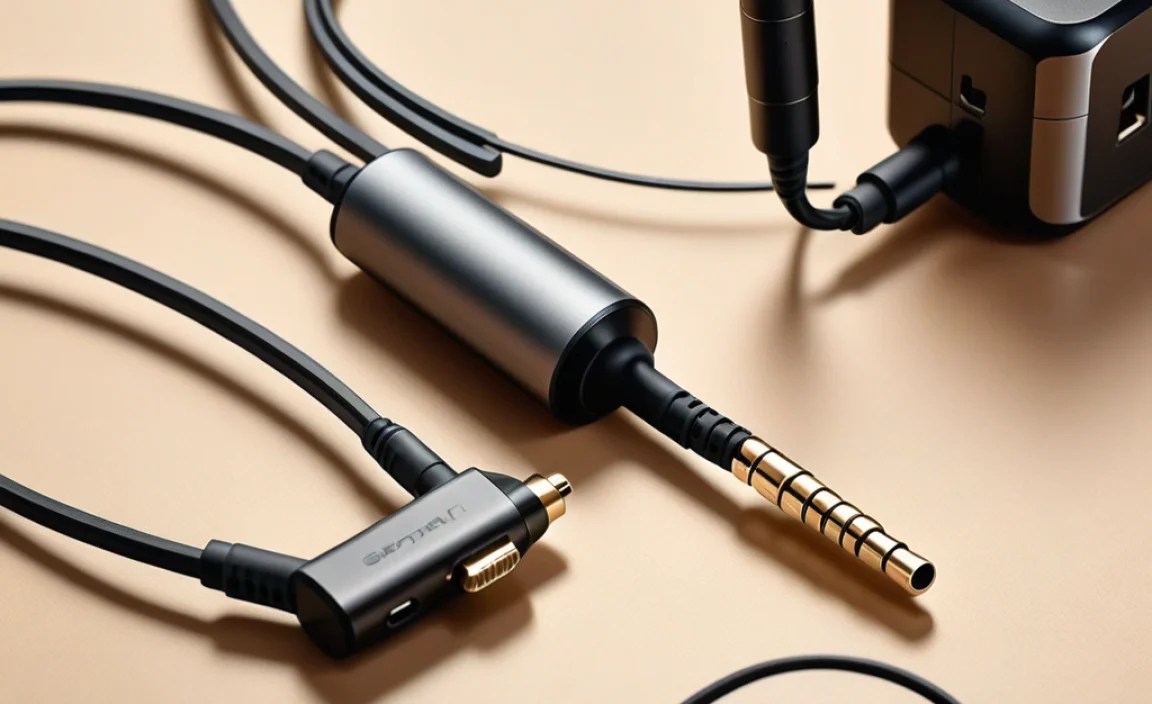
Before we get into adapters, let’s quickly cover the common audio jack types you’ll encounter:
- 3.5mm (1/8-inch): This is the most common size for consumer headphones and many smartphones. It’s small and widely compatible. These can be mono (TS – Tip-Sleeve) or stereo (TRS – Tip-Ring-Sleeve), but for headphones, they are almost always TRS for stereo sound.
- 1/4-inch (6.35mm): Larger and more robust, this jack is often found on professional audio equipment, electric guitars, and some older or higher-end audio systems.
- TRRS (Tip-Ring-Ring-Sleeve): This is a variation of the 3.5mm jack. It has three conductive sections instead of two (TRS), allowing it to carry stereo audio out and a microphone signal in, or sometimes even a video signal. It’s common on smartphones and many modern laptops.
The key takeaway is that audio jacks come in different sizes and can carry different types of signals. Adapters are designed to translate between these variations.
Types of Headphone Adapters for PC

Headphone adapters for PC come in a few main flavors, each designed for a specific purpose. Understanding these types will help you pick the perfect one for your needs.
1. Basic Size Adapters (e.g., 3.5mm to 1/4-inch, or 1/4-inch to 3.5mm)
These are the simplest adapters. They just change the physical size of the connector.
- Function: Allows a smaller plug to fit into a larger jack, or vice-versa.
- Common Uses:
- Plugging standard 3.5mm headphones into a PC with a 1/4-inch headphone port.
- Connecting a pair of high-fidelity headphones with a 1/4-inch plug to a device with a 3.5mm jack (like a laptop).
- Example: A small adapter that looks like a tiny metal barrel, where you plug your 3.5mm headphone cable into one end, and the other end fits into a 1/4-inch socket on your PC.
2. Microphone/Headphone Splitters (Y-Adapters)
These are essential if your PC has separate microphone and headphone jacks, but your headset has a single TRRS plug.
- Function: Takes a single TRRS 3.5mm jack (which carries both audio and microphone signals) and splits it into two separate jacks: one for headphones (audio out) and one for a microphone (audio in).
- Common Uses:
- Connecting a gaming headset with a single plug to a desktop PC that has separate blue (microphone) and green (headphone) ports.
- Using a smartphone headset with your PC that has distinct audio and mic inputs.
- Example: A small cable with a single TRRS 3.5mm male plug on one end and two 3.5mm female jacks (often color-coded) on the other.
- Tip: Look for splitters that are specifically designed for headsets to ensure the microphone input works correctly.
3. Combo Jacks Adapters (for Laptops/Consoles)
These adapters are the opposite of the Y-splitters, designed to combine separate headphone and microphone jacks into a single TRRS port.
- Function: Takes two separate 3.5mm jacks (one for audio out, one for microphone in) and combines them into a single TRRS 3.5mm plug. This is useful for connecting a standard PC headset (with two plugs) to devices that only have a single combo jack, like many laptops, tablets, and even some gaming consoles (like the PS4/PS5 controller).
- Common Uses:
- Using a desktop PC headset with a laptop that has only one headphone/microphone combo port.
- Connecting a headset to a PS4 or PS5 controller for in-game chat.
- Example: A cable with two 3.5mm female connectors (one for headphones, one for mic) and a single 3.5mm male TRRS plug.
4. USB Audio Adapters (External Sound Cards)
While not strictly “adapters” in the cable sense, these USB devices effectively act as external sound cards, providing new audio input and output ports via USB.
- Function: Replaces or augments your PC’s built-in sound card. They offer a USB connection and typically include standard 3.5mm headphone and microphone jacks.
- Common Uses:
- When your PC’s built-in audio ports are damaged or not working correctly.
- To bypass noisy internal audio components for cleaner sound.
- To gain access to more advanced audio features, like virtual surround sound.
- When your PC lacks the specific ports you need (e.g., no headphone jack, or you need balanced audio inputs).
- Example: A small dongle that plugs into a USB port and offers one or more 3.5mm jacks. Some are very basic, while others might have volume controls or other sophisticated features.
- Benefit: These often provide better sound quality and fewer interference issues than basic adapters.
How to Choose the Right Headphone Adapter for Your PC

With so many options, how do you pick the right one? It all comes down to understanding what you’re trying to connect and what ports you have available.
Step 1: Identify Your Headphone/Headset Connector
Look at the plug on your headphones or headset. Is it:
- A single 3.5mm plug (TRS): This is just for stereo audio.
- A single 3.5mm plug (TRRS): This likely carries both stereo audio and a microphone signal (common for phone/laptop headsets).
- Two separate 3.5mm plugs: Usually, one is green for headphones (audio) and one is pink for the microphone (mic).
- A 1/4-inch (6.35mm) plug: Common on studio headphones.
Step 2: Identify Your PC’s Audio Ports
Examine the back or front panel of your desktop PC, or the sides of your laptop. You’re looking for:
- A single 3.5mm jack (often with a headphone icon): This is usually a TRRS port on laptops/modern PCs, capable of both audio out and mic in.
- Separate 3.5mm jacks: Typically one green or labeled “Audio Out/Headphones,” and one pink or labeled “Microphone In.”
- A larger 1/4-inch (6.35mm) jack: Less common, but found on some audio equipment or older PCs.
- USB Ports: Standard USB-A or USB-C ports.
Step 3: Match Your Gear to Your PC Ports
Here’s a decision tree to help you find the right adapter:
Scenario A: Your headphones have a single 3.5mm (TRS or TRRS) plug, and your PC has a single 3.5mm combo jack.
- Action: You might not need an adapter at all! They should be compatible.
- Exception: If your headphones have a TRRS plug (with a mic) and your PC’s single jack is only for audio output, you might need a TRRS to TRS splitter/adapter. Check your PC’s specifications.
Scenario B: Your headset has one TRRS 3.5mm plug, but your PC has separate headphone and microphone jacks (e.g., green and pink).
- Action: You need a TRRS to Dual 3.5mm splitter (Y-adapter).
Scenario C: Your headset has two separate 3.5mm plugs (headphones and mic), but your PC has only one 3.5mm combo jack.
- Action: You need a Dual 3.5mm to TRRS combo adapter.
Scenario D: Your headphones have a 3.5mm (TRS) plug, but your PC has a 1/4-inch (6.35mm) headphone jack.
- Action: You need a 3.5mm female to 1/4-inch male adapter.
Scenario E: Your headphones have a 1/4-inch (6.35mm) plug, but your PC has a 3.5mm headphone jack.
- Action: You need a 1/4-inch female to 3.5mm male adapter.
Scenario F: Your PC’s audio ports are damaged, noisy, or lacking the required connectivity.
- Action: Consider a USB audio adapter/external sound card. Check if it has the right inputs/outputs you need.
Key Features to Look For:
- Build Quality: Opt for adapters with sturdy connectors and a well-insulated cable if it has one. Metal connectors often feel more durable.
- Compatibility: Ensure the adapter is designed for the specific jack types you are dealing with (TRS, TRRS, etc.).
- Brand Reputation: Stick to reputable brands known for audio accessories for better reliability.
- Length (for splitters/combo adapters): A short, integrated cable is usually best for these to minimize signal degradation and snagging.
How to Use a Headphone Adapter for PC: A Step-by-Step Guide
Using a headphone adapter is generally straightforward. Here’s how to connect them correctly:
For a Basic Size Adapter (e.g., 3.5mm to 1/4-inch)
- Identify the Ports: Locate the headphone jack on your PC and the plug on your headphones.
- Connect to the Adapter:
- If adapting your 3.5mm headphones to a 1/4-inch PC port: Plug your headphone’s 3.5mm plug into the female end of the adapter.
- If adapting your 1/4-inch headphones to a 3.5mm PC port: Plug your headphone’s 1/4-inch plug into the female end of the adapter. (The other end of the adapter will be male 3.5mm).
- Connect the Adapter to the PC: Plug the male end of the adapter into the corresponding jack on your PC.
- Test Your Audio: Play some sound on your PC to ensure it’s working correctly through your headphones.
For a Microphone/Headphone Splitter (Y-Adapter)
This is for when your headset has a single TRRS plug, and your PC has separate mic and headphone jacks.
- Identify the Jacks: Locate the single TRRS output from your headset (usually 3.5mm). Find the separate headphone jack (often green) and microphone jack (often pink) on your PC.
- Connect the Headset Plug: Plug the headset’s TRRS 3.5mm plug into the male plug on the splitter.
- Connect to the PC:
- Plug the splitter’s headphone jack (often green) into your PC’s headphone port.
- Plug the splitter’s microphone jack (often pink) into your PC’s microphone port.
- Configure in Software: In your PC’s sound settings (or within specific applications like gaming platforms or communication software), ensure that the “Microphone” input is set to the correct device (usually Realtek Audio or a similar onboard audio driver) and that your headset’s microphone is enabled. Sometimes you might need to select the headset’s audio as the output device as well.
- Test Audio and Mic: Play music or a video to test headphone audio. Then, use a voice recorder app or a communication app to test if your microphone is picking up sound.
For a Combo Jack Adapter
This is for when your headset has separate headphone and mic plugs, and your PC/laptop has a single combo jack.
- Identify the Plugs and Port: Locate the two separate 3.5mm plugs from your headset (one for headphones, one for mic). Find the single combo jack on your PC/laptop.
- Connect Headset Plugs to Adapter: Plug your headset’s headphone plug into the adapter’s headphone port (usually marked with a headphone icon). Plug your headset’s microphone plug into the adapter’s microphone port (usually marked with a mic icon).
- Connect the Adapter to the PC: Plug the adapter’s single male TRRS plug into the combo jack on your PC/laptop.
- Configure in Software: Similar to the splitter, check your PC’s sound settings to ensure the correct input and output devices are selected. Sometimes these adapters are automatically recognized, but it’s good practice to check.
- Test Audio and Mic: Test both your headphone audio and microphone functionality.
For a USB Audio Adapter
- Connect to PC: Plug the USB adapter into an available USB port on your computer.
- Driver Installation (if necessary): Your PC will likely recognize it and install basic drivers automatically. For some advanced models, you might need to download specific drivers from the manufacturer’s website.
- Configure as Default Device:
- Go to your PC’s sound settings.
- Under “Playback” (for headphones), select the USB audio device as your default output.
- Under “Recording” (for microphone), select the USB audio device as your default input.
- Connect Your Headphones/Mic: Plug your headphones into the headphone jack on the USB adapter and your microphone into the microphone jack
