
Quick Summary: A headphone amplifier for your PC can significantly improve audio quality, revealing details you never heard before. It provides cleaner, more powerful sound, especially for demanding headphones, transforming your listening experience from everyday to exceptional. This guide makes understanding and choosing one simple for beginners.
Headphone Amp for PC: Essential Performance Upgrade

Hey there, fellow music lovers and keen listeners! Edward Cavitt here from Headphone Horizon. Ever felt like your favorite tracks are holding back, sounding a bit… flat? Or perhaps you’ve invested in some fantastic headphones, only to find they don’t quite sing when plugged into your PC? You’re not alone. Many of us rely on our computers for everything from work calls to epic gaming sessions and, of course, soaking in our beloved music.
But the built-in audio components on most PCs aren’t designed for audiophile-grade sound. That’s where a headphone amp for PC swoops in as a true performance upgrade. Think of it like giving your headphones a dedicated superhighway for sound, ensuring they get all the power and clarity they need to truly shine. In this guide, we’ll break down exactly what a headphone amp is, why your PC might need one, and how to pick the perfect match to elevate your audio experience without getting lost in technical jargon. Let’s dive in!
Why Your PC’s Sound Might Be Holding You Back

Before we talk about amps, let’s understand what’s happening inside your PC. Your computer has an integrated audio chip on its motherboard. This chip’s primary job is to handle a bit of everything – from system notifications and vocal clarity during video calls to basic music playback. While it’s convenient, it’s often a jack-of-all-trades, master-of-none situation when it comes to delivering high-fidelity audio. These chips typically have limited power and can introduce noise or distortion, especially when paired with higher-end headphones.
Here’s a breakdown of common limitations:
- Limited Power: Many headphones, particularly those with higher impedance (a measure of electrical resistance), require more power than your PC’s audio output can comfortably provide. This results in lower volume levels and diminished dynamics – the impactful quiet-to-loud shifts that make music exciting.
- Signal Noise: The audio components on a PC motherboard are often situated close to other power-hungry components like the CPU and graphics card. This proximity can lead to electrical interference, manifesting as a subtle hiss or hum in your audio, especially at lower volumes.
- Fidelity Compromise: Integrated audio is built for efficiency and broad compatibility, not necessarily for pristine audio reproduction. The digital-to-analog converters (DACs) and amplifiers within these chips are usually budget-oriented, meaning they might not render the full range and subtleties of your audio.
- Headphone Matching: Different headphones have unique electrical characteristics. A PC’s audio output might be a decent match for basic earbuds, but it can struggle to properly drive more sensitive or demanding headphones, leading to a compromised sound signature.
What Exactly is a Headphone Amplifier?
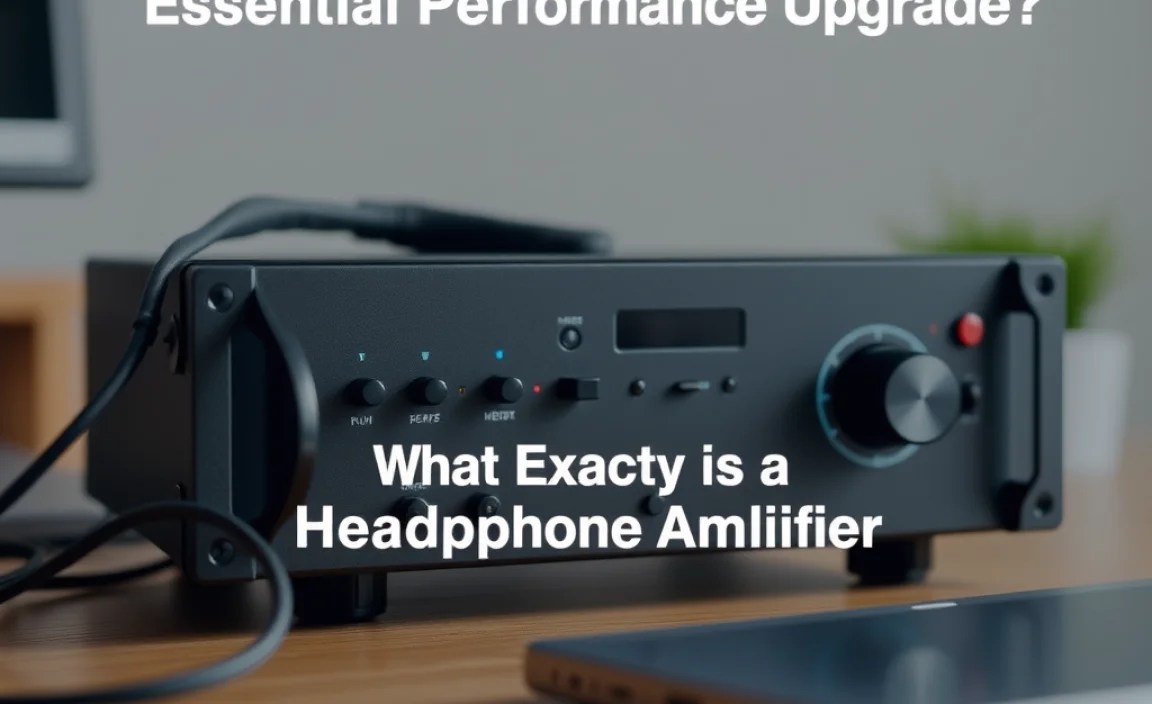
At its core, a headphone amplifier (or “headphone amp”) is a device specifically designed to boost the audio signal from your source (in this case, your PC) to comfortably and clearly power your headphones. Think of it as a dedicated muscle for your headphones, providing them with the clean, strong signal they need to perform at their best.
A typical headphone amplification setup often involves a Digital-to-Analog Converter (DAC) as well. Your PC processes audio as digital data (1s and 0s). To hear it through headphones, this digital signal must be converted into an analog electrical signal. This is the job of the DAC. Many modern headphone amps include a built-in DAC, streamlining the process and often offering a superior conversion quality compared to your PC’s integrated chip.
The signal path looks something like this:
- Digital Audio Source: Your music file, game audio, or streaming service providing the digital audio data.
- PC’s USB Port / Digital Output: The PC transmits this digital data.
- External DAC (often integrated into the amp): Converts the digital signal into a clean analog electrical signal.
- External Headphone Amplifier: Takes the analog signal and boosts its power to drive your headphones effectively.
- Headphones: Reproduce the sound you hear.
By using an external DAC and amplifier, you bypass your PC’s internal, often inferior, audio circuitry, leading to a noticeable improvement in sound quality.
Benefits of Using a Headphone Amp with Your PC

So, what exactly do you gain by adding a headphone amp to your PC setup? The benefits can be quite profound and transform your listening experience. Here are the key advantages:
- Richer, Fuller Sound: With adequate power, your headphones can reproduce a wider dynamic range. This means quiet passages will be more subtle, and loud moments will have more impact, making music and games feel more immersive and lifelike.
- Enhanced Detail and Clarity: A good amp provides a cleaner signal with less noise. This allows you to hear finer details in your audio – the subtle breath of a singer, the decay of a guitar string, or the whisper of wind in a game environment.
- Improved Bass Response: Underpowered headphones can sound anemic in the bass department. An amplifier gives your headphones the “oomph” they need to deliver tight, controlled, and resonant low frequencies.
- Better Treble Performance: High frequencies can sound harsh or sibilant if the amplifier struggles. A good amp presents them smoothly, offering a clear, crisp, and non-fatiguing listening experience.
- Consistent Volume and Performance: You’ll find you don’t need to push your PC’s volume to its maximum anymore. The amp provides plenty of headroom, ensuring consistent, high-quality volume levels without distortion.
- Compatibility with High-Impedance Headphones: If you own or are considering headphones known for their higher impedance (often found in audiophile-grade, open-back models), an amplifier is not just an upgrade; it’s a necessity to make them sound their best. These headphones simply demand more power than a standard PC output can provide.
- Reduced Listening Fatigue: When your audio is clear, detailed, and well-balanced, and you don’t have to strain to hear or tolerate harshness, your listening sessions become much more enjoyable and less tiring.
Do You Actually Need a Headphone Amp?
This is the million-dollar question! The short answer is: it depends on your headphones and your audio priorities. Here’s a quick guide to help you decide.
When You Likely Do Need One:
- You own headphones with an impedance rating of 80 ohms or higher. (Check your headphone specifications!)
- You often find yourself turning your PC volume all the way up to a satisfactory listening level.
- You experience distortion, hiss, or a general lack of “punch” or clarity from your current setup.
- You’ve invested in higher-quality headphones and want to ensure they’re performing to their potential.
- You listen to a wide variety of audio content, from critical music listening to immersive gaming.
When You Might Not Need One:
- You primarily use basic earbuds or low-impedance, easy-to-drive consumer headphones.
- You are perfectly happy with the current volume and sound quality coming from your PC.
- Your main use for audio is simple voice calls or background music at low volumes.
A helpful resource for understanding headphone specifications like impedance can be found on industry sites. For example, the Rtings.com guide on headphone impedance explains these concepts clearly.
Types of Headphone Amps for Your PC
When you start looking for a headphone amp for your PC, you’ll encounter a few different types. Understanding these will help you narrow down your options:
1. Desktop Headphone Amplifiers
These are standalone units that sit on your desk. They typically connect to your PC via USB (for both power and digital audio if they have a built-in DAC) or via a 3.5mm line-out cable from your PC’s sound card. They often offer higher power output and better sound quality than smaller portable units.
- Pros: Generally more powerful, better sound quality, often include multiple headphone jacks, some have advanced features like EQ or input selection.
- Cons: Can be bulky, require their own power source (usually via wall adapter or USB), more expensive.
2. USB DAC/Amp Combos
These are incredibly popular and convenient for PC users. They combine a DAC and a headphone amplifier into a single unit that connects to your PC via USB. They handle both the digital-to-analog conversion and the amplification, effectively replacing your PC’s sound card and output stage. Many are compact and powered directly by the USB port.
- Pros: All-in-one solution, simplified setup, excellent upgrade path for both DAC and amp, often compact and USB-powered.
- Cons: Performance is limited by USB power for some models, sound quality can vary significantly between models.
3. Portable Headphone Amplifiers (Used with PC)
While designed for mobile use, these small, battery-powered devices can be used with a PC. You’d typically connect your PC’s headphone jack (or a USB output via an adapter) to the input of the portable amp, and then plug your headphones into the amp. They offer a cleaner signal path than your PC’s built-in audio.
- Pros: Compact, portable (though less relevant for PC use), can offer improved sound quality over PC output, often have their own battery meaning they don’t draw power from your PC.
- Cons: Generally less powerful than desktop amps, battery needs recharging, may require adapter cables, can be an extra step in the chain.
4. Amplifiers with External Power Supplies
Often found in higher-end desktop amplifiers, these units use a dedicated wall power adapter. This ensures a stable and robust power supply, free from the fluctuations that can sometimes occur with USB power, leading to even cleaner and more powerful audio. Many high-quality DAC/Amp combos also fall into this category.
- Pros: Maximum power output, highest potential for sound quality and clarity, eliminates USB power limitations.
- Cons: Requires a wall outlet, typically more expensive, not portable.
For most PC users looking for a significant, straightforward upgrade, a USB DAC/Amp combo is often the sweet spot.
Key Features to Consider When Buying
Navigating the world of headphone amps can seem daunting, but focusing on a few key features will help you make the right choice:
1. Impedance and Sensitivity Matching
This is crucial. Your amplifier needs to be powerful enough to effectively drive your headphones. Impedance is measured in ohms (Ω) and sensitivity in decibels (dB). Generally:
- Low impedance headphones (under 50 Ω): Easier to drive, don’t need a ton of power.
- Medium impedance headphones (50-250 Ω): Benefit from more power than a typical PC can provide.
- High impedance headphones (over 250 Ω): Absolutely require a capable amplifier to reach adequate volume and sound their best.
Tip: Most amp specifications will list their power output at different impedance loads. Look for an amp that can comfortably provide sufficient voltage and current for your headphones.
2. Connectivity
How will you connect the amp to your PC?
- USB: The most common and often best option for PC. It carries both audio data and power. Many USB amps have their own drivers or are class-compliant, meaning they work plug-and-play.
- 3.5mm / RCA Line-Out: If your PC has a dedicated line-out port (usually green) that isn’t otherwise occupied, you can use this to send an analog signal to an amplifier that has analog inputs. This bypasses your PC’s internal DAC but still uses its analog output stage.
3. Built-in DAC vs. External DAC
As mentioned, many headphone amps include a DAC. This is usually the most convenient option. However, some audiophiles prefer to use a separate, high-quality DAC and connect it to a dedicated amplifier. For beginners, an integrated DAC/Amp is the easiest starting point.
4. Power Output
This is a direct indicator of how powerful the amplifier is. It’s typically measured in milliwatts (mW) into a specific impedance (e.g., 100mW into 32Ω). Higher numbers generally mean more driving power, especially important for higher impedance headphones.
5. Headphone Jacks
Most amps will have a standard 6.35mm (1/4-inch) headphone jack. Some may also include a smaller 3.5mm (1/8-inch) jack. Some higher-end and desktop units might offer balanced outputs (like 4-pin XLR), which can provide even cleaner and more powerful amplification, but require headphones with balanced cables.
6. Portability and Size
Are you looking for something to live permanently on your desk, or something you might occasionally take with you? Desktop units are usually larger and more powerful, while portable units are compact. For a PC setup, a desk-friendly size is usually ideal.
7. Form Factor and Power Source
- USB Powered: Convenient, fewer cables, but power output can be limited.
- Wall Powered: Usually offers more power and stability, but requires a power outlet and an additional cable.
Setting Up Your Headphone Amp: A Step-by-Step Guide
Getting your new headphone amp connected and running is usually straightforward. Here’s a general guide, which may vary slightly depending on your specific device.
Step 1: Unbox and Inspect
Carefully unpack your headphone amplifier and any included accessories (USB cable, power adapter, audio cables). Admire your new piece of audio gear!
Step 2: Connect to Your PC
This is where the type of amp matters:
- For USB DAC/Amp Combos:
- Locate a free USB port on your PC.
- Connect the included USB cable from the amplifier to your PC.
- If your amp has a separate power adapter, plug that into a wall outlet and then into the amplifier.
- For Analog Input Amps:
- Connect your PC’s line-out port (usually green) to the amplifier’s analog input using a 3.5mm to 3.5mm cable or RCA cables, depending on the amp’s inputs.
- Connect the amplifier’s power adapter to a wall outlet and the amp.
Step 3: Install Drivers (If Necessary)
Most modern USB DAC/Amps are “class-compliant,” meaning they work automatically when plugged in. However, some devices, especially those with more advanced features, might require specific drivers. Check the manufacturer’s website for any downloads. Windows and macOS usually detect new audio devices automatically.
Step 4: Configure Your PC’s Audio Settings
This is a critical step to ensure your PC is sending audio to the new amp.
- On Windows:
- Right-click the speaker icon in your system tray (usually bottom right of the screen).
- Select “Open Sound settings” or “Playback devices.”
- In the output device list, select your new headphone amplifier. It might be named after the manufacturer (e.g., “Schiit Modi,” “Topping DX3 Pro”) or simply “USB Audio Device.”
- On macOS:
- Go to System Preferences > Sound.
- Click on the “Output” tab.
- Select your new headphone amplifier from the list of devices.
You might also need to adjust the “Default Format” in advanced sound settings for optimal audio quality, though this is less critical for beginners.
Step 5: Connect Your Headphones
Plug your headphones into the headphone jack on the amplifier. Ensure they are seated firmly.
Step 6: Adjust Volume and Test
Important: Start with the amplifier’s volume knob turned all the way down. Then, gradually increase it to a comfortable listening level. Play some audio content (music, video) and listen for sound, clarity, and volume. You should immediately notice a difference!
