
Quick Summary:
A headphone amplifier for your PC can transform your listening experience. It delivers cleaner, more powerful sound, especially for demanding headphones, revealing details you might be missing. Easy to set up, it’s an essential but accessible upgrade for anyone serious about audio quality on their computer.
Hey everyone, Edward Cavitt here from Headphone Horizon! Are you a music lover, gamer, or avid podcast listener who uses your PC as your primary audio hub? You probably already know how much fantastic sound your headphones can produce. But what if I told you there’s a simple yet incredibly effective way to unlock even more of that sonic potential? We’re talking about a headphone amplifier for your PC. It might sound like a technical gizmo, but trust me, it’s one of the most accessible and rewarding upgrades you can make for crystal-clear, powerful audio. Let’s dive in and see why it’s an essential piece of gear for any discerning listener.
What Exactly is a Headphone Amplifier?
Think of your PC’s sound output like a small pipe carrying water. It’s okay for basic needs, but if you want a powerful stream, you need a bigger, stronger pipe. A headphone amplifier is precisely that: it takes the audio signal from your PC and boosts it. This isn’t just about making things louder; it’s about providing a cleaner, more robust electrical signal that your headphones can use more effectively. Many built-in sound cards on PCs have limited power, which can struggle to drive certain headphones, especially higher-impedance models. An external amplifier ensures your headphones get all the juice they need to perform at their best, resulting in richer bass, clearer mids, and more detailed highs without distortion.
Why Your PC Needs a Headphone Amplifier: The Core Benefits

You might be wondering, “My headphones sound fine already, why bother?” That’s a fair question! While many modern headphones are designed to work reasonably well with standard outputs, there are several common scenarios where a headphone amplifier makes a significant difference:
1. Driving Demanding Headphones
Higher-quality headphones, particularly those labeled “high-impedance” (often 250 ohms or more), require more power to reach optimal listening levels and sound their best. Your PC’s internal sound chip simply isn’t designed to provide this level of power. Without an amplifier, these headphones might sound quiet, thin, and lack dynamic range, even if they’re expensive. An amplifier provides the necessary current and voltage to bring them to life, revealing their full potential.
2. Improving Sound Quality and Clarity
Even with less demanding headphones, a dedicated amplifier can offer a noticeable upgrade. It provides a cleaner audio signal, meaning less electronic noise and distortion. This translates to a more transparent soundstage, where individual instruments and vocal nuances are easier to distinguish. You’ll hear details in your music you might never have noticed before. This is particularly beneficial for audiophiles and anyone who appreciates the subtleties in recordings.
3. Reducing Background Noise
The internal components of a PC can sometimes generate electrical interference that seeps into the audio signal. This can manifest as a faint hiss or hum, especially at higher volumes. A good headphone amplifier often features better shielding and cleaner power regulation, effectively isolating your audio signal from these PC-generated noises. The result is a purer silence between tracks or during quiet passages.
4. Enhancing Bass Response and Dynamics
Low-impedance earbuds and headphones often sound weak or muddy when powered directly by a PC. An amplifier can provide the control and power needed to deliver tighter, more impactful bass. It also improves the ‘dynamic range’ – the difference between the loudest and quietest parts of a song. This makes music, movie soundtracks, and game sound effects feel more alive and impactful.
5. Versatility and Connectivity
Many dedicated headphone amplifiers offer more connectivity options than a standard PC sound card. They might include digital-to-analog converters (DACs) for even better digital-to-analog conversion, multiple headphone outputs, or compatibility with different types of audio connections, making them a versatile central hub for your PC audio.
Understanding the Basics: Amplifiers vs. DACs
You’ll often hear the terms “headphone amplifier” and “DAC” (Digital-to-Analog Converter) used together, sometimes in the same device. It’s important to understand what each does:
- Internal Sound Card (PC): Your PC has a built-in DAC that converts digital audio files (like MP3s or FLACs) into an analog signal that your headphones can understand. It also has a basic amplifier to boost this analog signal.
- Headphone Amplifier: This device takes the analog signal and provides a more powerful, cleaner boost. It focuses on the “amplification” part.
- DAC (External): An external DAC performs the digital-to-analog conversion. It aims to do this conversion more accurately and with less noise than your PC’s internal DAC.
- DAC/Amp Combo Units: Most beginner-friendly and many intermediate headphone amplifier units for PCs are actually “DAC/Amp combos.” They contain both an external DAC to improve conversion quality and an amplifier to boost the signal. This is often the most practical and cost-effective solution for PC users.
For most users looking to upgrade their PC audio, a DAC/Amp combo is the sweet spot, addressing both the conversion and amplification stages of the audio chain.
Types of PC Headphone Amplifiers
When you start browsing, you’ll see a few common types of amplifiers designed for PC use:
1. USB Dongle Amplifiers
These are tiny, portable devices that plug directly into a USB port on your PC. They contain a small DAC and amplifier. They’re incredibly simple to use – plug-and-play – and offer a significant step up from your PC’s onboard audio. They’re ideal for laptops or users who want a discreet, no-fuss upgrade for general listening.
2. Desktop DAC/Amps
These units sit on your desk and connect to your PC via USB. They are typically larger and more powerful than dongles. They often feature better-quality DAC chips, more robust amplification stages, and a wider range of connections (e.g., RCA outputs to connect to powered speakers, or different headphone jacks). These are a great choice for desktop setups where space isn’t a major concern and you want higher performance.
3. Dedicated Amplifiers (Powered by an External DAC or PC)
In more advanced setups, you might have a separate external DAC connected to your PC (often via USB or Optical) and then connect that DAC’s output to a dedicated headphone amplifier. This allows for the highest level of component quality and customization but is generally overkill for beginners. For this guide, we’ll focus on USB-powered solutions and desktop DAC/Amps.
How to Choose the Right Headphone Amplifier for Your PC
Selecting an amplifier might seem daunting, but it boils down to a few key considerations that match your needs and existing gear:
Key Features to Look For:
- Impedance (Ohms) and Sensitivity: Check your headphones’ specifications. If they have high impedance (e.g., 250Ω, 300Ω, or more), you’ll need an amplifier with enough power output (measured in milliwatts, mW) to drive them effectively. Sensitivity (dB/mW) also plays a role; higher sensitivity means headphones are easier to drive.
- Power Output (mW): This is a crucial spec. Higher mW ratings generally mean more power to drive demanding headphones. Look for an amplifier that can comfortably exceed the power requirements of your headphones at your typical listening volume.
- Connectivity: How will it connect to your PC? USB is the most common and recommended connection for audio quality. Does it have the right headphone jack for your headphones (3.5mm or 6.35mm)?
- Portability vs. Desktop: Are you using a laptop and need something small, or do you have a dedicated desk setup where a larger unit is fine?
- Budget: Amplifiers range from $30 for basic dongles to hundreds or even thousands for high-end audiophile gear. Decide what you’re comfortable spending.
- Build Quality and Design: A well-built amplifier not only looks good but is also more reliable.
Recommended Power Output Guide (General):
This is a simplified guide, and your specific headphones might have slightly different needs. Always check your headphone’s specifications and any online reviews for recommended power output.
| Headphone Impedance (Ohms) | Recommended Power Output (mW at peak impedance) | Typical Need for Amplifier |
|---|---|---|
| 16 – 32 Ω | 30-100 mW | Often usable directly from PC, but an amp can improve clarity. |
| 33 – 64 Ω | 75-150 mW | Many PCs struggle; a beginner amp is often beneficial. |
| 65 – 150 Ω | 150-300 mW | A dedicated amplifier is usually necessary for adequate volume and quality. |
| 151 – 300 Ω | 250-600 mW | Requires a powerful amplifier. |
| 301+ Ω | 500+ mW | Requires a high-power amplifier. |
Note: Power output is often listed at different impedance levels. Ensure the listed power at or near your headphone’s impedance is sufficient.
Popular & Beginner-Friendly Brands/Models to Consider:
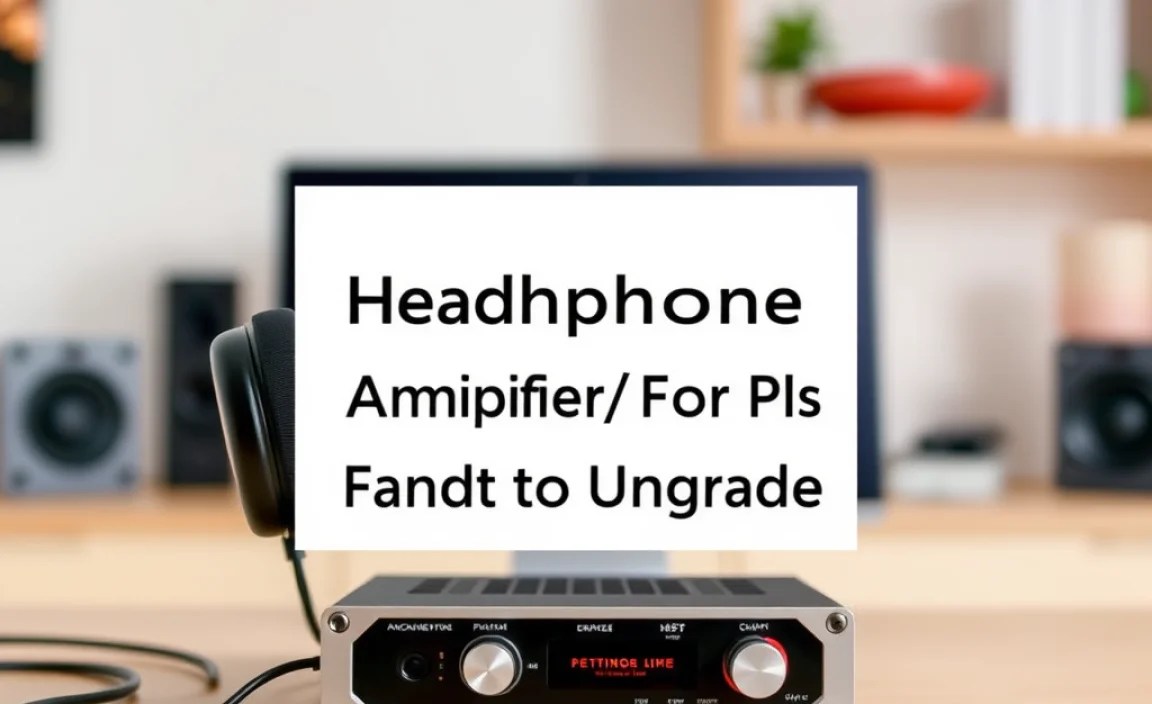
The market is flooded with options, but these brands consistently offer good value and performance for PC users:
- Fiio: Known for a wide range of both dongle DAC/Amps (like the BTR5 or K3) and desktop units. Great bang for your buck.
- Schiit Audio: Offers a range of excellent desktop DAC/Amps, from entry-level to enthusiast-grade (e.g., Fulla, Magni Heresy if paired with a separate DAC).
- Topping: Another strong contender with well-regarded DAC/Amp units (like the DX3 Pro+).
- Creative: The Sound BlasterX AE-7 is an example of an internal sound card that includes a decent DAC/Amp, offering a step up from motherboard audio.
- iFi Audio: Offers a range of premium USB DAC/Amps known for their sound quality and features (e.g., ZEN DAC 3).
It’s always a good idea to read reviews and compare specifications based on your specific headphones and budget. Websites like Rtings.com and audiophile forums are excellent resources.
Step-by-Step Setup Guide: Connecting Your Headphone Amplifier
Setting up a headphone amplifier for your PC is usually straightforward. Here’s a general guide that applies to most USB-powered DAC/Amp combo units:
Before You Start:
- Gather Your Equipment: You’ll need your PC, your chosen headphone amplifier, a USB cable (usually included), and your headphones.
- Read the Manual: While setups are usually easy, always glance at the manufacturer’s quick start guide for any model-specific instructions.
- Download Drivers (If Necessary): Most modern USB DAC/Amps are “plug-and-play” and don’t require drivers. However, some devices might benefit from specific drivers for optimal performance or advanced features. Check the manufacturer’s website.
Step 1: Connect the Amplifier to Your PC
The primary connection for most PC headphone amplifiers is USB.
- Locate a free USB port on your computer. It’s best to use a port directly on the motherboard (usually on the back of a desktop tower) or a high-quality USB hub if necessary. Avoid using very old or unpowered USB hubs if possible.
- Connect one end of the USB cable to the amplifier and the other end to your PC’s USB port.
Step 2: Connect Your Headphones
Now, plug your headphones into the appropriate headphone jack on the amplifier.
- Identify the headphone output port on your amplifier. This is typically a 3.5mm (1/8-inch) jack, the same size used for most earbuds, or a larger 6.35mm (1/4-inch) jack, common on higher-end headphones. If your headphones use a 3.5mm plug, you might need an adapter if the amplifier only has a 6.35mm jack. Many adapters are included with amplifiers.
- Gently but firmly plug your headphone cable into the jack.
Step 3: Configure Your PC’s Audio Settings
This is the most crucial step to ensure your PC uses the new amplifier for audio output.
- Windows:
- Right-click on the speaker icon in your system tray (usually in the bottom-right corner of the screen).
- Select “Open Sound settings” or “Sounds.”
- In the Sound settings, look for the “Output” section. You should see a dropdown menu labeled “Choose your output device.”
- Click on this dropdown menu. If your amplifier is recognized, you’ll see its name listed (e.g., “Fiio [Model Name]”, “Schiit Fulla”, “USB Audio Device”). Select your amplifier’s name.
- If you selected “Sounds,” you’ll see a “Playback” tab. Your amplifier should appear here. Right-click on it and select “Set as Default Device” and “Set as Default Communication Device.”
- macOS:
- Click on the Apple menu in the top-left corner of the screen.
- Go to “System Settings” (or “System Preferences” on older macOS versions).
- Click on “Sound” in the sidebar.
- Select the “Output” tab.
- You’ll see a list of audio devices. Choose your connected headphone amplifier from the list.
Step 4: Test Your Audio
Now it’s time to listen!
- Play some music, watch a video, or start a game.
- Gradually increase the volume using your PC’s volume controls or any physical volume knob on the amplifier itself. Start at a low volume to protect your hearing.
- Listen for clarity, detail, and sufficient volume. Compare it to how your headphones sounded before connecting the amplifier. You should notice an improvement.
Troubleshooting Tips:
- No Sound: Double-check that the amplifier is selected as the default audio device in your PC’s sound settings. Ensure all cables are securely connected. Try a different USB port.
- Distortion or Crackling: Ensure you haven’t cranked the volume on both the PC and the amplifier simultaneously to maximum. Sometimes this can overload even a good amp. Try lowering the PC volume and increasing the amplifier volume, or vice-versa. If using ASIO drivers (for advanced users in certain audio software), ensure they are correctly configured.
- Not Recognized: If your PC doesn’t see the device, try unplugging and replugging it. If drivers are required, make sure you’ve installed them from the manufacturer’s website. A reboot of your PC can also resolve detection issues.
Beyond the Basics: Advanced Tips and Considerations
Once you’re comfortable with the basics, you might explore some advanced features or considerations:
Gain Switch
Some amplifiers have a “Gain” switch (Low/High). This effectively changes the amplifier’s sensitivity.
- Low Gain: Suitable for sensitive earbuds and typical headphones, preventing excessive volume and hiss.
