
Quick Summary: This guide explains everything about the headphone jack on your Android phone, from why it’s still relevant to troubleshooting common issues. Learn how to use it for wired headphones, external microphones, and other audio accessories to enhance your device’s sound capabilities and enjoy uninterrupted listening.
The Headphone Jack for Android: Your Essential Guide
Hey everyone, Edward Cavitt here, your friendly guide from Headphone Horizon! In a world buzzing with wireless connections, the humble headphone jack on your Android phone might seem like a relic. But guess what? It’s far from over! For many of us, that trusty port is the key to superior sound quality, seamless connectivity with a universe of audio gear, and a reliable way to get your music, podcasts, or calls heard. Whether you’re a seasoned audiophile or just someone who likes to plug in their favorite pair of wired headphones, this guide will demystify the headphone jack for Android, ensuring you get the most out of every listen.
Why the Headphone Jack Still Matters on Your Android

It’s easy to get swept up in the wireless revolution. Bluetooth headphones offer convenience, but they come with their own set of considerations. The headphone jack, typically a 3.5mm TRS (Tip-Ring-Sleeve) or TRRS (Tip-Ring-Ring-Sleeve) connector, offers a direct, wired connection that bypasses many of the potential pitfalls of wireless audio. This direct link means:
- Superior Audio Quality: Wired connections can often deliver a richer, more detailed sound profile without the compression that sometimes affects Bluetooth audio.
- Zero Latency: For activities like gaming or watching videos where timing is crucial, wired headphones offer no delay between the action on screen and what you hear.
- Reliability: No battling with pairing issues, battery levels, or signal drops. Just plug in and play.
- Wider Compatibility: The 3.5mm jack is a universal standard, compatible with countless headphones, earbuds, microphones, and other audio devices.
- No Charging Needed for Headphones: Your wired headphones draw power from your phone, so you never have to worry about them running out of battery mid-song.
While many newer Android phones have ditched the headphone jack, a significant number still feature it, especially in budget and mid-range models. For those that haven’t, there are still ways to utilize the 3.5mm audio experience, which we’ll cover later.
Understanding the 3.5mm Headphone Jack: What’s What

The 3.5mm audio jack is a standard connector found on many electronic devices. For Android phones, you’ll most commonly find a TRRS (Tip-Ring-Ring-Sleeve) jack. This might sound technical, but it just means this jack has four distinct conductive sections:
- Tip (T): Typically carries the left audio channel.
- First Ring (R): Typically carries the right audio channel.
- Second Ring (R): Carries the microphone input (for hands-free calls and voice recording).
- Sleeve (S): Acts as the common ground connection.
Some older or simpler jacks might be TRS, which only have three sections (Tip, Ring, Sleeve) and are designed for stereo audio output only, without microphone support. The presence of that fourth contact (the second ring) is what allows your Android phone’s headphone jack to handle both audio playback and microphone input simultaneously, making it perfect for calls and recording.
Connecting Your Headphones: A Step-by-Step Guide

Connecting wired headphones or earbuds to your Android phone is refreshingly simple. Here’s how:
- Locate the Headphone Jack: On most Android phones, the 3.5mm headphone jack is usually found on the bottom edge of the device, often next to the USB charging port. On some models, it might be located on the top edge.
- Identify Your Headphone Plug: Most wired headphones and earbuds will have a standard 3.5mm audio plug. This is usually a metal connector with a black or colored plastic housing at the base.
- Align and Insert: Gently align the headphone plug with the headphone jack on your phone. It’s designed to fit in only one way.
- Push Gently: Push the plug straight into the jack until it’s fully seated. You should feel a slight click or resistance as it locks into place.
- Test Your Audio: Open your favorite music app, podcast player, or video. The sound should now play through your headphones. If you’re using headphones with a built-in microphone, try making a call or recording a voice memo to test the microphone functionality.
If your headphones don’t play sound, or if the microphone isn’t working, don’t worry! We’ll cover common troubleshooting steps later in this guide.
Beyond Headphones: Other Uses for Your Android Headphone Jack

The headphone jack is more versatile than you might think! It’s not just for listening to music. Here are a few other ways you can leverage this port:
- External Microphones: For clearer voice recordings, podcasts, or even vlogging, you can connect an external microphone designed for 3.5mm TRRS jacks. These offer significantly better audio quality than your phone’s built-in mic.
- Audio Adapters: Need to connect to a larger sound system? You can use a 3.5mm to RCA cable to hook your phone up to speakers, amplifiers, or even your car stereo (if it has an AUX input).
- Line-In Recording: With the right adapter (a 3.5mm male to 3.5mm male cable), you can connect your phone to the line-out port of another device (like a computer or music player) to record audio directly.
- DJing and Audio Monitoring: For aspiring mobile DJs or musicians, the headphone jack allows for cueing tracks or monitoring audio output separately from the main mix.
- For Enhanced Accessibility: Many hearing aids and assistive listening devices use the 3.5mm jack for direct audio input, providing a clearer listening experience. For more on hearing accessibility and assistive technologies, the Federal Communications Commission (FCC) offers valuable resources.
Troubleshooting Common Headphone Jack Issues
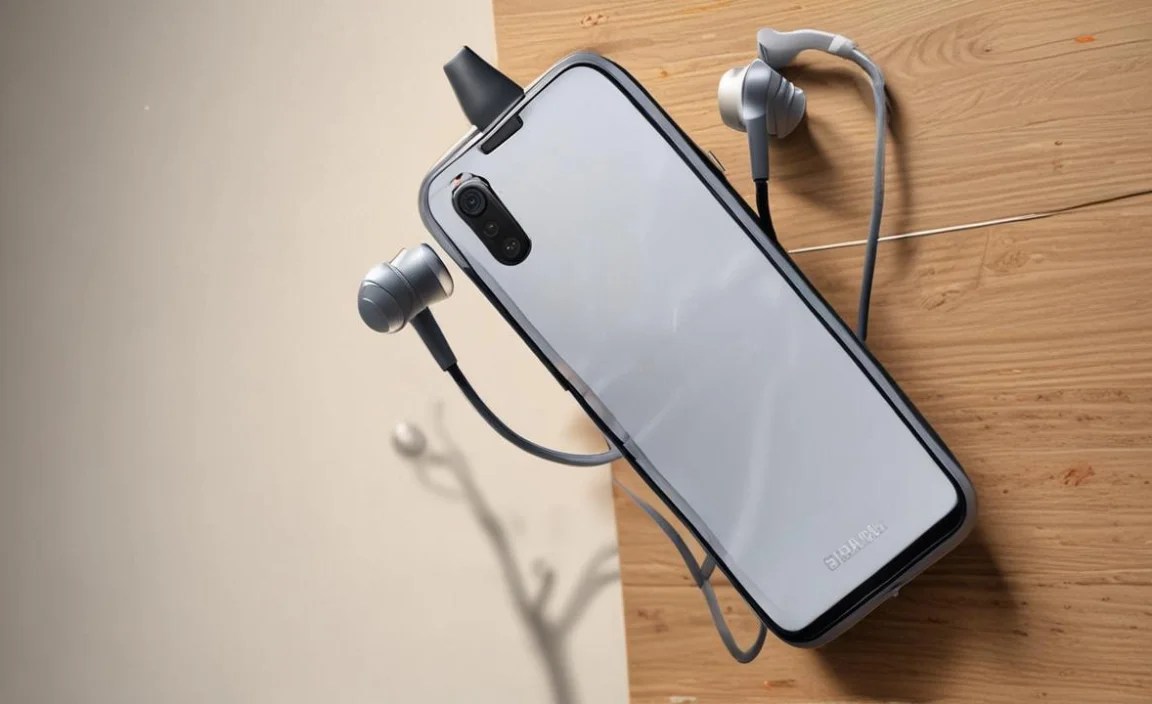
Even the most reliable technology can sometimes act up. If you’re experiencing problems with your Android headphone jack, here are some common issues and how to fix them.
Issue 1: No Sound or Intermittent Sound
This is a frequent frustration. Here’s what to check:
- Is the Jack Fully Inserted? Sounds simple, but double-check that your headphone plug is all the way in.
- Clean the Jack and Plug: Dust, lint, and debris can accumulate in the headphone jack and on the plug, preventing a solid connection. Use a can of compressed air to blow out the jack. For stubborn build-up, a wooden or plastic toothpick (never metal!) can be used gently to dislodge debris. Clean the headphone plug with a soft, dry cloth.
- Test Different Headphones: Your issue might not be with the phone, but with the headphones themselves. Try a different pair of headphones to see if they work correctly.
- Restart Your Phone: A simple reboot can often resolve temporary software glitches that might be affecting audio output.
- Check Audio Output Settings: Sometimes, Android might default to a different audio output. Go to your phone’s Settings > Sound & vibration (or similar) and check the output options.
Issue 2: Microphone Not Working
If your audio plays but your voice isn’t being picked up during calls or recordings:
- Check the TRRS Configuration: Ensure your headphones are using a TRRS plug and are compatible with Android’s wiring standard. Some older or specialized cables might have a different pinout.
- Clean the Jack Again: The microphone contact is often on the second ring of the TRRS plug. Dirt here can be a common culprit.
- Permissions: For apps that use the microphone (like recording apps or communication tools), ensure they have the necessary permissions enabled. Go to Settings > Apps > [App Name] > Permissions and make sure Microphone access is allowed.
- Test in Safe Mode: Booting your phone into Safe Mode temporarily disables third-party apps. If the microphone works in Safe Mode, a recently installed app might be causing the conflict.
Issue 3: Static or Crackling Sound
A scratchy or distorted sound can be annoying:
- Inspect for Damage: Look closely at the headphone plug and the cable for any signs of fraying or physical damage. Damaged cables are a common cause of static.
- Faulty Jack: If the jack itself is damaged, it might require professional repair.
- Software Glitch: Sometimes, a software issue can cause audio artifacts. Try restarting your phone or checking for system updates.
Do You Need an Adapter? USB-C to 3.5mm Headphone Jack Adapters
What if your Android phone doesn’t have a headphone jack? Don’t despair! Many manufacturers offer USB-C to 3.5mm headphone jack adapters. These small, convenient dongles plug into your phone’s USB-C port and provide a standard 3.5mm audio output.
When choosing an adapter, consider the following:
- DAC Chip: Some adapters have a built-in Digital-to-Analog Converter (DAC). This can be beneficial if your phone lacks a good built-in DAC, potentially offering better sound quality than basic passive adapters. Google’s own USB-C to 3.5mm adapter is often well-regarded for its sound quality.
- Compatibility: Ensure the adapter is compatible with your specific Android device.
- Build Quality: Look for adapters with sturdy connectors and a durable cable to ensure longevity.
You can find these adapters from your phone manufacturer or from reputable third-party brands. For a comprehensive look at audio quality and digital-to-analog conversion, resources from organizations like the Audio Engineering Society (AES) offer deep dives into the technical aspects.
Headphone Jack vs. Bluetooth: Making the Right Choice
The decision between using your headphone jack and going wireless often boils down to your priorities. Here’s a quick comparison:
| Feature | Headphone Jack (Wired) | Bluetooth (Wireless) |
|---|---|---|
| Audio Quality | Generally superior; less compression. | Can be excellent, but depends on codec (e.g., LDAC, aptX HD). Potential for compression. |
| Latency (Delay) | Zero latency. Ideal for gaming & video. | Slight delay, though modern codecs minimize it. |
| Reliability | Very reliable; no pairing issues. | Can experience pairing issues, dropouts, or interference. |
| Battery Drain | Minimal drain on phone battery; headphones don’t need charging. | Consumes phone battery; headphones require regular charging. |
| Convenience | Requires cable management; can be restrictive. | Freedom of movement; no cables. |
| Compatibility | Universal 3.5mm standard. | Requires Bluetooth on device and headphones. |
For critical listening, professional audio work, or situations where absolute reliability is key, the headphone jack remains a champion. For everyday convenience and freedom of movement, Bluetooth is often the preferred choice.
Frequently Asked Questions (FAQ)
Q1: My Android phone doesn’t have a headphone jack. How can I use my wired headphones?
A1: You’ll need a USB-C to 3.5mm headphone jack adapter. These plug into your phone’s USB-C port and provide a standard audio socket for your wired headphones. Some adapters have built-in DACs for potentially better sound quality.
Q2: Can I use any 3.5mm headphones with my Android phone?
A2: Most standard 3.5mm headphones and earbuds will work for audio playback. For headphones with a built-in microphone to work with your Android phone, they generally need to be TRRS (Tip-Ring-Ring-Sleeve) compatible, which is the standard for most modern smartphones.
Q3: How do I clean my Android phone’s headphone jack safely?
A3: The best way is to use a can of compressed air to blow out any loose dust. If there’s stubborn lint, use a wooden or plastic toothpick (never metal) to gently dislodge it. Ensure the phone is powered off before attempting to clean the port.
Q4: Why is the sound quality from my headphone jack better than Bluetooth?
A4: Wired connections bypass the digital compression that Bluetooth often uses to transmit audio wirelessly. This direct analog signal can preserve more detail and offer a wider dynamic range, leading to potentially better sound quality, especially with high-fidelity headphones.
Q5: My headphones have volume controls, but they don’t work with my Android phone. What’s wrong?
A5: This is usually due to an incompatibility between the headphone’s button wiring and your phone’s TRRS jack standard. While most modern headphones are designed to be compatible, some specific brands or older models might not work. Ensure your headphones are designed for smartphones with TRRS jacks.
Q6: Can I use an extension cable for my headphones with my Android phone?
A6: Yes, you can use a 3.5mm headphone extension cable. However, be aware that very long or low-quality extension cables can sometimes degrade the audio signal slightly or introduce noise. Opt for a reputable brand for best results.
Conclusion
The headphone jack on your Android phone, whether directly present or accessed via an adapter, remains a vital component for many users. It offers a reliable, high-quality audio connection that’s hard to beat for certain applications. By understanding its functionality, knowing how to properly connect your gear, and being ready to troubleshoot common issues, you can ensure your wired audio experience is always top-notch. So, dust off those favorite wired headphones, explore the vast world of audio accessories, and continue to enjoy the pure, unadulterated sound that only a direct connection can provide. Happy listening!
