
Quick Summary: This guide shows Xbox owners how to connect headphones using the headphone jack, essential for immersive gameplay and clear communication. We cover different Xbox models, types of compatible headphones, and simple troubleshooting steps, ensuring you get the best audio experience without hassle.
The Xbox Headphone Jack: Your Gateway to Epic Gaming Audio
Hey there, audio adventurers! Edward Cavitt here from Headphone Horizon. Ever find yourself squinting at your TV, trying to catch those subtle in-game footsteps, or perhaps you’ve been on the receiving end of muffled party chat? If so, you’ve come to the right place. Your Xbox console is more than just a gaming machine; it’s an audio powerhouse waiting to be unlocked. And the secret to unlocking that immersive soundscape? It often starts with something as simple as understanding your Xbox’s headphone jack. Whether you’re a seasoned gamer or just dipping your toes into the world of console audio, this guide is designed to make connecting your headphones to your Xbox completely stress-free. We’ll walk through everything you need to know, ensuring you get the clearest game audio and the smoothest communication for every gaming session.
Understanding the Xbox Headphone Jack: What You Need to Know

The headphone jack on your Xbox is your direct line to a richer, more engaging gaming experience. It allows you to plug in standard headphones, often with a microphone, to hear game audio and communicate with friends. This is a game-changer for several reasons:
- Immersive Gameplay: Hear every explosion, subtle whisper, and critical audio cue with detail you’d miss on TV speakers.
- Clear Communication: Ensure your teammates can hear your strategies (and your victories!) and you can hear theirs.
- Privacy: Enjoy your gaming sessions without disturbing others in your household.
- Focus: Block out external distractions and dive deep into your game world.
The most crucial thing to understand is that not all Xbox consoles are created equal when it comes to their headphone jacks. Microsoft has evolved its console designs over the years, and there are a few key differences to be aware of.
Xbox Models and Their Headphone Jack Configurations
Let’s break down where you’ll find the headphone jack on the most common Xbox consoles:
Xbox One and Xbox One S/X Controllers
This is where most gamers will find their headphone jack. The standard Xbox Wireless Controller (for Xbox One, One S, and One X) features a 3.5mm headphone jack located on the bottom edge of the controller, right between the bumper buttons. This is a universal port, meaning most standard headphones and headsets that use a 3.5mm plug will work directly.
Original Xbox One Controller (Older Models)
Some of the very first Xbox One controllers released had a proprietary 2.5mm jack. If you have one of these older controllers, you’ll need an adapter (often called a “Stereo Headset Adapter”) to connect standard 3.5mm headphones. Fortunately, Microsoft transitioned to the 3.5mm jack relatively quickly, so most Xbox One controllers you encounter today will have the universal port.
How to check if your controller is an older model with a 2.5mm jack: Look at the large, round expansion port on the bottom of the controller. If you see a smaller, rectangular 2.5mm jack situated above it, you have the older model. If you only see the 3.5mm jack, you’re good to go!
Xbox Series X|S Controllers
The latest Xbox controllers for the Series X and Series S models continue the trend of user-friendliness. They also feature the standard 3.5mm headphone jack located on the bottom edge of the controller, in the same convenient spot as the Xbox One controllers. This ensures seamless compatibility with a vast range of gaming headsets and headphones.
Xbox 360
The Xbox 360 is a bit different. It doesn’t have a headphone jack directly on the controller itself. Instead, you’ll typically connect your audio accessories via the console’s optical audio port or the AV port using a specific Xbox 360 headset adapter kit. Many Xbox 360 headsets were proprietary and came with their own adapters. For standard headphones, you’d often need an adapter that converts the AV or optical output to a 3.5mm jack, which could sometimes involve extra cables running to your console or TV. This is one of the reasons the controller-based jack on newer consoles is such a welcome upgrade!
Original Xbox (2001)
The original Xbox did not have a headphone jack on its controller. Audio output was primarily handled through the console’s various ports on the back. Connecting headphones would require specialized adapters or headsets designed specifically for this console, which are now quite rare.
What Kind of Headphones Can You Use?
The beauty of the 3.5mm headphone jack is its universality. For Xbox One and Series X|S consoles, you can use a wide variety of headphones and headsets:
- Gaming Headsets with 3.5mm Connectors: These are specifically designed for gaming, often featuring built-in microphones and comfortable earcups. They plug directly into the controller.
- Standard Headphones with a 3.5mm Plug: Most consumer headphones (like those used for smartphones or music players) with a standard 3.5mm plug will work for audio output.
- Headphones with an Integrated Microphone: If you want to chat, look for headphones or headsets that include a microphone. Many modern earbuds and over-ear headphones designed for smartphones have this feature.
- Splitter Cables: If your headphones have separate plugs for headphones and a microphone (common on PC headsets), you might need a 3.5mm splitter cable to combine them into a single plug for the Xbox controller.
Important Note: While the 3.5mm jack handles audio and microphone input/output, some advanced features on high-end gaming headsets (like complex surround sound processing or dedicated chat/game volume controls) might rely on USB connections or an inline amplifier that connects separately. However, for basic and excellent audio, the 3.5mm jack is your go-to.
Connecting Your Headphones: A Step-by-Step Guide

Ready to plug and play? It’s remarkably simple. Here’s how to connect your headphones to your Xbox controller:
- Identify Your Controller: Make sure you have an Xbox One or Xbox Series X|S controller with the 3.5mm headphone jack located on the bottom.
- Locate the Jack: Examine the bottom edge of your controller. You’ll see either one 3.5mm jack or (on older models) a 2.5mm jack alongside a larger expansion port.
- Prepare Your Headphones: Ensure your headphones use a standard 3.5mm audio plug. If they have a separate mic plug, have your splitter cable ready.
- Plug Them In: Gently insert the 3.5mm plug from your headphones or headset into the jack on your controller. It should fit snugly. If you’re using a splitter cable, connect both ends to your headphone’s audio and mic jacks, then plug the single combined male end into the controller.
- Power On Your Xbox and Controller: Turn on your console and ensure your controller is connected (either wirelessly or via USB).
- Test the Audio: Navigate to your Xbox dashboard. You should hear the interface sounds through your headphones. If you don’t, check the volume controls.
- Adjust In-Game Settings (If Necessary): Some games might have specific audio output settings in their menus. For party chat and general audio, your Xbox system settings are usually sufficient.
Adjusting Volume and Settings
Once your headphones are plugged in, you’ll likely want to fine-tune the audio experience. Your Xbox makes this easy:
Quick Volume Adjustment:
- Press the Xbox button on your controller to open the Guide.
- Navigate to the ‘Audio’ tab (it looks like a speaker icon).
- You’ll see a slider for ‘Headset Volume’. Adjust this to your preference.
A helpful tip: Most of the latest Xbox controllers and compatible headsets also have inline volume controls on the headset’s cable or earcups. These are great for quick adjustments without interrupting your game.
Chat Mixer:
This is a fantastic feature that lets you balance the volume between game audio and voice chat. To access it:
- Press the Xbox button to open the Guide.
- Go to the ‘Audio’ tab.
- Use the ‘Headset Chat Mixer’ slider. Moving it towards ‘Chat Audio’ will make voices louder, while moving it towards ‘Game Audio’ will prioritize game sounds. Find the sweet spot where you can hear everything clearly.
Microphone Monitoring:
Want to hear yourself speak so you don’t shout? Microphone monitoring (sometimes called ‘sidetone’) allows you to hear your own voice through your headset. You can often adjust its volume:
- Press the Xbox button to open the Guide.
- Navigate to ‘Profile & system’ > ‘Settings’.
- Select ‘General’ > ‘Volume & audio output’.
- Under ‘Party & gaming headset’, you can find ‘Headset mic monitoring’ and adjust its level.
This helps prevent you from raising your voice unnecessarily, especially during intense gaming moments. It’s a small feature that makes a big difference for communication.
Troubleshooting Common Headphone Jack Issues
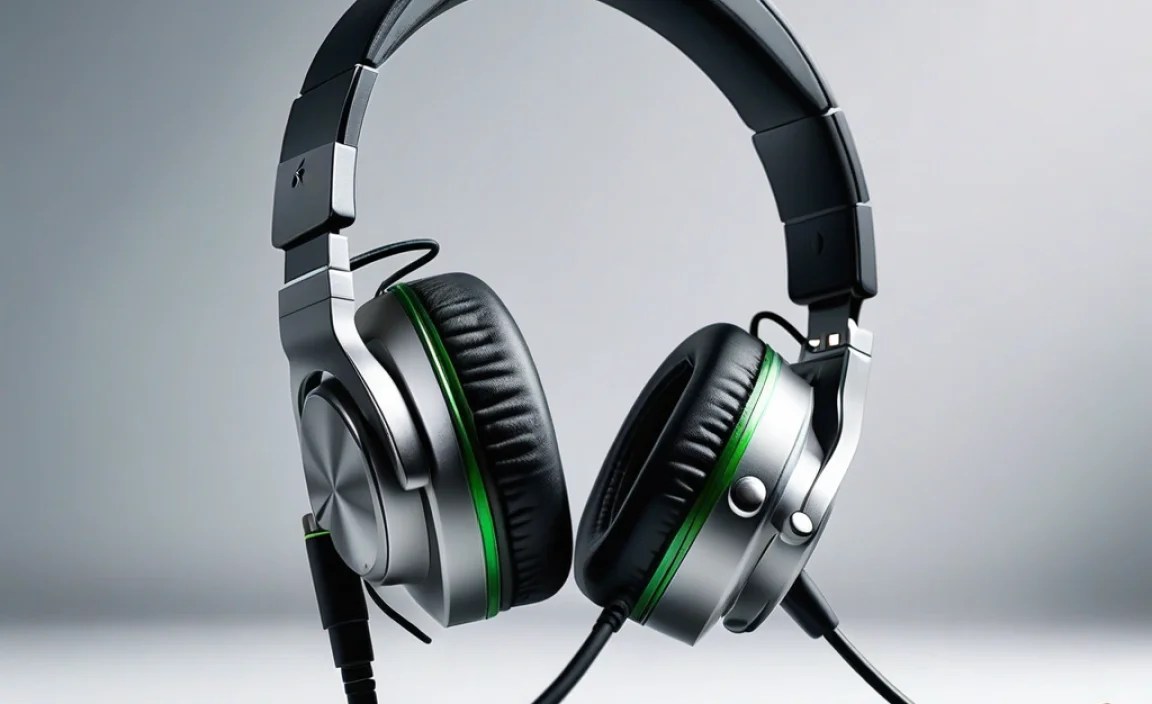
Even with the straightforward setup, you might occasionally run into a snag. Here are some common issues and their simple fixes:
No Sound Through Headphones
This is perhaps the most common problem. Don’t panic! Let’s try these steps:
- Check the Plug: Ensure the 3.5mm plug is fully inserted into the controller. Sometimes it can feel plugged in but not be making proper contact. Try pulling it out slightly and re-inserting it firmly.
- Verify Controller Connection: Is your controller connected to the Xbox? Press the Xbox button – does it light up? If not, try re-syncing your controller or charge it.
- Check Volume Levels: On your Xbox Guide, go to the ‘Audio’ tab and ensure ‘Headset Volume’ is turned up. Also, check if there’s an inline volume control on your headphones and if it’s turned down or muted.
- Test Your Headphones: Plug your headphones into another device (like a phone or computer) to confirm they are working correctly. If they don’t work elsewhere, you might have faulty headphones.
- Restart Everything: Sometimes a simple power cycle can fix temporary glitches. Turn off your Xbox, unplug it from the power source for about 30 seconds, then plug it back in and turn it on. Do the same for your controller if needed.
Microphone Not Working
If you can hear game audio but your voice isn’t transmitting, here’s what to check:
- Mic Mute: Many headsets have a physical mute switch on the microphone boom or inline controls. Ensure it’s not accidentally flipped to mute.
- Chat Mixer Setting: Make sure your ‘Headset Chat Mixer’ isn’t pushed all the way to ‘Game Audio’ in the Xbox Guide.
- Mic Monitoring: As mentioned earlier, check your ‘Headset mic monitoring’ setting in the Xbox settings. If it’s off, it might be worth turning on temporarily to see if you get any mic input at all.
- Separate Mic Plug: If you’re using a splitter cable and separate mic plug, ensure the mic plug is in the correct port on the splitter.
- Controller Settings: Go to ‘Profile & system’ > ‘Settings’ > ‘General’ > ‘Volume & audio output’. Under ‘Party & gaming headset’, check the ‘Microphone’ settings to ensure it’s enabled.
Crackling or Distorted Audio
This can be annoying but is often fixable:
- Check the Connection: A loose connection is a prime suspect for crackling. Ensure the plug is seated properly.
- Inspect the Port and Plug: Look for any debris or damage inside the controller’s headphone jack or on the headphone plug itself. Gently clean them if necessary. A can of compressed air can be useful for cleaning the port.
- Try Different Headphones: Rule out the headphones themselves by trying a different, known-good pair.
- Wireless Interference: If you’re using a wireless headset that connects via a 3.5mm adapter, ensure there’s no significant wireless interference in your environment. Try moving closer to the console or removing potential sources of interference.
- Firmware Updates: Sometimes, controller or headset firmware issues can cause audio problems. Ensure your controller firmware is up to date by going to ‘Profile & system’ > ‘Settings’ > ‘Devices & connections’ > ‘Accessories’. Select your controller and check for updates.
When Your Standard Headphones Aren’t Enough: Advanced Options

While the 3.5mm jack is fantastic, sometimes you might crave more. Here are a few scenarios and solutions:
Needing Better Audio Quality
Standard headphones are great, but for audiophiles, you might want to explore options that bypass the controller for the absolute best sound:
- USB Headsets: Many high-end gaming headsets connect directly to your Xbox via USB. These often have their own sound cards and drivers, which can offer superior audio processing and features like virtual surround sound.
- Optical Audio Adapters: For older consoles or specific setups, you might find adapters that take the optical audio out from the Xbox and convert it to a format compatible with more advanced audio systems, though this is less common for direct headphone use on modern Xboxes.
Wanting More Control (Volume, EQ, Chat Mix)
- Headset Adapters (Xbox One specific, less common now): In the early days of Xbox One, some users preferred the official Xbox Stereo Headset Adapter. It plugged into the controller’s 3.5mm jack and provided inline controls for volume, mic mute, and chat mix. While many modern headsets have these built-in, an adapter can be useful if your headphones lack them.
- MixAmps and External Mixers: For serious gamers or streamers, external devices like Astro MixAmps or dedicated audio mixers can provide unparalleled control over game audio, chat levels, EQ settings, and more. These typically connect via USB and/or optical input from the console, with your headphones plugging into the MixAmp or mixer.
You can learn more about general audio connections at resources like the International Telecommunication Union’s Broadcasting Standards, which discusses audio protocols that underpin many of these technologies.
Frequently Asked Questions (FAQ)
Q1: Do all Xbox controllers have a headphone jack?
No, not all of them do. The original Xbox and Xbox 360 models do not have a 3.5mm headphone jack on the controller. However, all standard Xbox One and Xbox Series X|S controllers feature a 3.5mm headphone jack, making them very user-friendly for connecting headphones and headsets.
Q2: Can I use my phone or computer headphones with my Xbox controller?
Yes, most smartphone or computer headphones that use a standard 3.5mm audio plug will work perfectly with Xbox One and Series X|S controllers. If your headphones have a separate plug for the microphone, you will need a 3.5mm splitter cable to combine them into a single plug for the controller.
Q3: How do I adjust game volume versus chat volume separately?
You can use the ‘Headset Chat Mixer’ on your Xbox. Press the Xbox button on your controller, navigate to the ‘Audio’ tab, and you’ll find a slider for ‘Headset Chat Mixer’. Moving it towards ‘Game Audio’ increases game volume relative to chat, and vice-versa. Many headsets also have their own physical controls for this balance.
Q4: My microphone isn’t working. What should I do?
First, check if your microphone is muted via an inline switch or by the mic being flipped up. Then, ensure your ‘Headset Chat Mixer’ isn’t inadvertently pushed all the way to ‘Game Audio’. Go into your Xbox settings under ‘Volume & audio output’ and check the ‘Microphone’ settings. Finally, test your headphones and microphone on another device
