
Quick Summary: Elevate your PS4 gaming with the right headphones! Discover how to choose, connect, and use a headphone for PS4 to boost immersion, communication, and overall enjoyment. This guide makes it easy to understand the benefits and find the perfect audio companion for your console adventures.
Headphone for PS4: Essential Gaming Upgrade
Hey there, fellow gamers! Edward Cavitt here, your guide to all things audio at Headphone Horizon. If you’ve been diving into the vibrant worlds of PlayStation 4, you’ve probably experienced its incredible visuals and storytelling. But what about the sound? While your TV might do a decent job, a dedicated headphone for PS4 can truly transform your gaming experience. It’s like adding surround sound for your ears, letting you pinpoint every crucial footstep or distant explosion. Plus, it’s a fantastic way to chat with friends without disturbing anyone. Ready to unlock a new level of immersion? Let’s dive in!
Why is a Headphone for PS4 So Important?
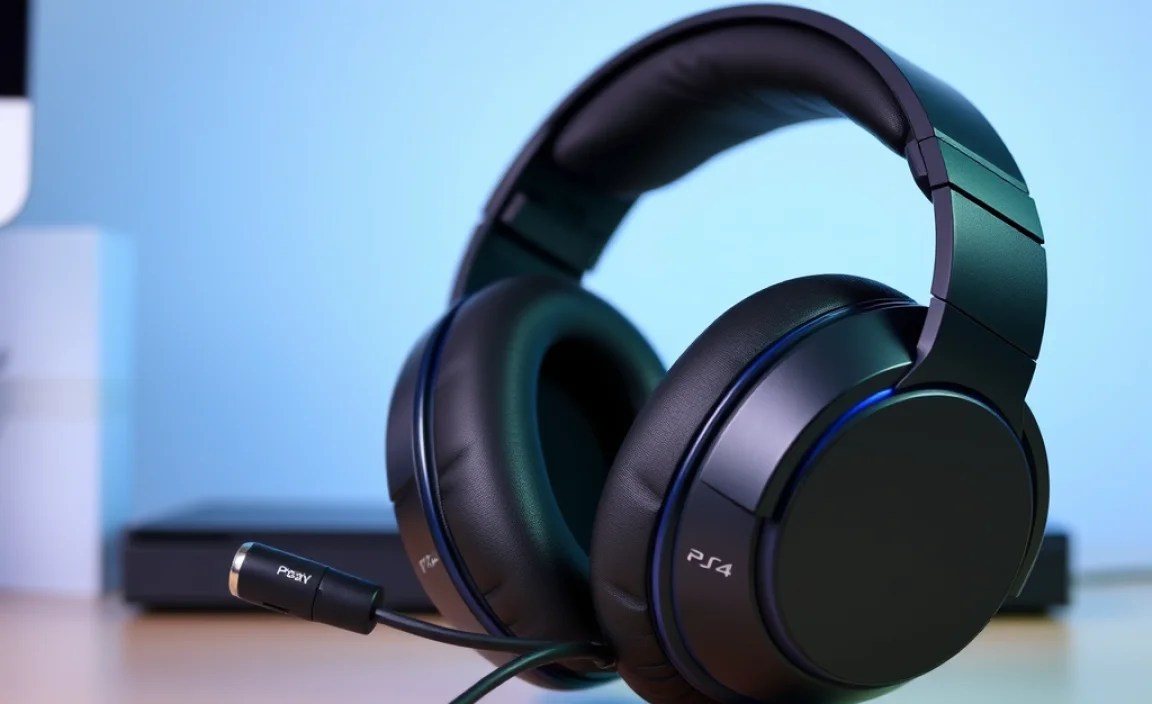
Think of your PS4 as a portal to amazing adventures. A good headphone doesn’t just play game audio; it enhances it. Here’s why it’s a game-changer:
- Deeper Immersion: Hear every rustle of leaves, every subtle hint of enemy presence, and every piece of atmospheric music. This level of audio detail pulls you deeper into the game world, making every moment more intense and engaging.
- Clear Communication: For multiplayer games, clear voice chat is essential. A headset with a good microphone ensures your teammates can hear you loud and clear, and you can hear them, leading to better coordination and more wins.
- Better Game Awareness: In competitive games, audio cues are vital. A quality headphone allows you to distinguish directional sounds, giving you a tactical advantage. You’ll hear approaching enemies before you see them.
- Personalized Sound: Many PS4 headphones offer adjustable settings or customizable audio profiles, letting you tailor the sound to your preferences or the specific game you’re playing.
- Privacy and Convenience: Play anytime, day or night, without disturbing others. You can also enjoy your gaming sessions without worrying about external distractions.
Choosing the Right Headphone for PS4: Key Features to Consider

Not all headphones are created equal, especially when it comes to gaming. Here’s what to look for:
Connectivity Options
How your headphone connects to your PS4 is crucial. The PS4 primarily supports two main connection types:
- 3.5mm Audio Jack: This is the most common and straightforward connection method. The PS4 DualShock 4 controller has a 3.5mm jack, allowing you to plug in almost any standard gaming headset directly. This offers simplicity and broad compatibility.
- USB Connection: Some higher-end gaming headsets connect via USB. This often allows for more advanced features like virtual surround sound, independent volume controls, and better audio processing, as the headset has its own sound card.
- Wireless (Bluetooth/Proprietary Dongle): Wireless options offer freedom from cables. Bluetooth headphones might require a separate Bluetooth adapter for the PS4 if it doesn’t have native support you desire. Many dedicated wireless gaming headsets use a USB dongle that plugs into the PS4, offering a stable, low-latency connection specifically designed for gaming.
Comfort and Design
You’ll be wearing these for hours, so comfort is paramount. Look for:
- Earcup Material: Plush memory foam or breathable fabric earcups are ideal for long gaming sessions.
- Adjustable Headband: A good fit ensures the headset stays in place without causing pressure.
- Weight: Lighter headsets are generally more comfortable for extended wear.
- Over-Ear vs. On-Ear: Over-ear designs typically provide better noise isolation and comfort by enclosing the entire ear. On-ear designs can be lighter but may not offer the same level of immersion or comfort for everyone.
Audio Quality
This is where the magic happens. Key aspects include:
- Driver Size: Larger drivers (e.g., 40mm or 50mm) generally produce richer, more powerful sound.
- Frequency Response: A wider range means you can hear more of the audio spectrum, from deep bass to crisp highs. For gaming, a frequency response between 20Hz and 20kHz is standard and excellent.
- Sound Profile: Some headphones are tuned for clarity, others for booming bass. For gaming, a balanced profile that emphasizes both clear dialogue and impactful sound effects is often best.
Microphone Quality
If you play online with friends, a clear microphone is a must. Look for:
- Noise Cancellation: This feature helps filter out background noise, so your teammates only hear your voice.
- Boom Mic: A retractable or repositionable boom microphone is generally preferred for gaming, as it can be easily positioned near your mouth and tucked away when not in use.
- Mic Monitoring (Sidetone): This allows you to hear your own voice through the headset, preventing you from shouting.
Durability and Build Quality
A well-built headset will last longer. Check for sturdy materials and reinforced seams, especially around the headband and cable connections.
Connecting Your Headphone to PS4: A Step-by-Step Guide

Connecting your new audio companion is usually a breeze. Here’s how to do it:
Method 1: Using the 3.5mm Audio Jack (Most Common)
This is the simplest method and works with most standard headphones and headsets.
- Plug In: Locate the 3.5mm audio jack on the bottom of your DualShock 4 controller. Insert the headphone’s plug firmly into this jack.
- Configure Audio Output:
- Turn on your PS4 and navigate to the main menu.
- Go to Settings.
- Select Devices.
- Choose Audio Devices.
- Under “Output Device,” select Headset Connected to Controller.
- Under “Output to Headphones,” choose All Audio (or “Chat Audio” if you only want voice chat to go through the headset and game audio through your TV, though “All Audio” is recommended for full immersion).
- Adjust Volume: You can adjust the headphone volume using the volume rocker on the controller’s 3.5mm jack (if your headset has one) or via the PS4’s audio settings menu. To access this quickly:
- Press and hold the PS button on your controller.
- A quick menu will appear. Select Adjust Quick Menu.
- Ensure Volume Control (Headphones) is enabled.
- You can then use your controller’s D-pad to adjust the volume up or down.
Method 2: Connecting via USB
Some wired and wireless headsets use a USB connection. This often bypasses the controller’s audio processing for potentially higher quality or more features.
- Plug In USB: Insert the headset’s USB cable or dongle into one of the available USB ports on your PS4 console (front or rear).
- Configure Audio Output:
- Turn on your PS4 and go to Settings > Devices > Audio Devices.
- Under “Input Device” and “Output Device,” select your USB headset. It should appear by its model name.
- Ensure “Output to Headphones” is set to All Audio.
- Adjust Volume: Volume can usually be controlled via physical buttons or dials on the headset itself, or through the PS4’s audio menu.
Method 3: Wireless Headsets with Proprietary Dongles
Most wireless gaming headsets use a dedicated USB dongle rather than standard Bluetooth to minimize latency (that annoying delay between action on screen and sound). The process is very similar to USB connection.
- Insert Dongle: Plug the USB wireless dongle into a free USB port on your PS4.
- Power On Headset: Turn on your wireless headset. It should automatically pair with the dongle.
- Configure Audio Output:
- Go to Settings > Devices > Audio Devices.
- Select your wireless headset as both the Input and Output device.
- Set “Output to Headphones” to All Audio.
Troubleshooting Connection Issues
If your headphone for PS4 isn’t working, try these quick fixes:
- Check Connections: Ensure the plug or USB is fully inserted.
- Restart PS4: Sometimes a simple reboot solves the problem.
- Test on Another Device: If possible, test your headphones on a PC or mobile device to rule out an issue with the headphones themselves.
- Update Controller Firmware: Occasionally, updating your controller’s firmware can resolve connectivity glitches. Connect your controller via USB and check for updates in the PS4 settings.
- Consult Headset Manual: Specific models might have unique setup steps.
Top PS4 Headphone Recommendations for Different Budgets
Finding the perfect headphone for your PS4 can feel overwhelming with so many options. Here’s a breakdown of popular choices across different price points, focusing on what makes them great for gaming:
| Headphone Model | Price Range | Connection Type | Key Features | Best For |
|---|---|---|---|---|
| HyperX Cloud II | $$ – $$$ | 3.5mm (USB sound card for virtual 7.1 surround) | Comfortable memory foam earcups, durable aluminum frame, excellent mic quality, virtual 7.1 surround sound. | All-around excellent performance, immersive audio, great comfort for long sessions, and competitive pricing. |
| SteelSeries Arctis 7 / 7+ | $$$ | Wireless (USB Dongle) | Lag-free wireless, comfortable ski-goggle headband, clear retractable mic, long battery life. | Wireless freedom with no perceptible lag, outstanding comfort for extended play, and superb audio clarity. |
| Logitech G Pro X | $$$ | 3.5mm (USB sound card available) | Detachable microphone with Blue VO!CE technology for clear comms, comfortable design, premium feel. | Gamers who prioritize crystal-clear voice chat and enjoy a well-built, comfortable, and customizable audio experience. |
| Razer BlackShark V2 X | $ – $$ | 3.5mm | Lightweight design, comfortable earcups, praised for audio clarity and good microphone performance at an affordable price. | Budget-conscious gamers seeking a solid, reliable all-around performer for both game audio and communication. |
| Turtle Beach Stealth 600 Gen 2 | $$ | Wireless (USB Dongle) | Wireless connectivity, clear boom mic, comfortable design, good for PS4/PS5. | Convenient wireless gaming on a budget, offering a straightforward and enjoyable audio experience for casual to mid-core players. |
Note: Price ranges are approximate and can vary based on sales and retailers. ($ = Under $50, $$ = $50-$100, $$$ = $100+).
Enhancing Your PS4 Audio Experience
Once you’ve got your headphone for PS4 connected, there are a few more things you can do to get the most out of it.
PS4 Audio Settings Deep Dive
Let’s explore those PS4 audio settings a bit more. It’s a great place to fine-tune your experience:
- Settings > Sound/Audio Output: This is your primary hub. Most gaming headsets will be recognized instantly.
- Audio Format (Priority): For most headphones, leaving this on “Linear PCM” is fine. If you have a very high-end surround sound headset that supports Dolby or DTS, you might experiment, but PCM is generally the most compatible and widely supported.
- Volume Control (Headphones): As mentioned, this is crucial for adjusting your personal listening level without needing to dig into menus.
Understanding Virtual Surround Sound
Many gaming headsets boast “virtual surround sound.” This isn’t true surround sound with multiple speakers, but rather an audio processing technique that simulates directional audio through stereo headphones. For gaming, this can be incredibly beneficial for pinpointing enemy locations. Companies like Dolby have developed specific technologies for this, such as Dolby Atmos, which can be accessed on PS5 and some PC setups, but for PS4, it’s typically through the headset’s own proprietary processing or a USB sound card.
Microphone Settings and Best Practices
Your microphone’s effectiveness depends on both its quality and how you use it.
- Positioning: Ensure the microphone is close enough to your mouth to pick up your voice clearly, but not so close that it causes clipping or pops. Most boom mics can be moved up and down.
- Mute Button: Familiarize yourself with your headset’s mute function. It’s invaluable for quickly stopping background noise or private conversations from being broadcast.
- Sidetone/Mic Monitoring: If your headset has this feature, experiment with its level. Too high, and your own voice can be distracting; too low, and you might still feel like you’re shouting.
Maintaining Your PS4 Headphone
A little care goes a long way in extending the life of your audio gear.
Cleaning Your Headset
- Earpads: Gently wipe them with a slightly damp, soft cloth. For deeper cleaning, use a mild soap and water solution, ensuring no moisture seeps into the drivers. Allow them to air dry completely before use. Many earpads are removable for easier cleaning.
- Headband: Wipe down with a similar damp cloth.
- Microphone: Use a dry, soft brush or a can of compressed air to gently remove dust from the mic grille.
- Cable: Keep the cable clean by wiping it with a dry cloth. Avoid coiling it too tightly when storing.
Storage and Handling
- Avoid extreme temperatures: Don’t leave your headset in a hot car or a freezing garage.
- Keep away from liquids: Obvious, but spills can be disastrous.
- Proper winding: When storing, loosely loop the cable rather than tightly coiling it to prevent internal wire damage. Consider a headset stand or case for protection when not in use.
Proper maintenance ensures your headphone for PS4 continues to deliver excellent audio and clear communication for countless gaming sessions. For more in-depth cleaning tips, resources like the HealthyHearing guide offer great advice, a lot of which can be applied to gaming headsets.
Frequently Asked Questions (FAQs)
Can I use any headphone with my PS4?
Most headphones with a 3.5mm audio jack will work with the PS4 controller for basic audio output. However, for features like microphone input, advanced controls, or wireless connectivity, you’ll need a headset specifically designed for gaming consoles or one that supports PS4’s connectivity standards (USB, specific wireless dongles).
Do I need a special headphone for PS4 chat?
If you want to use your headphone for both game audio and voice chat, you need one with a microphone. Most gaming headsets will have this. When plugged into the controller via 3.5mm, your PS4 will automatically use it for both. For USB or wireless, you need to ensure the headset is selected as both the input and output device in your PS4 settings.
What is the difference between stereo and virtual surround sound on PS4 headsets?
Stereo headphones provide two channels of audio (left and right). Virtual surround sound aims to simulate audio coming from multiple directions using advanced processing through those same two stereo speakers, helping you better identify the location of sounds like footsteps or gunshots in games.
How do I adjust the microphone level on my PS4 headset?
You can adjust the microphone level directly on some headsets using a dial or button. If not, you can usually find a “Microphone Level” adjustment within the
