
Quick Summary: This guide offers simple, effective solutions for common headphone problems. Learn to troubleshoot and fix issues like no sound, distorted audio, or damaged cables with easy-to-follow steps for everyday listeners. Get your headphones working like new again!
Headphone Repair Guide: Proven Solutions for Everyday Listening

Hey there, audio adventurers! Edward Cavitt here from Headphone Horizon. We all love getting lost in our music, podcasts, or an important call, and our trusty headphones are our gateways. But what happens when they decide to take a break? A sudden silence, a crackle in the sound, or a loose connection can be incredibly frustrating. Don’t worry, though! You don’t always need to rush out and buy a new pair. Many common headphone issues can be fixed with a little patience and a few simple DIY solutions. This guide is designed to help you troubleshoot and repair your headphones, bringing your sound experience back to life with confidence and ease.
Common Headphone Problems and Their Solutions
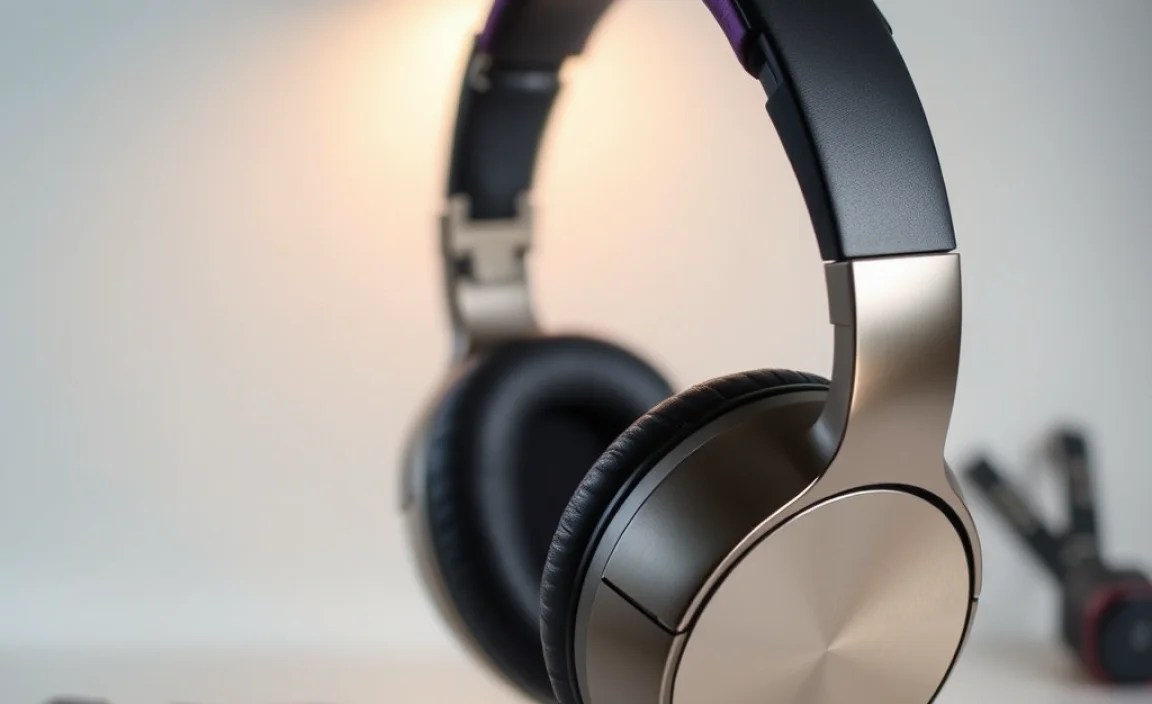
Let’s dive into some of the most frequent headphone woes and how to tackle them. We’ll start with the simplest fixes and move towards more involved troubleshooting.
Symptom 1: No Sound from One or Both Earcups
This is perhaps the most common and disheartening issue. Before you panic, let’s run through a few checks:
Step 1: Check Your Connections (The Obvious, But Crucial First Step)
- Wired Headphones: Ensure the headphone jack is fully and securely plugged into your device. Try wiggling it slightly; sometimes, a loose connection is the culprit. If you’re using an adapter, make sure it’s also firmly connected at both ends.
- Wireless Headphones: Most Bluetooth issues stem from pairing problems or low battery.
- Check the battery level. Many headphones have an indicator, or you can check the battery status on your connected device.
- Make sure Bluetooth is enabled on your device and that the headphones are discoverable (usually indicated by a blinking light).
- Try “forgetting” the headphones in your device’s Bluetooth settings and then re-pairing them. This can resolve stubborn connection glitches.
Step 2: Test on a Different Device
The problem might not be your headphones but the device you’re connecting them to. Plug your headphones into a different phone, tablet, computer, or audio player. If they work perfectly on another device, the issue lies with your original source. For wired headphones, check if the audio port on your device is clean and free of debris. You can often do this by looking in the port with a flashlight.
Step 3: Inspect the Cable and Jack (Wired Headphones)
The cable is often the most vulnerable part of wired headphones. Gently inspect the entire length of the cable for any visible damage, such as kinks, cuts, or fraying, especially where the cable connects to the earcup and the jack. A bent or damaged headphone jack can also cause intermittent or no sound.
Step 4: Clean the Headphone Jack (Wired Headphones)
Dust or lint can accumulate in the headphone jack of your device, preventing a good connection. Carefully clean the jack using a dry, non-metallic object. A toothpick (not too sharp!), compressed air, or a blast of air from your lungs can help dislodge debris. For a more thorough cleaning, you can use a cotton swab lightly dampened with isopropyl alcohol (ensure it’s completely dry before plugging anything in).
Step 5: Check Audio Settings
It sounds simple, but sometimes the volume is just turned down, or the audio output is incorrectly set.
- Ensure the volume is up on both your device and, if applicable, on any inline controls on your headphone cable.
- On computers and some devices, check the audio output settings to ensure your headphones are selected as the playback device.
- If you have a balance slider (left/right channel), make sure it’s centered.
Symptom 2: Distorted, Crackling, or Intermittent Sound
This can be due to loose connections, cable damage, or driver issues. Let’s pinpoint the cause.
Step 1: Same as Symptom 1, Steps 1-4
Revisit the connection checks, try a different device, inspect and test the cable, and clean the jack. Many distortion issues are resolved by these basic steps.
Step 2: Check the Cable at the Earcup (Wired Headphones)
The point where the cable enters the earcup is a common failure point. Gently wiggle the cable right where it meets the earcup while playing audio. If the sound cuts in and out or changes in quality, this is likely where the problem lies. This often indicates a broken wire inside the cable near the earcup connection.
Step 3: Firmware Update (Wireless Headphones)
For many premium wireless headphones, manufacturers release firmware updates that can fix bugs and improve performance. Check your headphone manufacturer’s website or app for instructions on how to update your headphone’s firmware. Ensure your headphones are charged and connected to your device during the update process.
Step 4: Examine the Earcups and Drivers (Advanced)
If the cable seems sound and connections are good, the issue might be with the internal driver (the speaker within the earcup) or its connection. This is a more advanced repair and often requires opening the earcup. If you’re comfortable with delicate electronics, you might find specific guides for your headphone model online. However, be aware that opening your headphones can void warranties.
Symptom 3: One Earcup Has Significantly Lower Volume Than the Other
This imbalance can be due to dirt, a bad connection, or an issue with the driver.
Step 1: Balance Settings (Device)
As mentioned before, check your device’s audio settings for any balance control between the left and right channels. Ensure it’s set to the center.
Step 2: Clean Earwax/Debris from Earcups
For in-ear monitors (IEMs) and earbuds, earwax buildup on the mesh or nozzle can significantly muffle sound in one earcup. For over-ear headphones, debris can also accumulate on the speaker grille.
- Earbuds/IEMs: Gently remove the eartips. Use a soft, dry brush (like a toothbrush or a specialized cleaning brush) to carefully brush away any visible wax or debris from the nozzle. For stubborn wax, you can use a cotton swab lightly dampened with water or rubbing alcohol (ensure it’s dry before reattaching eartips).
- Over-ear/On-ear Headphones: Gently wipe the earcup grille with a soft, dry cloth. Avoid pressing too hard, as you don’t want to push debris further into the driver.
Step 4: Check the Cable (Wired Headphones)
A damaged wire within the cable, particularly if it affects only one channel, can cause this. Gently flex the cable along its length and near the connectors to see if the volume of the quieter earcup fluctuates. If it does, the cable is the likely culprit.
Symptom 4: Microphone Not Working (Headsets)
For gaming headsets or communication headphones, a non-functional microphone is a deal-breaker.
Step 1: Mute Switch Check
Many headsets have an inline mute switch on the cable or a button on the earcup. Ensure this is not engaged. Some boom mics also have a physical mute switch near the mic tip. Flip it up or down to ensure it’s not muted.
Step 2: Device Permissions (Software)
Modern operating systems and applications require specific permissions for microphones.
- Windows: Go to Settings > Privacy > Microphone. Ensure “Allow apps to access your microphone” is turned ON, and then find your specific application in the list and ensure it has permission.
- macOS: Go to System Preferences > Security & Privacy > Privacy > Microphone. Check the box next to the application that needs microphone access.
- Mobile Devices: Check the app permissions in your phone’s settings.
Step 3: Default Recording Device (Software)
On computers, your system might be set to use a different microphone.
- Windows: Right-click the speaker icon in the system tray > Sounds > Recording tab. Ensure your headset microphone is set as the “Default Device” and “Default Communication Device.”
- macOS: System Preferences > Sound > Input tab. Select your headset microphone from the list.
Step 4: Test the Microphone (Software)
Use the built-in voice recorder app on your phone or computer to test the microphone directly. If it records your voice, the microphone itself is likely working, and the issue is with the application you’re trying to use it with. If it doesn’t record, it points to a hardware issue.
Symptom 5: Loose or Damaged Headphone Jack (Wired Headphones)
A bent, loose, or damaged 3.5mm jack is a common point of failure.
Step 1: Inspect the Jack
Look closely at the plug. Is it bent, or does it appear bent? Is the plastic housing cracked? A physically damaged jack often needs replacement.
Step 2: Gentle Straightening (If Slightly Bent)
If the jack is only slightly bent and your headphones are otherwise fine, you might be able to carefully straighten it using needle-nose pliers. Be extremely gentle, as too much force can break it. This is a temporary fix at best and carries risk.
Step 3: Repair or Replace the Jack (DIY – Advanced)
For those comfortable with soldering, replacing the 3.5mm jack is a viable repair. You’ll need a replacement jack (available online from electronics suppliers), basic soldering tools, and wire strippers.
- Carefully cut off the old jack.
- Strip a small amount of insulation from the end of each wire, being careful not to cut the fine strands within.
- Identify the wires for ground, left channel, and right channel (often color-coded, but check if you can find a wiring diagram for your specific headphone model).
- Solder each wire to the corresponding terminal on the new jack.
- Ensure there are no solder bridges (connections touching where they shouldn’t) and that the solder joints are clean.
- Secure the connection with heat-shrink tubing or electrical tape before reassembling.
Note: This is a more involved repair. If you’re not experienced with soldering, it’s often safer and more effective to seek professional repair or consider replacing the headphones.
Essential Tools for Headphone Repair

You don’t need a full workshop to fix most common headphone issues. Here are a few tools that can be incredibly helpful:
| Tool | Use Case | Beginner Friendliness |
|---|---|---|
| Soft, Dry Cloth (Microfiber) | Cleaning earcups, jacks, and general dusting. | Very High |
| Compressed Air Canister | Blowing out dust from ports and grilles. | High |
| Toothpick or Plastic Spudger | Gently cleaning headphone jacks or prying open earcup housings (use with caution). | Medium |
| Small Phillips/Flathead Screwdriver Set | For disassembling certain headphone models. | Medium (model dependent) |
