
Quick Summary: A headphone splitter for your computer lets you share audio with friends or plug in multiple audio devices simultaneously. This guide explains what they are, how to choose one, and provides easy steps for connecting them, ensuring you get the most out of your computer’s sound capabilities simply and effectively.
Hey there, audio adventurers! Edward Cavitt here from Headphone Horizon, your go-to spot for making sense of all things sound. Ever wished you could share that awesome playlist looping on your PC with a friend sitting right next to you? Or maybe you’re juggling between your gaming headset and a pair of studio monitors? If your computer only has one headphone jack, you might feel a bit… limited. But what if I told you there’s a super simple, affordable gadget that can unlock a world of audio sharing and multi-device convenience? Enter the humble yet mighty headphone splitter for your computer. It’s not just for sharing tunes; it can be a surprisingly useful tool for various audio needs. Let’s dive in and learn how this little connector can make a big difference to your computing experience!
The Headphone Splitter for Computer: Your Audio Sharing Ally
Navigating the world of computer audio can sometimes feel like a maze, especially when you want to do more than just listen solo. You’ve got your sleek headphones, maybe a microphone, and a computer that, for all its power, might only offer a single audio output jack. This is where a headphone splitter, sometimes called an audio splitter or a Y-splitter, swoops in to save the day. It’s a small, essential accessory designed to take a single audio source from your computer and distribute it to multiple audio devices simultaneously. Think of it as an audio superhighway on your desk, allowing traffic to flow to more than one destination without slowing down.
Whether you’re a student wanting to study with a friend, a gamer looking to share your epic victories (or intense defeats!) with someone watching, or a creative professional needing to monitor audio on different devices, a headphone splitter is your straightforward solution. It bridges the gap between your computer’s single audio port and your desire for dual listening pleasure or expanded audio connectivity. This guide will walk you through everything you need to know, from understanding what a splitter does to choosing the right one and setting it up with ease.
What Exactly is a Headphone Splitter for Computer?
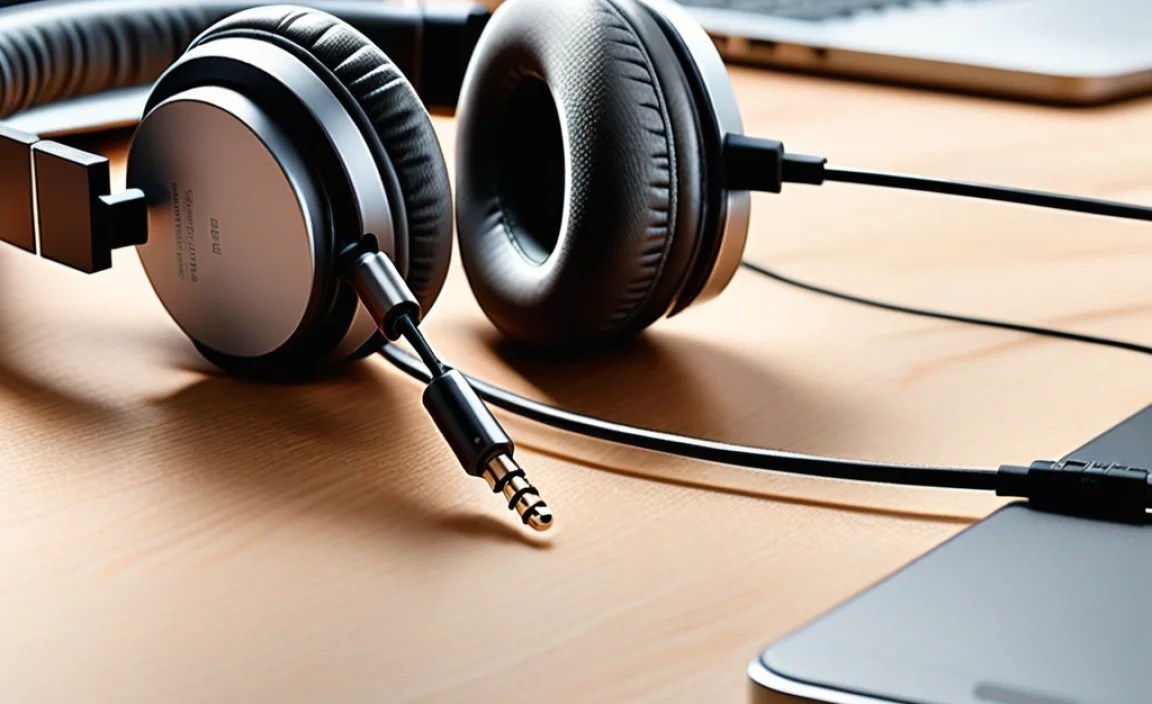
At its core, a headphone splitter for your computer is a passive adapter. It has one male plug (usually a 3.5mm jack, the standard headphone plug size) that connects to your computer’s headphone or microphone port. On the other end, it splits into two or more female jacks (again, typically 3.5mm) where you can plug in your headphones or other audio devices. This allows your computer’s audio signal to travel down two separate paths, effectively allowing two people to listen to the same audio source at the same time using their own headphones.
Beyond just sharing, some splitters can also handle more complex audio routing. For instance, a splitter might have one jack for headphones and another for a microphone, allowing you to use a headset with separate headphone and mic connectors with a combo jack on your computer or laptop. We’ll explore the different types and their specific functions later on.
Why Would You Need a Headphone Splitter for Your Computer?
The reasons for needing a headphone splitter are as diverse as the people who use computers. Here are some of the most common scenarios:
- Sharing Audio: This is the most popular use. Want to watch a movie with a partner or listen to music together without disturbing others? Plug two pairs of headphones into a splitter and share the sound.
- Using a Gaming Headset: Many gaming headsets have two separate cables – one for audio (headphones) and one for voice chat (microphone). If your computer has a combined headphone/microphone jack (often colored pink or marked with a microphone icon for the mic and green for headphones), a splitter can help you connect both parts of your headset correctly.
- Connecting Multiple Audio Devices: While not its primary function for typical listening, some advanced users might use splitters to route an audio signal to multiple output devices, though dedicated audio interfaces are generally better for this.
- Troubleshooting Audio Issues: Sometimes, a splitter can help isolate an audio problem. If you’re experiencing issues with one device, trying another through the splitter can help you figure out if the problem is with the computer’s port or the device itself.
- Extending Reach: While not their main purpose, some longer splitter cables can help you position your headphones a bit further away from your computer than a standard cable allows, offering a bit more freedom of movement.
Types of Headphone Splitters
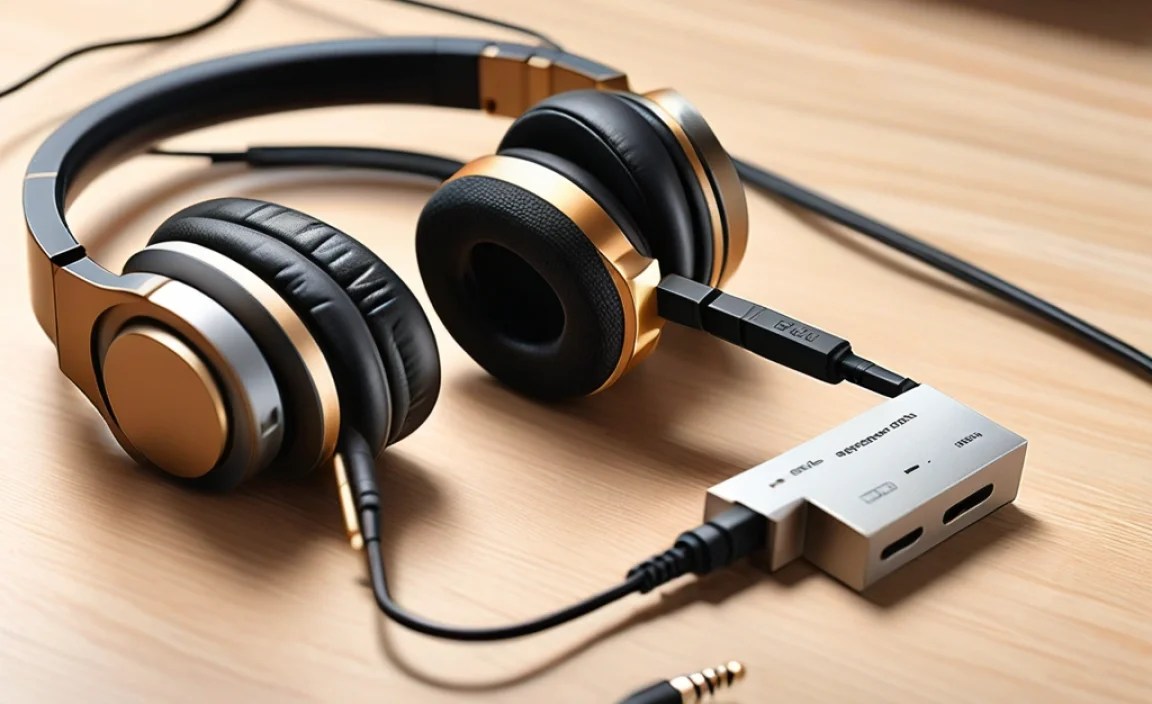
Not all headphone splitters are created equal. Understanding the different types will help you pick the one that best suits your needs:
1. Stereo Audio Splitters (Two-to-One)
These are the most common and straightforward. They take one stereo audio input and split it into two identical stereo audio outputs. This is perfect for sharing music or videos with another person. They typically have one male 3.5mm plug and two female 3.5mm jacks.
2. Microphone/Headphone Combo Splitters (Y-Splitters)
These are specially designed for devices that have a combined headphone and microphone connector, often found on modern laptops, smartphones, and some gaming consoles. A standard computer port might have separate jacks for headphones and a microphone. If your headset has separate plugs but your computer has only one combo jack, a combo splitter will have one male plug that fits into your computer’s combo jack, with two female jacks on the other end: one for the headphone signal and one for the microphone signal.
It’s important to note that not all combo jacks are created equal. The official standard for these combo jacks is TRRS (Tip-Ring-Ring-Sleeve), which carries both audio output and microphone input on a single connector. A TRRS splitter will have a TRS (Tip-Ring-Sleeve) or TRRS connector on the male end and separate TRS jacks for headphones and microphone on the female end. Be sure to check your computer’s ports and your headset’s connectors to ensure compatibility. You can often find information on the type of jack on your device’s specifications or by looking for a specific icon near the port (a headset icon usually indicates a combo jack).
3. Multiple Output Splitters
Less common for everyday use but available, these splitters can take a single audio input and split it into three or even four outputs. These are more for specific setups where multiple people might need to monitor audio or for connecting several audio playback devices, though for professional needs, audio interfaces are generally preferred.
Choosing the Right Headphone Splitter

With the different types in mind, here’s a quick checklist to help you select the best headphone splitter for your computer:
- Identify Your Computer’s Ports: Does your computer have separate headphone and microphone jacks, or a single combo jack? This is the most crucial factor. Look for color-coding (green for headphones, pink for microphone) or icons.
- Identify Your Headset/Audio Devices’ Connectors: Do your headphones have a single 3.5mm plug? Do they have separate plugs for audio and microphone? Make sure the splitter’s output jacks match your devices.
- Consider Durability and Build Quality: Splitters are generally inexpensive, but opt for one with reinforced connectors and a sturdy cable if you plan to use it frequently or move it around a lot. Braided cables can offer extra durability.
- Length of the Cable: Most splitters have short cables. If you need to connect from the back of a desktop PC, you might want a splitter with a longer integrated cable or consider a splitter with extension cables.
- Brand Reputation and Reviews: While many splitters are generic, checking user reviews can highlight potential issues with sound quality degradation or build flaws.
How to Connect a Headphone Splitter to Your Computer (Step-by-Step)
Connecting a headphone splitter is incredibly straightforward. Here’s how to do it:
Scenario 1: Sharing Audio with Two Pairs of Headphones (Using Separate Headphone/Mic Ports)
This is for computers with a dedicated green headphone jack and a separate pink microphone jack.
- Locate the Headphone Jack: Find the green audio-out port on your computer. It’s usually on the front or back panel of a desktop, or on the side of a laptop.
- Plug in the Splitter’s Male Connector: Insert the single male 3.5mm plug of your stereo audio splitter into the computer’s headphone jack.
- Connect Your First Pair of Headphones: Plug your first pair of headphones into one of the female splitter jacks.
- Connect Your Second Pair of Headphones: Plug your second pair of headphones into the remaining female splitter jack.
- Test the Audio: Play some music or open a video on your computer. Both pairs of headphones should now be producing the same audio output. Adjust the volume using your computer’s volume controls.
Scenario 2: Using a Headset with Separate Mic/Headphone Plugs on a Computer with a Combo Jack
This applies if your headset has two plugs (e.g., green for audio, pink for mic) but your computer has only one jack with a headset icon or similar labeling.
- Locate the Combo Audio Jack: Find the single audio port on your computer that is designed for a headset with both microphone and headphone capabilities.
- Plug in the Splitter’s Male Connector: Connect the male plug of your microphone/headphone combo splitter into the computer’s combo audio jack. Ensure it’s fully inserted.
- Connect Your Headset’s Headphone Plug: Find the audio plug from your headset (usually green) and insert it into the headphone jack on the splitter.
- Connect Your Headset’s Microphone Plug: Find the microphone plug from your headset (usually pink) and insert it into the microphone jack on the splitter.
- Test Your Audio and Microphone: Play some audio to test your headphones. Then, open a voice recording application or a communication program (like Discord or Skype) and test your microphone to ensure it’s picking up your voice. You might need to select the microphone input device in your software settings.
Scenario 3: Using a Headset with a Single Plug (TRRS) on a Computer with Separate Ports
This is for headsets that have one combined plug (like your phone headset) and a computer that has separate green (headphone) and pink (microphone) ports.
- Locate the Separate Audio and Microphone Ports: Find both the green headphone jack and the pink microphone jack on your computer.
- Plug in the Splitter’s Male Connector: Insert the single male 3.5mm plug of your microphone/headphone combo splitter into either the headphone or microphone port on your computer. Wait, this isn’t quite right. Let’s correct this. For this scenario, you’ll actually need a different type of splitter – one that takes a single TRRS input and splits it into two TRS outputs. This is less common for computers and more for taking a phone’s output and splitting it. However, if your headset has a single TRRS plug and your computer has separate ports, you’ll likely need a female TRRS to dual male TRS adapter to plug into your computer. The splitter would then plug into this adapter.
Correction for Scenario 3: If your headset has a single 3.5mm TRRS plug (common for mobile headsets) and your computer has separate headphone and microphone jacks, you’ll generally need a female TRRS to dual male TRS adapter cable. This adapter has a male TRRS plug that matches your headset and splits into two male TRS plugs (one for headphone, one for mic) that go into your computer. If you already have a headphone splitter with a male TRS plug and dual female TRS jacks, you’d first plug that splitter into the respective computer ports, and then plug your headset’s separate plugs into the splitter. This can get confusing, so let’s simplify.
Simplified Guide for Headset with Single Plug on Computer with Separate Ports:
If your headset has one plug (TRRS) and your computer has separate green (headphone) and pink (mic) ports, you will need a TRRS to dual TRS adapter cable. This cable has a female TRRS jack to plug your headset into, and two male TRS plugs (one for your computer’s headphone port, one for your mic port). This adapter is the splitter in this case.
Let’s consider the most common use case: Splitting a computer’s single headphone jack into two for sharing. The steps for this are usually very simple:
- Locate the Computer’s Headphone Jack: This is usually a green 3.5mm port.
- Plug the Connector of the Splitter into the Computer: Insert the male end of your stereo audio splitter into the headphone jack.
- Plug Your Headphones into the Splitter: Connect each pair of headphones into one of the female jacks on the splitter.
- Play Audio: Your computer’s sound should now come through both sets of headphones.
Troubleshooting Common Headphone Splitter Issues
While splitters are usually plug-and-play, here are a few common issues and how to tackle them:
- No Sound or Only One Ear Working:
- Ensure plugs are fully inserted into the splitter and the computer.
- Try swapping the headphones between the splitter’s jacks.
- Test each headphone pair directly with your computer without the splitter to confirm they work.
- If using a combo splitter, ensure you’ve plugged the headphone cable into the headphone jack and the mic cable into the mic jack.
- Reduced Volume or Sound Quality:
- Passive splitters can sometimes slightly degrade the signal, especially if you’re using very high-impedance headphones or long cable runs. While usually unnoticeable for everyday use, very sensitive ears might detect a slight difference.
- Ensure your computer’s volume isn’t too low.
- The splitter might be of lower quality. Trying a different, reputable brand might help.
- Microphone Not Working:
- This is almost always an issue with combo splitters. Make sure you have the correct type of splitter for your headset and computer ports (TRRS vs. separate TRS).
- Ensure the microphone plug is in the dedicated microphone jack on the splitter.
- Check your computer’s sound settings to make sure the correct microphone input is selected. You can often find this in Windows Sound Settings or macOS Sound Preferences. For Windows, you can visit the Microsoft Support page on microphone settings for detailed guidance.
Tips for Optimal Headphone Splitter Use
To get the best experience from your headphone splitter, keep these tips in mind:
- Keep it Clean: Dust and debris can accumulate in the ports of splitters and on your headphone jacks. Gently clean them with a dry cotton swab or compressed air periodically to ensure good contact.
- Avoid Overloading: While splitters distribute a signal, don’t try to plug in more devices than the splitter is designed for (e.g., 3 pairs of headphones into a 2-output splitter).
- Protect the Connections: Avoid yanking cables out forcefully. Gently pull on the plug itself, not the wire, to prevent damage to the splitter or your computer’s audio port.
- Consider Powered Splitters for Specific Needs: For scenarios requiring amplification or more robust routing (like multiple musicians needing to monitor distinct mixes), powered headphone amplifiers or audio interfaces are a better investment than passive splitters.
Understanding Audio Jacks: The 3.5mm Standard
The ubiquitous 3.5mm audio jack is the heart of most headphone splitters. It’s also known as a 1/8-inch jack. Understanding its variations – TRS and TRRS – is key to compatibility:
A standard stereo headphone output uses a TRS (Tip-Ring-Sleeve) connector. It has three contact points:
- Tip: Carries the left audio channel.
- Ring: Carries the right audio channel.
- Sleeve: Acts as the common ground.
A combined headphone and microphone jack uses a TRRS (Tip-Ring-Ring-Sleeve) connector. It has four contact points:
- Tip: Carries the left audio channel.
- Ring 1: Carries the right audio channel.
- Ring 2: Carries the microphone signal.
- Sleeve: Acts as the common ground.
Most basic headphone splitters for sharing audio will have a TRS male plug and split into two TRS female jacks, essentially duplicating the left and right
