
Tired of static ruining your audio? This guide offers a clear, step-by-step approach to fixing headphone static noise. We’ll walk you through simple solutions to restore crisp, clear sound, from checking connections to troubleshooting software. Get your headphones back to their best performance without the buzz.
Headphone Static Noise Fix Steps: Proven Relief
Ah, the dreaded headphone static. That crackling, hissing, or buzzing sound that can turn your favorite song into an unlistenable mess or make an important call frustratingly unclear. If you’re experiencing this audio annoyance, you’re not alone. Many headphone users encounter static at some point, and the good news is, it’s usually fixable! As your guide from Headphone Horizon, I’m here to break down these common issues into simple, actionable steps. We’ll journey from the most straightforward checks to more in-depth troubleshooting, ensuring you can get back to enjoying pure, uninterrupted sound.
Understanding Why Your Headphones Might Be Static-y

Before we dive into the fixes, it’s helpful to know what might be causing the static in the first place. Static noise, often described as white noise, crackling, or buzzing, can stem from a variety of sources, both internal and external to your headphones and connected devices. Pinpointing the root cause is the first step toward a reliable solution. Common culprits include:
- Loose or Damaged Cables: The most frequent offender. A frayed wire, a bent connector, or simply a connection that isn’t fully seated can cause intermittent or constant static.
- Dirty Ports and Connectors: Dust, lint, or debris can accumulate in your headphone jack or on the connector itself, hindering a clean signal.
- Interference: Electrical devices, Wi-Fi signals, and even other Bluetooth devices can sometimes interfere with the audio signal, especially with wireless headphones.
- Software Glitches: An outdated driver, a faulty audio setting, or a problem with the application you’re using can introduce static.
- Hardware Issues: Less commonly, the static could point to a problem with the headphones’ internal components or the audio output port on your device.
- Low Battery (Wireless Headphones): Sometimes, a low battery on wireless headphones can lead to an unstable connection and audio artifacts like static.
Step-by-Step Headphone Static Noise Fix Guide

Let’s get started on silencing that static. We’ll begin with the easiest fixes and then move to more involved troubleshooting if needed. Take a deep breath; you’ve got this!
Step 1: Check the Simple Things First – Connections & Cables
This is where most static issues are resolved. It’s so easy to overlook that a slight wiggle of the headphone jack can make all the difference. Let’s be thorough here.
1.1 Re-seat the Headphone Jack

With your headphones plugged into your device (computer, phone, tablet, etc.), gently pull the headphone jack out slightly and push it firmly back in. Listen carefully. Did the static change or disappear? If so, your connection was likely loose. Ensure it’s always fully inserted. This is especially important for 3.5mm jacks, which can sometimes be a bit finicky.
1.2 Inspect the Cable for Damage
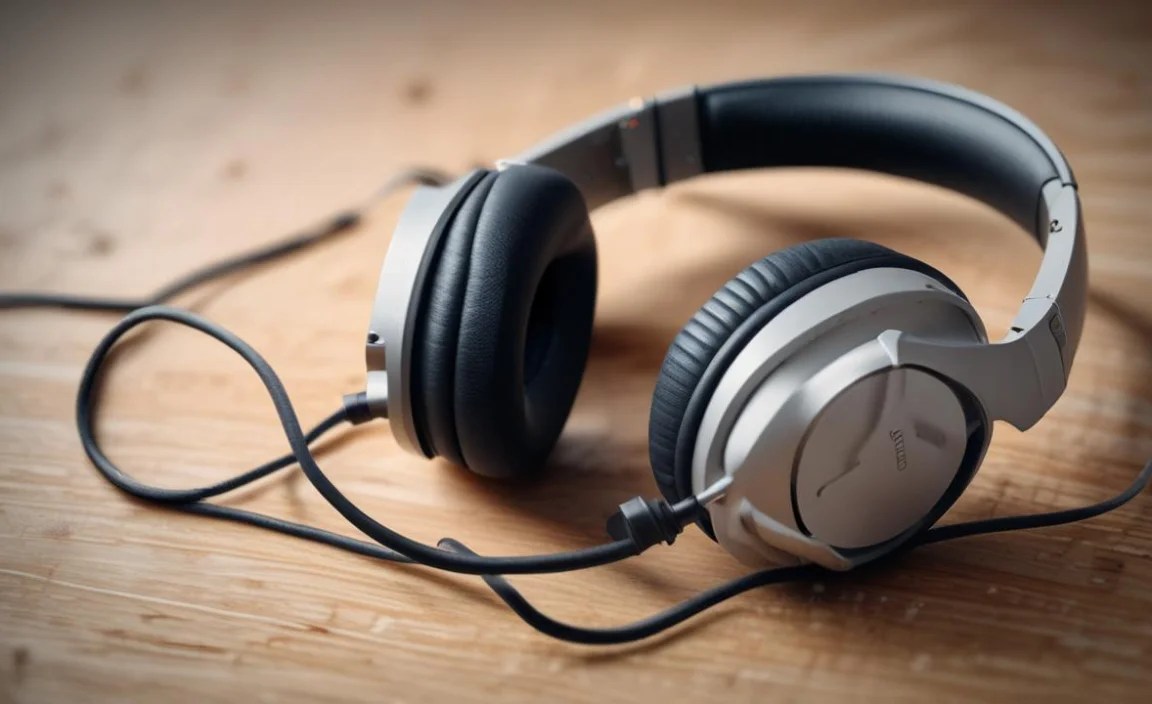
Carefully examine the entire length of your headphone cable. Look for any:
- Cuts or nicks in the rubber or plastic sheathing.
- Kinks or sharp bends, especially near the connector and the earcups.
- Visible fraying of wires.
If you find any damage, especially on wired headphones, this is a very likely cause of static. For minor damage, sometimes securing it with electrical tape can help temporarily, but it’s often a sign that the cable is nearing its end of life and might need replacement.
1.3 Test a Different Device
To rule out your device as the source of the problem, try plugging your headphones into something else. Use a different phone, computer, or audio player. If the static disappears when using a different device, the issue lies with the original audio source. If the static persists across multiple devices, the problem is almost certainly with the headphones themselves or their cable.
Step 2: Clean Your Ports and Connectors

A build-up of dust, lint, or pocket grit can create a poor connection, leading to static. A clean port is a happy port!
2.1 Clean the Headphone Jack (Connector)

Turn off your headphones if they have a power switch. Take a soft, lint-free cloth (like a microfiber cloth) and gently wipe the metallic part of your headphone’s connector. For stubborn grime, you can lightly dampen a cotton swab with isopropyl alcohol (rubbing alcohol). Gently swab the connector, then let it air dry completely before plugging it back in. Be careful not to let any alcohol drip into the headphone body.
2.2 Clean the Device’s Audio Port

This requires a bit more care. Turn off your device. You can use a can of compressed air to blow out any loose debris. For more persistent buildup, a toothpick or a small, clean sewing needle can be used to very gently dislodge lint or debris from the edges of the port. Be extremely careful not to scrape or damage the internal contacts. Again, a few drops of isopropyl alcohol on a swab can help clean the contacts, but ensure it dries completely. Consult your device’s manual or a professional if you’re unsure about cleaning its audio port.
Step 3: Address Bluetooth and Wireless Interference
If you’re using wireless headphones, interference is a common source of audio issues, including static.
3.1 Reduce Distance and Obstacles
Bluetooth signals have a limited range. Ensure your headphones are relatively close to the connected device, ideally within 30 feet (10 meters) and with a clear line of sight. Walls, furniture, and even your own body can weaken the signal.
3.2 Minimize Other Wireless Devices
Other wireless devices like microwaves, cordless phones, and even strong Wi-Fi signals can sometimes interfere with Bluetooth. Try turning off other nearby wireless devices temporarily to see if the static improves. If it does, you might need to adjust the placement of your router or other devices.
3.3 Re-pair Your Headphones
Sometimes, the Bluetooth connection just needs a fresh start. On your connected device, go to the Bluetooth settings, find your headphones in the list of paired devices, and select “Forget Device” or “Unpair.” Then, put your headphones back into pairing mode (check your headphone manual for how to do this) and re-pair them with your device as if they were new. This can often resolve connection-related static.
3.4 Update Bluetooth Drivers (Computers)
For computers, outdated Bluetooth drivers can sometimes cause audio problems.
Windows: Go to Device Manager, find your Bluetooth adapter, right-click, and select “Update driver.” You may need to search online for the latest drivers from your computer manufacturer’s website.
macOS: Bluetooth drivers are typically updated as part of macOS system updates. Ensure your Mac is running the latest version of its operating system.
Step 4: Troubleshoot Software and Audio Settings
The digital realm can also be a source of static. Let’s look at your device’s settings.
4.1 Restart Your Device
It’s the oldest trick in the book, but it works! A simple restart can clear temporary software glitches that might be causing audio issues.
4.2 Update Audio Drivers (Computers)
Similar to Bluetooth drivers, your computer’s sound card drivers can sometimes become outdated or corrupted, leading to audiocrable static.
Windows: Go to Device Manager, expand “Sound, video and game controllers,” right-click on your audio device (e.g., Realtek High Definition Audio), and select “Update driver.” You can also visit your computer manufacturer’s support website for the latest drivers.
macOS: Audio drivers are generally integrated with macOS system updates. Ensure your Mac is up-to-date.
4.3 Check Audio Enhancements and Settings

Some operating systems and audio applications have “enhancements” or effects that can sometimes cause unexpected audio problems.
Windows: Right-click the speaker icon in your system tray, select “Sounds,” go to the “Playback” tab, right-click your headphones, and select “Properties.” Look for an “Enhancements” or “Advanced” tab. Try disabling all audio enhancements.
Mobile Devices: Check your audio settings for options like “Spatial Audio,” “Dolby Atmos,” or “Equalizer” settings. Try toggling them off to see if the static stops.
4.4 Test in a Different Application or Media Player
If the static only occurs when using a specific app (like a video player, music streaming app, or game), the issue might be with that particular software. Try playing audio from a different application or using a different media player. If the static is gone, the problem is likely with the original app. You might need to reinstall it or check its settings.
4.5 Check for Firmware Updates (Headphones)

Some higher-end headphones, especially wireless ones with companion apps, allow for firmware updates. These updates can fix bugs and improve performance. Check your headphone manufacturer’s website or the dedicated app for any available firmware updates for your specific model.
An example of reputable tech guidance can be found on the Federal Communications Commission (FCC) website, which covers regulatory aspects related to wireless interference.
Step 5: Test With Different Headphones
This is a crucial step to definitively determine if the problem lies with your current headphones or with the device you are using.
| Scenario | Likely Cause | Next Steps |
|---|---|---|
| Your headphones produce static on multiple devices. | Problem is with your headphones or their cable. | Focus on headphone-specific fixes (cleaning, cable repair/replacement, internal issue). |
| Different headphones work fine with your device, but yours still have static. | Problem is with your headphones or their cable. | Proceed with headphone fixes. |
| Your headphones work fine with other devices, but produce static with this device. | Problem is with the device’s audio port, drivers, or software. | Focus on Step 4 (software/drivers) and Step 2.2 (device port cleaning). |
Step 6: Consider More Advanced Troubleshooting
If the steps above haven’t resolved the static, it’s time to consider more involved solutions.
6.1 Check Headphone Battery (Wireless)
For wireless headphones, a critically low battery can sometimes cause audio instability and static. Charge your headphones fully and see if the problem persists. If the static only occurs at low battery levels, it might be normal behavior as the power struggles, or it could indicate the battery is losing its capacity.
6.2 Test Headphone Cables (If Detachable)

If your headphones have a detachable cable, try using a different compatible cable. If the static disappears with a new cable, you’ve found your culprit! Cables can wear out internally even if they look fine externally. Replacement cables are often available from the headphone manufacturer or third-party retailers.
6.3 Examine Earphone Speakers/Drivers
Occasionally, the static might be caused by a damaged speaker driver within the earcup itself. This is less common and harder to fix for the average user. If you’ve tried everything else and suspect a driver issue, it might be time to consider repair or replacement.
6.4 Look for Software Conflicts
Sometimes, other background applications on your computer can interfere with audio processing. Try closing unnecessary background programs one by one and checking if the static goes away. This is a process of elimination.
When It Might Be Time for a Repair or Replacement

After diligently working through these steps, if the static noise persists, it’s highly likely that there’s an internal hardware issue with your headphones. This could be:
- Damage to the internal wiring within the earcups.
- A failing speaker driver.
- A fault in the headphone’s internal amplifier or processing chip (more common in active noise-canceling or wireless headphones).
In these cases, your best options are:
- Check Warranty: If your headphones are still under warranty, contact the manufacturer for a repair or replacement.
- Professional Repair: For some higher-end headphones, specialized repair services may be available. This can be costly but might be an option if you want to save a beloved pair.
- Replacement: If the headphones are out of warranty and repair is not feasible or cost-effective, it might be time to invest in a new pair.
For basic earbuds or headphones, the cost of professional repair can sometimes exceed the price of a new pair. Always weigh the cost of repair against the price of a replacement.
Frequently Asked Questions About Headphone Static
Got lingering questions? Here are some common ones answered:
Q1: Why do my headphones only have static when I move my head?

This is a classic sign of a loose or damaged cable, most often where the cable connects to the headphone jack or where it enters the earcup. Gently bending and wiggling the cable can help identify the specific spot that causes the static. If you find it, try to keep that area from bending or stretching, or consider replacing the cable if it’s detachable.
Q2: Is static noise bad for my hearing?

While a low-level static hiss is unlikely to cause long-term hearing damage, loud or persistent buzzing and crackling can be distracting and irritating. More importantly, if static is masking important sounds during a call or presentation, it can lead to miscommunication. If the static is very loud, it’s best to stop using the headphones until fixed.
Q3: I have noise-canceling headphones. Can they cause static?

Yes, particularly if the active noise-canceling (ANC) system is malfunctioning or experiencing interference. Sometimes the ANC circuitry itself can produce a faint hiss. Ensure your ANC headphones are fully charged, try turning ANC off to see if the static disappears, and check for any firmware updates.
Q4: Can using an extension cable cause static?
It’s possible. Poorly made or damaged extension cables can degrade the audio signal, introducing static and hiss. Try plugging your headphones directly into the device without the extension cable. If the static stops, the extension cable is likely the problem. Ensure you’re using a high-quality extension cable designed for audio.
Q5: My headphones crackle only when listening to a specific song. What’s happening?

This is less likely to be a headphone hardware issue and more likely related to the audio file itself or the streaming service. The file might be corrupted, or there might be an issue with the recording quality of that specific track. Try playing the same song from a different source or platform. If it sounds fine elsewhere, the issue isn’t your headphones.
Q6: How often should I clean my headphone ports?
It’s good practice to give your headphone jack and device ports a quick visual inspection and wipe-down every few months, or whenever you notice a slight degradation in sound or a loose connection. For those who often carry their gear in pockets or bags, a more frequent cleaning might be beneficial.
Conclusion
Dealing with headphone static can be a frustrating experience, but as we’ve explored, most issues can be resolved with a systematic approach. By starting with the most common and simple fixes – checking connections, cleaning ports, and managing wireless interference – you can often restore your headphones to their former sonic glory. If the problem persists, delving into software settings, drivers, and performing thorough testing with other devices or headphones will help you pinpoint the cause. Remember, a little patience and a methodical approach are your best allies in the quest for clear, crisp audio. Whether it’s a loose wire, a bit of dust, or a software glitch, we’ve armed you with the proven steps to find relief and get back to enjoying your music, podcasts, and calls without that annoying buzz. Happy listening!
