
Headphones for TV: Essential Gear for Uninterrupted Entertainment
Quick Summary: Enhance your TV viewing with the right headphones. This guide explores wired vs. wireless options, key features like comfort and sound quality, connection types, and simple maintenance tips to ensure an optimal, immersive audio experience without disturbing others. Perfect for any TV enthusiast.
Tired of the volume wars in your household? Or perhaps you’re keen to catch every whisper and dramatic exhale in your favorite shows without waking up the rest of the family? If so, you’ve landed in the perfect spot. Headphones for your TV aren’t just a luxury; they’re essential gear that can dramatically transform your home entertainment experience. Whether you’re a cinephile, a gamer, or just someone who enjoys catching up on the news, having the right pair of headphones plugged into your television can provide crystal-clear audio, personal immersion, and a way to enjoy your content at any hour. In this guide, we’ll demystify the world of TV headphones, covering everything from the basic types and crucial features to connecting them and keeping them in top condition. Let’s dive in and make your TV time truly yours!
Why You Need Headphones for Your TV

Let’s face it, modern televisions often pack a punch with their visuals, but their built-in speakers can sometimes leave a lot to be desired. They can be tinny, lack bass, or simply not loud enough to convey the full emotional impact of a scene. This is where headphones step in, offering a personal audio sanctuary. They allow you to:
- Experience Deeper Immersion: Feel like you’re part of the action. Headphones deliver sound directly to your ears, creating a richer, more engaging listening experience. You’ll hear subtle sound effects, nuanced dialogue, and powerful soundtracks with stunning clarity that TV speakers often can’t replicate.
- Enjoy Louder Volume Without Disturbing Others: This is perhaps the biggest win for many. Whether you’re an early bird or a night owl, or you live with partners, children, or roommates who have different schedules or sensitivities to noise, headphones let you enjoy your TV at any volume without causing a disturbance.
- Hear Dialogue Clearly: With the increasing complexity of film and TV soundtracks, dialogue can sometimes get lost in the surround sound mix. Headphones isolate the audio, making it much easier to understand every word.
- Reduce Listening Fatigue: When you have to strain to hear dialogues or prefer a higher volume than your TV speakers can comfortably produce, it can lead to listening fatigue. Headphones can alleviate this by providing a consistent and clear audio stream.
- Benefit from Accessibility Features: For individuals with hearing impairments, headphones can be a game-changer. Many TV headphone systems, particularly wireless ones, offer advanced features like voice clarity enhancement and adjustable volume independent of the TV’s main output.
Wired vs. Wireless Headphones for TV
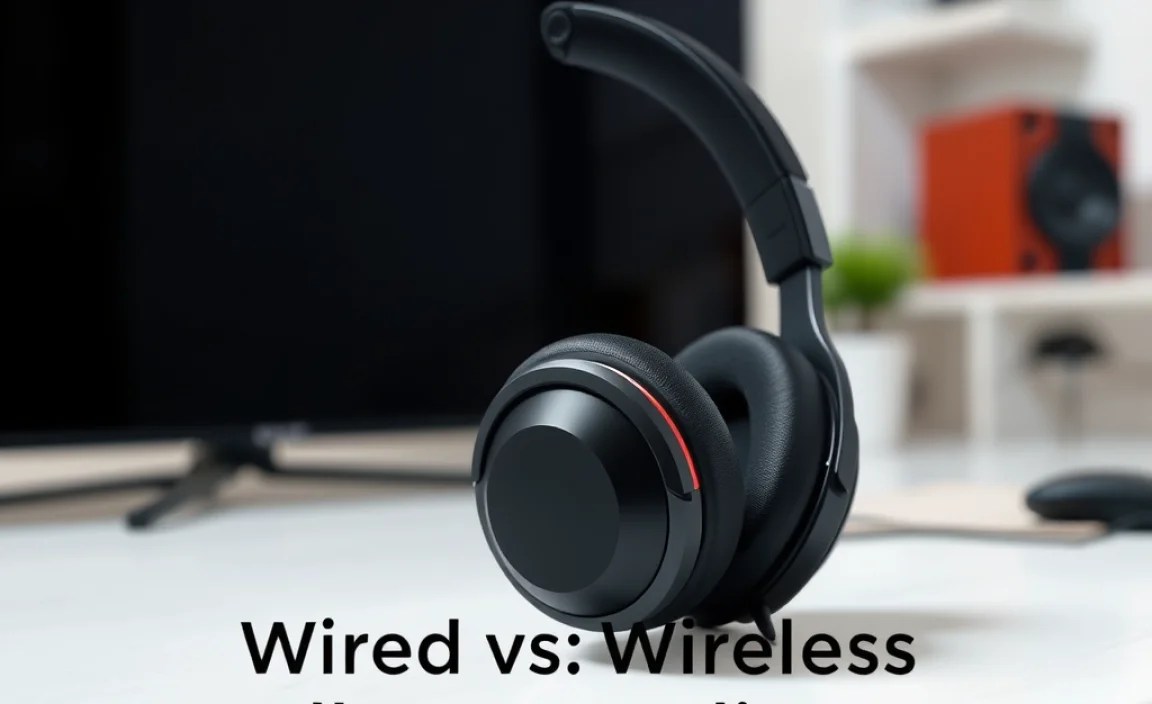
When choosing headphones for your television, the most significant decision you’ll make is between wired and wireless. Each has its own set of pros and cons, and the best choice for you depends on your living space, your TV setup, and your personal preferences.
Wired Headphones
These are your traditional headphones, connecting directly to your TV via a cable. They’re generally simpler, often more affordable, and don’t require batteries or charging.
Pros of Wired Headphones:
- No Lag (Latency): With a direct wired connection, there’s virtually no delay between what’s happening on screen and the sound you hear. This is crucial for an immersive experience and for activities like gaming where timing is everything.
- No Batteries or Charging Needed: You don’t have to worry about juice running out mid-movie.
- Generally More Affordable: You can often find quality wired headphones at a lower price point than their wireless counterparts.
- Simpler Setup: Plug and play is usually the name of the game.
Cons of Wired Headphones:
- Cable Restricts Movement: You’re tethered to your TV, limiting how far you can move or if you can comfortably get up to grab a snack without unplugging.
- Cable Can Be a Tripping Hazard: Especially with pets or children around, long cables can pose a risk.
- Cable Can Degrade: Over time, cables can fray or break, leading to audio issues.
- Limited Compatibility: Newer TVs are phasing out the traditional headphone jack.
Wireless Headphones
Wireless headphones offer freedom of movement and a cleaner look, connecting to your TV via technologies like Bluetooth or proprietary RF (Radio Frequency) systems.
Pros of Wireless Headphones:
- Freedom of Movement: The biggest advantage! You can move around your room, get a drink, or even go to another room (depending on range) without losing audio.
- No Cables to Trip Over: A safer and tidier option for your living space.
- Modern Convenience: Many offer advanced features and easy pairing.
Cons of Wireless Headphones:
- Potential for Lag (Latency): Especially with Bluetooth, a slight delay between video and audio can occur. High-quality wireless systems (like RF) often minimize this.
- Require Charging or Batteries: You need to keep them powered up, which can be an inconvenience if you forget.
- Can Be More Expensive: Quality wireless systems often come with a higher price tag.
- Can Be More Complex to Set Up: Pairing Bluetooth or setting up a transmitter might require a few extra steps.
Types of Wireless TV Headphone Systems

When you think wireless, Bluetooth is often the first thing that comes to mind. However, for TV connectivity, especially for low latency and ease of use, other technologies are very common and often superior.
1. Bluetooth Headphones
Bluetooth is ubiquitous, found on most smartphones, tablets, and many newer TVs. It’s convenient due to its widespread availability.
- How it works: The TV’s Bluetooth transmitter (or an external one) sends audio signals wirelessly to the Bluetooth headphones.
- Considerations:
- Latency: Standard Bluetooth can suffer from noticeable lag. Look for headphones and transmitters that support low-latency codecs like aptX Low Latency (requires both the headphones and the transmitter/TV to support it). For more information on audio codecs, you can check out resources from organizations like the Bluetooth Special Interest Group.
- Range: Typically around 30 feet (10 meters), though solid barriers can reduce this.
- TV Compatibility: Ensure your TV has Bluetooth audio output. If not, you’ll need a Bluetooth transmitter.
2. RF (Radio Frequency) Wireless Headphones
RF systems are purpose-built for home entertainment and are often the go-to for TV watching. They use a base station transmitter that connects to your TV’s audio output and transmits a wireless signal to dedicated headphones.
- How it works: The base station plugs into your TV (usually via analog or digital audio out) and broadcasts a signal. The headphones pick up this signal.
- Considerations:
- Low Latency: RF systems are designed for minimal audio delay, making them excellent for movies and gaming.
- Excellent Range: They often offer a longer range than Bluetooth and are less susceptible to interference from other wireless devices. Some can reach 100-200 feet.
- Dedicated System: These usually come as a matched pair of transmitter and headphones. You can’t typically use the headphones with other Bluetooth devices (though some newer models offer dual functionality).
- Setup: Usually straightforward, involving connecting the base station to your TV and plugging it into power.
3. Infrared (IR) Wireless Headphones
Less common now, IR headphones work similarly to a TV remote. They require a direct line of sight between the transmitter and the headphones, making them quite restrictive. They are generally not recommended for TV use due to their limitations.
Key Features to Look For in TV Headphones

Beyond just going wireless or wired, several features can elevate your TV listening experience. Consider these when making your choice:
1. Comfort and Fit
You’ll likely be wearing these for extended periods, so comfort is paramount.
- Earcup Design:
- Over-ear (Circumaural): These cups surround your entire ear. They often offer better noise isolation and comfortable, plush padding for long sessions.
- On-ear (Supra-aural): These rest on your ear. They can be less comfortable for some over long periods and offer less passive noise isolation.
- Headband Padding: Ensure the band is padded and adjustable for a secure but gentle fit.
- Weight: Lighter headphones are generally more comfortable for extended wear.
- Material: Breathable materials like velour or memory foam can prevent your ears from getting too hot.
2. Sound Quality
For TV, you’re often looking for clarity, especially for dialogue. While booming bass can be nice for action scenes, it shouldn’t overpower spoken words.
- Balanced Sound Profile: Look for headphones that offer a good balance across bass, mids, and treble.
- Dialogue Clarity: Some headphones are tuned to emphasize mid-range frequencies, which is where human voices sit, making dialogue easier to discern.
- Surround Sound Features: While less common in basic TV headphones, some higher-end models can simulate surround sound for a more cinematic feel. Virtual surround sound can be achieved through the headphones themselves or sometimes via your TV’s audio settings.
3. Battery Life (for Wireless)
If you opt for wireless, battery life is critical. Most users would prefer headphones that last an entire movie marathon or a full day’s viewing.
- Target: Aim for at least 15-20 hours of playback on a single charge. High-end models can offer 30+ hours.
- Quick Charging: Some headphones offer a quick charge feature, providing a few hours of playback after just 10-15 minutes of charging.
- Rechargeable vs. Replaceable Batteries: Most wireless headphones use built-in rechargeable batteries. Some older or simpler RF models might use AA batteries, which can be convenient if you have spares but less eco-friendly.
4. Range and Stability (for Wireless)
For wireless, especially RF systems, look at the advertised range and how stable the connection is, particularly if you have a large living room or multiple walls to pass through.
5. Ease of Use and Controls
Simple controls are best. You want to be able to adjust volume, mute, or turn headphones on/off without fumbling for buttons and missing key parts of your show.
- On-ear Controls: Buttons located on the earcups for volume, power, and sometimes playback.
- Base Station Controls: Some RF systems have volume dials or input selectors on the transmitter base.
6. Volume Control Options
Ideally, you want independent volume control so you can set your headphones’ volume without affecting the TV’s speaker volume (if you ever need to use them simultaneously). This is standard for most wireless systems.
7. Noise Isolation / Cancellation
- Passive Noise Isolation: Achieved through the physical design of the headphones, like snug-fitting earcups that block out ambient noise. Most over-ear headphones offer decent passive isolation.
- Active Noise Cancellation (ANC): This technology uses microphones to detect external noise and generate opposing sound waves to cancel it out. ANC is fantastic for blocking out distractions but can add to the cost and sometimes slightly alter sound quality. It’s usually more important for travel headphones but can be a nice-to-have for very noisy environments at home.
Connecting Your Headphones to Your TV: A Step-by-Step Guide
The connection method will vary significantly depending on whether you’re using wired or wireless headphones and the ports available on your TV.
Step 1: Identify Your TV’s Audio Output Options
Before buying, take a look at the back or side of your television. You’re looking for ports that can output audio. Common options include:
- 3.5mm Headphone Jack: The classic headphone port. If your TV has this, wired headphones are a simple plug-and-play option.
- RCA Audio Out (Red and White Ports): These are analog audio outputs. If you have these, you’ll likely need a 3.5mm to RCA adapter cable for wired headphones or a wireless transmitter that accepts RCA inputs.
- Optical Audio Out (Toslink): This is a digital audio output that uses light to transmit sound. It’s a common and high-quality option on modern TVs. You’ll need a wireless transmitter or a DAC (Digital-to-Analog Converter) with an optical input.
- HDMI ARC/eARC: Audio Return Channel (ARC) and Enhanced Audio Return Channel (eARC) allow audio to be sent from the TV back to an audio device (like a soundbar or receiver) over an HDMI cable. Some wireless transmitters can tap into this if your TV supports transmitting audio via HDMI ARC.
- Bluetooth: If your TV has built-in Bluetooth, you can connect compatible Bluetooth headphones directly.
Step 2: Choose Your Connection Method Wisely
For Wired Headphones:
Direct 3.5mm Jack: Simply plug your headphones into the TV’s headphone port. You may need to go into your TV’s audio settings to prioritize this output.
RCA or Optical Out: You’ll need an adapter or a simple cable to connect from your TV’s RCA or Optical audio out ports to your headphones’ 3.5mm input. For RCA, you’ll typically use a “3.5mm to RCA Stereo Audio Cable.” For Optical, you’ll need an “Optical Audio Cable” and potentially a small DAC if your headphones don’t have an optical input.
For Wireless Headphones:
Bluetooth (if TV has it):
1. Put your Bluetooth headphones into pairing mode.
2. On your TV, navigate to Bluetooth settings.
3. Scan for devices and select your headphones when they appear.
4. Pair and connect.
Note: If your TV doesn’t have Bluetooth, you’ll need a Bluetooth transmitter.
Bluetooth Transmitter (for TVs without built-in Bluetooth):
1. Connect the transmitter to your TV’s audio output (usually 3.5mm, RCA, or Optical).
2. Power the transmitter (often via USB).
3. Put the transmitter into pairing mode.
4. Put your Bluetooth headphones into pairing mode.
5. Let them connect. Many transmitters also have a “low latency” mode that you’ll want to ensure is activated if your headphones support it.
6. Ensure your TV’s audio output is set correctly in the TV settings to the port you connected the transmitter to (e.g., Digital Audio Out – Optical).
RF Wireless Headphone System:
1. Connect the base station transmitter to your TV’s audio output (3.5mm, RCA, or Optical).
2. Connect the base station to a power source (usually via a power adapter or USB).
3. Turn on the transmitter and the headphones.
4. The system is usually pre-paired, meaning they should connect automatically. If not, there’s typically a pairing button on both the base and the headphones.
5. Adjust your TV’s audio output settings to the selected port (e.g., Digital Audio Out – Optical).
Step 3: Configure Your TV’s Audio Settings
This is a critical step that’s often overlooked. Even with everything plugged in correctly, your TV might still be trying to send audio to its internal speakers.
- Navigate to your TV’s Settings menu.
- Look for Audio or Sound settings.
- Find Audio Output or Sound Output.
- Select the output option that matches your setup:
- “Headphones” if using the 3.5mm jack directly.
- “External Speakers,” “Audio Out,” or the specific digital output (e.g., “Optical,” “Digital Audio Out”) if using a wireless transmitter or other external system.
- For digital outputs (Optical, HDMI ARC), also check settings for Digital Audio Format. Common options include PCM (stereo) and Bitstream/Dolby Digital (for surround sound). For most headphones, PCM is the safest bet unless you’re using a system specifically designed to decode surround sound signals.
Step 4: Test and Adjust
Turn on your TV and play some content. First, check if you’re getting sound. Then, use the volume controls on
