
Quick Summary: Keep your headphones in top shape with a simple daily routine! This guide offers straightforward checks for common issues, ensuring your audio is always ready. Learn quick fixes for tangled cables, volume problems, and connection glitches to prevent headphone emergencies and prolong their lifespan.
Headphone Not Working Fix: Your Essential Daily Routine for Crystal-Clear Audio
Hey there, fellow audio adventurers! It’s Edward Cavitt from Headphone Horizon, and I know the sinking feeling: you’re ready to dive into your favorite playlist, get productive with a podcast, or immerse yourself in a game, and… silence. Or worse, crackling static fills the air. When your headphones decide to take an unscheduled break, it can be incredibly frustrating. But what if I told you that a simple, almost effortless daily routine could drastically reduce the chances of this happening? That’s right! We’re not talking about complex repairs here. Instead, we’re focusing on preventative care and swift, easy checks that fit seamlessly into your day, keeping those precious sound waves flowing without a hitch. Let’s turn those “headphone not working” moments into “headphone working perfectly” triumphs, every single day.
Why a Daily Routine Matters for Your Headphones

Think of your headphones like any other piece of technology you rely on daily – your phone, your laptop, even your coffee maker. A little bit of regular attention goes a long way in ensuring they function smoothly and last longer. For headphones, this means being mindful of a few key areas that are prone to everyday wear and tear. Ignoring these small details can quickly escalate minor inconveniences into major headaches, leaving you with a broken pair when you least expect it. Establishing a simple daily check-in not only preempts common problems but also helps you become more familiar with your gear, making it easier to spot issues before they become critical. It’s about proactive care, not reactive panic!
Your 5-Minute Daily Headphone Health Check

This routine is designed to be quick, effective, and require no special tools. The goal is to catch potential problems early and give your headphones the best chance of performing at their peak every time you reach for them.
Step 1: The Visual Inspection
Before you even plug them in or turn them on, give your headphones a quick once-over. This is your first line of defense.
- Check the Cable: Look for any visible kinks, frays, cuts, or exposed wires, especially near the jack and the earcups. Gently straighten out any tight bends.
- Inspect the Earcup Seals: For over-ear or on-ear headphones, ensure the earcups are securely attached and the padding isn’t ripped or coming loose.
- Examine the Jack/Connector: Make sure the plug (3.5mm, USB, Lightning, etc.) is clean and free of debris. A stray piece of lint can surprisingly affect connectivity.
- Wireless Headphones: Check the charging port for any obstructions. Ensure no visible damage to the casing or buttons.
Step 2: The Connection Check
This step ensures a clean signal is getting to your headphones.
For Wired Headphones:
- Plug In Firmly: Insert the headphone jack all the way into the port. Sometimes, a loose connection is all it is.
- Try Another Port: If possible, test the headphones in a different audio jack on your device (e.g., a computer’s front and back audio ports, or another smartphone if you have one). This helps rule out a problem with the device’s port itself.
For Wireless Headphones:
- Bluetooth Pairing: Ensure your headphones are properly paired with your device. Turn Bluetooth off and on again on your device, and then try re-pairing the headphones. You might need to “forget” the device in your Bluetooth settings and pair it as new.
- Device Compatibility: Double-check that your device is compatible with your headphones’ Bluetooth version. While most modern devices are, older ones might have limitations. For more on Bluetooth, the Bluetooth Special Interest Group has comprehensive resources.
Step 3: The Volume and Audio Source Test
This is where we confirm both your headphones and your audio source are playing nicely together.
- Device Volume: Make sure the volume on your device (phone, computer, tablet) is turned up and not muted.
- In-line Volume Controls: If your headphones have their own volume controls (on the cable or earcup), ensure they are not turned all the way down.
- Application Volume: Some apps have their own internal volume sliders. Check that the app you’re using isn’t muted or set to a very low volume.
- Test with Different Audio: Play a different song, video, or app. This helps determine if the issue is with the specific audio file or the entire audio output. If a single file is bad, it’s not your headphones!
Step 4: The Power & Battery Check (Wireless)
For our wireless listeners, battery life is crucial!
- Charge Level: Ensure your wireless headphones have sufficient battery charge. Low battery can cause intermittent connectivity or no sound at all. Connect them to their charger and let them get a bit of juice.
- Charging Indicator: Check if the charging indicator light is functioning as expected when plugged in. If not, the charging cable or the port might be the issue. You can find general guidance on battery health from resources like the U.S. Department of Energy, though headphone-specific advice is best sought from the manufacturer.
Step 5: The Quick Reboot
Sometimes, the simplest fix is the most effective.
- Device Reboot: Turn the device you’re connecting your headphones to completely off, wait a few seconds, and then turn it back on. This can resolve many temporary software glitches affecting audio output.
- Headphone Reboot (if applicable): Some wireless headphones have a power button that allows for a full reset. Turn them off, then back on.
Common “Headphone Not Working” Scenarios & Daily Checks
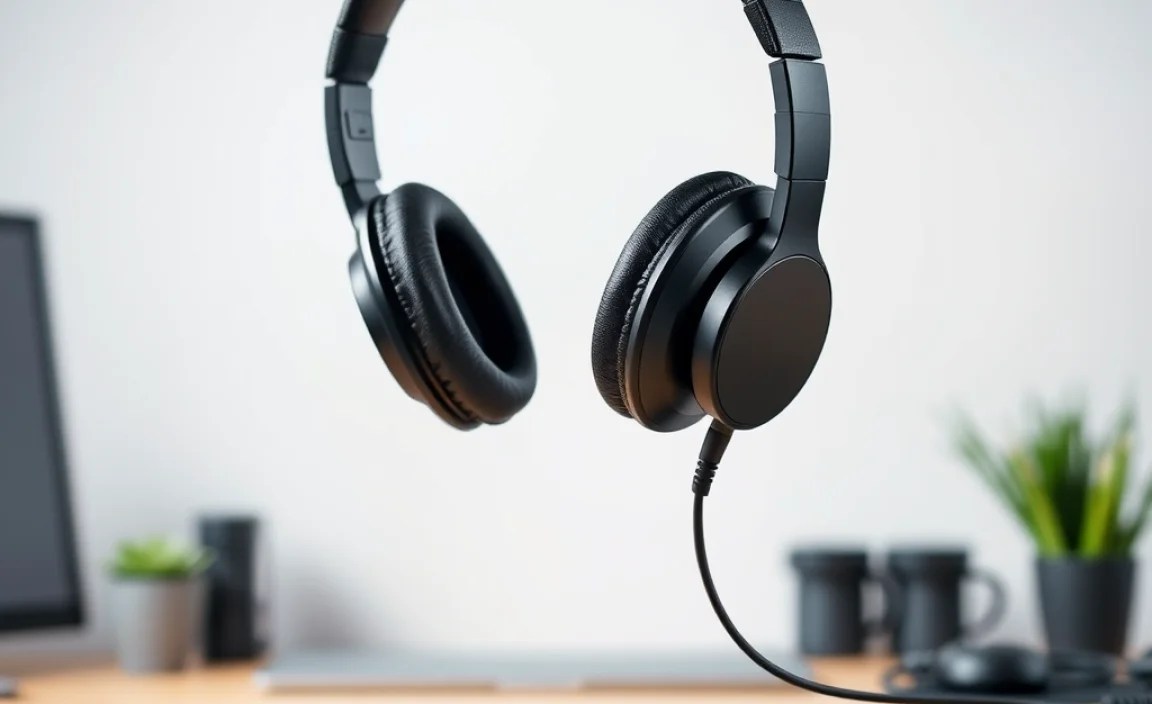
Let’s break down some frequent culprits and how our daily routine helps address them.
| Problem Scenario | Daily Check to Prevent/Address | Why it Works |
|---|---|---|
| No sound at all (wired) | Visual Inspection (cable fraying), Connection Check (firm plug), Volume Test | Addresses physical damage, loose connections, or software/hardware muting. |
| One earbud/side silent (wired) | Visual Inspection (cable damage near earcup), Connection Check (ensure plug is fully seated) | Often caused by internal wire breaks near the earcup connection or a faulty jack. |
| Crackling or distorted sound (wired) | Visual Inspection (cable damage), Connection Check (clean jack) | Dirt in the jack or minor cable damage can interfere with audio signal integrity. |
| No sound from wireless headphones | Power & Battery Check, Bluetooth Pairing, Device Reboot | Ensures headphones are charged, correctly connected via Bluetooth, and that the device isn’t experiencing a temporary audio bug. |
| Intermittent connection (wireless) | Power & Battery Check, Bluetooth Pairing (re-pair), Ensure no obstructions between device and headphones | Low battery, interference, or a weak Bluetooth signal can cause dropouts. |
| Low volume from headphones | Volume Test (device, in-line, app), check for debris in earbud tips (if applicable) | Rules out software muting, accidental volume knob twists, or clogged audio pathways. |
Beyond the Daily Check: When to Dig Deeper
While our daily routine is fantastic for preventing and identifying minor issues, sometimes you might need to troubleshoot a bit more. Don’t worry, we’ll keep it simple!
1. Software Updates
Outdated software on your device can sometimes cause compatibility issues with audio hardware. Make sure your operating system and any related audio drivers are up to date. For specific headphones with companion apps (like many true wireless earbuds), ensure those apps are also updated. Major operating systems like Windows and macOS regularly release updates that can be found in their respective system settings. For mobile devices, check the app store or your device’s general software update section.
2. Cleaning Your Headphones
This isn’t strictly a daily task, but a weekly or bi-weekly clean can prevent buildup that affects sound quality and connectivity. Refer to your headphone manufacturer’s guidelines for the safest cleaning methods. Generally, for earbuds, you’ll want to gently clean the mesh tips with a dry, soft brush or a slightly dampened cotton swab (avoiding excess moisture). For over-ear headphones, you can wipe down the earcups and headband with a slightly damp cloth.
3. Testing on Another Device
If you’ve gone through the daily checks and your headphones still aren’t working, try them on a completely different device. This is a crucial step to determine if the problem lies with your headphones or with your primary device. If they work perfectly on another device, the issue is likely with your original device’s audio output or settings.
4. Wired Headphone Trouble-Shooting Specifics
The Jack: Gently clean the 3.5mm jack with a dry cotton swab or a soft brush. You can also try a tiny bit of isopropyl alcohol on a swab, ensuring it evaporates completely before use. Never use liquids directly on the jack.
The Cable: For minor kinks, try gently unbending them. If you suspect a break inside the cable, it’s often hard to repair without specialized tools and knowledge. However, sometimes wiggling the cable near the plug or earcup can temporarily restore connection if the break is slight.
5. Wireless Headphone Trouble-Shooting Specifics
Resetting the Headphones: Many wireless headphones have a reset procedure. This often involves holding down one or more buttons for a specific duration while they are off or in their charging case. Consult your headphone’s manual or the manufacturer’s website for the exact steps for your model. This can resolve internal software glitches.
Interference: Wireless signals can be affected by other devices (microwaves, other Bluetooth devices, Wi-Fi routers). Try moving to a different location to see if the connection stabilizes.
When is it Time for Professional Help or a Replacement?
If you’ve diligently followed these steps and your headphones are still not working, it might be time to consider professional repair or a replacement. Signs that it’s beyond a simple fix include:
- Significant physical damage (cracked housing, ripped earpads that affect function, broken jack).
- Water damage.
- No sound or connectivity after trying all troubleshooting steps on multiple devices.
- Electronic issues that don’t respond to resets or software updates.
For many common headphones, the cost of professional repair might approach the cost of a new pair. Always check your warranty first! Reputable brands often offer warranties that can cover manufacturing defects, saving you money. If your headphones are out of warranty, it’s a good indicator that it might be time to explore newer models.
Frequently Asked Questions About Headphone Fixes
Q1: My headphones worked yesterday, but now there’s no sound. What’s the first thing I should check?
A1: Start with the simplest things! Check if your device’s volume is up and not muted. Then, ensure your headphones are properly plugged in or paired via Bluetooth. Finally, try testing with a different audio source to rule out a problem with the music or video file.
Q2: My left earbud isn’t working, but the right one is fine. What could be wrong?
A2: For wired headphones, this often points to a cable issue on the left side, near the earcup or the jack. For wireless earbuds, try cleaning the charging contacts on the earbud and in the case, and attempt to re-pair them. If it persists, it might be an internal fault with that specific earbud.
Q3: My wireless headphones keep disconnecting. What can I do?
A3: First, ensure they are fully charged. Then, try forgetting the headphones in your device’s Bluetooth settings and re-pairing them. Move away from potential sources of interference (like Wi-Fi routers or other Bluetooth devices) and ensure there isn’t anything physically blocking the signal between your device and headphones.
Q4: Can I use alcohol to clean the headphone jack if it looks dirty?
A4: Yes, but cautiously. Lightly dampen a cotton swab with isopropyl alcohol (90% or higher is best), and gently clean the metal tip of the headphone jack. Ensure the alcohol evaporates completely before plugging it back in. Never spray liquid directly into ports.
Q5: My headphones make a buzzing or humming noise. What causes this?
A5: This often indicates a grounding issue or interference. For wired headphones, try plugging them into a different power source or outlet, or use a different device. For wireless, try re-pairing them or performing a factory reset.
Q6: How often should I clean my headphones?
A6: For earbuds, it’s a good idea to clean the mesh tips and charging contacts at least once a week, especially if you use them during workouts. For over-ear headphones, wiping down the earcups and headband every few weeks should suffice, depending on usage.
Conclusion: Your Soundtrack, Uninterrupted
Taking a few moments each day to perform these simple headphone checks can save you a world of frustration. It’s about cultivating mindful usage and preventative care, transforming potential audio disasters into minor inconveniences that are easily managed. By incorporating this routine, you’re not just fixing headphones; you’re investing in a more reliable listening experience, extending the life of your gear, and ensuring your favorite sounds are always just a plug-in or Bluetooth connection away. So, embrace the simplicity, enjoy the clarity, and keep your audio journey smooth and uninterrupted. Happy listening!
