
Quick Summary: Enhance your Xbox gaming experience with the right headphones! This guide breaks down essential features, connection types, and top picks for Xbox headsets. Discover how to find a comfortable, immersive audio solution that fits your budget, making every game session more engaging.
Headphones for Xbox: Your Essential Guide to Immersive Gaming
Hey gamers! Edward Cavitt here from headphonehorizon. If you’ve ever wanted to feel truly in the game, to hear every subtle footstep, every explosive blast, and every whispered command with crystal clarity, then you’re in the right place. Your Xbox is a powerhouse of entertainment, but it’s missing a crucial component for top-tier immersion: a great pair of headphones. Gaming headphones aren’t just about loud noises; they’re about precision audio that can give you a competitive edge and deepen your connection to the virtual worlds you explore. Whether you’re a seasoned pro or just starting your Xbox journey, understanding the basics of choosing the right headphone for Xbox can make a world of difference. Let’s dive in!
Why Headphones are a Game-Changer for Your Xbox
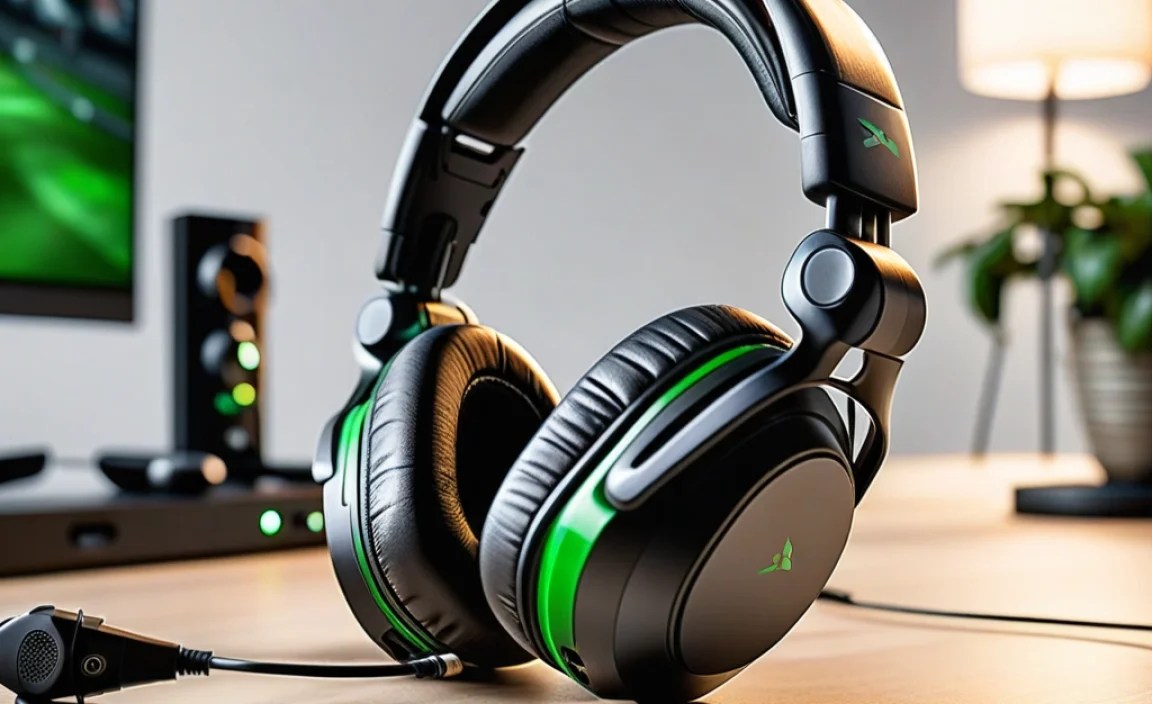
Many gamers start by using their TV’s built-in speakers or a basic soundbar. While this is fine for casual play, dedicated gaming headphones offer a significant upgrade in several key areas:
- Immersive Soundscapes: Headphones create a personal audio bubble, blocking out distractions and delivering sounds directly to your ears. This allows developers to create rich, detailed audio environments that really pull you into the game. You’ll notice details you never heard before!
- Positional Audio & Competitive Edge: Modern games rely heavily on directional audio. A good gaming headset will often feature technologies like Windows Sonic or Dolby Atmos (for Headphones) that simulate surround sound. This helps you pinpoint enemy locations, hear incoming threats, and react faster – a huge advantage in competitive multiplayer games. Learn more about spatial audio for gaming here.
- Crystal-Clear Communication: If you play online multiplayer games, a headset with a good microphone is essential for coordinating with your teammates. Clear communication can make the difference between victory and defeat, and it makes playing with friends a much more enjoyable experience.
- Personalized Experience: You can control the volume precisely, ensuring you’re not disturbing others (or being disturbed yourself). Many headsets also offer adjustable EQ settings, allowing you to tweak the sound profile to your liking for different games or music genres.
- Comfort for Long Sessions: Gaming can last for hours. A comfortable headset with plush earcups and an adjustable headband is vital for preventing fatigue and ensuring you can stay focused and enjoy your play.
Understanding Your Xbox Audio Connection Options

Before you even start looking at specific headphones, it’s crucial to know how they’ll connect to your Xbox. The method of connection can greatly influence what types of headphones are compatible and the quality of the audio you’ll receive.
1. The 3.5mm Headset Jack: The Universal Connector
Most modern Xbox controllers (Xbox One S, Xbox One X, Series S, Series X) have a standard 3.5mm headphone jack built right in. This is the most common and convenient connection method for headphones for Xbox.
- How it works: You plug a headset with a 3.5mm connector directly into the port on your controller.
- Compatibility: This means most standard gaming headsets, as well as many regular computer or smartphone headphones with a built-in microphone, will work.
- Pros: Super simple, no extra setup, works with a wide range of headphones, often enables microphone input directly.
- Cons: Audio quality is dependent on the controller’s internal digital-to-analog converter (DAC). Some users find the mic quality or overall audio depth can be limited compared to newer methods.
2. Wireless USB Dongles: Freedom with a Receiver
Some wireless headsets don’t use Bluetooth directly but come with their own USB dongle. This dongle plugs into your Xbox, and the headset communicates with it wirelessly.
- How it works: Plug the USB transceiver into a USB port on your Xbox. Pair the headset to the dongle.
- Compatibility: Specifically designed for the headset they come with.
- Pros: Often provides a high-quality, low-latency wireless connection with excellent audio and microphone performance. Less reliance on controller battery life.
- Cons: Occupies a USB port. Dongle can be lost. The headset is proprietary to the dongle.
3. Xbox Wireless: Native Wireless Connectivity
Certain high-end headsets are designed to connect directly to your Xbox wirelessly, just like an official Xbox controller. This uses Microsoft’s proprietary Xbox Wireless protocol.
- How it works: You pair the headset directly to your Xbox console by pressing the sync buttons on both the headset and the Xbox.
- Compatibility: Only specific headsets that are “Xbox Wireless Certified.”
- Pros: Very low latency, excellent audio quality, no need for an adapter or external dongle (less clutter).
- Cons: Limited headset selection compared to 3.5mm or USB dongles. Can sometimes be more expensive.
4. Optical Audio Adapter (Older Xbox Models & Specific Setups)
Older Xbox One models and some PC setups might use an optical audio port. Many gaming headsets designed for older consoles or PCs will include an optical audio adapter or support this connection through a USB mixamp.
- How it works: Connects via an optical cable from the Xbox’s S/PDIF port to the headset’s base station or mixamp.
- Compatibility: Typically found with older generation headsets or mid-range to high-end systems with dedicated control hubs.
- Pros: Can offer good audio quality, especially for surround sound formats if supported.
- Cons: Increasingly rare on newer consoles. Requires an additional cable. Microphone input might be routed separately (e.g., via USB or 3.5mm).
Key Features to Look for in an Xbox Headphone

Now that you know how to connect, let’s talk about what makes a headphone for Xbox great. These features can elevate your gaming experience:
| Feature | What it Means for You | Why It Matters |
|---|---|---|
| Surround Sound (Virtual) | Technologies like Windows Sonic (free on Xbox), Dolby Atmos for Headphones, or DTS Headphone:X simulate a 3D sound environment. | Helps you pinpoint enemy locations, understand game world acoustics, and increases immersion. |
| Microphone Quality | How clear your voice sounds to teammates. Look for noise-cancellation features. | Essential for coordination in multiplayer games. Nobody likes a muffled or echoey teammate! A detachable or flip-to-mute mic is also very convenient. |
| Comfort & Fit | Padded earcups (memory foam is great!), adjustable headband, and a lightweight design. | Crucial for long gaming sessions. An uncomfortable headset can cut your playtime short and be distracting. |
| Build Quality & Durability | Materials used (metal vs. plastic), sturdy construction. | A gaming headset is an investment. You want something that feels solid and will last. |
| Wired vs. Wireless | Wired offers simplicity and often better value. Wireless offers freedom of movement but requires charging and can introduce latency if not implemented well. | Choose based on your preference for convenience versus potential performance trade-offs. |
| Battery Life (Wireless) | How many hours the headset lasts on a single charge. | Nobody wants their headset dying mid-boss fight! Aim for 15+ hours for good wireless performance. |
| Chat Mixer / Volume Controls | On-ear or inline controls to adjust game audio vs. chat volume independently. | Allows you to prioritize communication or game sound on the fly without pausing. Very handy! |
| Companion App / Software | Some headsets have apps for adjusting EQ, mic settings, or firmware updates. | Offers more customization for fine-tuning your audio experience. |
Step-by-Step: Choosing Your Perfect Xbox Headphone

Let’s simplify the process of finding the right headphone for Xbox for you. Follow these steps to make a confident decision:
Step 1: Set Your Budget
Headphones for Xbox range dramatically in price. You can find decent options for under $50, while premium wireless models can cost $200 or more.
Budget Categories:
- Entry-Level (< $50): Great for beginners or those on a tight budget. Usually wired 3.5mm connections. Audio and mic quality will be basic but functional.
- Mid-Range ($50 – $150): This is where you’ll find most of the popular choices. Excellent wired options and a good selection of decent wireless (often with dongles) and comfortable headsets with better microphones and sound.
- Premium (>$150): High-end wireless (including Xbox Wireless), superior audio fidelity, advanced features like active noise cancellation (less common in gaming focus), premium materials, and often companion software for deep customization.
Step 2: Decide on Wired or Wireless
This is a big one and comes down to personal preference and priorities.
- Wired (3.5mm or USB):
- Pros: Generally more affordable, no batteries to charge, zero latency, often simpler to set up.
- Cons: Cable management can be a nuisance, limited by cable length.
- Wireless (Dongle or Xbox Wireless):
- Pros: Ultimate freedom of movement, less cable clutter.
- Cons: Requires charging, potential for audio latency (though good ones minimize this), typically more expensive, can cause controller battery drain if using the 3.5mm jack on a wireless headset.
Step 3: Consider Your Primary Use Case
Are you a competitive FPS player? A narrative-driven RPG fan? Or a co-op player who needs to chat constantly?
- Competitive Multiplayer: Prioritize excellent positional audio and a clear microphone for callouts. Low latency is key.
- Immersive Single-Player: Focus on audio fidelity, soundstage, and comfort for long, engrossing sessions. Surround sound is a big plus here.
- Social/Co-op Gaming: A comfortable headset with a good, reliable microphone and a user-friendly chat mixer is essential for smooth communication.
Step 4: Check Compatibility & Connectivity
As discussed earlier, ensure the headset you choose has a connection method that works with your specific Xbox setup.
- Current Generation Xbox (Series S/X, recent Xbox One): 3.5mm jack on the controller is universal. Xbox Wireless is a premium option. USB dongles work on all.
- Older Xbox One: May require a specific headset adapter that plugs into the bottom of the controller if it doesn’t have a 3.5mm jack. Check your controller model!
Step 5: Read Reviews and Compare Models
Once you have a few contenders, dive into reviews from trusted tech sites and user feedback. Look for:
- Comparisons of audio quality (bass, mids, highs).
- Microphone tests (listen to sample recordings if possible).
- Comfort reports (especially for long gaming stretches).
- Durability feedback (common failure points).
- Connectivity reliability.
You can find detailed reviews and comparisons on sites like Rtings.com, which provides in-depth testing and data.
Top Recommendations for Headphones for Xbox (Beginner-Friendly Categories)
While specific models change rapidly, here are some popular and well-regarded types of headphones that consistently get good marks for Xbox users. Always check for the latest versions!
Best All-Around Wired: Turtle Beach Recon Series / HyperX Cloud Series
These lines consistently offer great value with the 3.5mm connection. You get good comfort, decent audio for the price, and reliable microphones. They are perfect for dipping your toes into better gaming audio without breaking the bank.
Best Wireless (USB Dongle): SteelSeries Arctis 7X / Razer BlackShark V2 Pro (with dongle)
These are often lauded for their excellent balance of audio quality, comfort, low latency wireless performance via their USB-C dongles, and robust features. They offer a significant step up in wireless experience and sound sophistication.
Best Native Xbox Wireless: Xbox Wireless Headset / LucidSound LS Series
The official Xbox Wireless Headset is a fantastic starting point for native wireless. It’s affordable for its class, connects seamlessly, and offers good all-around performance. LucidSound also makes some excellent, premium-feeling headsets that utilize the Xbox Wireless protocol.
Best for Immersive Single-Player: Consider headsets supporting Dolby Atmos for Headphones
While you can use Windows Sonic for free, headsets that specifically leverage Dolby Atmos (often requiring a separate license purchase after a trial) can provide an even more refined surround sound experience. Look at brands like Audeze (though these are often high-end audiophile choices that can be used for gaming too) or some of the higher-tier offerings that mention Dolby Atmos compatibility.
Quick Setup & Troubleshooting Tips
Getting your headphone for Xbox connected is usually straightforward, but here are a few common tips:
1. Plugging in a Wired Headset:
- Ensure your Xbox controller is powered on.
- Plug the 3.5mm jack firmly into the bottom of the controller.
- You should see an on-screen notification about a headset being connected.
- Check your Xbox settings under “General” > “Volume & audio output” to ensure the headset audio is enabled and chat mixer is set to your preference.
2. Pairing a Wireless Headset (Xbox Wireless):
- Turn on your Xbox headset by pressing its power button.
- Press and hold the sync button on the headset until its indicator light flashes.
- Press and hold the sync button on your Xbox console until its indicator light flashes.
- The lights on both devices should turn solid when paired.
3. Pairing a Wireless Headset (USB Dongle):
- Plug the USB dongle into a USB port on your Xbox.
- Turn on your headset. It should automatically connect to the dongle. If not, follow the headset’s manual for pairing instructions (usually involves holding a sync button).
Common Troubleshooting:
- No Audio: Double-check all connections. Ensure the headset isn’t muted. Verify audio output settings in the Xbox menu. Try a different 3.5mm port if available (on PC, or on some older controllers). Restart your Xbox.
- No Microphone: Ensure the microphone is not muted (often a button on the headset or inline controller). For detachable mics, ensure it’s fully plugged in. Check the “Headset format” and “Microphone options” in Xbox audio settings.
- Buzzing or Static: This can sometimes be due to interference or grounding issues. For wired headsets connected to controllers, try replacing the controller battery (if it’s low, it can sometimes cause this). Ensure wireless headsets are charged. Try a different USB port for dongles.
- Low Volume: Check the volume controls on the headset itself and on your controller/inline cable. Adjust the chat mixer in Xbox settings.
For more in-depth troubleshooting on Xbox audio specifically, the <a href="https://support.xbox.com/en-US/help/hardware-network/access
