
Quick Summary: Unlock an immersive TV experience with Bluetooth headphones. This guide simplifies choosing, connecting, and troubleshooting wireless headphones for your television, ensuring great sound without disturbing others. Learn everything you need to know to enjoy your favorite shows and movies like never before, easily and effectively.
Headphones Bluetooth For TV: Your Essential Beginner’s Guide

Ever wished you could crank up the volume on your favorite TV show without disturbing the rest of the house? Or perhaps you’re looking for a more personal, cinematic audio experience? Wireless Bluetooth headphones are your ticket to a world of private, high-quality sound for your television. Gone are the days of tangled wires and limiting cable lengths. Connecting Bluetooth headphones to your TV might sound complicated, but with this beginner-friendly guide, you’ll be enjoying crystal-clear audio in no time. We’ll walk you through everything from understanding your TV’s capabilities to pairing your headphones and resolving common hiccups, ensuring a seamless and enjoyable viewing and listening journey.
Why Use Bluetooth Headphones With Your TV?

The benefits of pairing Bluetooth headphones with your television are numerous, transforming your viewing habits and overall satisfaction. It’s about more than just convenience; it’s about enhancing your audio experience in practical ways.
- Privacy and Peace for Others: This is often the biggest motivator. You can listen to your TV at any volume you desire without bothering family members, roommates, or sleeping children. It’s perfect for late-night viewing or when others in the household need quiet.
- Improved Sound Quality: Many modern Bluetooth headphones offer superior audio fidelity compared to built-in TV speakers. You can hear dialogue more clearly, feel the immersive impact of sound effects, and appreciate the nuances of your favorite soundtracks.
- Enhanced Immersion: By cutting out ambient room noise and delivering sound directly to your ears, Bluetooth headphones create a more engaging and immersive viewing experience, akin to a personal cinema.
- Freedom of Movement: No more being tethered to the TV by a headphone jack. Bluetooth offers the freedom to move around your room, get a snack, or adjust your seating position without interrupting your audio.
- Accessibility Features: For individuals with hearing impairments, Bluetooth headphones can be a game-changer. They allow for amplified sound directly into the ear, often with customizable EQ settings that can be adjusted independently of the TV’s main volume.
Understanding Your TV’s Bluetooth Capabilities
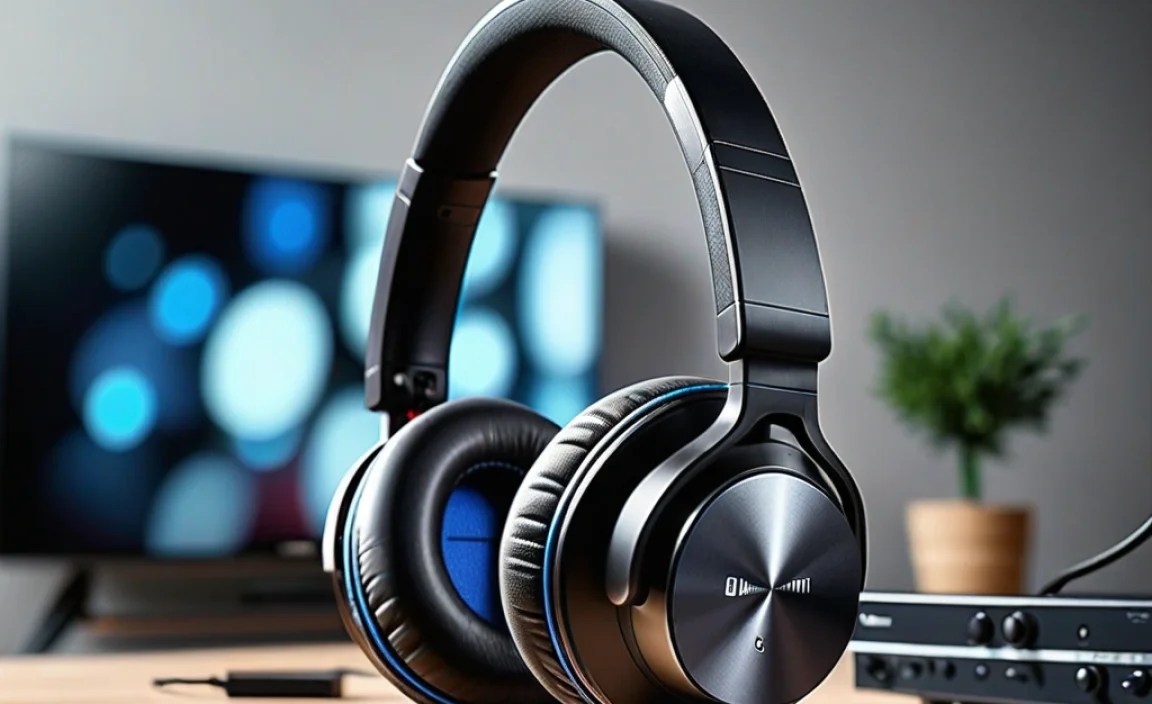
Before you rush out and buy the latest Bluetooth headphones, it’s crucial to understand if your TV supports Bluetooth audio output. Not all TVs come equipped with built-in Bluetooth, especially older models. Here’s how to check:
Method 1: Check Your TV’s Settings Menu
This is the most straightforward way. Navigate through your TV’s settings menu. Look for sections like:
- Sound Settings
- Audio Output
- Connections
- Bluetooth
- Device List
If you find an option to pair or add a Bluetooth device, your TV likely has built-in Bluetooth support for audio. If you can’t find any Bluetooth settings, your TV might not have this feature.
Method 2: Consult Your TV’s Manual or Manufacturer Website
The user manual that came with your TV is your best friend here. It will detail all the features and connectivity options your TV offers. If you’ve lost the physical manual, a quick search on the manufacturer’s official website for your TV model number should provide a digital copy or a detailed specifications list. Look for mentions of “Bluetooth Audio Output,” “Wireless Audio,” or similar terms.
Method 3: Look for a Bluetooth Symbol
Some manufacturers might subtly indicate Bluetooth support with a small Bluetooth symbol (often a stylized ‘B’) somewhere on the TV itself or its remote.
When Your TV Doesn’t Have Built-In Bluetooth

Don’t despair if your TV isn’t Bluetooth-enabled! There are excellent and affordable solutions to add this functionality:
Bluetooth Transmitters (Adapters)
These small devices plug into your TV’s audio output ports (like the headphone jack, optical audio out, or RCA audio out) and transmit the audio signal wirelessly to your Bluetooth headphones. They are a very popular and effective solution.
Types of Audio Outputs for Transmitters:
- 3.5mm Headphone Jack: The most common and easiest to use.
- Optical Audio Out (TOSLINK): Offers higher quality digital audio. Your TV and transmitter must support this.
- RCA Audio Out (Red and White Ports): Older but still functional.
When choosing a Bluetooth transmitter, consider these features:
- Low Latency: This is crucial for TV viewing. Low latency (like aptX Low Latency) minimizes the delay between the on-screen action and the audio in your headphones, preventing lip-sync issues.
- Multipoint Pairing: Allows the transmitter to connect to two pairs of headphones simultaneously, so two people can watch and listen together.
- Battery Life/Power Source: Some run on rechargeable batteries, while others need to be plugged into a USB port or power adapter.
- Supported Bluetooth Codecs: Look for support for SBC (basic), AAC (good for Apple devices), and aptX/aptX LL (for better quality and lower latency on compatible devices).
Bluetooth Audio Adapters with Bypass
Some advanced adapters allow you to plug in wired headphones while also transmitting to Bluetooth headphones, giving maximum flexibility.
External resources like the FCC explains Bluetooth technology as a wireless communication standard, which is helpful background information for understanding how these devices work.
Choosing the Right Bluetooth Headphones for Your TV

Once you’ve confirmed your TV’s Bluetooth capabilities or chosen a transmitter, it’s time to select the headphones. Several factors contribute to a great TV listening experience:
Key Features to Consider:
- Comfort: You’ll likely be wearing these for extended periods. Look for plush earcups, adjustable headbands, and a lightweight design. Over-ear headphones generally offer better comfort and sound isolation than on-ear or in-ear models for long TV sessions.
- Battery Life: Aim for headphones with at least 20-30 hours of battery life on a single charge to avoid frequent recharging. Many also support charging while in use.
- Sound Profile: Some users prefer headphones that emphasize clear dialogue, while others want booming bass for action movies. Read reviews to find a sound signature that matches your preference.
- Latency: As mentioned with transmitters, low latency is vital for TV. While most modern Bluetooth headphones aim to reduce latency, some are better than others. Look for headphones that explicitly mention low latency or support for aptX Low Latency if your TV or transmitter also supports it.
- Volume Control: Convenient on-ear volume controls are a must-have for easy adjustments without reaching for the TV remote.
- Noise Isolation/Cancellation: Active Noise Cancellation (ANC) can be a premium feature that enhances immersion by blocking out room noise, but it’s not essential for everyone and can add to the cost. Passive noise isolation from well-designed earcups is often sufficient.
- Multipoint Pairing: If you want to seamlessly switch between your TV audio and, say, a phone call without re-pairing, look for this feature.
Pairing Your Bluetooth Headphones to Your TV (Step-by-Step)
The process might vary slightly depending on your TV brand and model, but the general steps for pairing are quite similar.
Scenario 1: Your TV Has Built-In Bluetooth
- Turn on your TV.
- Put your Bluetooth headphones in pairing mode. This usually involves pressing and holding a power or Bluetooth button until an LED indicator flashes or you hear an audio cue. Refer to your headphone’s manual for specific instructions.
- Navigate to your TV’s Bluetooth settings. This is typically found in the Sound or Connections menu.
- Scan for devices. Select the option to search for or “Add Bluetooth Device.”
- Select your headphones from the list. Your headphones should appear by their model name.
- Confirm pairing. The TV might ask you to confirm, or it might connect automatically. You should hear a confirmation beep or see a “Connected” status on your TV screen.
- Test the audio. Play some content on your TV to ensure the sound is coming through your headphones. Adjust volume using your headphone controls or TV remote if necessary.
Scenario 2: Using a Bluetooth Transmitter
- Connect the transmitter to your TV. Plug one end of the audio cable (3.5mm, optical, or RCA) into the appropriate audio output port on your TV, and the other end into the audio input port on the transmitter.
- Power on the transmitter. Connect it to a power source (USB port on the TV or a wall adapter).
- Put your Bluetooth headphones in pairing mode. Just like in Scenario 1, press and hold the pairing button until the indicator light flashes.
- Put the Bluetooth transmitter in pairing mode. This is usually done by pressing a button on the transmitter. Refer to its manual. The indicator lights on both the headphones and transmitter should start flashing rapidly or change color to show they are searching.
- Wait for them to connect. Once paired, the indicator lights on both devices typically turn solid or slow-flash. The transmitter manual will specify this.
- Select the transmitter as the audio output on your TV (if applicable). For optical or RCA connections, the TV might automatically send audio. For a 3.5mm jack, it usually outputs directly. If your TV has a setting to choose audio output, select “Analog” or “Optical” as appropriate.
- Test the audio. Play content on your TV to confirm sound is coming through your headphones.
Troubleshooting Common Issues
Even with the best setup, you might encounter occasional glitches. Here are some common problems and their easy fixes:
- No Sound:
- Check if headphones are fully charged and powered on.
- Ensure headphones are correctly paired and connected in the TV’s Bluetooth settings or with the transmitter.
- Verify the TV’s audio output is set to Bluetooth or the correct analog/digital out.
- If using a transmitter, ensure it’s firmly plugged into the TV’s audio port.
- Try increasing the volume on both the TV (if applicable) and your headphones.
- Audio Delay (Lip Sync Issues):
- This is the most common Bluetooth issue. Prioritize headphones and transmitters that support aptX Low Latency (aptX LL) if both devices support it.
- See if your TV has a manual audio delay adjustment setting.
- Try disconnecting and re-pairing the devices.
- Ensure no other Bluetooth devices are interfering.
- Consider a headphones/transmitter combo designed for gaming or TV, which often have specialized low-latency tech.
- Connection Dropping:
- Ensure headphones are within range of the TV or transmitter. Obstacles like walls can weaken the signal.
- Check headphone battery levels. Low battery can cause instability.
- Restart both your TV and headphones.
- Unpair and re-pair the devices.
- Minimize interference from other wireless devices (microwaves, other Bluetooth devices).
- One Earbud/Headphone Not Working:
- Check the balance settings on your TV or audio source.
- Clean the charging contacts on the headphone and in the case.
- Try resetting the headphones (check your manual).
- If they are wireless earbuds, try re-pairing them to each other and then to the TV.
- Can’t Find Device During Pairing:
- Make sure both your headphones and TV/transmitter are in pairing mode.
- Turn off Bluetooth on other nearby devices that might auto-connect.
- Restart both devices and try again.
- Ensure your headphones aren’t already connected to another device (like your phone).
Advanced Tips for an Optimal Experience
Beyond the basics, a few extra steps can elevate your TV audio game even further.
Consider an Audio System Specifically Designed for TV
While general-purpose Bluetooth headphones are great, some manufacturers offer specialized wireless headphone systems for TVs. These often come with a dedicated base station that plugs directly into your TV (usually via optical or analog). The base station provides a very stable, low-latency connection to its own proprietary headphones, often with excellent battery life and comfort designed for long viewing sessions. Some even offer features like “voice clarity modes” to make dialogue easier to hear.
Explore TV Settings for Sound Optimization
Many smart TVs have advanced audio settings. Don’t hesitate to explore:
- Equalizer (EQ): Adjust bass, treble, and mids to your liking. If dialogue is muddy, try boosting the treble. If action scenes lack impact, boost the bass.
- Sound Modes: ‘Movie,’ ‘Sports,’ or ‘Standard’ modes can alter the sound profile.
- Dialogue Enhancement: Some TVs have specific settings to make voices clearer.
For more on audio standards, resources like Bluetooth Technology Official Website can provide deeper insights into codecs and features.
Keep Firmware Updated
Both your TV and your Bluetooth headphones might receive firmware updates that can improve performance, fix bugs, and even add new features. Check the manufacturer’s websites or your device’s settings menu for available updates.
Choosing Between Transmitter Types: A Quick Comparison
If you need a transmitter, understanding their input types can be helpful.
| Transmitter Type | Audio Input Options | Pros | Cons | Best For |
|---|---|---|---|---|
| 3.5mm Jack Transmitter | 3.5mm headphone jack | Most common, simplest to connect, widely compatible with TVs and headphones. | Can sometimes be lower quality than optical if the TV’s headphone amp isn’t great. | Older TVs, ease of use. |
| Optical (TOSLINK) Transmitter | Optical audio out (TOSLINK) | High-quality digital audio, less signal degradation. | Requires both TV and transmitter with optical ports; might require TV audio output settings change. | Modern TVs, higher fidelity audio needs. |
| RCA (Red/White) Transmitter | RCA audio out (analog) | Works with older TVs that might lack a 3.5mm jack but have RCA out. | Analog signal, potentially lower quality than digital options. | Older TVs specifically. |
Frequently Asked Questions (FAQ)
Q1: Will any Bluetooth headphones work with my TV?
A1: Generally, yes, as long as your TV (or a connected transmitter) supports the standard Bluetooth audio profile (A2DP). However, for the best experience without lip-sync issues, look for headphones and transmitters that support low-latency codecs like aptX Low Latency.
Q2: What is latency, and why is it important for TV?
A2: Latency refers to the delay between the audio signal being sent and it reaching your headphones. For TV, any noticeable delay can cause lip-sync issues, where you see the actors’ mouths move slightly before you hear their dialogue. Low latency (ideally under 40ms) is crucial for a synchronized experience.
Q3: Can I use my AirPods or Galaxy Buds with my TV?
A3: Yes, if your TV has built-in Bluetooth or you’re using a Bluetooth transmitter. However, Apple AirPods and Samsung Galaxy Buds primarily use AAC and SBC codecs, respectively. For the lowest latency, you’d ideally pair them with a transmitter that supports these codecs, or even better, use headphones and a transmitter that both support aptX Low Latency.
Q4: How do I make sure my headphones are always charged for TV time?
A4: Many Bluetooth headphones offer long battery life (20+ hours). You can also charge them while in use if they have that capability. If using a transmitter that powers via USB, you can plug it into a charging port, and if your headphones have a long enough cable, you can even charge them from the same USB hub or adapter once done watching.
