
Quick Summary: This guide helps Dell computer users choose, connect, and maintain headphones for optimal audio. We cover essential features, types of headphones, connection methods (wired and wireless), basic troubleshooting, and simple upkeep to ensure your Dell-compatible headphones sound great and last long.
Headphones for Dell Computer: Your Essential Guide

Welcome to Headphone Horizon! Owning a Dell computer opens up a world of possibilities, from work productivity to immersive entertainment. But to truly experience your audio, the right headphones are key. Do you need headphones for crystal-clear conference calls, deep bass for your favorite music, or an immersive soundscape for gaming? This guide is your friendly roadmap to navigating the headphone landscape specifically for your Dell machine. We’ll break down what matters, how to connect them, and simple tips to keep them in top shape, ensuring every sound you hear is exactly as it should be.
Understanding Your Needs: What Will You Use Your Headphones For?
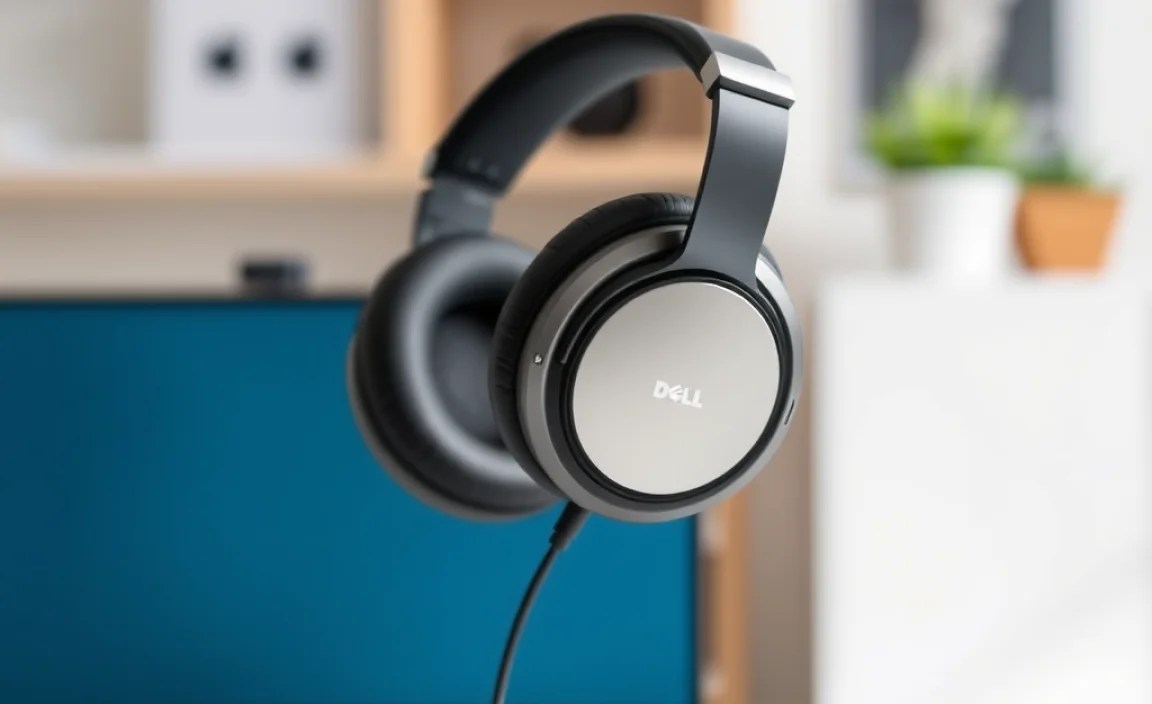
Before diving into specific headphone models or features, the most important first step is to pinpoint your primary use case. Your Dell computer is a versatile tool, and the best headphones for it will depend on your daily activities.
For Work and Productivity
If your Dell laptop or desktop is your primary workhorse, you’ll likely need headphones that excel in communication and comfort for long listening sessions. Consider these aspects:
- Microphone Quality: Essential for virtual meetings, calls, and voice commands. Look for clear, noise-canceling microphones to ensure others can hear you without background distractions.
- Comfort: You’ll be wearing these for extended periods. Padded earcups and an adjustable headband are crucial for preventing fatigue.
- Noise Isolation/Cancellation: If your workspace is noisy, active noise cancellation (ANC) can be a game-changer, allowing you to focus.
For Entertainment (Music, Movies, and Gaming)
When it’s time to unwind or dive into your favorite media, sound quality and immersion take center stage. Here’s what to prioritize:
- Sound Signature: Do you prefer booming bass, clear mids, and crisp highs? Different headphones cater to different sonic preferences.
- Soundstage and Imaging: For gaming and cinematic experiences, a wide soundstage (how expansive the sound feels) and accurate imaging (where sounds appear to originate) can significantly enhance immersion.
- Comfort: Similar to work, long listening sessions require comfortable designs.
- Surround Sound: Virtual surround sound technologies can add another layer of realism to games and movies.
For General Use and Portability
If you’re an everyday listener who uses your Dell for a bit of everything – browsing, casual music listening, and occasional calls – a versatile, comfortable, and easy-to-use pair will be ideal.
- Balance of Features: You don’t need the absolute best in any single category, but a good all-around performer.
- Portability: If you move around with your laptop, consider headphones that are lightweight and perhaps foldable.
- Wireless Convenience: For freedom of movement, wireless options are often preferred.
Key Headphone Features to Consider for Your Dell Computer
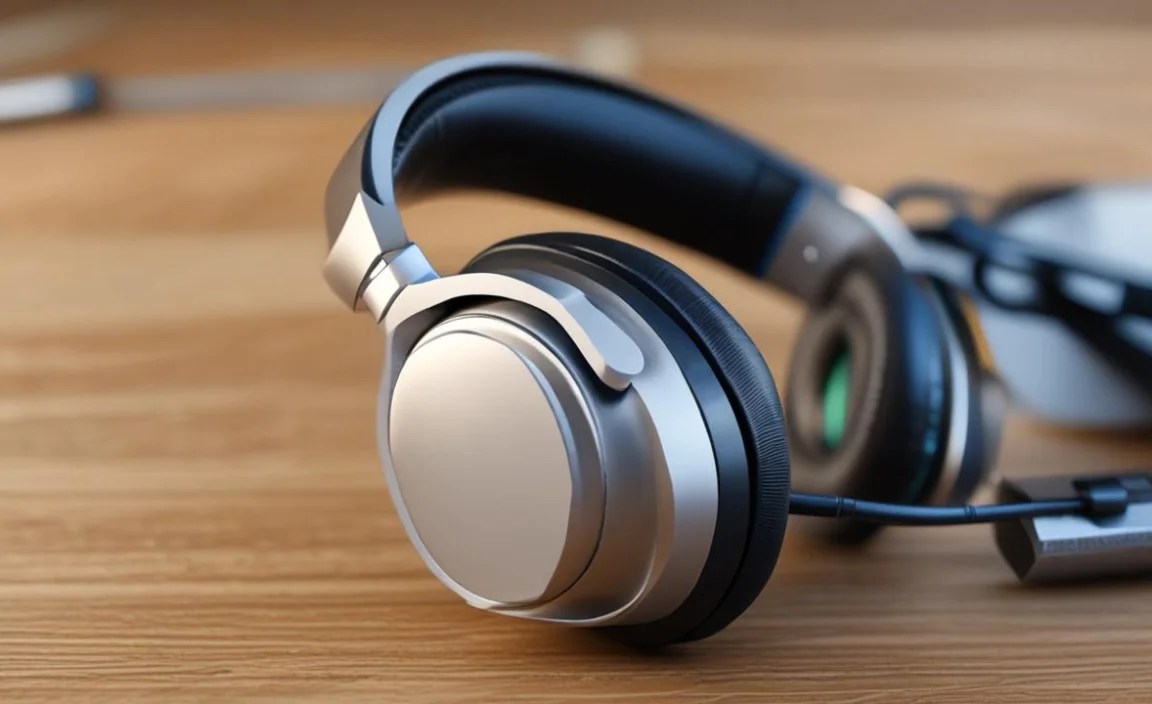
Once you know your primary use, you can start looking at specific features. Many modern headphones offer a range of technologies that can enhance your audio experience with your Dell computer.
Connectivity: Wired vs. Wireless
This is one of the most fundamental choices. Both have their advantages with a Dell computer.
| Feature | Wired Headphones | Wireless Headphones (Bluetooth) |
|---|---|---|
| Connection Type | 3.5mm audio jack, USB-C, or USB-A (via adapter) | Bluetooth |
| Audio Quality | Generally superior and more consistent, no compression | Can be excellent, but dependent on Bluetooth codec (e.g., aptX, LDAC) and potential for minor latency |
| Latency | Virtually none, ideal for gaming and video editing | Can be noticeable, especially with older Bluetooth versions or cheaper codecs. Newer versions and specific codecs minimize this. |
| Power Source | Powered by the Dell computer’s audio output | Require internal rechargeable batteries; need periodic charging |
| Convenience | Can be tangled, limited range from computer | Freedom of movement, no tangled wires |
| Compatibility | Almost universal; ensure your Dell has the correct port (most do) | Requires your Dell computer to have Bluetooth capability. Most modern Dells do. |
Wired Connections:
Most Dell computers come equipped with a standard 3.5mm headphone jack, making wired headphones a plug-and-play solution. For newer Dell models that may omit this port, you can easily use a USB-C to 3.5mm adapter or a USB-A headphone.
Wireless Connections (Bluetooth):
Bluetooth headphones offer unparalleled freedom. To connect Bluetooth headphones to your Dell computer, you’ll need to ensure your PC has Bluetooth enabled. You can check this by:
- Going to Settings on your Dell computer.
- Clicking on Devices.
- Selecting Bluetooth & other devices.
- If Bluetooth is available, you’ll see a toggle switch.
To pair your headphones, put them in pairing mode (usually by holding down a power or Bluetooth button until an indicator light flashes) and then click “Add Bluetooth or other device” on your Dell’s settings menu.
Microphone Features
If you plan on using your headphones for calls or voice chats, the microphone is as important as the speakers.
- Built-in vs. Boom Mic: Many earbuds and on-ear headphones have small, discreet microphones. Gaming headsets often feature a larger “boom” microphone that extends closer to your mouth for better voice capture.
- Noise Cancellation: Look for microphones with noise-canceling technology that helps filter out background sounds, ensuring your voice is clear.
- Omnidirectional vs. Cardioid: Omnidirectional mics pick up sound from all directions, while cardioid mics focus on sound from the front (your voice).
Active Noise Cancellation (ANC)
ANC is a technology that uses microphones to detect ambient noise and generate an inverse sound wave to cancel it out. This is fantastic for noisy environments like offices, airplanes, or busy cafes. Many Dell users find ANC invaluable for concentration.
Comfort and Design
Headphone comfort is subjective but critical for long sessions. Consider:
- Over-Ear: These cover your entire ear, offering excellent passive noise isolation and often the most comfortable fit for long durations.
- On-Ear: These rest on your ears. They are usually lighter but can become uncomfortable for some after prolonged use and may not isolate sound as well.
- In-Ear (Earbuds): Compact and portable, they fit inside your ear canal, providing good passive isolation. Eartip size and material are key to comfort and fit.
Sound Quality and Drivers
The “drivers” are the actual speakers inside your headphones. Larger drivers generally produce a wider frequency range and can create a more impactful sound. However, driver size isn’t the only factor; the tuning and overall design play a huge role.
Choosing Headphones: Brands and Features

Several reputable brands offer excellent headphones compatible with Dell computers. Here’s a look at some popular categories and features to help you decide.
Top Brands for Dell Computer Users
While most major headphone brands will work seamlessly with your Dell, some have built a strong reputation for quality and features relevant to computer use.
- Logitech: A staple for computer peripherals, known for reliable headsets with good microphones, often geared towards productivity and gaming.
- Sennheiser: Renowned for exceptional audio fidelity, offering both professional-grade studio headphones and consumer models with excellent sound for music and media.
- Sony: A leader in ANC technology, their WH-1000XM series is often cited as the benchmark for noise cancellation and overall audio performance in wireless over-ear headphones.
- Bose: Another giant in the ANC space, Bose headphones are celebrated for their comfort and effective noise-blocking capabilities.
- HyperX: A popular choice for gamers, offering comfortable headsets with immersive sound and clear microphones, designed for long gaming sessions on PCs like Dell.
- Jabra: Often focused on business and communication, Jabra offers excellent headsets with superior microphone performance and call clarity.
Essential Features to Look For
When browsing, keep an eye out for these specific technologies:
- Low-Latency Bluetooth: This is crucial if you’re watching videos or gaming wirelessly. Technologies like aptX Low Latency (if supported by both your headphones and Dell computer) help minimize the delay between audio and video.
- USB-C Connectivity: Increasingly common on modern Dell laptops, USB-C offers a stable connection and can even carry digital audio signals directly, bypassing your computer’s built-in sound card.
- Quick-Charge Functionality: For wireless headphones, the ability to get several hours of playback from just a few minutes of charging can be a lifesaver.
- Comfortable Earcups/Eartips: This cannot be stressed enough for long work or gaming sessions.
- Clear Microphone with Noise Suppression: For any communication needs.
Connecting Your Headphones to Your Dell Computer

Connecting headphones to your Dell computer is usually straightforward, but the method depends on the type of headphones you have.
Connecting Wired Headphones
This is the simplest method:
- Locate the Audio Port: Look for a small circular port, usually marked with a headphone icon, on the side or front of your Dell laptop or desktop. This is typically a 3.5mm jack.
- Plug In: Insert the headphone’s audio jack firmly into the port.
- Select as Output (if necessary): In most cases, your Dell will automatically switch to headphones. If not, you can manually select them.
- Right-click the speaker icon in your Windows taskbar (bottom right corner).
- Select Open Sound settings.
- Under Output, choose your headphones from the dropdown menu.
Using USB Headphones/Adapters:
If using USB headphones or a USB-C adapter:
- Plug In: Insert the USB-A or USB-C connector into an available port on your Dell.
- Driver Installation (if prompted): Some complex USB headsets might require driver installation. Windows usually handles this automatically. Follow any on-screen prompts.
- Select as Output: Similar to the 3.5mm jack, Windows should detect and select the USB device. If not, use the Sound settings as described above.
Connecting Wireless (Bluetooth) Headphones
Pairing Bluetooth headphones involves a few more steps, but is still very manageable.
- Enable Bluetooth on Your Dell:
- Go to Settings > Devices > Bluetooth & other devices.
- Ensure the Bluetooth toggle is switched to On.
- Put Your Headphones in Pairing Mode: This varies by manufacturer, but typically involves pressing and holding a specific button until an LED indicator light flashes, signaling it’s ready to connect. Consult your headphone’s manual if unsure.
- Add Your Device:
- On your Dell’s Bluetooth settings screen, click + Add Bluetooth or other device.
- Select Bluetooth.
- Your Dell will scan for available devices.
- Click on your headphone’s name when it appears in the list.
- Follow any on-screen prompts to complete the pairing.
- Confirm Audio Output: Once paired, your headphones should be automatically set as the audio output. If not, use the Sound settings (as described in the wired section) to select them from the output device dropdown.
Troubleshooting Common Headphone Issues with Dell Computers
Even with the best intentions, you might encounter a hiccup. Here are some common problems and simple fixes for headphones connected to your Dell PC.
No Sound from Headphones
- Check Volume: Ensure the volume isn’t muted or set too low on both your computer and the headphones themselves (many wireless headphones have their own volume control).
- Verify Connection:
- Wired: Make sure the plug is fully inserted into the correct port. Try unplugging and plugging it back in.
- Bluetooth: Check if the headphones are still connected in your Dell’s Bluetooth settings. If not, try removing the device and re-pairing. Ensure the headphones are charged.
- Select Correct Output Device: As mentioned, right-click the speaker icon and ensure your headphones are selected in the sound settings.
- Test Headphones on Another Device: If possible, plug your headphones into a different device (like a smartphone) to see if they work. If they don’t, the issue is with the headphones, not your Dell.
- Update Audio Drivers: Outdated or corrupted drivers can cause issues. You can usually find driver updates on the Dell Support website for your specific model. Install them, then restart your computer.
Poor Sound Quality (Crackling, Static, Low Volume)
- Check Physical Connections: For wired headphones, ensure the cable isn’t damaged or twisted. Try a different port if available.
- Reduce Interference (Bluetooth): Other wireless devices (microwaves, other Bluetooth gadgets) can cause interference. Try moving closer to your Dell or away from potential sources of interference.
- Adjust Audio Enhancements: Sometimes, default audio enhancements in Windows can cause issues.
- Right-click the speaker icon > Sounds.
- Go to the Playback tab.
- Right-click your headphones and select Properties.
- Explore the Enhancements or Advanced tabs. Try disabling all enhancements temporarily to see if it resolves the issue.
- Check Specific Application Settings: Some programs have their own audio settings that might override system defaults.
Microphone Not Working
- Check Mute Buttons: Many headsets have physical mute buttons on the cable or earcup. Ensure it’s not activated.
- Grant App Permissions: Windows 10/11 requires apps to have permission to use your microphone.
- Go to Settings > Privacy > Microphone.
- Ensure “Allow apps to access your microphone” is turned On.
- Scroll down to “Let desktop apps access your microphone” and ensure it’s also On.
- Verify that the specific application you’re using (e.g., Teams, Zoom, Discord) is allowed access.
- Select Correct Input Device: Just like output, ensure your microphone is selected as the default recording device in Sound settings.
- Right-click the speaker icon > Open Sound settings.
- Under Input, select your microphone from the dropdown menu.
- Update Audio Drivers: Similar to sound issues, microphone problems can stem from outdated drivers.
Bluetooth Headphones Not Discoverable During Pairing
- Ensure Pairing Mode: Double-check that your headphones are actively in pairing mode (flashing lights indicating readiness).
- Restart Bluetooth on Dell: Turn Bluetooth off and then on again within your Dell’s settings.
- Restart Your Dell Computer: A simple reboot can often resolve temporary glitches.
- Check Headphone Manual: Some headphones have specific pairing procedures.
- Clear Previous Connections: If your headphones are already paired to another device (like your phone), disconnect them from that device before attempting to pair with your Dell.
For more in-depth troubleshooting, Dell’s official support website offers a wealth of information and diagnostics specific to their hardware. You can usually find drivers, manuals, and troubleshooting guides by entering your Dell computer’s Service Tag on their support portal, such as Dell Support.
