
Quick Summary: Discover the best headphones for watching TV when you have hearing loss. This guide simplifies types, features like amplification and clarity, and connection methods, helping you find comfortable, easy-to-use options that bring back the joy of clear dialogue and immersive sound.
Headphones for Hard of Hearing to Watch TV: Your Essential Guide
Welcome to Headphone Horizon! If you or a loved one are finding it a little tougher to catch every word on your favorite shows, you’re not alone. Hearing loss can make enjoying television a challenge, but the good news is there are fantastic audio solutions designed specifically to help. Forget straining to hear or turning the volume up so loud it bothers others. In this guide, we’ll explore the world of headphones for hard of hearing, making it simple to choose a pair that lets you hear every whisper, laugh, and explosion with crystal clarity. Let’s dive in and rediscover immersive TV sound!
Why Traditional TV Volume Isn’t Always Enough

As we age or due to various health reasons, our hearing can change. Often, the first sounds to become difficult to discern are higher frequencies, which are crucial for understanding speech. This is why dialogue in TV shows can sometimes sound muffled or indistinct, even when the overall volume is turned up. Increasing the TV’s main volume can help, but it often amplifies everything – background music, sound effects, and ambient noises – making the issue worse and potentially disturbing others in your household. Specialized headphones offer a more targeted and effective solution by focusing on enhancing clarity and providing personalized sound.
Types of Headphones for Hard of Hearing

When looking for headphones to assist with hearing loss for TV watching, you’ll encounter a few main types. Each has its own advantages, so understanding them is key to making the right choice.
1. Amplifying Wireless TV Headphones
These are perhaps the most popular and user-friendly option. They consist of a pair of headphones and a base station that plugs into your TV. The base station transmits the audio wirelessly to the headphones.
- How they work: The base station connects to your TV via an audio cable (usually optical, RCA, or 3.5mm headphone jack). It then wirelessly sends the sound to the headphones, which often feature built-in volume controls and sometimes even tone adjustments for enhanced speech clarity.
- Key Features for Hard of Hearing:
- Significant Volume Boost: Many models offer up to 30-40 dB of amplification, far more than a standard TV headphone jack.
- Speech Clarity Enhancement: Some models have settings to boost the frequencies most important for understanding speech, making dialogue stand out.
- Low Latency: Crucial for watching TV, low latency ensures the audio is perfectly synced with the video.
- Comfortable Fit: Designed for long listening sessions.
- Ease of Use: Simple setup and intuitive controls.
- Pros: Easy setup, dedicated amplification, often wireless for freedom of movement, no impact on others’ listening experience.
- Cons: Can be a larger investment, requires a base station and power source, battery life needs consideration.
2. Bluetooth TV Headphones
Similar to the amplifying wireless type, Bluetooth headphones connect wirelessly to a transmitter that’s plugged into your TV. The main difference lies in the transmission technology.
- How they work: A Bluetooth transmitter connects to your TV’s audio output. The headphones then pair with this transmitter via Bluetooth to receive the audio.
- Key Features for Hard of Hearing:
- Improved Sound Quality: Bluetooth technology can offer very clear audio reproduction.
- Wireless Convenience: Enjoy freedom of movement.
- Low Latency (aptX Low Latency): Look for transmitters and headphones supporting aptX Low Latency for near-zero delay, preventing lip-sync issues.
- Volume Control: Usually on the headphones themselves.
- Pros: Good sound quality, no wires, can often be used with other Bluetooth devices.
- Cons: Latency can be an issue without aptX Low Latency, may require a separate Bluetooth transmitter if your TV doesn’t have Bluetooth built-in, amplification levels might be less pronounced than dedicated amplifying systems.
3. Wired Headphones
While less common for dedicated TV watching due to the cord, standard wired headphones can boost your TV’s sound if they plug directly into the headphone jack and offer a significant volume increase.
- How they work: These plug directly into your TV’s 3.5mm headphone jack.
- Key Features for Hard of Hearing:
- Direct Connection: Simple plug-and-play.
- Potential for Volume Boost: Some TV headphone jacks offer a surprisingly strong output.
- No Batteries/Charging: They draw power directly from the TV.
- Pros: Simple to use, no batteries to charge, generally more affordable.
- Cons: The wire can be restrictive and a tripping hazard, limited by the TV’s headphone jack volume and clarity capabilities, not ideal if the TV’s audio output is weak.
4. Hearing Aid Compatible (HAC) Headphones
These aren’t a separate category of headphones but rather a feature to look for. Some headphones, particularly neckloop styles or those designed to work with hearing aids, are labeled as HAC. This means they are designed to reduce interference with hearing aid telecoils.
- How they work: They are designed to emit a strong enough magnetic field to activate the telecoil in compatible hearing aids.
- Key Features for Hard of Hearing:
- Direct Hearing Aid Integration: Audio is streamed directly to your hearing aids.
- Reduced Feedback/Noise: Specifically engineered to minimize common hearing aid issues.
- Pros: Seamless integration with existing hearing aids.
- Cons: Requires compatible hearing aids, can be more specialized and potentially pricier.
Essential Features to Look For

When shopping, remember these key features that make a big difference for hard-of-hearing TV watchers:
- Amplification Level: Look for headphones that offer a noticeable boost in volume, ideally adjustable. A gain of 30dB or more is often recommended for significant hearing loss.
- Speech Clarity / Tone Control: Features that allow you to boost specific frequencies (like those for consonant sounds in speech) are invaluable. This makes dialogue pop.
- Wireless Technology & Latency: For wireless options, ensure low latency. Technologies like RF (Radio Frequency) transmiters often have minimal lag, while Bluetooth needs aptX Low Latency support on both the transmitter and receiver.
- Comfort and Fit: You’ll be wearing these for extended periods. Over-ear designs are often most comfortable and provide good passive noise isolation. Consider weight and ear cup material.
- Ease of Use: Simple setup, intuitive controls, and clear charging indicators are a must.
- Battery Life: For wireless models, check how long they last on a single charge. Many come with docking stations for easy recharging and storage when not in use.
- Audio Inputs: Ensure the base station or transmitter is compatible with your TV’s audio output (e.g., Optical/Toslink, 3.5mm headphone jack, RCA).
How to Set Up Your TV Headphones: A Step-by-Step Guide

Setting up most amplifying or Bluetooth TV headphones is generally straightforward. Here’s a typical process:
Step 1: Unpack and Identify Components
Carefully unpack your headphones, base station/transmitter, and all included cables and power adapters.
Step 2: Connect the Base Station/Transmitter to Your TV
| TV Audio Output Port | Cable Type | Connection Notes |
|---|---|---|
| Optical (Toslink) | Optical Audio Cable | Ensure the plastic caps are removed from both ends. This is often the preferred digital connection for clear sound. |
| 3.5mm Headphone Jack | 3.5mm to 3.5mm Audio Cable | This is a common analog connection. It bypasses your TV’s internal speakers. |
| RCA (Red & White) Audio Out | RCA to 3.5mm Audio Cable (or RCA to RCA) | You’ll likely use the Red and White “Audio Out” ports on your TV and connect them to the appropriate input on the base station. |
Refer to your TV’s manual and your headphones’ manual to identify the correct ports and cables. Connect one end of the chosen cable to your TV’s audio output port and the other end to the corresponding audio input port on the base station or transmitter. If your TV doesn’t have direct audio outputs, you might need to explore HDMI ARC if supported by your TV and an adapter, or consider a DAC (Digital-to-Analog Converter) if you only have digital outputs and need an analog connection for your headphones.
Step 3: Power the Base Station/Transmitter
Connect the power adapter to the base station/transmitter and plug it into a wall outlet. Some devices may also be powered via USB from your TV if it has an available USB port.
Step 4: Configure Your TV’s Audio Settings
This is a crucial step! You need to tell your TV to send audio to the external output you’ve chosen.
- Navigate to your TV’s settings menu.
- Look for sections labeled “Sound,” “Audio Output,” or “Speaker Settings.”
- Select the audio output that matches the cable you used (e.g., “Optical,” “Headphones,” “External Speakers,” “Line Out”).
- If using an optical cable, you might need to disable the TV’s built-in speakers. Some TVs also have a “PCM” or “Bitstream” option for optical; PCM is generally recommended for compatibility.
Step 5: Power On and Pair the Headphones
Turn on your headphones (and the base station if it has a separate power switch). Most dedicated TV headphone systems will automatically connect once powered on. For Bluetooth systems, you may need to put the transmitter and headphones into pairing mode (follow the manufacturer’s instructions). You should hear sound through the headphones.
Step 6: Adjust Volume and Tone
Use the volume controls directly on the headphones to set a comfortable listening level. If your headphones have tone or treble/bass adjustments, experiment with these to find the optimal setting for speech clarity. Start with small adjustments.
Step 7: Test and Troubleshoot
Watch a bit of a show or movie. Is the sound clear? Is it loud enough? Are there any delays or issues?
Common Troubleshooting Tips:
- No Sound: Double-check all cable connections. Ensure the correct audio output is selected in your TV settings. Make sure the headphones are charged and powered on.
- Lip Sync Issues: If using Bluetooth, confirm both devices support aptX Low Latency. If using RF, this is rarely an issue. Some TVs have an AV sync or lip-sync adjustment setting in their audio menu.
- Interference/Static: Ensure the base station is placed centrally and not obstructed. For RF systems, the headphones should be within the recommended range.
- Low Volume: Ensure you’ve used the headphone’s volume control and also checked the TV’s overall volume setting (sometimes the headphone out volume is controlled by the TV).
Understanding Different Connectivity Options
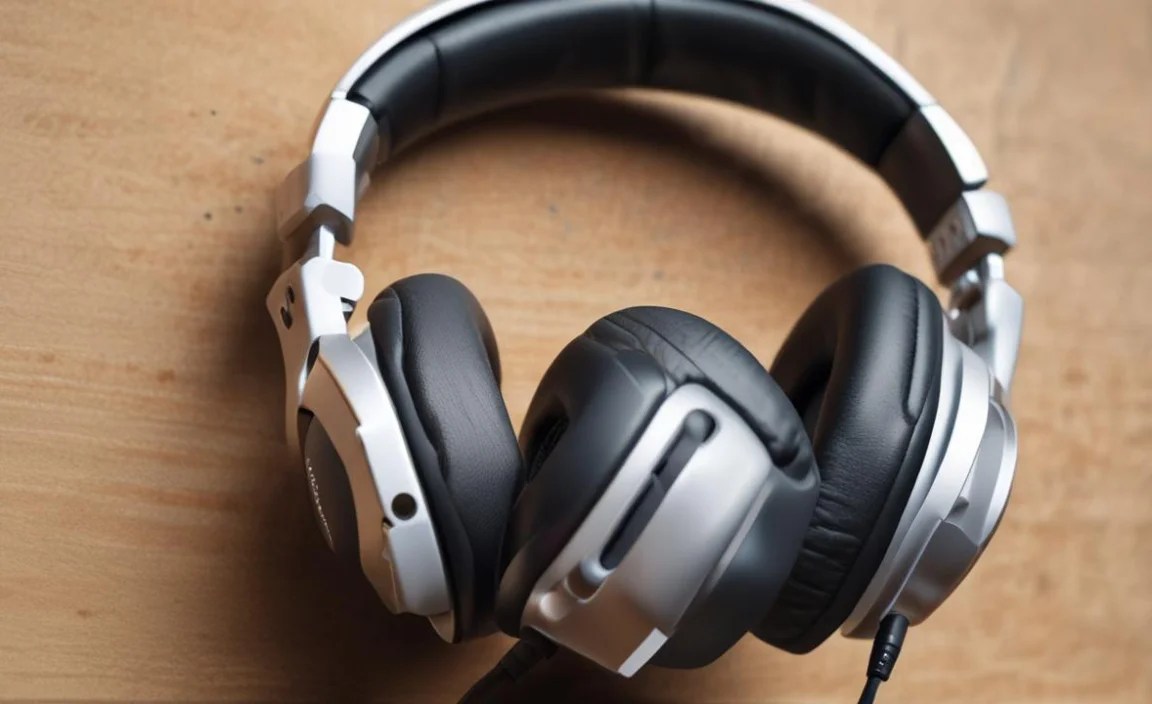
The way your headphones connect to your TV significantly impacts performance, especially for those hard of hearing.
RF (Radio Frequency) Wireless
RF systems typically use a base station that broadcasts an audio signal at a specific radio frequency directly to the headphones. These are often found in dedicated amplifying TV headphone systems.
- Pros: Generally very good at minimizing audio lag (low latency), often provide a strong signal with good range throughout a typical home, simple to set up and use.
- Cons: Can sometimes be susceptible to interference from other wireless devices (though less common with modern systems), might require pairing the headphones to the specific base station.
Bluetooth Wireless
Bluetooth connects wirelessly between your TV (or a Bluetooth transmitter) and the headphones. This is a very common technology now, found in many personal audio devices.
- Pros: Ubiquitous technology, offers flexibility if your TV has built-in Bluetooth, headphones can often be used with other devices like smartphones and tablets.
- Cons: Latency can be a significant issue without specific codecs like aptX Low Latency. Standard Bluetooth can have a noticeable delay between video and audio, which is very distracting. Requires a Bluetooth transmitter if your TV doesn’t have it built-in.
What About aptX Low Latency?
When considering Bluetooth headphones for TV, always look for models that support aptX Low Latency (or similar low-latency codecs like aptX Adaptive, or LDAC if latency is managed). This codec significantly reduces the delay between the audio and video, making them as close to real-time as possible. For this to work, both the Bluetooth transmitter connected to your TV and the Bluetooth headphones must support the same low-latency codec.
Wired Connections
As mentioned, wired headphones plug directly into your TV’s audio output. While offering independence from batteries and wireless range limitations, they can be cumbersome.
- Pros: No lag, no batteries to charge, direct audio path.
- Cons: Cable can be a tether, potential tripping hazard, limited by the TV’s audio output quality and maximum volume.
Tips for Maximizing Your TV Viewing Experience
Beyond choosing the right headphones, a few extra tips can enhance your enjoyment:
- Explore TV Audio Settings: Dive deep into your TV’s sound menu. Some TVs offer advanced settings that can adjust dialogue emphasis or even provide a clearer audio profile.
- Experiment with Tone Controls: Don’t be afraid to play with the tone or EQ settings on your headphones. A slight boost in the higher frequencies (often around 2kHz to 6kHz) can make consonants much clearer.
- Consider a Dedicated Transmitter: If your TV has weak built-in Bluetooth or no Bluetooth at all, investing in a quality Bluetooth transmitter with aptX Low Latency or a good RF transmitter can make a world of difference for wireless freedom and performance.
- Check Hearing Aid Compatibility: If you wear hearing aids, look for headphones that are specifically hearing aid compatible or can stream directly, as this often provides the clearest and most integrated experience. For example, many Phonak and Unitron hearing aids can connect directly to your TV via a Streamer or TV connector.
- Positioning Matters: For wireless systems, ensure the base station is placed in a relatively open area, free from major obstructions, to get the best signal to your headphones.
Frequently Asked Questions (FAQ)
Q1: Can I use regular headphones to watch TV if I have hearing loss?
You can try, but standard headphones might not offer enough amplification or the specific clarity enhancements needed. Dedicated TV headphones for hard of hearing are designed with higher volume limits and features to make dialogue easier to understand, which regular headphones typically lack. You’re more likely to get a benefit if your TV has a robust headphone output and you’re looking for a modest improvement, but specialized devices are usually more effective.
Q2: How do I know if my TV supports Bluetooth headphones?
Check your TV’s user manual or look for a “Bluetooth” option in the audio or connectivity settings menu. If your TV has built-in Bluetooth, you can usually pair devices directly. If not, you’ll need to purchase a separate Bluetooth transmitter that plugs into your TV’s audio output (headphone jack, optical, or RCA).
Q3: What is “latency” and why is it important for TV headphones?
Latency refers to the delay between when the audio is produced by the TV and when you actually hear it through the headphones. For TV watching, it’s critical that audio and video are perfectly synchronized (lip-synced). If there’s high latency, people’s lips will appear to move before the sound comes out, which is very distracting. Low-latency technologies like RF and Bluetooth’s aptX Low Latency minimize this delay.
Q4: Are RF or Bluetooth headphones better for watching TV?
For dedicated TV watching where simplicity and minimal lag are priorities, RF (Radio Frequency) wireless systems are often considered superior. They are designed specifically for this purpose, usually ensuring very low latency and a reliable connection. Bluetooth is more versatile if you also want to use your headphones with other devices, but you must ensure
