
Quick Summary: Choosing the right headphones for your iPad Pro unlocks an immersive audio experience, whether for work, entertainment, or creativity. This guide simplifies the process, explaining different headphone types, essential features, and connection methods to help you find the perfect pair that complements your iPad Pro’s capabilities.
Hey there, fellow iPad Pro enthusiasts! Edward Cavitt here from headphonehorizon. If you’re anything like me, your iPad Pro isn’t just a tablet; it’s a powerhouse for everything from catching up on your favorite shows and listening to music to diving deep into creative projects and even getting some work done on the go. But to truly get the most out of that fantastic display and incredible audio processing, you need the right audio companion. That’s where headphones come in. The “best headphones for iPad Pro” isn’t a one-size-fits-all answer. It really depends on how you use your device. Let’s break down what makes a great headphone for your iPad Pro and how to pick the perfect pair for your needs.
Why Headphones Matter for Your iPad Pro

Your iPad Pro is a marvel of modern technology, capable of producing rich, detailed audio. However, relying solely on its built-in speakers can leave you wanting more, especially in certain environments or when you need to immerse yourself completely. Headphones bridge that gap, offering several key benefits:
- Personalized Sound Experience: Enjoy your audio without disturbing others, perfect for quiet offices, airplanes, or late-night listening sessions.
- Enhanced Audio Quality: High-quality headphones can reveal subtle details in music, podcasts, and movies that built-in speakers might miss.
- Improved Focus and Productivity: Noise-canceling headphones can create a sanctuary of sound, helping you concentrate on tasks without distractions.
- Privacy: Keep your calls and audio content private.
- Immersive Entertainment: Feel like you’re right in the action with movies and games when you have a great pair of headphones.
Understanding Headphone Types for iPad Pro
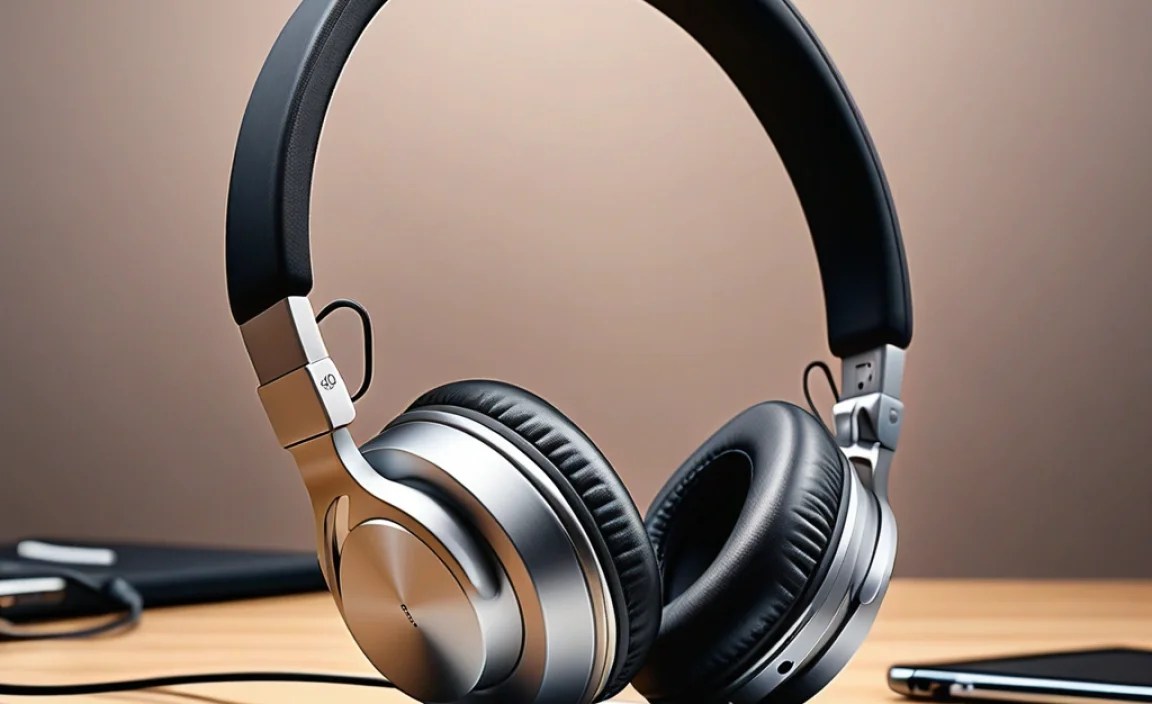
The world of headphones can seem a bit daunting at first, but it boils down to a few main categories, each with its own strengths. Knowing these will help you narrow down your choices for your iPad Pro.
Over-Ear Headphones
These headphones completely enclose your ears. They are often praised for comfort during long listening sessions and can provide excellent passive noise isolation. Many audiophiles prefer over-ear models for their ability to deliver a full, rich soundstage.
Pros:
- Superior comfort for extended wear.
- Excellent sound quality and immersion.
- Good passive noise isolation.
- Often feature the best active noise cancellation (ANC) technology.
Cons:
- Can be bulky and less portable.
- May cause ears to feel warm after prolonged use.
- Generally the most expensive category.
On-Ear Headphones
As the name suggests, these headphones rest directly on your ears. They offer a compromise between the portability of earbuds and the sound quality and comfort of over-ear models. They tend to be lighter than over-ear headphones.
Pros:
- More portable than over-ear headphones.
- Can offer a good balance of sound quality and comfort.
- Generally more affordable than over-ear options.
Cons:
- Can sometimes press uncomfortably on the ears.
- Less effective at blocking external noise compared to over-ear models.
- Sound leakage can be an issue at higher volumes.
In-Ear Headphones (Earbuds)
These are small headphones that fit directly into your ear canal. They are incredibly portable, discreet, and can offer excellent passive noise isolation due to their in-ear fit. Wireless earbuds, like Apple’s AirPods, have become incredibly popular.
Pros:
- Extremely portable and discreet.
- Offer good passive noise isolation.
- Often come in wireless options, offering great convenience.
- Typically the most affordable category.
Cons:
- Can be uncomfortable for some users during long periods.
- Sound quality can vary significantly; higher-end models are necessary for audiophile-grade sound.
- Prone to being lost due to their small size.
Connectivity: How to Connect Headphones to Your iPad Pro

Connecting headphones to your iPad Pro is generally straightforward, but it depends on your iPad Pro model and the type of headphones you choose. Most modern iPad Pro models feature a USB-C port, while older models might have had a Lightning port or even a traditional 3.5mm headphone jack.
USB-C Connection
The iPad Pro (starting with the third generation) uses a USB-C port. This is your primary connection method for wired headphones if they have a USB-C connector. This connection can also carry digital audio signals, potentially offering higher fidelity than analog connections.
How to Connect:
- Ensure your headphones have a USB-C plug.
- Plug the USB-C connector directly into the USB-C port on your iPad Pro.
- Your iPad Pro should automatically detect the headphones. You may see a notification or your audio will simply start playing through them.
Note: If your headphones have a standard 3.5mm jack but you want to use them with a USB-C iPad Pro, you’ll need a USB-C to 3.5mm headphone adapter or adapter cable. Many USB-C headphones also come with an adapter.
Bluetooth Wireless Connection
Bluetooth is the most common and convenient way to connect wireless headphones to your iPad Pro. It offers freedom from cables and is supported by virtually all modern headphones.
How to Connect:
- On your iPad Pro: Go to Settings > Bluetooth.
- On your headphones: Put your headphones into pairing mode. This process varies by manufacturer, but usually involves pressing and holding a power or pairing button until an indicator light flashes or you hear an audio cue. Consult your headphone’s manual for specific instructions.
- On your iPad Pro: Your headphones should appear in the “Other Devices” list within the Bluetooth settings. Tap on their name to connect.
- Once paired, your headphones will appear under “My Devices” and automatically connect when they are turned on and within range of your iPad Pro.
Apple’s proprietary Bluetooth technology, especially with devices like AirPods, offers seamless integration. When you first unbox AirPods near an unlocked iPhone or iPad, you’ll get a quick prompt to connect them – it’s incredibly simple!
Lightning Connection (for older iPad models)
If you have an older iPad Pro model that still uses a Lightning port, you’ll need headphones with a Lightning connector or rely on Bluetooth. If your headphones have a 3.5mm jack, you’ll need a Lightning to 3.5mm headphone jack adapter.
How to Connect (with Lightning adapter):
- Plug your headphones into the 3.5mm end of the adapter.
- Plug the Lightning end of the adapter into your iPad’s Lightning port.
- Audio should now play through your headphones.
3.5mm Headphone Jack (Rare on iPad Pro)
Very few iPad Pro models, if any current ones, come with a dedicated 3.5mm headphone jack. If by chance your iPad Pro does have one, connecting is as simple as plugging in any standard wired headphones.
How to Connect:
- Plug the 3.5mm jack from your headphones directly into the headphone port on your iPad Pro.
- Audio will automatically switch to your connected headphones.
Key Features to Look For in iPad Pro Headphones
When selecting headphones for your iPad Pro, consider these features to enhance your audio experience and streamline your workflow.
Active Noise Cancellation (ANC)
ANC uses microphones to detect ambient noise and then generates an opposing sound wave to cancel it out. This is fantastic for travel, noisy commutes, or open-plan offices. Apple’s AirPods Pro and AirPods Max are well-known for their effective ANC implementation.
Transparency Mode
The opposite of ANC, Transparency Mode allows you to hear your surroundings while still wearing your headphones. This is useful for conversations, listening for announcements, or staying aware of your environment without removing your headphones. Many AirPods models feature this.
Microphone Quality
If you plan to use your iPad Pro for video calls, online meetings, or even just taking phone calls, a good built-in microphone is crucial. Look for headphones that advertise clear voice pickup and noise reduction for the microphone.
Battery Life (for Wireless)
For Bluetooth headphones, battery life is a significant factor. Check the advertised playback time on a single charge and the total playtime with the charging case (if applicable). Fast charging capabilities can also be a lifesaver.
Comfort and Fit
This is highly personal but crucial for long listening sessions. Over-ear and on-ear headphones should have plush earcups and an adjustable headband. Earbuds should come with multiple tip sizes to ensure a secure and comfortable seal within your ear canal. A good seal also greatly improves sound quality and noise isolation.
Audio Codecs (for Bluetooth)
Bluetooth audio quality depends on the codecs supported by both your iPad Pro and your headphones. The standard SBC codec is universally supported. AAC is common and works well, especially with Apple devices. Higher-quality codecs like aptX or LDAC are found on some Android-centric headphones but are less common or may not be fully utilized by iPadOS unless the headphones specifically support them in conjunction with Apple devices.
Water and Sweat Resistance
If you plan to use your headphones during workouts or in humid environments, look for an IP (Ingress Protection) rating. An IPX4 rating, for example, means the headphones are protected against splashes of water. This is important for durability.
Top Headphones for iPad Pro: A Quick Look
While specific models change, here are some types of headphones that consistently perform well and are great companions for an iPad Pro. We’ll categorize them by their primary use case.
| Type | Suggested Use Case for iPad Pro | Key Features to Highlight | Connection Method |
|---|---|---|---|
| Apple AirPods Pro (2nd Gen) | All-around, portability, ANC, quick connectivity | Excellent ANC and Transparency Mode, spatial audio, great microphone, easy Apple integration | Bluetooth |
| Apple AirPods Max | Premium listening, immersive entertainment, long sessions | Superb ANC, rich sound quality, comfortable over-ear design, spatial audio | Bluetooth (with optional Lightning cable for wired audio) |
| Sony WH-1000XM series (e.g., XM5) | Travel, focus, audiophile-grade wireless | Industry-leading ANC, exceptional sound quality, long battery life, adaptive sound control | Bluetooth, USB-C (for charging and optionally audio) |
| Bose QuietComfort series (e.g., QC Ultra) | Comfort, ANC, general use | Renowned comfort, effective ANC, balanced sound | Bluetooth, USB-C (for charging) |
| Shure SE series (e.g., SE215) | Professional monitoring, detailed audio listening, wired connection enthusiasts | Excellent detail and clarity, good isolation, durable, often come with detachable cables allowing for USB-C or Lightning connection with adapter | Wired (3.5mm) requiring adapter for USB-C |
Tips for Maximizing Your iPad Pro Audio Experience
Once you’ve got your headphones, here are a few extra tips to make sure you’re getting the best sound and experience from your iPad Pro:
- Check iPadOS Audio Settings: Dive into Settings > Sounds to adjust volume limits, change EQ settings, and manage your audio output. For example, you can set a “Reduce Loud Sounds” limit to protect your hearing, following recommendations from organizations like the National Institute on Deafness and Other Communication Disorders (NIDCD).
- Clean Your Headphones Regularly: Earbuds and headphone earcups can accumulate dirt and earwax, affecting sound quality and hygiene. Gently clean them according to the manufacturer’s instructions.
- Update Your iPadOS and Headphone Firmware: Keeping your software up-to-date ensures you have the latest features, bug fixes, and performance improvements for both your iPad Pro and your connected headphones, especially for Bluetooth connectivity.
- Experiment with Spatial Audio: If your headphones support it and your iPad Pro content is compatible, diving into spatial audio can provide an incredibly immersive, theater-like sound experience. You can often toggle this in Control Center when your AirPods are connected.
- Consider a Good USB-C Hub/Adapter: If you need to connect multiple accessories (like wired headphones requiring an adapter and a charger), a USB-C hub can be a lifesaver, offering more ports and flexibility.
Frequently Asked Questions (FAQs)
Q1: Do I need a special adapter to connect regular wired headphones to my iPad Pro?
If your iPad Pro has a USB-C port (most recent models do) and your headphones have a standard 3.5mm audio jack, then yes, you will need a USB-C to 3.5mm headphone adapter. Apple sells one, and many third-party brands offer reliable options.
Q2: How do I make my Bluetooth headphones easier to connect to multiple devices?
While iPadOS doesn’t have a native “multipoint” connection manager like some Android devices, some headphones offer their own app for managing connections. Also, remember to disconnect your headphones from one device before trying to connect to another to avoid pairing conflicts.
Q3: Can I use my gaming headset with my iPad Pro?
Most gaming headsets connect via USB or Bluetooth. If the headset uses USB, ensure it’s USB-C compatible or that you have the correct adapter. Many Bluetooth gaming headsets will pair directly with your iPad Pro through its Bluetooth settings.
Q4: What does “Active Noise Cancellation” versus “Passive Noise Isolation” mean?
“Passive Noise Isolation” is achieved through the physical design of the headphones – how well they seal your ears. “Active Noise Cancellation” (ANC) uses electronics to actively cancel out ambient noise. ANC is generally more effective at blocking consistent, low-frequency noises like airplane engines or office hum.
Q5: How important is the audio codec for Bluetooth headphones with my iPad Pro?
For most users, the difference between common codecs like AAC (which Apple devices use well) and higher-end codecs like aptX or LDAC might be subtle. Stick to headphones that advertise good Bluetooth performance. If you’re an absolute audiophile and want the best possible wireless audio, research headphones that are
