
Quick Summary: Elevate your virtual meetings with the right headphones. This beginner’s guide explains essential features like clear microphones, comfort, and noise cancellation, helping you choose the best pair for professional and clear communication. Find the perfect fit for stress-free online interactions.
Headphones for Meetings: Your Essential Guide to Crystal-Clear Communication
Hey everyone, Edward Cavitt here from headphonehorizon! In today’s world, virtual meetings are a part of our daily routine, whether for work, school, or catching up with friends. And let’s be honest, nothing kills the professionalism (or fun!) of a meeting quite like muffled voices, distracting background noise, or uncomfortable earbuds. You want to be heard clearly, and you want to hear others without a struggle. That’s where the right pair of headphones comes in. Selecting headphones specifically for meetings might seem simple, but there are a few key things to consider that can make a world of difference. We’re going to break it all down, keeping it super simple and jargon-free, so you can confidently pick out a pair that makes all your online chats smooth, clear, and comfortable. Let’s get you sounding and looking your best on screen!
Why the Right Headphones Matter for Meetings

It goes beyond just listening; good headphones for meetings are about effective communication. Imagine trying to follow an important discussion when you can’t quite make out what people are saying, or worse, when your own audio is so poor that others have to ask you to repeat yourself constantly. It’s frustrating for everyone involved!
Investing in a decent pair of headphones with a good microphone can significantly:
- Improve Clarity: Ensure your voice is transmitted clearly to others, making your contributions easy to understand.
- Reduce Distractions: Block out ambient noise in your surroundings, allowing you to focus better on the conversation.
- Enhance Listening: Hear every word spoken by participants without straining, leading to better comprehension and engagement.
- Boost Professionalism: Present a more polished and attentive image during virtual interactions.
- Increase Comfort: Long meetings can be tough on your ears and head. Comfortable headphones prevent fatigue and discomfort.
Think of it as upgrading from a blurry webcam to a high-definition one – it’s a crucial visual and auditory upgrade that sets the stage for successful communication.
Key Features to Look For in Meeting Headphones

When you’re shopping for headphones specifically for online meetings, certain features are more important than others. Forget the bass-heavy sound for your favorite music for a moment, and let’s focus on what makes you sound and feel great during those important calls.
1. Microphone Quality: The Undisputed Champion
This is arguably the most critical feature. Even if the headphones sound amazing for music, if the microphone is poor, your meeting experience will suffer. Look for headphones with:
- Clear Voice Pickup: The microphone should capture your voice without distortion or a “tinny” sound.
- Noise Suppression/Cancellation: This feature helps filter out background noise from your environment (like keyboard typing, barking dogs, or traffic) so only your voice is transmitted clearly. Some microphones use beamforming technology to focus directly on your voice.
- Adjustable or Boom Microphone: A microphone that can be positioned closer to your mouth (like a boom mic on many headsets) often provides superior voice isolation and clarity. Some have mute buttons easily accessible for quick muting.
Tip: Many product descriptions will mention “clear voice communication” or “noise-cancelling microphone.” If you can, look for reviews that specifically test the microphone quality in real-world environments.
2. Comfort: For Those Marathon Meetings
You might be wearing these headphones for hours at a time. Uncomfortable headphones can lead to headaches, ear fatigue, and a general inability to focus. Consider these comfort factors:
- Earcup Material: Soft, breathable materials like faux leather or velour are generally more comfortable for extended wear than cheap plastic or stiff materials.
- Headband Padding: A well-padded headband distributes weight evenly and prevents pressure points on your head.
- Weight: Lighter headphones are generally more comfortable for long sessions.
- Clamping Force: The headphones should fit snugly without feeling like they’re crushing your head.
Over-ear headphones tend to be more comfortable for long durations than on-ear or in-ear models, as they distribute pressure more evenly around your ears.
3. Audio Quality (for Listening): Hearing is Believing
While mic quality is king, you still need to hear your colleagues clearly. Balanced audio reproduction is key. You don’t necessarily need booming bass for meetings; a clear, natural sound profile will help you distinguish voices and understand nuances in conversations.
- Balance: Look for headphones that offer a well-rounded sound, with clear mids and highs where human voices usually reside.
- Clarity: Ensure voices sound distinct and not muddled.
4. Connectivity: Wired vs. Wireless
This is often a personal preference and depends on how you use your headphones.
- Wired:
- Pros: Generally more affordable, no battery charging needed, immediate connection, no lag issues.
- Cons: Cable can be restrictive and messy.
- Wireless (Bluetooth):
- Pros: Freedom of movement, tidier setup.
- Cons: Requires charging, potential for latency (slight delay), can be more expensive.
For meetings, especially if you move around your desk or home office, wireless can be a great convenience. Just ensure it has a stable Bluetooth connection (look for newer Bluetooth versions if possible).
5. Noise Cancellation (ANC for You): Deep Focus
Active Noise Cancellation (ANC) is a fantastic feature that actively listens to your environment and creates opposing sound waves to cancel out persistent background noise. This is different from microphone noise suppression.
- Benefits: Helps you focus better by reducing constant hums (like air conditioning, fans, or general office chatter) so you can concentrate solely on the meeting audio.
- Consideration: ANC is typically found in more premium headphones and can add to the cost. For very quiet environments, it might be overkill, but in a busy household or open-plan office, it’s a game-changer.
6. Compatibility: Plug and Play
Ensure the headphones you choose will work seamlessly with your computer or device. Most modern USB headsets and Bluetooth headphones are plug-and-play, but it’s always good to double-check.
- USB: Connects directly to a USB port on your computer. Almost universally compatible with Windows and macOS.
- 3.5mm Jack: A common audio connector. Many laptops and desktops have dedicated mic and headphone jacks, or a single combo jack.
- Bluetooth: Pairs wirelessly with devices that have Bluetooth capabilities.
Types of Headphones Best Suited for Meetings

Not all headphones are created equal when it comes to meeting performance. Here’s a look at the most suitable types:
1. Dedicated Headsets
These are specifically designed for communication. They usually feature a prominent, often boom, microphone that can be positioned close to your mouth. They often prioritize microphone quality and comfort for long wear.
- Pros: Excellent microphone performance, designed for voice clarity, often very comfortable.
- Cons: Styling might be more utilitarian; some higher-end models can be pricier.
Example: Many office-style headsets or gaming headsets (though gaming ones might have excessive features you don’t need).
2. True Wireless Earbuds with Good Microphones
While popular for music and calls on the go, not all true wireless earbuds excel in microphone performance for meetings. However, some higher-end models feature multiple microphones and advanced processing to isolate your voice effectively.
- Pros: Compact, highly portable, no wires.
- Cons: Microphone quality can be hit-or-miss; battery life for calls might be shorter than headsets.
Tip: Look for earbuds specifically advertised for clear voice calls or with “beamforming mics.”
3. Over-Ear & On-Ear Headphones with Built-in Microphones
Many standard consumer headphones (both over-ear and on-ear) now include microphones, usually a small inline mic on the cable for wired models or a small bud on the earcup for wireless. These can be a good all-around option if you also want them for music.
- Pros: Versatile (music, calls, meetings), often offer good comfort and ANC.
- Cons: The microphone might not be as optimized for voice pickup as a dedicated headset’s boom mic.
Recommendation: If using these for meetings, check reviews specifically mentioning call quality and mic performance.
Choosing Between Wired and Wireless for Meetings
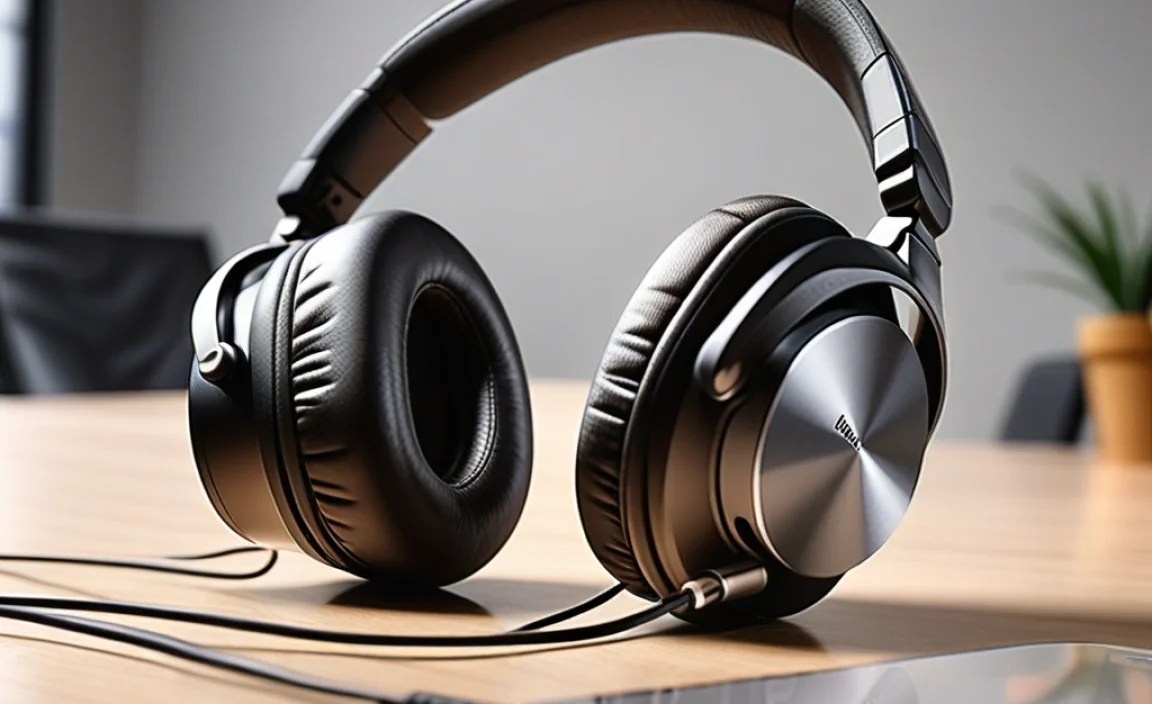
This decision often boils down to your personal workflow and priorities.
Wired Headphones for Meetings
Wired options offer a straightforward and reliable connection. Many professional headsets and some consumer headphones connect via USB or a 3.5mm audio jack.
When to choose Wired:
- You prioritize absolute reliability and no chance of Bluetooth dropout.
- You don’t want to worry about charging headphone batteries.
- You are on a tighter budget, as wired options are often more affordable.
- You’re in a fixed workspace and don’t need to move around much.
A USB headset ensures a strong, consistent connection to your computer, often bypassing your computer’s internal sound card for potentially better audio processing. A 3.5mm jack is universally compatible but might rely on your computer’s built-in audio hardware.
Wireless Headphones for Meetings
Wireless freedom is a huge perk for many, allowing you to step away from your desk without disconnecting.
When to choose Wireless:
- You value mobility and need to move around your home or office during calls.
- You prefer a clutter-free desk setup.
- You use multiple devices and need the flexibility to switch easily (though multi-point Bluetooth can help with this).
When going wireless for meetings, ensure the Bluetooth connection is stable and the headset has a good microphone. Some wireless headsets also offer a wired mode, giving you the best of both worlds.
Getting the Best Performance: Setup and Best Practices
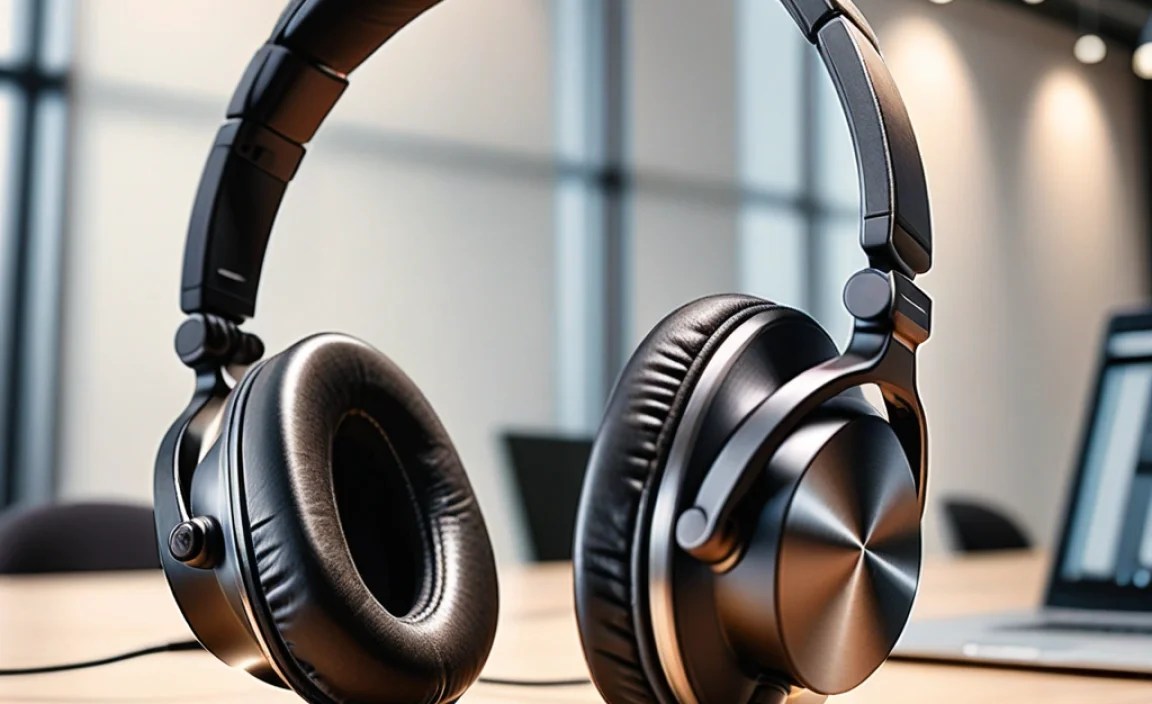
Once you’ve chosen your headphones, a few simple steps can ensure you’re getting the most out of them:
1. Proper Connection & Driver Installation
- USB: Plug directly into your computer. Most operating systems will automatically detect and install necessary drivers. Occasionally, you might need to download specific software from the manufacturer’s website for advanced features or firmware updates.
- 3.5mm Jack: Plug into the correct port (usually color-coded or clearly labeled for microphone and audio).
- Bluetooth: Enable Bluetooth on your device, put your headphones in pairing mode (check the headphone manual for instructions), and select them from your device’s available Bluetooth devices list.
2. Select Your Headphones in Meeting Software
This is crucial! After connecting your headphones, you need to tell your meeting application (Zoom, Microsoft Teams, Google Meet, etc.) to use them. Most applications have audio settings where you can select your preferred microphone and speaker.
For example, in Zoom:
- Click the arrow next to the microphone icon in the bottom-left corner of the Zoom window during a meeting.
- Under “Microphone,” select your headphones.
- Under “Speaker,” select your headphones.
Check the audio settings in your specific conferencing software – they usually make it very clear.
3. Microphone Placement is Key
If you have a boom microphone, position it so it’s about one to two finger-widths away from the corner of your mouth. This is close enough to pick up your voice clearly without picking up too much breath noise. Avoid having the mic directly in front of your mouth, which can cause popping sounds.
4. Utilize Mute Functions
Get comfortable using the mute button on your headphones or within your meeting software. It’s polite and professional to mute yourself when you’re not speaking, especially if you’re in a noisy environment.
5. Test Your Audio
Before important meetings, do a quick test. Speak at a normal volume and listen back to a recording or use the “Test Speaker & Microphone” feature in your meeting software’s audio settings. Ask a colleague for feedback if you’re unsure.
6. Manage Noise Cancellation/Suppression
If your headphones have ANC, experiment with turning it on and off in your environment. For meetings, you generally want it on to reduce distractions. If your microphone has noise suppression settings, ensure they are enabled. Some software also offers its own noise suppression.
The U.S. Government’s National Telecommunications and Information Administration (NTIA) emphasizes clear communication for all, including those who rely on assistive technologies and clear audio. While not directly about headphone choice, their focus on accessible communication highlights the importance of being heard clearly in the digital space.
Recommended Microphone Technologies
Understanding a few terms can help you narrow down your choices:
- Omnidirectional Microphone: Picks up sound from all directions equally. Less ideal for crowded environments as it will pick up more background noise.
- Unidirectional (Cardioid) Microphone: Primarily picks up sound from the front, rejecting sound from the sides and rear. Much better for reducing background noise.
- Noise-Cancelling Microphones: These employ special designs or algorithms to actively reduce ambient noise. This is a broad term, and the effectiveness varies greatly. Look for specific noise-reduction claims in product descriptions.
- Beamforming Microphones: An advanced type of microphone array that uses digital signal processing to focus on the sound source (you) and suppress interference from other directions. Many high-end headsets and earbuds use this technology.
Comparison Table: Headphone Types for Meetings
Here’s a quick look at how different headphone types stack up for meetings. Keep in mind that there are always exceptions, and specific models can vary wildly in performance.
| Headphone Type | Microphone Quality (Typical) | Comfort (Typical) | Portability | Best For |
|---|---|---|---|---|
| Dedicated Headsets (Over-ear, Boom Mic) | Excellent | Excellent | Moderate | Long, frequent meetings; professional use; focus on voice clarity. |
| Consumer Over-Ear/On-Ear (with inline/built-in mic) | Good to Very Good | Very Good to Excellent | Moderate | All-around use (music, calls, meetings); users wanting ANC. |
| True Wireless Earbuds (premium models) | Good to Very Good | Good | Excellent | On-the-go calls, frequent travel, minimal setup. |
| Standard Earbuds (wired or basic wireless) | Fair to Good | Fair to Good | Excellent | Occasional use, budget-conscious, basic needs. |
Maintaining Your Meeting Headphones
A little care keeps your headphones performing well and lasting longer.
Cleaning
- Earpads/Earcups: Gently wipe with a soft, damp cloth. For tougher grime on faux leather, a mild soap and water solution can be used, but ensure the cloth is only slightly damp and avoid soaking. Special headphone cleaning wipes are also available.
- Headband: Similar to earcups, a damp cloth is usually sufficient.
- Microphone: Gently dust the microphone grille with a soft, dry brush or a blast of compressed air (held at a distance). Avoid touching the mic capsule itself.
- Cables (Wired): Wipe down cables with a dry or slightly damp cloth. Avoid sharp bends or kinks.
Storage
- Store your headphones in a cool, dry place when not in use.
- Use a carrying case or pouch if your headphones came with one, especially for travel. This protects them from dust and damage.
- Avoid leaving them exposed to direct sunlight or extreme temperatures.
Battery Care (Wireless)
- Avoid completely draining the battery regularly. Charge them when they are low, rather than waiting until they die.
- If storing wireless headphones for an extended period (weeks or months), charge them to around 50-70% first.
