
Quick Summary: Headphones with a built-in microphone are indispensable for clear mobile calls, gaming, and virtual meetings. This guide helps beginners understand their importance and choose the right pair for seamless communication on the go, covering key features to look for and setup essentials.
Hey everyone, Edward Cavitt here from headphonehorizon! In today’s fast-paced digital world, our smartphones are more than just communication devices – they’re our portable offices, entertainment hubs, and social connectors.
Seamlessly moving between a quick phone call, joining a video conference, or even hopping into a multiplayer game often requires more than just your phone’s built-in speaker and mic. That’s where headphones with a mic for mobile come in. They’re not just an accessory; they’re essential gear that can dramatically boost your clarity, privacy, and overall experience. Let’s dive in and explore why they’re a game-changer for everyday listening.
Why You Need Headphones with a Mic for Mobile

Think about your daily routine. How often do you take calls while multitasking? Or perhaps you’re a student who needs to attend online lectures or collaborate on projects remotely. Gamers, too, need reliable communication to coordinate with their teammates. In all these scenarios, a good headset with a mic makes a world of difference.
Instead of fumbling with your phone or speaking into a potentially noisy environment speaker, your voice comes through crystal clear, and you can hear the other person perfectly, even amidst background chatter. This enhances productivity, improves social interactions, and genuinely makes using your mobile device a more pleasant and effective experience.
Crystal Clear Communication
The primary benefit is, of course, superior audio quality for both speaking and listening. Most built-in phone microphones are designed for casual calls, but they can pick up a lot of ambient noise. Headphones with dedicated microphones, especially those with noise-cancellation features, isolate your voice, ensuring the person on the other end hears you clearly, not the traffic outside or the office buzz. This reduces the need for repetition and makes conversations flow much more smoothly.
Enhanced Privacy
Taking a private call in a public space can be awkward, and sometimes impossible. With headphones, you can have a discreet conversation without broadcasting your chat to everyone around you. This is particularly important for sensitive work calls or personal conversations.
Hands-Free Convenience
This is a huge perk for anyone on the move. Whether you’re walking, commuting, cooking, or even just relaxing, headphones with a mic allow you to stay connected without holding your phone. You can answer calls, adjust volume, and sometimes even control playback with inline controls, all while keeping your hands free for other tasks.
Immersive Experiences
Beyond calls, these headphones elevate other mobile activities. Gamers get a competitive edge with clear in-game communication and immersive sound. Music lovers can enjoy their playlists without interruption and also have the option to take calls without missing a beat. For online meetings, you get better audio for presentations and clear communication with colleagues or classmates.
Choosing the Right Headphones with Mic for Mobile

Navigating the world of headphones can seem daunting, but for mobile use with a mic, a few key features stand out. Let’s break down what to look for, keeping simplicity and effectiveness in mind.
Types of Headphones
When you’re looking for headphones with a mic for mobile, you’ll generally encounter a few main types. Each has its own set of advantages:
- In-Ear Headphones (Earbuds): These are small and portable, fitting directly into your ear canal. Many come with integrated microphones on the cable. They’re great for casual listening and calls on the go.
- On-Ear Headphones: These sit on top of your ears. They often provide a comfortable fit for longer periods and typically have larger drivers, potentially offering better sound quality than smaller earbuds. The microphone is usually on a boom arm or integrated into the earcup.
- Over-Ear Headphones: These completely enclose your ears, offering excellent passive noise isolation and often the best sound quality and comfort for extended use. The microphone is usually on a retractable or detachable boom.
- True Wireless Earbuds: These are completely cord-free, with each earbud housing its own mic. They offer maximum freedom of movement and are very popular for their convenience.
Key Features to Consider
Here are the essential features that will make the biggest difference for your mobile experience:
- Microphone Quality: This is paramount. Look for specifications like “noise-canceling microphone” or “directional microphone” to ensure your voice is prioritized. Some higher-end models might even specify the pickup pattern of the mic.
- Connectivity:
- 3.5mm Jack: The traditional headphone jack. Still common on many Android phones and older iPhones (with an adapter). Reliable and requires no battery power for the headphones themselves.
- USB-C: Becoming standard on most Android phones and newer iPads. Offers digital audio transmission, which can be cleaner than analog.
- Lightning: Used on older iPhones and some iPads. Similar to USB-C in offering digital audio.
- Bluetooth: Wireless connectivity. Offers the most freedom but requires charging the headphones. Look for modern Bluetooth versions (5.0 or higher) for better stability and energy efficiency.
- Comfort and Fit: If you plan to wear them for long calls or commutes, comfort is key. For earbuds, multiple eartip sizes are essential. For over-ear or on-ear models, look for padded headbands and earcups.
- Inline Controls/Buttons: Most headphones with mics for mobile have controls on the cable or eARCADE. These typically allow you to play/pause music, skip tracks, adjust volume, and answer/end calls. Some advanced controls might include activating voice assistants.
- Battery Life (for Wireless): If you opt for Bluetooth headphones, check the promised listening and talk time. A quick-charge feature can also be a lifesaver.
- Durability: Consider how and where you’ll use them. If they’re for commuting or sports, look for models known for their build quality and perhaps water resistance.
Understanding Microphone Technology
Microphone technology has come a long way. For mobile headphones, here’s what you might encounter:
- Omnidirectional Microphone: Picks up sound from all directions. Common in earbuds and simpler headsets.
- Cardioid/Directional Microphone: Picks up sound primarily from the front, rejecting sound from the sides and rear. This is excellent for isolating your voice in noisy environments. Boom mics on gaming headsets often use this type.
- Noise-Canceling Microphones: These often employ multiple microphones. One captures your voice, while another captures ambient sound. The headset then subtracts the ambient noise from your voice signal, resulting in a clearer output for the listener.
For mobile use, especially if you’re often out and about, a microphone with some form of noise reduction or directional properties will serve you best. You can find great options at various price points, so don’t feel you need to break the bank for good mid-level quality.
Setting Up Your Headphones with Mic
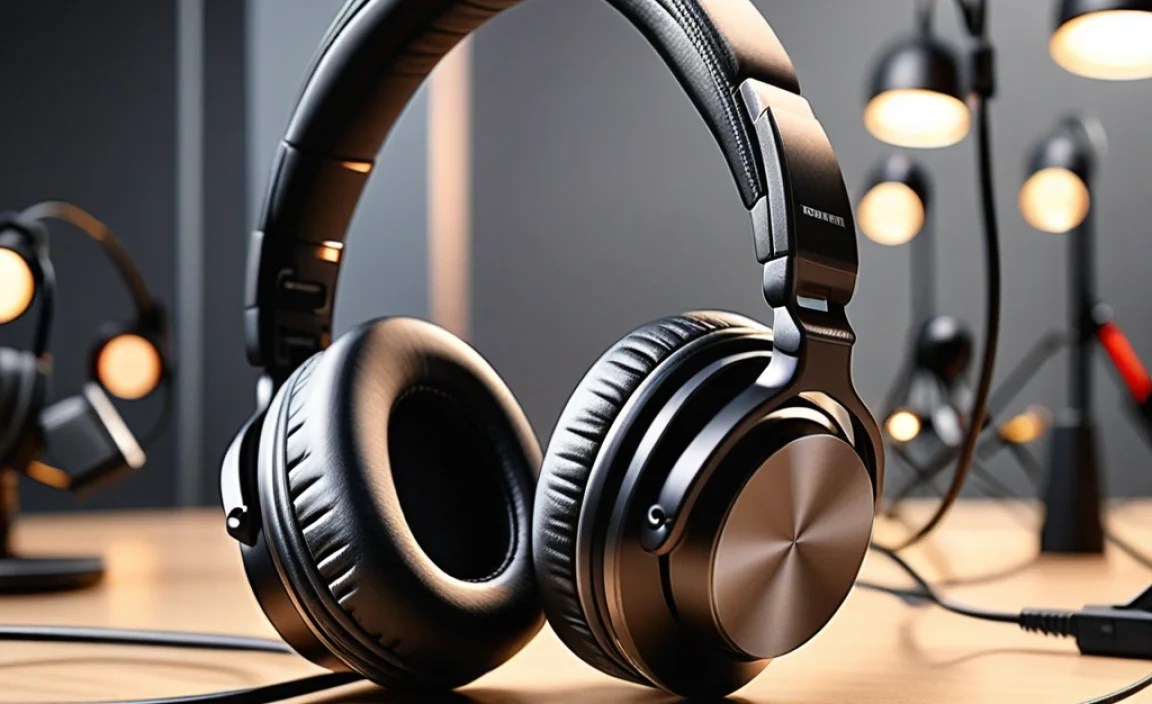
Once you’ve chosen your headphones, getting them ready to use with your mobile device is usually straightforward. The process differs slightly depending on the connection type.
Connecting via 3.5mm Jack
This is the simplest method. If your phone has a 3.5mm audio jack:
- Locate the audio port on your smartphone. It’s usually at the bottom or top edge.
- Plug the 3.5mm connector from your headphones firmly into the port.
- Your phone should automatically detect the headphones and switch audio input/output to them. You might see an icon appear in your notification bar indicating that headphones are connected.
- Test by playing some audio or making a quick call.
Connecting via USB-C or Lightning
Newer devices might use USB-C or Lightning ports for audio.
- If your headphones have a USB-C or Lightning connector, simply plug them into the corresponding port on your device.
- Similar to the 3.5mm jack, your device should recognize the headphones and route audio through them.
- If your device’s port handles charging and audio, you might be able to find “USB-C headphones” or “Lightning headphones” that support simultaneous charging if you use a splitter, though this is less common.
Connecting via Bluetooth
Wireless is king for convenience, but requires an initial pairing step.
- Turn on your headphones: Ensure they are charged and powered on.
- Enter pairing mode: This usually involves pressing and holding a specific button (often the power button or a dedicated Bluetooth button) until an LED indicator starts flashing, or you hear an audio prompt like “pairing.” Consult your headphone’s manual for the exact method.
- On your mobile device (iPhone/Android):
- Go to Settings.
- Tap on Bluetooth.
- Make sure Bluetooth is toggled ON.
- Your device will scan for nearby devices. Wait for your headphone’s name to appear in the list of “Available Devices.”
- Tap on your headphone’s name to connect.
- Once paired, your device will remember your headphones, and they should connect automatically whenever you turn them on and have Bluetooth enabled on your phone.
- Testing: Play music or make a test call to ensure both audio playback and microphone input are working correctly.
Testing Your Microphone
Having connected your headphones, it’s a good practice to test the microphone. This ensures you’re not only heard but heard clearly.
- For calls: Make a test call to a friend or family member and ask them how clear you sound.
- Using your phone’s voice recorder: Most smartphones have a built-in voice recorder app. Record yourself speaking a few sentences with the headphones connected and then play it back to hear exactly what the microphone is picking up.
- In-app tests: Many voice/video conferencing apps (like Zoom, Google Meet, Skype) have audio settings where you can test your microphone input in real-time.
Checking these simple things will prevent any awkward “Can you hear me now?” moments during important conversations.
Top Features for Enhanced Mobile Calls
Beyond the basic microphone, some technologies can significantly improve your call quality on the go. These are worth looking for:
Active Noise Cancellation (ANC)
ANC headphones use microphones to detect ambient noise and generate opposing sound waves to cancel it out. While primarily for listening, some advanced ANC systems can also help isolate your voice for outgoing calls by reducing background noise picked up by the microphone.
Wind Noise Reduction
This is a lifesaver for outdoor calls. Headphones designed for mobile often incorporate specific algorithms or physical designs (like a windscreen on the mic) to reduce the distracting rush of wind noise that can otherwise make calls unintelligible.
Voice Pickup Technology
Some higher-end headphones employ advanced microphone arrays and beamforming technology. This means the microphones are electronically steered to focus on your voice, even if it’s not directly in front of the mic, while effectively ignoring other sounds.
Dedicated Communication Modes
Certain headphones, particularly those geared towards professionals or gamers, might offer specific “communication modes” that further optimize microphone performance for speech clarity over music reproduction.
For example, the Sony WH-1000XM5, while often praised for music, has excellent microphone call quality due to its advanced noise cancellation and voice pickup features, demonstrating how premium consumer headphones can excel in this area too.
Troubleshooting Common Issues
Even with the best gear, hiccups can happen. Here are some common issues and simple fixes:
Microphone Not Working
- Check Connections: Ensure the headphone jack is fully plugged in, or that Bluetooth is properly connected and audio is routed to the headphones.
- Permissions: On your mobile device, go to Settings > Apps > (App Name) > Permissions and ensure the app has permission to access the microphone.
- Restart Device: Sometimes a simple phone reboot can resolve temporary software glitches.
- Test on Another Device: If possible, try your headphones on a different phone or tablet. If they work elsewhere, the issue is likely with your original device’s settings.
- Device Compatibility: Ensure your headphones are compatible with your mobile device (e.g., using adapter if needed for older phones with newer headphone outputs).
Poor Sound Quality (for Calling)
- Check Mic Position: Ensure the microphone (especially if it’s on a boom) is positioned close to your mouth.
- Clean the Mic Port: Small debris can accumulate in the mic opening. Gently clean it with a dry, soft brush or compressed air.
- Disable Other Audio Apps: Close any other apps that might be trying to use the microphone.
- Bluetooth Interference: If using wireless, ensure you’re not too far from your device or in an area with significant Wi-Fi or Bluetooth congestion.
- Check App Settings: Some apps allow you to select the audio input/output. Ensure your headphones are selected.
Calls Dropping (Bluetooth)
- Proximity: Stay within the Bluetooth range of your phone (typically around 30 feet/10 meters).
- Interference: Thick walls, microwaves, and other wireless devices can cause interference. Try moving to a more open space or away from potential sources of interference.
- Battery Level: Low battery on either the headphones or the phone can sometimes lead to unstable connections.
- Re-pair Devices: Forget the headphones in your phone’s Bluetooth settings and then re-pair them.
Remember, for official guidance on mobile device features, consulting your phone manufacturer’s support website, such as those from Apple or Google Pixel, can provide device-specific troubleshooting steps.
Headphones with Mic for Mobile: Comparison Table
To help you visualize your options, here’s a simplified comparison of common headphone types for mobile use:
| Headphone Type | Microphone Type | Pros | Cons | Best For |
|---|---|---|---|---|
| True Wireless Earbuds | Integrated (often dual mics) | Ultimate portability, no wires, convenient | Battery life can be limited, potential for loss, mic quality varies | On-the-go calls, commuting, casual use |
| Wired Earbuds (3.5mm/USB-C/Lightning) | Inline | No battery required for headphones, reliable connection, often affordable | Tethered by wires, mic quality can be basic | Budget-conscious users, reliable basic calls, portability |
| On-Ear Headphones | Boom or inline | Comfortable for longer wear, decent sound, easy mic access | Can be bulky, may leak sound, less noise isolation than over-ear | Students, remote work, extended listening sessions |
| Over-Ear Headphones | Boom (often detachable/retractable) | Best sound and comfort, excellent noise isolation, usually highest mic quality | Bulkiest, can be warm for long periods, expensive | Professional calls, gaming, immersive audio, noisy environments |
Frequently Asked Questions (FAQ)
Are headphones with a mic really necessary for mobile calls?
While you can make calls without them, headphones with a mic significantly improve clarity for both you and the person you’re speaking with, especially in noisy environments. They also offer privacy and hands-free convenience, making them highly recommended for regular mobile users.
Can I use regular headphones with a mic designed for computers with my mobile phone?
It depends on the connector. If your computer headphones use a single 3.5mm jack (TRRS, which carries both audio and mic), they will likely work with your phone. If they use separate jacks for audio and mic, or a USB connector, you’ll need an adapter to connect them to your mobile device. Bluetooth computer headsets usually pair directly with mobile phones.
How do I know if my headphones’ microphone is working properly on my phone?
The easiest way is to make a practice call to someone and ask them how you sound, or use your phone’s voice recorder app to record yourself speaking and then play it back. Many communication apps also
