
Quick Summary: Elevate your PS4 gaming experience with the right headphones and microphone. This guide helps beginners choose and set up audio gear for clear communication and immersive gameplay, turning every session into an adventure. Unlock clearer team chat and richer game sounds with simple, actionable advice.
Headphones and Microphone for PS4: Essential Gaming for Every Player
Welcome, fellow gamers! If you’ve just plugged in your PlayStation 4 and you’re ready to dive into epic adventures, you’re in for a treat. But what if your in-game sound isn’t quite cutting it, or your teammates can’t hear your brilliant strategies? That’s where a great headset comes in! For beginners, the world of gaming audio can seem a bit overwhelming, with all sorts of technical terms flying around. But fear not! Here at Headphone Horizon, we believe everyone deserves to hear every explosion, every whisper, and communicate crystal clear. This guide will walk you through everything you need to know about choosing and using headphones and a microphone for your PS4, ensuring you get the most out of your gaming sessions without any of the tech headaches. Let’s get your audio dialed in and ready for action!
Why a Good Headset is More Than Just Headphones

Think of your PS4 experience. You’re not just seeing stunning graphics and controlling your character; you’re also hearing the world come alive. The subtle footsteps of an approaching enemy, the thunderous roar of a dragon, or the dramatic orchestral score – all these sounds pull you deeper into the game. A dedicated gaming headset, which combines headphones with a built-in microphone, is designed to enhance these auditory experiences. It’s not just about listening; it’s about communicating with your squad, coordinating attacks, and sharing those epic wins (or commiserating over close losses!). A good headset transforms solitary gaming into a connected, immersive social experience. It’s truly an essential piece of gear for anyone serious about their PS4 gaming, from casual players to competitive enthusiasts.
Understanding the Basics: What to Look For
When you start looking for headphones and a microphone for your PS4, you’ll encounter a few key features. Don’t worry if some terms sound technical; we’ll break them down:
- Type of Headset: You’ll see options like “stereo,” “surround sound,” and “virtual surround sound.” Stereo is standard and delivers sound to your left and right ears. Surround sound aims to create a 3D audio environment, helping you pinpoint where sounds are coming from.
- Connectivity: How does the headset connect to your PS4? Common methods include a 3.5mm jack (widely compatible), USB, or wireless (Bluetooth or proprietary dongles).
- Microphone Quality: This is crucial for chat. Look for clear voice pickup, noise cancellation features (to reduce background sounds), and a flexible or adjustable boom mic.
- Comfort and Fit: You’ll be wearing these for hours! Ensure they are lightweight, have soft earcups, and an adjustable headband.
- Durability: Gaming can get intense. Look for headsets made with sturdy materials that can withstand regular use.
Connecting Your Headphones and Microphone to PS4

Setting up your audio gear with your PlayStation 4 is usually a straightforward process. Most modern gaming headsets are designed for easy plug-and-play operation. Here’s how you typically connect them:
Method 1: Using the 3.5mm Audio Jack
This is the most common and often the simplest connection method. Many PS4 controllers have a 3.5mm jack on the bottom.
- Locate the Jack: Find the single headphone symbol on the bottom of your DualShock 4 controller.
- Plug In Your Headset: Insert the 3.5mm plug from your headset directly into this jack.
- Check PS4 Settings: Turn on your PS4. The console should automatically detect the headset. You might see a notification. To confirm or adjust settings, go to Settings > Devices > Audio Devices. Here, ensure “Input Device” and “Output Device” are set to “Headset Connected via Controller.” You can also adjust “Output to Headphones” to “All Audio” for game sound and chat, or “Chat Audio Only” if you prefer game sounds through your TV speakers.
Why this is great: It’s incredibly convenient, allowing you to move freely as long as your controller is within reach. Plus, it’s compatible with a vast range of headsets.
Method 2: USB Connection
Some gaming headsets connect via USB. These often offer more advanced features like virtual surround sound or dedicated control modules.
- Locate a USB Port: Insert the USB connector from your headset into one of the available USB ports on the front or back of your PS4 console.
- PS4 Recognition: Your PS4 will usually recognize the USB audio device automatically.
- Configure Settings: Navigate to Settings > Devices > Audio Devices. Select the USB headset as both your “Input Device” and “Output Device.” Again, configure “Output to Headphones” as needed.
Tip: Some USB headsets might require their own drivers or software, but this is more common for PC use. For PS4, most are plug-and-play and recognized as standard audio peripherals.
Method 3: Wireless Connections (Bluetooth or Dongles)
Wireless headsets offer the ultimate freedom, but setup can vary.
- Proprietary Wireless Dongles: Many gaming headsets come with a USB dongle. Plug this dongle into a PS4 USB port. Put the headset into pairing mode (check your headset’s manual for instructions). The PS4 should detect the dongle and pair the headset. Configure audio settings as with USB devices.
- Bluetooth: While some PS4 controllers use Bluetooth, connecting third-party Bluetooth headphones directly to the PS4 for audio output can be finicky and often doesn’t support microphones. For reliable Bluetooth gaming audio, it’s usually best to use a headset with its own dedicated dongle, which your PS4 treats as a USB audio device. If your headset supports Bluetooth and PS4 compatibility, you’ll typically pair it via Settings > Devices > Bluetooth Devices. Remember to set it as both input and output device in Audio Devices.
Important Note on Wireless: For the most stable and compatible wireless experience on PS4, headsets using a USB dongle are generally recommended over standard Bluetooth connections for simultaneous mic and audio use.
Choosing the Right Headset for Your PS4 Gaming Needs

With countless options available, narrowing down the best headset for you can seem daunting. Here’s a breakdown of factors to consider, especially for beginners:
Types of Gaming Headsets
Gaming headsets generally fall into a few categories, each with its own strengths:
Over-Ear Headsets
These are the most popular choice for gaming. They enclose your entire ear, offering good passive noise isolation and comfortable padding for long sessions.
- Pros: Immersive sound, comfortable for extended wear, good noise isolation.
- Cons: Can be bulky, may cause ears to get warm.
On-Ear Headsets
These rest on top of your ears. They are often lighter and more compact.
- Pros: Lighter, more breathable, can be more portable.
- Cons: Less immersive sound, can become uncomfortable with pressure on ears, less noise isolation.
In-Ear Headsets (Earbuds)
Similar to the earbuds you might use with a phone, some gaming-focused earbuds offer good sound and a mic. They often come with various ear tip sizes for a secure fit.
- Pros: Highly portable, discreet, good for travel or casual use.
- Cons: Sound quality can vary greatly, mic quality might be lower, less immersive than over-ear.
Key Features to Prioritize
When looking at specific models, keep these features in mind:
- Virtual Surround Sound: While true surround sound is complex, virtual surround sound (often powered by DTS or Dolby) simulates directional audio through stereo headphones. This can be a game-changer for competitive games, helping you locate enemies by sound.
- Microphone Features: A detachable or flip-to-mute microphone is incredibly practical. Noise-canceling microphones help ensure your teammates hear you clearly, not the sounds of your household.
- Build Quality & Comfort: Look for headsets with adjustable headbands, plush earcups (memory foam is often a good sign), and a robust frame. Read reviews focusing on comfort for long gaming sessions.
- Wired vs. Wireless:
- Wired: Generally offer better audio quality for the price, no latency issues, and no need to worry about charging. They’re usually more budget-friendly.
- Wireless: Offer freedom of movement. However, they can be more expensive, require charging, and there’s a slight risk of audio lag (though high-quality gaming wireless headsets minimize this significantly). For PS4, wireless headsets with dedicated USB dongles are often more reliable than standard Bluetooth.
Top Picks for PS4 Headsets (Beginner-Friendly)
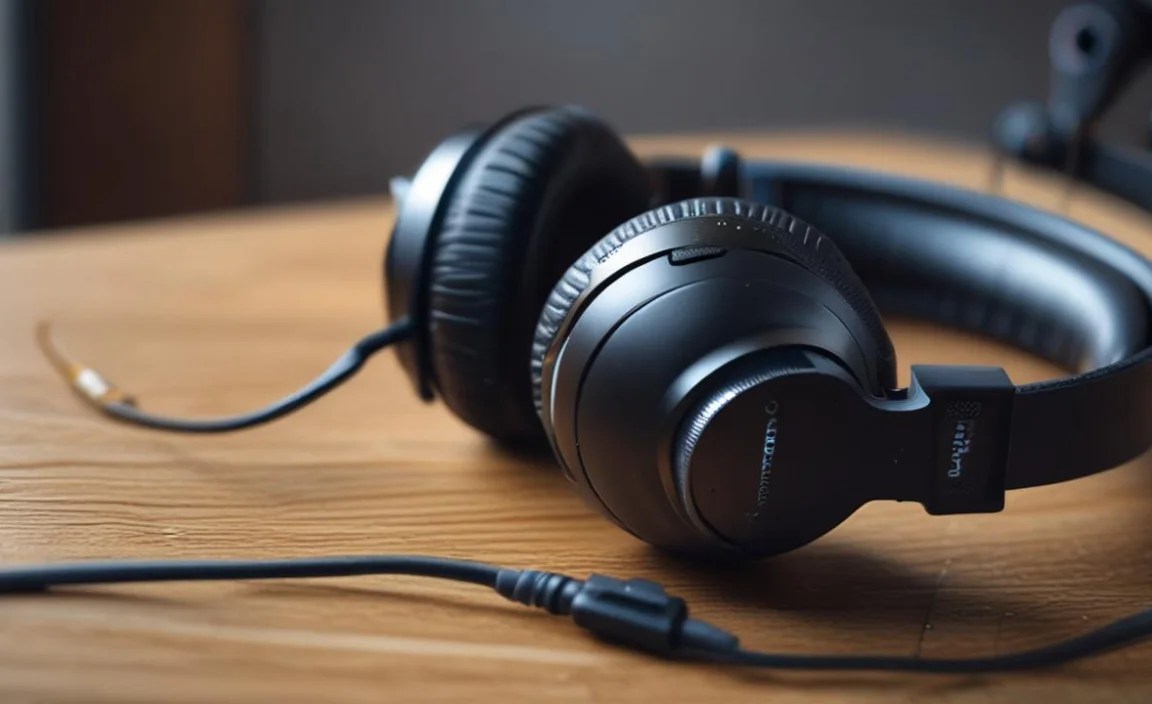
Finding the perfect headset can be tough. To help you get started, here are a few types of headsets that are popular and well-regarded for PS4 gaming, suitable for beginners:
Please note: Specific models and prices fluctuate. These are general categories and reputable brands often found in this space. Always check for the latest versions and reviews.
| Type/Feature | Recommended For | Pros | Cons | Example Brands/Models |
|---|---|---|---|---|
| Budget-Friendly Stereo Wired | New gamers on a budget, casual play. | Affordable, easy to connect (3.5mm), good performance for the price. | Basic build quality, may lack advanced features like surround sound. | HyperX Cloud Stinger, Logitech G433, Razer Kraken X |
| Mid-Range Wired with Surround Sound | Gamers wanting better immersion and positional audio. | Enhanced directional audio (virtual surround), comfortable, good microphone quality. | Slightly higher price point, still requires a wired connection. | HyperX Cloud II, SteelSeries Arctis 3/5, Astro A10 |
| Entry-Level Wireless (Dongle) | Gamers seeking wireless freedom without breaking the bank. | Wireless convenience via USB dongle, often good battery life, decent sound. | Can have noticeable price jump from wired, needs charging. | Corsair HS55 Stereo Wireless, SteelSeries Arctis 1 Wireless |
| Premium Wireless with Advanced Features | Enthusiasts wanting top-tier audio, comfort, and features. | Excellent sound quality, comfort enhancers, advanced features (e.g., clear surround sound, mic monitoring), reliable wireless. | Highest price point, requires charging. | SteelSeries Arctis 7/9, Astro A50, Sony Pulse 3D (for PS5 technically, but often compatible and great audio experience) |
Troubleshooting Common Headset Issues on PS4
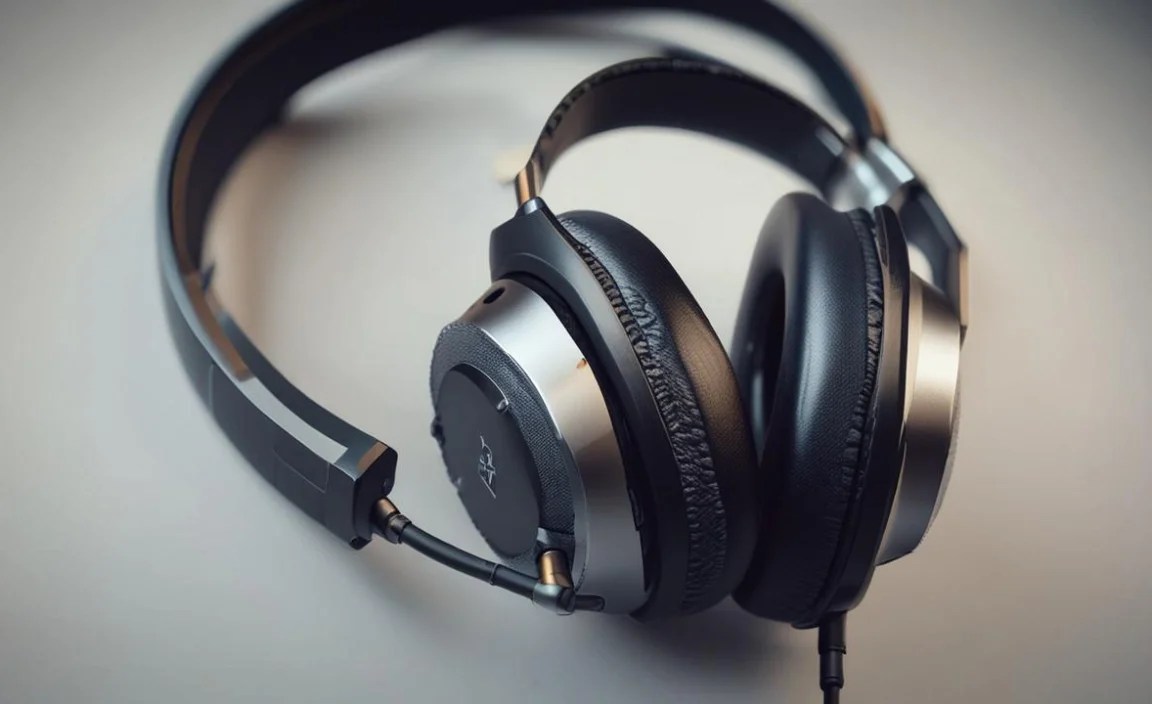
Even with the best gear, you might run into a hiccup now and then. Here are some common problems and how to fix them:
Problem 1: No Sound from Headset
- Check Connections: Ensure the 3.5mm jack or USB is fully plugged in. For wireless, make sure it’s turned on and paired.
- Verify PS4 Audio Settings: Go to Settings > Devices > Audio Devices. Make sure the correct “Output Device” is selected (your headset) and that “Output to Headphones” is set to “All Audio.”
- Test on Another Device: If possible, plug your headset into a phone or another console to see if it works there. This helps determine if the headset itself is the issue or the PS4 connection.
- Restart Your PS4: A simple reboot can often resolve temporary glitches.
Problem 2: Microphone Not Working (Teammates Can’t Hear You)
- Check Microphone Mute: Many headsets have a physical mute switch or a flip-up function. Ensure it’s not activated.
- Verify PS4 Input Settings: Go to Settings > Devices > Audio Devices. Ensure “Input Device” is set to your headset.
- Mic Volume Adjustment: In the same “Audio Devices” menu, you can adjust the microphone level. Turn it up if it’s too low.
- Ensure Detachable Mic is Secure: If your mic is detachable, make sure it’s firmly seated in its port.
- Test Microphone with Another App: Some games might have specific mic settings. You can also try recording a voice memo or using an app that utilizes the microphone to test it independently.
Problem 3: Sound is Distorted or Crackling
- Check Connections: A loose connection can cause poor audio quality. Reseat the plug.
- Reduce Volume: Sometimes, pushing the volume too high on both the headset and the PS4 can lead to distortion. Try lowering them slightly.
- For Wireless Headsets:
- Distance: If you’re too far from the PS4 or the dongle, the signal can degrade.
- Interference: Other wireless devices (like routers or microwaves) can sometimes interfere. Try moving the PS4 or the headset dongle to a different orientation.
- Battery Level: A low battery can sometimes affect performance.
- Firmware Updates: Check the manufacturer’s website for any firmware updates for your headset, especially for wireless models.
Problem 4: Headset is Uncomfortable
- Adjust Headband: Ensure the headband is properly adjusted to fit your head size and shape without excessive pressure.
- Earcups: For over-ear headsets, make sure your ears fit comfortably inside the earcups without being squashed against the drivers. Some after-market earcups are available that can offer different materials (like velour or cooling gel) for increased comfort.
- Take Breaks: Even the most comfortable headset can become noticeable after many hours. It’s always a good idea to take short breaks during extended gaming sessions.
Maximizing Your Gaming Audio Experience
Beyond just plugging in your headset, there are a few extra steps you can take to get the absolute best audio experience out of your PS4:
1. Adjusting PS4 Audio Settings
As mentioned, the primary location for audio adjustments is Settings > Devices > Audio Devices. Here’s what each setting does:
- Input Device: Select your microphone.
- Output Device: Select your headphones.
- Volume Control (Headphones): Adjust the overall volume output to your ears.
- Output to Headphones:
- All Audio: This sends both game sound and chat audio to your headset. This is what most gamers prefer for full immersion.
- Chat Audio Only: This sends only voice chat to your headset, while game sounds come through your TV or other speakers. Useful if you have a high-quality sound system for game audio.
- Microphone Level: This is crucial for your voice. Speak normally and adjust this slider until the indicator shows a healthy level without clipping (hitting the red).
2. Understanding 3D AudioTech on PS5 (and PS4 Compatibility)
While the PS4 doesn’t have the dedicated 3D audio processing like the PS5’s Tempest 3D AudioTech, many headsets offer their own virtual surround sound solutions. For PS4, look for headsets that mention DTS Headphone:X or Dolby Surround Sound compatibility. These technologies are processed by the headset or its accompanying software/dongle, not directly by the console’s system audio in the same advanced way a PS5 handles it. However, they still do an excellent job of creating a more immersive soundscape and helping with positional awareness.
For more in-depth information on audio technologies, you can often find technical explanations on university websites or industry publications. For instance, understanding how sound waves work can be a good starting point, though this is more for curious minds than direct application to PS4 setup.
3. Game-Specific Audio Settings
Many games allow further customization of audio. Within the game’s settings menu, you might find options to:
- Adjust master volume, music volume, sound effects volume.
- Select an audio output preset (e.g., “Home Theater,” “Headphones,” “Boost Dialogue
