
Quick Summary: Choosing the right headphones for your Microsoft Surface is easy when you know what to look for. This guide simplifies connectivity options, audio quality, comfort, and key features, helping you find the perfect match for work, study, or leisure. Enjoy crystal-clear sound and seamless integration with your Surface device!
Headphones for Microsoft Surface: Your Essential Guide
Hey there! Edward Cavitt here from Headphone Horizon. If you’ve just invested in a sleek Microsoft Surface device – whether it’s a Go, Pro, Laptop, or even an all-in-one Studio – you’re probably eager to pair it with some equally impressive headphones. But with so many options out there, how do you pick the best ones for your Surface? Don’t worry, I’ve got your back! This guide is designed to cut through the noise and help you find headphones that don’t just sound great, but also work harmoniously with your Surface, making your audio experience smoother and more enjoyable. Let’s dive in!
Why the Right Headphones Matter for Your Surface

Your Microsoft Surface is a versatile powerhouse, perfect for everything from crunching spreadsheets and attending virtual meetings to enjoying your favorite music or streaming a movie. To truly get the most out of it, the right audio companion is crucial. High-quality headphones can:
- Enhance Productivity: Block out distractions during important calls and focus on your work.
- Improve Entertainment: Immerse yourself in rich, detailed sound for movies, music, and games.
- Offer Privacy: Enjoy your audio without disturbing others around you.
- Provide Comfort: For long work sessions or travel, comfortable headphones are a game-changer.
- Enable Seamless Communication: Built-in microphones and clear audio are vital for video calls.
Understanding Connectivity Options for Your Surface
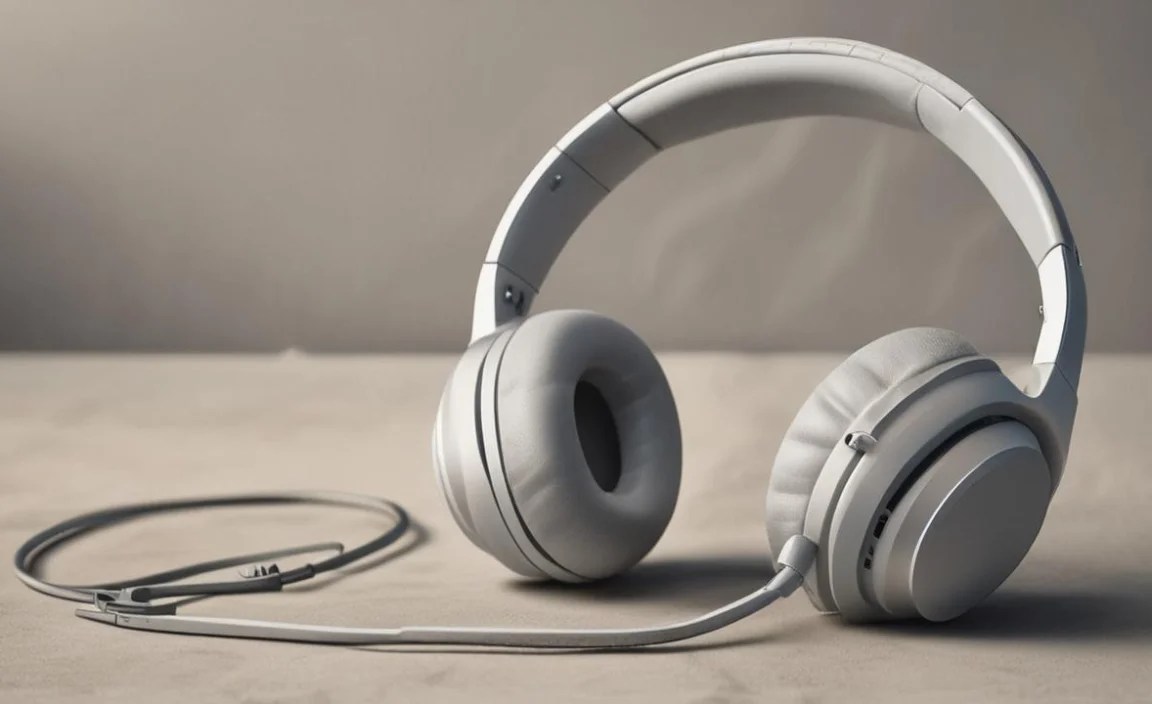
The first thing to consider when choosing headphones for your Microsoft Surface is how they’ll connect. Most Surface devices offer a few primary ways to hook up your audio gear. Understanding these will significantly narrow down your choices.
1. Wireless: Bluetooth
Bluetooth is the most popular and convenient wireless technology. Most modern Surface devices have built-in Bluetooth capabilities, allowing you to connect wirelessly to headphones without any dongles or cables.
How Bluetooth Works with Your Surface:
- Enable Bluetooth on your Surface: Go to Settings > Bluetooth & devices and toggle Bluetooth on.
- Put your headphones in pairing mode: This process varies by headphone model, but usually involves pressing and holding a power or Bluetooth button until an indicator light flashes.
- Search for devices on your Surface: Click “Add device” and select “Bluetooth.” Your headphones should appear in the list.
- Select and connect: Click on your headphones’ name to initiate the pairing process. You might need to confirm a PIN or simply click “Connect.”
Pros of Bluetooth Headphones:
- Freedom of Movement: No wires to get tangled or restrict you.
- Convenience: Easy to pair and disconnect.
- Wide Compatibility: Most recent Surface devices and a vast array of headphones support Bluetooth.
Cons of Bluetooth Headphones:
- Potential for Latency: Some Bluetooth connections can have a slight delay, which might be noticeable in gaming or video editing. Newer Bluetooth codecs like aptX Low Latency can help mitigate this.
- Battery Dependent: They need to be charged.
- Sound Quality (Historically): While significantly improved, some audiophiles might still prefer wired connections for absolute best fidelity, although modern Bluetooth codecs are very impressive.
Helpful Resource: For more details on Bluetooth technology and its implications for audio, you can check out resources from the Bluetooth SIG, the official governing body.
2. Wired: 3.5mm Audio Jack
Many Surface models, particularly older ones or certain configurations of the Surface Laptop and Pro, feature a standard 3.5mm (1/8-inch) headphone jack. This is the classic way to connect headphones.
How to Use the 3.5mm Jack: Simply plug the headphone’s audio cable into the designated jack on your Surface. The audio should automatically switch to your headphones.
Pros of 3.5mm Headphones:
- No Batteries Required: They draw power directly from the device.
- Zero Latency: Ideal for audio professionals, gamers, and watching videos where synchronization is critical.
- Potentially Superior Sound Quality: For audiophiles, wired connections can offer the purest, uncompressed audio transmission.
- Universal Compatibility: Works with virtually any device that has a headphone jack.
Cons of 3.5mm Headphones:
- Tethered Experience: You’re physically connected, limiting your movement.
- Cable Management: Wires can get tangled.
- Declining Availability: Increasingly, newer devices are omitting this jack.
3. Wired: USB-C Audio
Modern Surface devices primarily use USB-C ports for charging, data transfer, and increasingly, audio. Some headphones connect directly via USB-C, offering a digital audio signal and often bypassing the Surface’s internal DAC (Digital-to-Analog Converter).
How USB-C Audio Works: Plug the USB-C headphones into a USB-C port on your Surface. Your device should automatically recognize them as an audio output device.
Pros of USB-C Headphones:
- Digital Audio Signal: Bypasses the potentially lower-quality built-in sound card for a cleaner signal.
- No Pairing Needed: Simply plug and play.
- Can Offer Advanced Features: Some USB-C headphones include built-in DACs or amplifiers for enhanced sound.
Cons of USB-C Headphones:
- Port Dependency: You’ll need a free USB-C port. If your Surface only has one or two, this can tie up a valuable connection.
- Less Common: While growing, the selection of USB-C headphones is still smaller than Bluetooth or 3.5mm options.
- Potential for Compatibility Quirks: Though rare, some USB-C audio implementations might have specific driver requirements.
4. Wireless Dongles (USB-A or USB-C)
Some wireless headphones come with a dedicated USB dongle. This provides a more stable and often lower-latency wireless connection than standard Bluetooth. You’ll need to plug this dongle into a USB-A or USB-C port on your Surface.
Pros of Dongle-Based Wireless:
- Stable Connection: Less prone to interference than Bluetooth.
- Lower Latency: Often better for gaming and real-time audio work.
- Easy Setup: Plug in the dongle, and the headphones usually connect automatically.
Cons of Dongle-Based Wireless:
- Requires a USB Port: Ties up a valuable connection.
- Dongle Can Be Lost: A small, easily misplaced component.
- Less Versatile: The dongle is specific to the headphones and device port type.
Key Features to Consider When Buying Headphones for Your Surface

Beyond connectivity, several features will impact your experience. Here’s what to look for:
1. Audio Quality
This is subjective, but generally, you’ll want headphones that provide clear highs, present mids, and balanced bass. For work, clarity in voice reproduction is paramount. For entertainment, a wider soundstage and richer dynamics make a difference.
- For Calls: Look for headphones with good microphone quality and clear voice reproduction. Many earbuds and on-ear headphones designed for communication excel here.
- For Music & Media: Consider headphones with well-engineered drivers. Brands known for sound fidelity will generally offer a more engaging listening experience.
2. Comfort and Design
You’ll be wearing these with your Surface, so comfort is key, especially for extended use. Consider:
- Over-Ear: These fully enclose your ears, offering good passive noise isolation and comfort for long sessions, but can be bulky.
- On-Ear: Lighter than over-ear, they rest on your ears. Can be more portable but might become uncomfortable after prolonged wear.
- In-Ear (Earbuds/IEMs): Most portable and discreet. Often come with multiple ear tip sizes for a secure and comfortable fit. True wireless earbuds offer maximum freedom.
3. Microphone Quality
If you use your Surface for video calls, online classes, or gaming, a good microphone is essential. Look for headphones that clearly state their microphone capabilities or check reviews specifically mentioning mic performance.
- Noise Cancellation: Some microphones use AI or beamforming technology to reduce background noise, ensuring your voice is heard clearly.
- Boom Mics: Gaming headsets often feature boom microphones that extend closer to your mouth, offering excellent voice pickup.
4. Noise Cancellation (ANC)
Active Noise Cancellation (ANC) uses microphones to detect ambient noise and create an opposing sound wave to cancel it out. This is fantastic for travel, busy offices, or anywhere you need to focus.
- Levels of ANC: Some headphones offer adjustable ANC levels, allowing you to choose how much ambient sound is blocked.
- Transparency Mode: This feature does the opposite, allowing some outside sound in so you can hear announcements or conversations without removing your headphones.
5. Battery Life (for Wireless)
For Bluetooth or wireless dongle headphones, battery life is crucial. Most modern true wireless earbuds offer 4-8 hours of playback per charge, with their charging cases providing multiple additional charges. Over-ear and on-ear headphones typically offer 15-40+ hours depending on features like ANC.
6. Durability and Build Quality
If you’re on the go, you’ll want headphones that can withstand daily use. Look for robust materials and solid construction. Reviews often highlight durability issues.
Top Headphones for Microsoft Surface: Recommendations by Category

Here are some popular and highly-regarded headphone types that work wonderfully with Microsoft Surface devices. These are general recommendations, and the best choice will depend on your specific needs and budget.
a) Best for Productivity & Video Calls (Wireless)
These often feature excellent microphones and comfortable designs for long wear.
| Headphone Type | Connectivity | Key Features | Ideal Use Case |
|---|---|---|---|
| Logitech H800/Zone Wireless | Bluetooth, USB Dongle | Comfortable, good mic, long battery life | Office, remote work, extensive calls |
| Sony WH-1000XM5 (or XM4) | Bluetooth | Industry-leading ANC, clear mic, superb sound quality | Travel, focused work, immersive audio |
| Bose QuietComfort Ultra/35 II | Bluetooth | Excellent ANC, comfortable, clear audio | Air travel, noisy environments, general use |
| Jabra Evolve2 65 | Bluetooth, USB Dongle | Optimized for communication, professional look, good mic | Dedicated office use, headset functionality |
b) Best for Music Lovers & Casual Use (Wireless)
Focus on sound reproduction, ANC, and portability.
| Headphone Type | Connectivity | Key Features | Ideal Use Case |
|---|---|---|---|
| Sennheiser Momentum 4 Wireless | Bluetooth | Exceptional sound quality, long battery life, comfortable | Music enthusiasts, long listening sessions |
| Apple AirPods Pro (2nd Gen) | Bluetooth | Seamless Apple ecosystem integration (though works well with Windows), ANC, spatial audio, good mic | Portability, convenience, good all-rounders |
| Bose QuietComfort Earbuds II | Bluetooth | Great ANC, comfortable fit, clear sound | Commuting, active lifestyle, music enjoyment |
| Audio-Technica ATH-M50xBT2 | Bluetooth | Studio-monitor sound profile, robust build, good battery | Critical listening, music production dabblers |
c) Best for Budget-Conscious Users
Still offering good value and functionality.
| Headphone Type | Connectivity | Key Features | Ideal Use Case |
|---|---|---|---|
| Anker Soundcore Life Q30/Q35 | Bluetooth | Good ANC for price, strong bass, long battery life | Everyday use, budget ANC needs |
| HyperX Cloud Stinger Core (Wired/Wireless) | 3.5mm Jack / USB Dongle | Comfortable, decent sound and mic for gaming/general use, affordable | Entry-level gaming, general use on a budget |
| JBL Tune 510BT | Bluetooth | Lightweight, decent sound, long battery, very affordable | Casual listening, commuters on a budget |
d) Best for Wired Enthusiasts (USB-C & 3.5mm)
For those prioritizing latency and pure signal.
| Headphone Type | Connectivity | Key Features | Ideal Use Case |
|---|---|---|---|
| Beyerdynamic DT 770 PRO (32 Ohm or 80 Ohm) | 3.5mm Jack (comes with adapter) | Industry-standard studio monitor, detailed sound, robust build | Audio production, critical listening, sound editing |
| AKG K371 | 3.5mm Jack | Harmonically accurate sound, comfortable, foldable | Music enjoyment, content creation, mixing |
| Razer Barracuda X (2022 Edition) | USB-C Dongle, 3.5mm Jack | Lightweight, comfortable, good for PC/console, low latency wireless | Gaming, general use, switch between devices |
Setting Up Your Headphones with Your Microsoft Surface
Once you’ve picked your headphones, let’s make sure they work perfectly with your Surface.
Pairing Bluetooth Headphones
- Turn on Bluetooth: On your Surface, click the Start button, then Settings (
 ). Navigate to “Bluetooth & devices.” Ensure the Bluetooth toggle is switched to “On.”
 - Put Headphones in Pairing Mode: This is usually done by pressing and holding the power button or a dedicated Bluetooth button on the headphones until an indicator light blinks, often blue or white. Refer to your headphone manual for exact steps.
- Add Device: On your Surface, click “Add device” and then select “Bluetooth.”
- Select Your Headphones: Your Surface will scan for nearby devices. Click on the name of your headphones when they appear in the list.
- Connect: Follow any on-screen prompts. Windows will usually confirm when the headphones are connected and ready to use.
 ). Navigate to “Bluetooth & devices.” Ensure the Bluetooth toggle is switched to “On.”
Connecting Wired Headphones
- 3.5mm Jack: Simply plug the headphone’s cable into the circular headphone jack on your Surface. The audio should switch automatically. If not, right-click the speaker icon in your taskbar, select “Sounds,” go to the “Playback” tab, and ensure your headphones are set as the default device.
- USB-C: Plug the USB-C headphones into a USB-C port on your Surface. Most recent Windows versions will automatically recognize them. Similar to the 3.5mm jack, you can verify or set them as the default device in the “Sounds” control panel.
<h
