
Quick Summary: Finding the right headphones for your new iPad is simple! This guide breaks down the best options, from wireless freedom to immersive audio, ensuring you get the perfect sound experience for music, movies, and calls on your Apple device. We’ll cover connection types, comfort, and features to help you choose confidently.
Welcome to the exciting world of your new iPad! Whether you’re a student diving into lectures, a creative sketching your next masterpiece, or just someone who loves to unwind with music or a good movie, the sound experience can truly elevate your use. While your iPad’s built-in speakers are great, a quality pair of headphones can unlock a whole new level of immersion and privacy. But with so many options out there, where do you begin? Don’t worry, I’m here to help you navigate the tech landscape and find the perfect audio companions for your iPad.
Why Headphones Matter for Your iPad

Your iPad is a powerful, versatile device, great for entertainment, education, and productivity. Headphones aren’t just accessories; they can significantly enhance how you interact with your iPad. They offer:
- Enhanced Audio Quality: Experience richer bass, clearer highs, and a wider soundstage that your iPad’s speakers might not capture.
- Privacy: Enjoy your content without disturbing others, making it ideal for public spaces, late-night listening, or focused work.
- Immersion: Block out distractions and get lost in your music, podcasts, or the cinematic sound of a movie.
- Clearer Communications: If you use your iPad for video calls or voice notes, headphones with built-in microphones ensure you’re heard clearly.
- Comfort: Many headphones are designed for long listening sessions, providing a more comfortable experience than holding your iPad or relying on its speakers.
Types of Headphones to Consider

When pairing headphones with your new iPad, you’ll primarily encounter three main categories based on their connectivity and design. Each offers a different experience, so understanding their quirks will help you pick the best fit for your needs.
1. Wireless Bluetooth Headphones
This is arguably the most popular choice for iPads, thanks to the lack of messy cords and seamless integration with Apple’s ecosystem. Bluetooth headphones connect wirelessly to your iPad, offering freedom of movement.
Pros of Wireless Bluetooth Headphones:
- Freedom of Movement: No tangled wires to restrict you.
- Convenience: Easy to pair and disconnect.
- Wide Variety: Available in many styles (over-ear, on-ear, in-ear) and price points.
- Apple Ecosystem Integration: AirPods and Beats headphones offer instant pairing and seamless switching between Apple devices.
Cons of Wireless Bluetooth Headphones:
- Battery Dependent: Require regular charging.
- Potential for Latency: Though much improved, there can be a slight delay between audio and video, especially with older Bluetooth versions or less premium models.
- Interference: Can sometimes be susceptible to signal interruption.
Popular Bluetooth Connectivity on iPads:
Most, if not all, modern iPads feature Bluetooth connectivity. You can check your iPad’s specifications by going to Settings > General > About and looking for the Bluetooth version. Newer iPads support Bluetooth 5.0 and above, which offers better range, stability, and power efficiency.
2. Wired Headphones (Lightning or USB-C)
Depending on your iPad model, you’ll likely have either a Lightning port (for older iPads) or a USB-C port. Wired headphones connect directly to these ports, offering a stable, direct audio connection.
- For iPads with a Lightning Port: You’ll need headphones with a Lightning connector or a Lightning-to-3.5mm adapter if your headphones have a standard headphone jack.
- For iPads with a USB-C Port: You’ll need headphones with a USB-C connector or a USB-C-to-3.5mm adapter for standard headphones.
Pros of Wired Headphones:
- No Charging Required: Powered directly by your iPad.
- Stable Connection: No wireless dropouts or interference.
- Lower Latency: Ideal for gaming or watching videos where precise audio sync is important.
- Often More Affordable: Basic wired headphones can be less expensive than their wireless counterparts.
Cons of Wired Headphones:
- Tethered: Limited by the length of the cable, restricting movement.
- Cable Management: Can get tangled.
- Port Dependency: Requires a compatible port on your iPad, and might necessitate adapters.
3. Wireless Wi-Fi Headphones (Less Common for iPads)
While not as common for personal iPad use as Bluetooth, some professional audio systems might use Wi-Fi headphones. These connect directly to your Wi-Fi network. They offer excellent audio quality and range but are significantly more expensive and less practical for general iPad users compared to Bluetooth.
Key Features to Look For

Beyond the connection type, several features can make a big difference in your listening experience. Think about how and where you’ll be using your headphones most often.
1. Sound Quality and Type
This is subjective, but generally, you’ll want headphones that offer a balanced sound profile. If you’re a bass lover, look for headphones that emphasize low frequencies. For detailed music listening, a more neutral sound might be preferred. Consider:
- Drivers: Larger drivers generally produce richer sound, but quality matters more than size alone.
- Frequency Response: A wider range (e.g., 20Hz-20kHz) means they can reproduce a broader spectrum of sound.
- Audio Codecs (for Bluetooth): Support for codecs like AAC (common with Apple) or aptX can improve audio quality over Bluetooth.
2. Comfort and Fit
You’ll be wearing these, so comfort is paramount, especially for extended iPad sessions. Consider:
- Over-Ear: Earcups completely surround your ears. Generally the most comfortable for long periods and offer good noise isolation.
- On-Ear: Earcups rest on your ears. More portable than over-ear but can become less comfortable with prolonged use for some.
- In-Ear (Earbuds/Earphones): Sit inside your ear canal. Highly portable and can offer excellent noise isolation, but fit is crucial to avoid discomfort.
- Weight and Clamping Force: For over-ear and on-ear, ensure they aren’t too heavy or too tight.
- Ear Tip Material (for In-Ear): Silicone and foam tips offer different levels of comfort and seal.
3. Noise Cancellation (ANC)
Active Noise Cancellation (ANC) uses microphones to detect ambient sound and generate opposing sound waves to cancel it out. This is fantastic for noisy environments like airplanes, commutes, or busy cafes.
- Pros: Significantly reduces background noise for a more immersive listening experience and can help with focus.
- Cons: Can increase the price and consume more battery. Some users find it creates a feeling of pressure in their ears.
Apple’s AirPods Pro and AirPods Max feature excellent ANC. Many other brands offer great solutions, too.
4. Microphone Quality
If you plan on using your iPad for video calls, online classes, or recording voice notes, a good microphone is essential. Look for reviews that specifically mention microphone performance in different environments.
5. Battery Life (for Wireless)
Check the advertised battery life for both continuous playback and talk time. Many headphones also come with charging cases that provide multiple recharges on the go, extending their usability significantly.
6. Durability and Build Quality
Consider the materials used and how well the headphones are constructed. If they’ll be used for travel or in active settings, look for robust designs and potentially water resistance (IPX ratings).
Connecting Your Headphones to the iPad: A Step-by-Step Guide
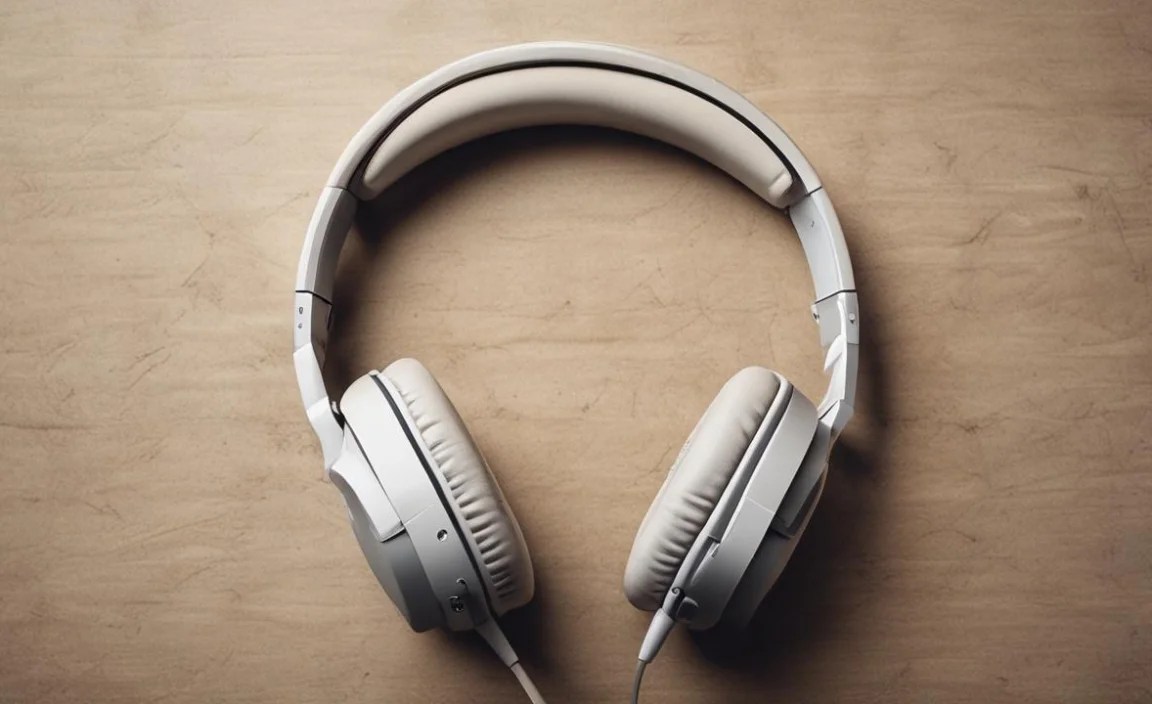
Connecting headphones to your iPad is usually straightforward, but the exact steps can vary slightly between wireless and wired options.
Connecting Wireless Bluetooth Headphones
The first time you connect a new Bluetooth headphone, you’ll need them to be in pairing mode. Consult your headphone’s manual for specific instructions on how to activate pairing mode (usually involves holding down a button).
- Enable Bluetooth on your iPad: Open the Settings app on your iPad. Tap on Bluetooth. Make sure the Bluetooth toggle is switched ON (it will turn green).
- Put your headphones in Pairing Mode: This is crucial! Your headphones won’t be discoverable if they’re not in this mode. Check your headphone’s manual for exact instructions.
- Your iPad Scans for Devices: Your iPad will automatically start searching for available Bluetooth devices nearby.
- Select Your Headphones: Under the “Other Devices” list, you should see your headphones’ name appear. Tap on it to initiate the pairing process.
- Confirm Pairing: You might see a prompt on your iPad asking you to confirm the pairing. Tap “Pair.”
- Connected! Once paired, your headphones will move to the “My Devices” list and show as “Connected.” The audio output will automatically switch to your headphones.
Special Tip for Apple Headphones (AirPods, Beats):
If you’re using AirPods or Beats headphones that are already paired with another Apple device signed into the same Apple ID, they often pair with your new iPad almost instantly. Simply open the charging case near your iPad or turn on the headphones, and a setup card should pop up on your iPad’s screen. Follow the on-screen prompts.
Connecting Wired Headphones (Lightning or USB-C)
This is the simplest connection method. Ensure you have the correct cable or adapter.
- Identify your iPad’s Port: Determine if your iPad has a Lightning port or a USB-C port.
- Select Your Headphones/Adapter:
- For Lightning Port iPads: Use headphones with a Lightning connector, or plug your standard 3.5mm headphones into a Lightning-to-3.5mm adapter and then plug the adapter into your iPad.
- For USB-C Port iPads: Use headphones with a USB-C connector, or plug your standard 3.5mm headphones into a USB-C-to-3.5mm adapter and then plug the adapter into your iPad.
- Plug In: Insert the Lightning or USB-C connector of your headphones (or adapter) directly into the corresponding port on your iPad.
- Audio Switches Automatically: Your iPad should automatically detect the wired headphones, and audio will be routed to them. No further steps are usually required.
Recommendations for Different Needs
To help you narrow down your choices, here are a few recommendations based on common use cases:
Best All-Around Wireless: Apple AirPods Pro (2nd generation)
These offer a fantastic balance of features for iPad users. Active Noise Cancellation, Transparency mode, spatial audio for immersive sound, and a comfortable in-ear fit make them incredibly versatile. Seamless integration with the Apple ecosystem is a huge bonus.
Best for Budget Wireless: Anker Soundcore Liberty Air 2 Pro
A very strong contender that offers good ANC, decent sound quality, and a comfortable fit at a fraction of the price of premium options. They often come with a variety of ear tips for a better seal.
Best for Over-Ear Comfort & ANC: Sony WH-1000XM5 Noise Cancelling Headphones
While a significant investment, these are consistently rated as some of the best noise-canceling headphones available. They offer exceptional sound quality, industry-leading ANC, supreme comfort for long listening sessions, and excellent battery life. They connect via Bluetooth and work seamlessly with your iPad.
Best for Wired Convenience (USB-C): Sennheiser IE 300 Wired Earphones
For audiophiles who prefer a wired connection, these offer superb clarity and detail, powered directly by your iPad’s USB-C port (or through an adapter). They provide an incredibly pure audio experience without worrying about battery life or Bluetooth codecs.
Best for Basic Wired (Lightning): Apple EarPods (Lightning Connector)
If you simply need a no-frills pair of wired earbuds for your Lightning port iPad, the Apple EarPods are a reliable and affordable option. They offer decent sound for casual listening and calls.
Troubleshooting Common Connection Issues
Even with advanced technology, occasional hiccups can happen. Here are some common issues and how to fix them:
1. Bluetooth Headphones Won’t Connect
- Ensure Pairing Mode: Double-check that your headphones are in pairing mode.
- Charge Them: Low battery can prevent pairing.
- Restart Both Devices: Turn off Bluetooth on your iPad, then turn it back on. Turn your headphones off and on again.
- Forget Device: Go to iPad Settings > Bluetooth, tap the info icon (i) next to your headphones, and select “Forget This Device.” Then, try pairing again from scratch.
- Check Distance: Make sure your headphones are close to your iPad during pairing.
2. Wired Headphones Not Working
- Check Port: Ensure the Lightning or USB-C port on your iPad is clean and free of debris.
- Inspect Cable/Adapter: Check the headphone cable and any adapters for damage.
- Try Another Device: Test your headphones with a different device to see if they work.
- Restart Your iPad: Sometimes a simple restart can resolve recognition issues.
For more in-depth troubleshooting, Apple provides excellent resources on their support website, such as this guide on Bluetooth connectivity: Connecting Bluetooth devices to your iPhone, iPad, and iPod touch – Apple Support.
Maintaining Your iPad Headphones
Keeping your headphones in good shape will ensure they sound great and last longer.
Cleaning Your Headphones
- Earbuds/In-Ear: Gently wipe the earbuds with a slightly damp, soft cloth. For ear tips, they can often be removed and washed with mild soap and water, but ensure they are completely dry before reattaching. Use a dry, soft brush to clean out any earwax from the mesh grilles.
- Over-Ear/On-Ear: Wipe the earcups and headband with a soft, dry cloth. If they are leather or pleather, a specialized cleaner can be used sparingly. Avoid getting moisture into the speaker drivers.
- Charging Ports: Use a dry, soft brush or a can of compressed air to gently clean USB-C or Lightning ports on headphones and the iPad itself.
Battery Care (for Wireless)
To maximize battery lifespan:
- Avoid extreme temperatures (hot or cold).
- Don’t always charge to 100% if it’s not necessary; partial charges are generally fine.
- If storing for long periods, charge to around 50-60%.
Frequently Asked Questions (FAQ)
Q1: Do I need special headphones for my new iPad?
No, you don’t necessarily need “special” headphones. Your iPad supports standard Bluetooth headphones, as well as wired headphones with Lightning or USB-C connectors (depending on your iPad model). You can also use wired headphones with a 3.5mm jack if you have the appropriate adapter.
Q2: What’s the difference between Lightning and USB-C headphones for iPads?
The difference lies in the connector type. iPads with older connectors use Lightning, while newer iPads use the more universal USB-C. You’ll need headphones with the matching connector, or you can use a simple adapter to connect standard 3.5mm headphones to either port.
Q3: Can I use the same headphones for my iPhone and my iPad?
Absolutely! If you use Bluetooth headphones, they can typically be paired with multiple devices. If your headphones are compatible with both Lightning and USB-C (or you have adapters), you can switch between them. Apple’s AirPods and Beats are particularly good at seamless switching if both devices are signed into the same Apple ID.
Q4: Is Active Noise Cancellation (ANC) worth the extra cost for iPad use?
If you frequently use your iPad in noisy environments such as public transport, airplanes, or open-plan offices, ANC can be a game-changer for immersion and focus. For quiet home use, it might be less critical. It’s a feature that significantly enhances the listening experience in distracting environments.
Q5: How do I know if my headphones will work with my specific iPad model?
Check your iPad’s port type (Lightning or USB-C) and the headphone’s connector. For Bluetooth, all modern iPads support Bluetooth, so compatibility is generally not an
