
Enhance your PlayStation VR immersion with the right headphones. Discover essential features like comfort, sound quality, and connection compatibility for a truly powerful virtual reality experience. This guide breaks down everything you need to know to pick the perfect audio upgrade.
Headphones for PlayStation VR: Unleash Essential Power for Deeper Immersion

Welcome back to Headphone Horizon! If you’re diving into the thrilling world of PlayStation VR, you know that visuals are only half the journey. To truly get lost in virtual realms, the audio needs to be just as captivating. Think of your headphones as the secret sauce to taking your PS VR adventures from good to absolutely mind-blowing.
Without them, you’re missing out on crucial atmospheric details, directional cues, and the sheer impact of sound design. This guide is here to help you navigate the exciting world of headphones specifically chosen to amplify your PlayStation VR experience, ensuring you get the most essential power for unparalleled immersion.
Why Headphones Are Crucial for PlayStation VR
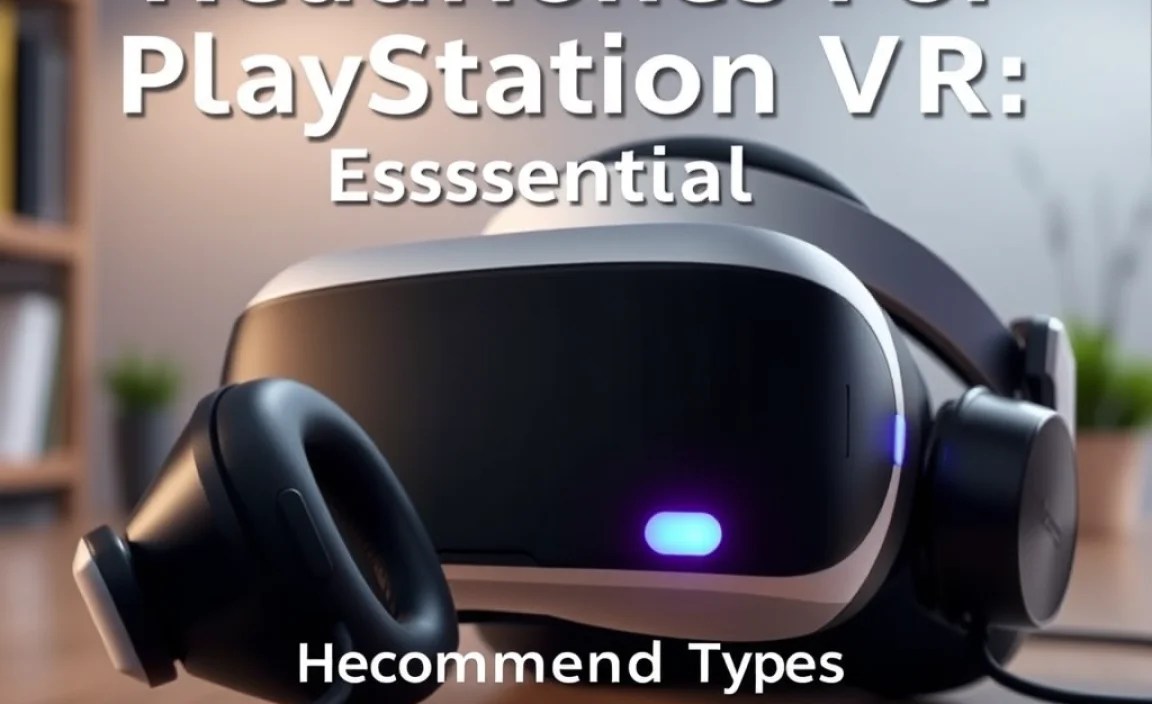
PlayStation VR, or PS VR, is designed to transport you. It shrinks the real world and expands your senses into digital environments. While the headset provides stunning visuals, it’s the audio that truly seals the deal. Imagine hearing a whisper behind you in a horror game, the distant roar of a dragon as it swoops overhead, or the precise location of an enemy’s footsteps in a competitive shooter. These aren’t just sound effects; they’re vital components that:
- Enhance Immersion: Rich, spatial audio makes you feel like you’re truly there.
- Improve Gameplay: Directional audio helps you react faster in games.
- Reduce Distractions: They block out external noise, keeping you focused on the virtual world.
- Prevent Audio Lag: Wired connections generally offer the most responsive audio, crucial for VR.
The PS VR system itself has a built-in audio processor, but it’s designed to work with your existing headphones. This means you have the power to dramatically upgrade your audio experience by choosing the right pair. Let’s explore what makes a headphone “essential” for your PS VR setup.
Essential Features for PS VR Headphones
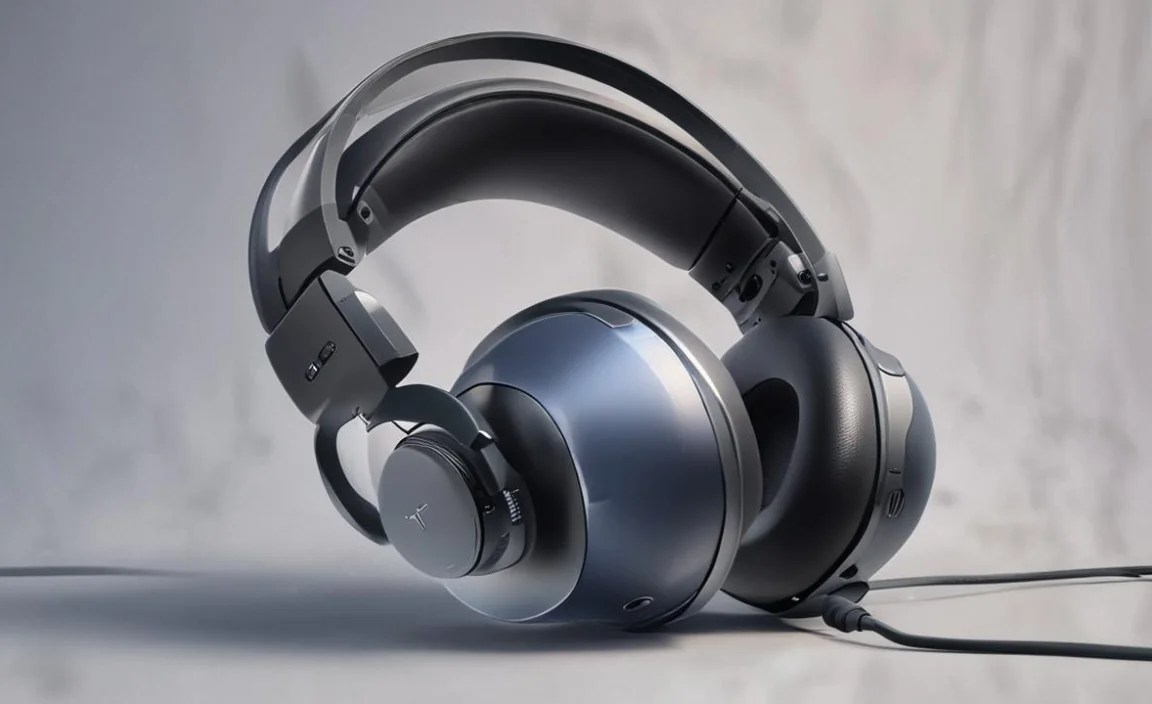
When selecting headphones for your PlayStation VR, you’re looking for a few key attributes that elevate the experience beyond your standard earbuds. It’s not just about plugging something in; it’s about optimizing for comfort, sound fidelity, and seamless integration.
1. Comfort is King (or Queen!)
You’ll be wearing these headphones for extended periods, often while wearing the PS VR headset. This means comfort isn’t a luxury; it’s a necessity. Look for:
- Lightweight Design: Heavy headphones can add strain and discomfort, especially when combined with the VR headset.
- Soft Earpads: Plush, breathable earpads prevent heat buildup and reduce pressure. Materials like velour or memory foam are excellent choices.
- Adjustable Headband: A good fit ensures the headphones stay securely in place without squeezing too tightly.
- Over-Ear vs. On-Ear: Over-ear headphones (circumaural) tend to offer better noise isolation and comfort for long sessions, as they enclose your ears. On-ear (supra-aural) can sometimes put pressure directly on your ears.
2. Sound Quality: Beyond Just Hearing
For VR, sound quality means more than just clear dialogue. It’s about experiencing the full dynamic range of the game’s audio design. Key aspects include:
- Frequency Response: A good frequency range ensures you can hear both the deep rumbling bass and the crisp high-pitched details that bring virtual worlds to life.
- Soundstage and Imaging: This refers to how wide and precise the audio sounds, allowing you to pinpoint sounds in 3D space. This is HUGE for VR immersion and situational awareness.
- Low Latency: Especially with wireless options, audio lag can break immersion and even cause disorientation. For PS VR, wired connections are generally the safest bet for zero latency.
3. Connection Compatibility: The Plug-and-Play Factor
This is where things get specific for PS VR. The primary way to connect headphones is through the 3.5mm audio jack found on the PS VR headset’s processor unit (or the cable leading from it). Some newer PS VR2 models might have different configurations, but the core principle of direct connection remains vital for simplicity and performance.
- 3.5mm Jack: The vast majority of gaming headsets and consumer headphones utilize this universal port, making them directly compatible.
- Wired vs. Wireless: While wireless headphones offer freedom, potential latency issues can be a dealbreaker for VR. Unless a wireless headset is specifically designed for very low latency gaming audio (often using proprietary dongles), a wired connection is your best friend for PS VR.
- Cable Length: Ensure the headphone cable is long enough to reach comfortably from the PS VR headset to your ears without tugging or restriction. Extensions might be necessary for some setups.
4. Durability and Build Quality
Gaming can be intense, and VR even more so! Your headphones need to withstand some action. Look for robust construction, reinforced cables, and reliable connectors.
Finding the Right Headphones: A Step-by-Step Guide

Ready to find that perfect pair? Let’s break down the process into actionable steps. We’ll cover everything from initial considerations to final checks.
Step 1: Assess Your Budget
Headphones range dramatically in price. For PS VR, you don’t necessarily need to break the bank for a great experience. Entry-level to mid-range gaming headsets often provide excellent value, focusing on the core requirements for VR. Set a realistic budget before you start shopping to narrow down your options.
Step 2: Prioritize Comfort Features
As we discussed, comfort is paramount for VR. When looking at product descriptions or in person, pay close attention to:
- Earcup material (memory foam, velour)
- Weight of the headset
- Headband adjustability
- Type of earcups (over-ear is generally preferred for immersion and comfort)
Step 3: Focus on Wired Connections
For the absolute best experience with PS VR (especially the original model), a wired 3.5mm connection is highly recommended due to its inherent zero latency. This ensures that what you see and what you hear are perfectly synchronized, crucial for preventing motion sickness and maintaining immersion. Look for headphones that explicitly state they have a 3.5mm audio jack and a reasonably long, durable cable.
Step 4: Consider Open-Back vs. Closed-Back Designs
This is a point of preference and impacts immersion versus sound leakage.
- Closed-Back Headphones: These fully enclose your ears, providing excellent passive noise isolation. This is fantastic for blocking out external distractions and ensuring that the game audio remains contained within your experience. They also tend to offer more impactful bass.
- Open-Back Headphones: These have perforated earcups that allow air and sound to pass through. This creates a more natural, spacious soundstage, which can be incredibly immersive. However, they leak sound, meaning others can hear your game, and external noises can still reach you. For the most focused VR experience, closed-back is often preferred.
Example Table: Open-Back vs. Closed-Back for PS VR
| Feature | Closed-Back Headphones | Open-Back Headphones |
|---|---|---|
| Noise Isolation | Excellent | Poor |
| Soundstage | More focused, can feel intimate | Wider, more natural, “out-of-head” feel |
| Sound Leakage | Minimal | Significant |
| Bass Response | Generally punchier and more prominent | Can be lighter, more natural |
| Best Use Case for PS VR | Maximum immersion, focus, and peace for others. | If you play in a very quiet, dedicated space and prefer a more natural sound. |
Step 5: Read Reviews from Gamers
Seek out reviews specifically mentioning use with PlayStation VR. Gamers often share genuine insights into how a headset performs in actual VR sessions, highlighting comfort, cable management, and sound detail for games.
Step 6: Check for Integrated Microphone (Optional but Recommended)
If you plan on playing multiplayer games or using voice chat, an integrated microphone is a significant plus. Look for headsets that clearly state they have a boom mic that can be flipped up or muted easily. This allows for clear communication with teammates.
Step 7: Look for Bundles and Deals
Sometimes, you can find excellent value by purchasing a gaming headset bundle that might include extra accessories or come as part of a PlayStation-themed promotion. Keep an eye out for sales around major gaming events or holidays.
Recommended Headphone Types for PS VR
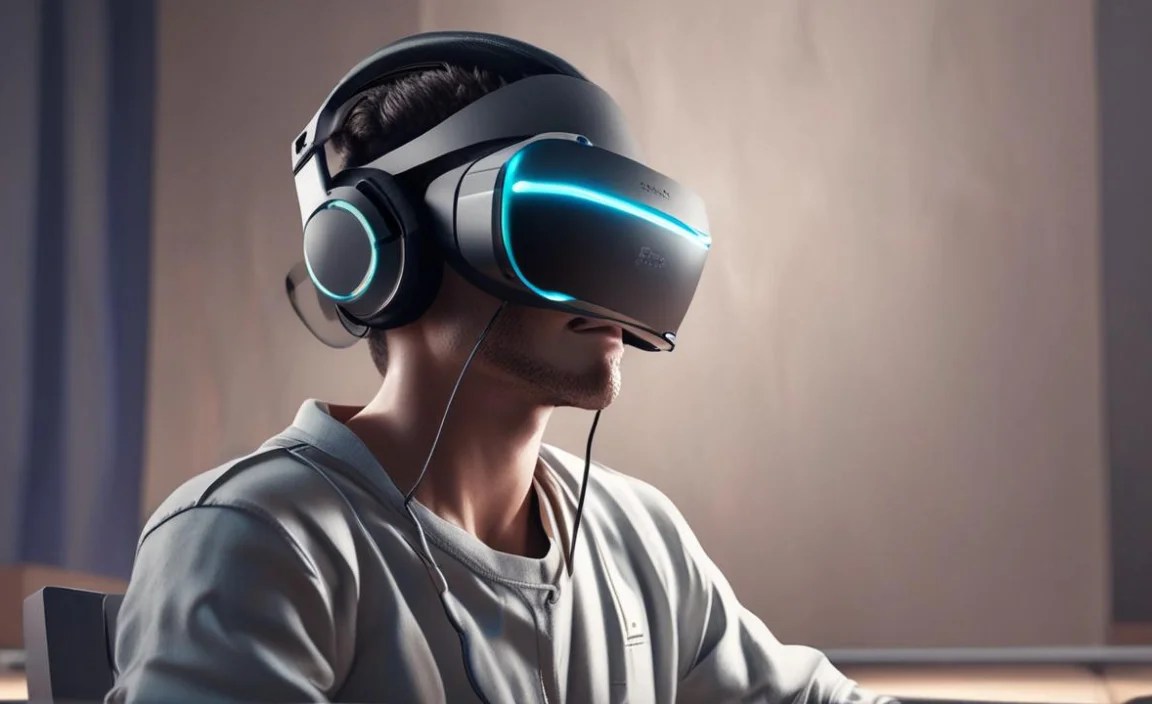
While specific models change, certain categories consistently deliver a great experience for PS VR users. Here are some excellent types to consider looking for:
1. Dedicated Gaming Headsets
These are designed with gamers in mind, often featuring:
- Comfortable, over-ear designs
- Integrated microphones
- Durable build quality
- Often a 3.5mm jack for universal compatibility
- Features like inline volume controls and mic mute buttons
Brands like HyperX, SteelSeries, Razer, and Logitech often have solid entry-level to mid-range options that fit the bill perfectly.
2. High-Quality Stereo Headphones
Don’t discount a great pair of stereo headphones from audio brands. If they feature a 3.5mm jack and are comfortable, they can provide superior audio fidelity. Brands like Audio-Technica, Sennheiser, and Beyerdynamic offer fantastic options, though you might need to add a separate microphone or ensure they are suitable for long wear with a VR headset.
3. PS VR Specific Accessories (If Available)
Sony occasionally releases official or officially licensed accessories. While these might be harder to find now, keeping an eye on official PlayStation accessories can sometimes yield perfectly integrated solutions. For the original PS VR, there wasn’t a dedicated official headset, so universal options were key.
Understanding “Virtual Surround Sound” in VR
Many gaming headsets boast “virtual surround sound” (like DTS Headphone:X or Dolby Atmos). For PS VR, it’s important to understand what this means and how it interacts with the console.
The PS VR system itself leverages its audio processor to create a sense of spatial audio from a stereo signal. This means even headphones that are just standard stereo can benefit from the PS VR’s built-in spatialization. If a gaming headset also has its own virtual surround sound technology, it will typically provide a 7.1 or similar virtual surround mix to the console. You can often choose whether to use the headset’s virtual surround or the PS VR’s built-in spatial audio. Generally, using the PS VR’s native spatial audio processing with a good pair of stereo headphones provides the most natural and effective “directional” feel within VR.
Key Takeaway: Prioritize great stereo imaging and a wide soundstage from your chosen headphones. The PS VR system will do the heavy lifting for spatial audio.
Maintenance Tips for Your PS VR Headphones

To keep your audio experience smooth and your headphones in top condition, a little regular maintenance goes a long way.
1. Cleaning Earpads and Headband
Sweat and oils can build up on earpads. For most fabric or velour pads, a gentle wipe with a slightly damp cloth (water only or a very mild soap solution) is usually sufficient. For PU leather pads, use a dedicated headphone cleaner or a damp cloth. Allow them to air dry completely before use.
2. Cable Care
Avoid sharply bending or twisting the headphone cable. When storing your headphones, loop the cable loosely rather than wrapping it tightly around the headphones or a device. Inspect the 3.5mm jack and the cable connection points for any signs of fraying or damage. A damaged cable is the most common point of failure for wired headphones and can lead to intermittent sound or complete audio loss.
3. Storage
When not in use, store your headphones in a cool, dry place away from direct sunlight. If you have the original box or a headphone stand, use it. This prevents dust buildup and protects them from accidental damage.
4. Firmware Updates (for specific wireless/gaming headsets)
If you opt for a gaming headset that uses a USB dongle or has its own software, check the manufacturer’s website periodically for firmware updates. These can sometimes improve performance, stability, or even audio processing.
For the importance of proper audio handling and hygiene, check out resources like this guide from the American Academy of Audiology on Earwax Care, which indirectly highlights the need for clean earpads to maintain both comfort and sound quality.
Troubleshooting Common PS VR Audio Issues
Even with the best headphones, you might encounter minor audio hiccups. Here’s how to tackle them:
Issue 1: No Sound
Possible Causes:
- Headphones not fully plugged into the jack.
- Volume on headphones or PS4/PS5 is too low.
- Headphones are faulty.
- PS VR audio settings are incorrect.
Fixes:
- Ensure the 3.5mm plug is firmly seated in the PS VR headset’s jack controller.
- Check the inline volume control on your headphones (if applicable) and the PS4/PS5 system volume settings. Go to Settings > Devices > Audio Devices on your console and ensure the Output Device is set to “Headphones Connected to VR Headset.”
- Try a different pair of headphones to rule out a fault with your current ones.
- Restart your PS VR and console.
Issue 2: Distorted or Crackling Sound
Possible Causes:
- Loose connection.
- Damaged cable or headphone driver.
- Interference (less common with wired).
- Incorrect audio settings on the console.
Fixes:
- Reseat the 3.5mm connection firmly. Inspect the cable for frays or kinks.
- Test with another pair of headphones. If the issue persists, it might be the PS VR’s audio jack or the game’s audio.
- Ensure your volume isn’t set to maximum on both the headphones and the console, as this can sometimes cause distortion.
Issue 3: Microphone Not Working
Possible Causes:
- Microphone is muted (inline or physically).
- Microphone is not selected as the input device.
- Microphone is damaged or not properly connected (if detachable).
Fixes:
- Check for a mute switch on your headphone cable or headset.
- Go to Settings > Devices > Audio Devices on your console and ensure the Input Device is set to “Headset Connected to Controller” or “Headset Connected to VR Headset,” depending on your setup.
- If the microphone is detachable, ensure it’s securely plugged in.
- Test the microphone on another device or with a different application if possible.
Issue 4: Uneven Volume Between Left and Right Earcups
Possible Causes:
- Connection is slightly loose or dirty.
- Internal wiring issue within the headphones.
Fixes:
- Firmly push the 3.5mm jack in and out a couple of times.
- Gently clean the jack and the port.
- Try the headphones on a different device (like a phone or PC) to see if the problem follows them. If it does, the headphones themselves likely have an issue.
