
Quick Summary: Enhance your Samsung TV viewing with wireless headphones! This guide helps beginners connect, choose, and enjoy audio freedom. Discover easy setup, compatible headphone types, and tips for a seamless, immersive experience without disturbing others. Your essential buy for private, high-quality sound is here.
Unlock Your Samsung TV Audio: A Beginner’s Guide to Wireless Headphones
Welcome to the world of effortless Samsung TV audio! Ever wished you could dive into your favorite shows or movies without disturbing anyone else in the house? Or perhaps you’re looking for a more immersive sound experience, letting you catch every whisper and explosion with crystal clarity. If so, understanding how to connect wireless headphones to your Samsung TV is an absolute game-changer. It opens up a new level of personal entertainment, making late-night viewing or tuning into loud action scenes a breeze. This guide is designed for you, whether you’re just starting with smart home tech or a seasoned user looking for a straightforward approach. We’ll break down everything you need to know, from the different types of wireless headphones that work best with your Samsung TV to the simple steps to get them connected. Get ready to elevate your viewing experience and enjoy your content your way, with peace and perfect sound. It’s an essential buy for any Samsung TV owner looking to maximize their home entertainment.
Why Wireless Headphones Are Your Samsung TV’s Best Friend

Let’s talk about why going wireless with your Samsung TV audio is more than just a convenience – it’s a significant upgrade. Imagine being able to get up to grab a snack or answer the door without missing a beat of your show. Or, if you have a household with different schedules or sound preferences, wireless headphones allow everyone to enjoy their chosen content at their preferred volume without conflict. For those with hearing difficulties, many wireless headphones offer enhanced clarity and volume control specifically tailored for dialogue, making TV shows and movies more accessible and enjoyable. The freedom of movement, reduced clutter, and enhanced immersion are just the beginning. It’s about creating a personalized, distraction-free audio sanctuary right in your living room.
The technology behind connecting headphones to your Samsung TV has become increasingly sophisticated and user-friendly. Modern Samsung TVs often feature built-in Bluetooth capabilities, making the connection process as simple as pairing a phone. Even if your TV isn’t Bluetooth-enabled, there are straightforward wireless solutions like dedicated RF (Radio Frequency) headphones or Bluetooth transmitters that can bridge the gap. The key is understanding which method suits your TV and your needs best. This guide will demystify these options, ensuring you make the perfect choice for your home entertainment setup.
Understanding Your Samsung TV’s Audio Output Options

Before we dive into connecting headphones, it’s crucial to know how your Samsung TV can send audio out. This dictates the type of wireless headphones you’ll need and how you’ll connect them.
Bluetooth Connectivity
Many newer Samsung Smart TVs come equipped with built-in Bluetooth. This is often the easiest and most seamless way to connect wireless headphones. You simply pair your Bluetooth headphones directly with the TV, much like you would pair them with your smartphone or tablet. This method offers excellent convenience with no extra cables or transmitters needed.
Audio Output Ports
Your Samsung TV likely has one or more audio output ports. Identifying these will help if Bluetooth isn’t an option or if you prefer a different type of wireless connection:
- 3.5mm Headphone Jack: Some TVs still feature a standard headphone jack. While this is usually for wired headphones, it can be used with wireless systems that have a transmitter connecting via this port.
- Optical Audio Out (Toslink): This is a common digital audio output on many modern TVs. It provides a high-quality audio signal and is a popular choice for connecting external audio devices, including wireless headphone transmitters.
- HDMI ARC/eARC: While primarily designed for sending audio to soundbars or AV receivers, the HDMI ARC (Audio Return Channel) or eARC (Enhanced Audio Return Channel) port can sometimes be used with specific adapters or transmitters. However, this is less common for direct headphone connections unless the transmitter itself supports HDMI input.
Choosing the Right Wireless Headphones for Your Samsung TV
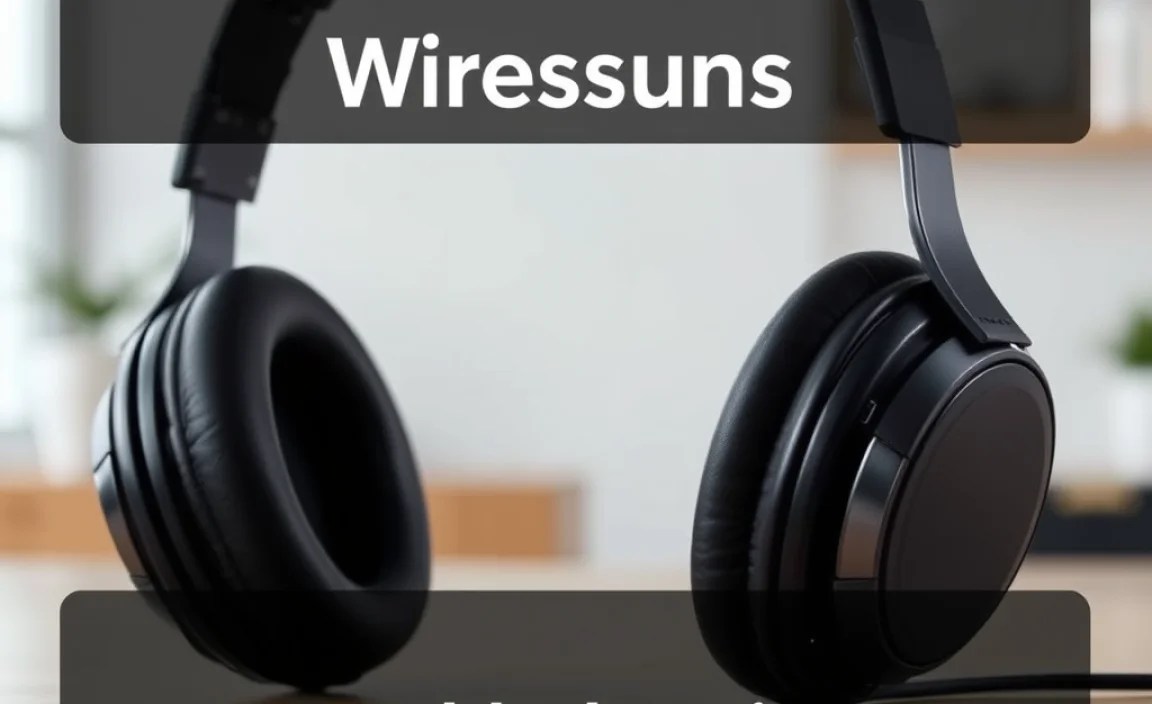
With your TV’s audio output options in mind, let’s explore the types of wireless headphones that will work best. The goal is compatibility and quality sound without hassle.
1. Bluetooth Headphones
How they work: These headphones connect directly to your Samsung TV’s built-in Bluetooth receiver. If your TV has Bluetooth, this is usually your go-to option.
Pros:
- Extremely convenient, no extra hardware needed if your TV supports Bluetooth.
- Clean setup with minimal wires.
- Wide variety of styles and price points available.
- Can often be paired with other Bluetooth devices like phones.
Cons:
- Potential for audio latency (delay between video and audio), especially with older Bluetooth versions or less advanced headphones. Look for headphones supporting Bluetooth 5.0 or higher and low-latency codecs like aptX Low Latency for better results.
- Connection can sometimes be less stable than RF headphones.
- May not be compatible with very old Samsung TV models that lack Bluetooth.
What to look for: Ensure your Samsung TV has Bluetooth functionality. Check your TV’s manual or settings menu. If it does, any standard Bluetooth headphones or earbuds should work. Prioritize headphones with Bluetooth 5.0+ and aptX LL if latency is a concern.
2. RF (Radio Frequency) Wireless Headphones
How they work: These systems come with a base station (transmitter) that connects to your TV (usually via optical or 3.5mm audio out) and wirelessly transmits an audio signal to the headphones. The range is often excellent, and latency is typically very low.
Pros:
- Excellent audio quality and minimal latency, making them ideal for movies and gaming.
- Often have a longer wireless range compared to Bluetooth.
- Generally offer a very stable connection.
- Works with virtually any Samsung TV (and most other TVs) regardless of Bluetooth capability.
Cons:
- Requires a base station/transmitter, which adds a component and cable management.
- Can be more expensive than basic Bluetooth headphones.
- Less portable as the headphones are tied to their base station for charging and connection.
- Fewer stylistic choices compared to Bluetooth headphones.
What to look for: Check the transmitter’s connection options (Optical, 3.5mm). Ensure it’s compatible with your TV’s audio outputs. Look for models specifically designed for TV use, often marketed as “TV wireless headphones.”
3. Infrared (IR) Wireless Headphones
How they work: Similar to RF, these use a transmitter that connects to your TV. However, they use infrared light to transmit the signal. You need to maintain a direct line of sight between the transmitter and the headphones.
Pros:
- Very low interference, as IR signals don’t typically overlap with other home electronics.
- Can offer good audio quality.
Cons:
- Requires a direct line of sight, meaning you can’t move freely or have obstructions between the transmitter and headphones.
- Limited range.
- Less common nowadays, with RF and Bluetooth being more prevalent.
What to look for: Generally, RF or Bluetooth are preferred for their freedom and reliability. IR might only be considered if interference is a major problem in your specific environment and you don’t require much freedom of movement.
Table: Wireless Headphone Types for Samsung TVs
Here’s a quick comparison to help you decide:
| Headphone Type | Connection Method | Best For | Key Considerations |
|---|---|---|---|
| Bluetooth | Directly to TV’s Bluetooth | Convenience, general listening, pairing with multiple devices | Check TV’s Bluetooth support, look for low latency codecs (aptX LL) |
| RF Wireless | Base station connected to TV (Optical/3.5mm) | Movies, gaming, consistent audio quality, longer range | Ensure transmitter compatibility with TV’s audio out |
| IR Wireless | Line-of-sight transmitter connected to TV | Environments with high electronic interference (less common) | Limited freedom of movement, line-of-sight required |
Step-by-Step: Connecting Your Wireless Headphones to a Samsung TV
Now, let’s get down to the practical steps. These instructions are designed to be easy to follow, even if you’re new to this!
Method 1: Connecting Bluetooth Headphones (If Your TV Has Bluetooth)
This is the ideal scenario for most modern Samsung TVs. You’ll usually find Bluetooth settings within the TV’s general setup or sound menu.
-
Prepare Your Headphones:
Ensure your Bluetooth headphones are fully charged. Put them into pairing mode. This usually involves pressing and holding a power or Bluetooth button until an indicator light flashes (refer to your headphone’s manual for specific instructions).
-
Access TV Settings:
On your Samsung TV remote, press the Home button. Navigate to Settings (the gear icon).
-
Find Sound Settings:
Within Settings, look for Sound or Sound Output.
-
Select Bluetooth Speaker List:
In the Sound settings, find an option like Bluetooth Speaker List, Bluetooth Audio, or similar. Select this option.
-
Scan for Devices:
Your TV will begin scanning for available Bluetooth devices. Make sure your headphones are still in pairing mode and are close to the TV. They should appear in the list of available devices.
-
Pair and Connect:
Select your headphones from the list. The TV will attempt to pair with them. You might see a confirmation message on the screen once the pairing is successful.
-
Confirm Audio Output:
After pairing, your TV should automatically switch audio output to your Bluetooth headphones. You may need to confirm the selection in the Sound Output menu one last time. Test by playing something on your TV.
Example Path (may vary slightly by model): Home > Settings > Sound > Sound Output > Bluetooth Speaker List.
Tip: If you experience audio lag with Bluetooth, check your TV’s settings for an ‘Audio Delay’ or ‘Lip Sync’ adjustment. Also, ensure your headphones support low-latency codecs if possible. You can learn more about Bluetooth codecs and their impact on latency from resources like Bluetooth SIG.
Method 2: Using RF Wireless Headphones (For TVs Without Bluetooth or for Better Stability)
This method involves a base station that connects to your TV. It’s a reliable choice for excellent audio quality and low latency.
-
Connect the Transmitter Base:
Locate the audio output ports on your Samsung TV. The most common connections for an RF transmitter are the Optical Audio Out (Digital Audio Out) or the 3.5mm Headphone Jack.
- Optical Connection: Connect one end of the optical cable (usually included with the headphones) to the TV’s Optical Out port and the other end to the Optical In port on the transmitter base.
- 3.5mm Connection: Connect the included 3.5mm audio cable from the TV’s headphone jack to the 3.5mm input on the transmitter base.
-
Configure TV Audio Output:
You’ll likely need to tell your Samsung TV to send audio through the selected port. Follow these steps (similar to the Bluetooth method but for a different output):
- Go to Settings > Sound > Sound Output.
- If you used the optical cable, select Optical or Audio Out/Optical.
- If you used the 3.5mm cable, select Headphone or Audio Out.
Important: When using the Optical Audio Out, you might need to disable the TV’s internal speakers. In Sound Output settings, there’s often an option for ‘TV Speaker Sound Output’ which you’d switch to ‘Optical’ or ‘Receiver’. If using the 3.5mm jack, the TV speakers will usually mute automatically.
-
Power On the Transmitter and Headphones:
Plug in the transmitter base’s power adapter. Turn it on. Then, turn on your RF wireless headphones. They are usually pre-paired with their base station, so they should connect automatically.
-
Adjust Volume:
Test the sound. You can typically adjust the volume using the controls on the headphones themselves, and sometimes also using the TV remote if the connection allows (especially with 3.5mm). Start with a low volume on the headphones and gradually increase to a comfortable level.
Note on Optical vs. 3.5mm: Optical (Toslink) provides a cleaner digital signal, often resulting in better sound quality, especially for surround sound formats. The 3.5mm jack is analog and convenient but might be more susceptible to noise if not properly shielded.
Method 3: Using a Bluetooth Transmitter (For TVs Without Built-in Bluetooth)
If your Samsung TV lacks Bluetooth, a dedicated Bluetooth transmitter is a fantastic solution that works much like an RF system but connects via Bluetooth.
-
Connect the Bluetooth Transmitter:
Connect the Bluetooth transmitter to your TV’s audio output (Optical or 3.5mm audio out) using the supplied cables. Power it up.
-
Configure TV Audio Output:
As in Method 2, adjust your Samsung TV’s Sound Output settings to Optical or Headphone/Audio Out, depending on the connection you used.
-
Pair Transmitter with Headphones:
Put the Bluetooth transmitter into pairing mode (check its manual). Then, put your Bluetooth headphones into pairing mode. They should discover and connect to each other. Many transmitters and headphones will automatically reconnect on subsequent uses.
-
Test and Adjust Volume:
Ensure the audio is coming through your headphones. Adjust the volume on the headphones. Some transmitters also have volume controls.
Tip: When selecting a Bluetooth transmitter, look for models that support the latest Bluetooth version (5.0 or higher) and aptX Low Latency (aptX LL) to minimize audio delay. This is crucial for a good movie-watching experience. Reputable tech sites like Rtings.com often have detailed explanations of Bluetooth latency.
Troubleshooting Common Issues
Even with the best intentions, you might run into a hiccup. Here are some common problems and their easy fixes.
Issue: No Sound
- Check Connections: Ensure all cables are securely plugged into both the TV and the transmitter (if used).
- Verify Audio Output Setting: Double-check that your Samsung TV’s Sound Output is set to the correct option (Bluetooth Speaker List, Optical, Headphone).
- Volume Levels: Make sure the volume is turned up on both the TV (if applicable) and your headphones. Start with low volumes and increase gradually.
- Headphones Paired/Connected: For Bluetooth, ensure headphones are properly paired and connected. For RF, make sure they are within range of the base station.
- Internal Speakers: Confirm that the TV’s internal speakers are not set to be the only audio output.
Issue: Audio Delay (Lip Sync Issues)
- Use Low-Latency Codecs: If using Bluetooth, ensure both your TV (if it supports it) and your headphones support aptX Low Latency (aptX LL) or a similar low-latency codec.
- Adjust TV Lip Sync Setting: Many Samsung TVs have an “Audio Delay” or “Lip Sync” setting. Navigate to Settings > Sound and look for this option to manually adjust the delay until audio and video match.
- Try RF Headphones: RF wireless headphones generally have significantly lower latency than Bluetooth and are a great alternative if lip sync is a persistent problem.
