
Quick Summary: Choosing the right headphones for streaming is crucial for clear audio and an immersive viewer experience. This guide breaks down the essential features, types, and key considerations for streamers, helping beginners select comfortable, high-performance audio gear without the tech overwhelm. Invest wisely for better sound, engagement, and overall stream quality.
Headphones for Streamers: Your Essential Gear Guide
Hey there, fellow audio adventurers! Edward Cavitt here from headphonehorizon. Stepping into the vibrant world of streaming is exciting, and one piece of gear often overlooked but truly vital is your headphones. Think of them as your command center for sound. They aren’t just for listening; they’re for hearing every crucial detail in your game, communicating clearly with your audience, and ensuring your stream sounds professional. But with so many options, where do you even begin? Don’t worry! This guide is designed to cut through the noise and help you find the perfect headphones for your streaming setup, making sure your audience hears you loud and clear, and you stay immersed in your gaming or creative world.
Why Headphones Are Crucial for Streamers

Before we dive into the nitty-gritty of what to look for, let’s solidify why this is such a critical investment for any streamer. Your headphones do more than just play sound; they are your gateway to an engaged audience and a professional-sounding broadcast.
- Clear Communication: Most streaming headphones feature microphones with noise-cancellation technology. This ensures your voice is heard clearly by your viewers, free from background distractions like keyboard clicks or fan noise.
- Immersive Gameplay/Content: High-quality headphones deliver rich, detailed audio that pulls you right into the game or content you’re experiencing. This immersion is key to exciting and engaging commentary.
- Audience Feedback Loop Prevention: Without headphones, your microphone can pick up the sound from your speakers, creating an echo or feedback loop that’s incredibly annoying for your viewers. Headphones isolate your audio.
- Monitoring Your Own Audio: Streamers need to hear themselves and the game audio simultaneously. Headphones allow you to monitor your own voice levels and the overall mix, ensuring everything sounds balanced.
- Comfort for Long Sessions: Streaming can involve hours of sitting in one place. Comfortable, well-fitting headphones are essential for maintaining focus and avoiding discomfort during long broadcasts.
Understanding the Basics: Key Features to Look For
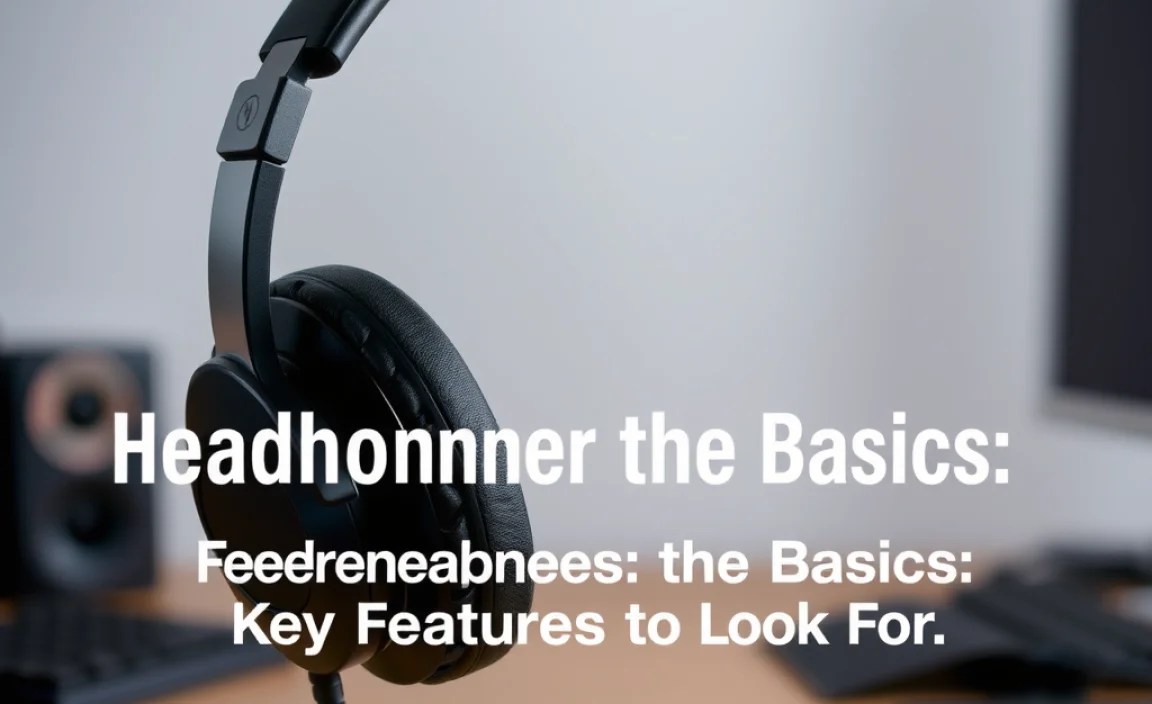
When you start looking at headphones for streaming, you’ll quickly notice a few key terms and features popping up. Let’s break down what they mean for you as a streamer.
1. Microphone Quality
This is arguably the most important feature for any streamer. Your audience needs to hear you. Look for:
- Directionality: Most gaming/streaming headsets use unidirectional microphones, meaning they primarily pick up sound from one direction (your voice) and reject sound from other directions.
- Noise Cancellation: This is a lifesaver. It filters out ambient background noise, ensuring your commentary is crisp and clear, even if your environment isn’t perfectly quiet.
- Detachable or Retractable Mics: This offers flexibility. You can remove it when you’re just listening or retract it when not in use.
- Frequency Response: While this can get technical, a broader frequency response generally means a more natural and detailed vocal reproduction. For most beginners, focusing on dedicated noise cancellation and clear pickup patterns is more practical.
2. Sound Quality (For You!)
While your mic is for your audience, the sound you hear is for your immersion and monitoring. What to consider:
- Soundstage: This refers to how “wide” or “spacious” the audio sounds. For gaming, a good soundstage helps you pinpoint the direction of in-game sounds (like footsteps or gunfire).
- Frequency Response: For music and general listening, a balanced frequency response (not too much bass, not too much treble) is ideal. For gaming, a slight emphasis on mid-high frequencies can help with clarity of dialogue and detail.
- Types of Drivers: Drivers are the small speakers inside your headphones. Common types include dynamic (most common, good all-around performance) and planar magnetic (high-fidelity, usually more expensive). For beginners, a good dynamic driver is perfectly sufficient.
3. Comfort and Fit
You’ll be wearing these for hours. Prioritize:
- Earcup Material: Soft, breathable materials like velour or memory foam prevent ear fatigue and overheating. Leatherette can be comfortable but may get warm over long periods.
- Headband Padding: A well-padded headband distributes weight evenly, preventing pressure points on your head.
- Adjustability: The headphones should have adjustable headbands and swiveling earcups to fit different head shapes and sizes comfortably.
- Weight: Lighter headphones are generally more comfortable for extended wear.
4. Connectivity
How you connect your headphones can impact convenience and audio quality:
- Wired (3.5mm Jack): The most common and reliable. Offers excellent audio quality and no latency. Good for most PC and console setups.
- Wired (USB): Often includes a built-in DAC (Digital-to-Analog Converter) which can improve audio quality. Also provides plug-and-play convenience.
- Wireless (2.4GHz Dongle): This is the best wireless option for streamers. It offers low latency, meaning audio is synchronized with video, crucial for gameplay. Often features dedicated USB dongles.
- Wireless (Bluetooth): Generally not recommended for serious streaming due to higher latency, which can cause a noticeable delay between what you see and hear.
5. Durability and Build Quality
You want headphones that will last. Look for:
- Sturdy Materials: Metal frameworks and robust plastics are generally more durable than all-plastic constructions.
- Removable Cables: If the cable detaches, it’s easier and cheaper to replace if it gets damaged, rather than buying a whole new headset.
Types of Headphones for Streamers
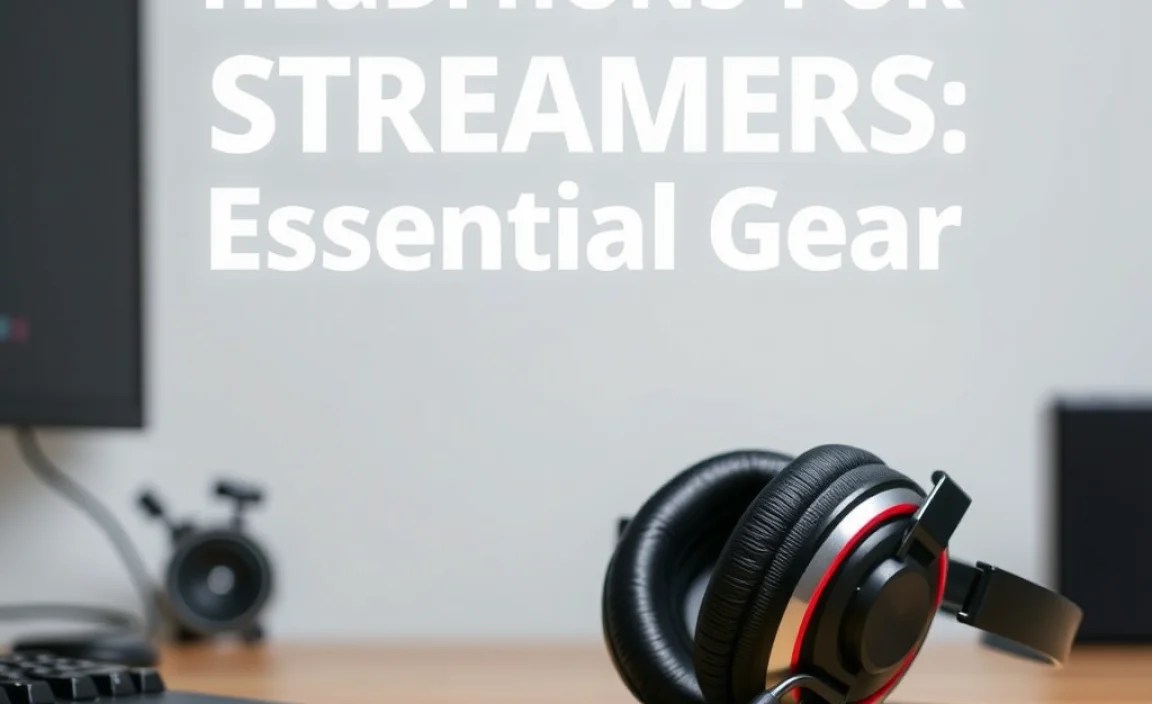
When you’re shopping, you’ll encounter a few main categories. Understanding these will help you narrow down your choices.
1. Gaming Headsets
These are purpose-built for gamers and streamers. They often integrate a microphone directly into the design.
- Pros: All-in-one solution, often include advanced microphone features, designed with gaming audio profiles in mind, easy to set up.
- Cons: Microphone quality can vary widely; some may prioritize gaming features over pure audio fidelity for listening. Can sometimes look a bit “gamer-y” if that’s not your style.
2. Studio Headphones with a Separate Microphone
This setup involves using high-quality studio monitor headphones paired with a dedicated external microphone (like a USB mic or an XLR mic with an audio interface). This is often considered a more professional approach.
- Pros: Superior sound quality for listening and monitoring, excellent microphone quality, more flexible if you want to upgrade components later.
- Cons: More expensive initially, requires more setup, two separate pieces of equipment to manage.
3. Audiophile Headphones with a ModMic
A niche but popular option for those who want top-tier audio fidelity. Audiophile headphones are designed for the best possible sound, and a “ModMic” is a clip-on, attachable microphone that can be added to almost any pair of headphones.
- Pros: Unmatched audio quality, can use your existing high-end headphones, great mic flexibility with ModMic.
- Cons: Can be the most expensive option, requires careful compatibility checks with microphones, potentially more complex setup.
Choosing Your Path: Headset vs. Separate Components

This is the big decision you’ll likely face: do you go for an all-in-one gaming headset, or build a system with dedicated headphones and a mic? Here’s a breakdown to help you decide.
| Feature | Gaming Headset | Studio Headphones + Separate Mic |
|---|---|---|
| Ease of Use | Very high. Plug and play. | Moderate. Requires connection of two devices. |
| Initial Cost | Generally lower to moderate. | Often higher, especially for quality headphones and mics. |
| Microphone Quality Potential | Good to excellent in premium models. | Excellent to professional. |
| Listening Audio Quality Potential | Good to very good. | Excellent to audiophile. |
| Flexibility/Upgradability | Limited. Often must replace the entire unit. | High. Can upgrade mic or headphones independently. |
| Setup Simplicity | Simple. | Requires managing two devices and their connections. |
| Best For | Beginners, budget-conscious streamers, those prioritizing simplicity. | Streamers prioritizing audio quality, those willing to invest more for clarity. |
For most beginners, a reputable gaming headset provides the most straightforward path to a good streaming setup. As you grow and your needs become more specific, you can always consider investing in separate components later. The Rtings.com website offers in-depth, objective testing of headphones and headsets, which can be a valuable resource for comparing specific models.
Top Features for Streaming Headsets (Under the Hood)
If you opt for a gaming headset, understanding these internal workings will help you choose wisely.
1. Transducer Type
This is just another word for the driver – the part that makes sound. Most gaming headsets use dynamic drivers. They’re efficient, produce good bass, and are cost-effective. Some higher-end models might use planar magnetic drivers for greater detail, but these are less common in headsets.
2. Impedance
Measured in Ohms (Ω), impedance relates to how much power is needed to drive the headphones. For most PC sound cards and consoles, headphones with impedance below 50Ω are ideal, as they don’t require an amplifier. If you’re looking at headphones with higher impedance (often found in studio models), you might need a separate headphone amplifier to get the best volume and sound quality.
3. Surround Sound Technologies
Many gaming headsets advertise “virtual surround sound” (e.g., DTS Headphone:X, Dolby Surround Sound, Windows Sonic). These technologies process stereo audio to simulate a surround sound experience. While it can help with positional audio in games, the quality can vary, and some prefer the natural stereo sound.
4. Microphone Pick-up Patterns
As mentioned, unidirectional is best for streaming. It’s designed to capture your voice from the front and reject ambient noise from the sides and rear. Some microphones allow you to switch between different patterns, but for a gaming headset, focus on its primary design.
Connecting Your Headphones: Wired vs. Wireless for Streaming
The debate between wired and wireless is age-old, but for streaming, one is almost always preferred.
Wired Headphones
- Pros:
- Zero latency (no delay).
- Consistent audio quality.
- No need to worry about battery life or signal interference.
- Often more affordable for equivalent quality.
- Cons:
- Cable can be a nuisance or get tangled.
- Limited range of movement.
Wireless Headphones (2.4GHz Dongle)
- Pros:
- Low latency, suitable for gaming and streaming.
- Freedom of movement.
- Convenient.
- Cons:
- Higher initial cost.
- Requires battery charging.
- Potential for minor interference (though rare with good 2.4GHz tech).
- May not offer the absolute purest audio fidelity compared to high-end wired options.
Wireless Headphones (Bluetooth)
- Pros:
- Ubiquitous connectivity with many devices.
- Tangle-free.
- Cons:
- High latency is a deal-breaker for most gaming/streaming.
- Audio quality can be compressed.
- Battery life varies.
Our Recommendation: For serious streaming, a wired connection or a wireless headset using a dedicated 2.4GHz USB dongle is your best bet. Avoid Bluetooth for your primary streaming headphones due to its inherent latency issues. For more information on audio latency and its impact, you might find resources from organizations like the International Telecommunication Union (ITU) insightful regarding audio standards and testing, though their materials can be quite technical.
Step-by-Step: Setting Up Your Streaming Headphones
Ready to get your new audio gear linked up? It’s usually simpler than you think!
Scenario 1: Gaming Headset (Wired 3.5mm or USB)
- Identify Ports: Locate the headphone/mic port(s) on your PC or console. For 3.5mm jacks, you’ll typically have one for audio and one for the microphone (often color-coded green for audio, pink for mic). Some modern laptops and PCs have a single combo jack. USB headsets use any available USB port.
- Connect:
- 3.5mm: Plug the headphone jack into the green port (or combo jack) and the microphone jack into the pink port (or combo jack). If you have a single combo jack, plug the headset’s single plug into it.
- USB: Plug the USB cable directly into an available USB port on your computer.
- Install Drivers (If necessary): Most USB headsets are plug-and-play. If prompted by Windows or macOS, follow the on-screen instructions to install any necessary software or drivers.
- Configure in Software:
- Windows: Right-click the speaker icon in the taskbar, select “Sounds” or “Open Sound settings.” Go to the “Playback” tab and ensure your headset is set as the Default Device. Go to the “Recording” tab and set your headset’s microphone as the Default Device.
- macOS: Go to System Preferences > Sound. Select your headset under the “Output” tab and under the “Input” tab.
- Streaming Software (OBS, Streamlabs): Open your streaming software. Go to Settings > Audio. Under “Desktop Audio,” select your headset. Under “Mic/Auxiliary Audio,” select your headset’s microphone.
- Test: Speak into the microphone. Do you see the audio meter moving in your streaming software? Ask a friend to join your Discord call or chat. Play some game audio. Does it sound clear?
Scenario 2: Gaming Headset (Wireless 2.4GHz Dongle)
- Plug in the Dongle: Insert the USB wireless dongle into an available USB port on your PC or console.
- Power On: Turn on your wireless headset. It should automatically pair with the dongle.
- Follow Software Steps: Proceed to Step 4 and 5 from Scenario 1 (Configure in Software and Test). The headset should be automatically recognized by your system.
Scenario 3: Studio Headphones + Separate Microphone
This is a bit more involved, but offers great results.
- Connect Headphones: Connect your studio headphones to your PC. This might be a direct 3.5mm jack. If they have high impedance, you may need to connect them to a headphone amplifier, which then connects to your PC.
- Connect Microphone:
- USB Microphone: Plug it directly into a USB port on your PC.
- XLR Microphone: Connect it to an audio interface using an XLR cable. Connect the audio interface to your PC via USB.
- Install Drivers: Install drivers for your audio interface or USB microphone if prompted.
- Configure Audio Devices:
- Windows/macOS: In your sound settings, set your headphones as the Default Playback Device. For the microphone, select either your USB mic or your audio interface (as it will handle the XLR mic’s input) as the Default Recording Device.
