
Discover how to enhance your TV viewing with headphones featuring long cords. This guide helps beginners choose comfortable, high-quality audio solutions that offer extended reach, ensuring you never miss a detail or disturb others. Learn what to look for and how to connect them for an immersive sound experience.
Headphones for TV with Long Cord: Your Essential Home Audio Upgrade

Ever found yourself leaning closer and closer to the TV, straining to catch a crucial line of dialogue or an important sound effect? Or maybe you’ve wished you could get up and grab a drink without missing a beat of your favorite show?
If so, you’re not alone! Many of us rely on our TVs for entertainment and information, but sometimes, the built-in speakers just don’t cut it. That’s where headphones come in.
Specifically, headphones for TV with a long cord offer a fantastic solution, providing freedom of movement and crystal-clear audio without disturbing anyone else in the house. Whether you’re hard of hearing, want to enjoy late-night viewing without waking the family, or simply crave a more immersive cinematic experience, a good pair of long-corded headphones can be your best friend. Let’s dive into how to find the perfect pair for your needs.
Why Long Cord Headphones for Your TV?

The appeal of headphones for TV is straightforward: superior sound quality and privacy. However, for TV viewing, the “long cord” aspect becomes particularly important, offering a unique set of advantages that standard headphone setups might not provide. It’s about expanding your personal audio space and enhancing convenience.
Unleash Your Listening Freedom
A long cord on your TV headphones means you’re not tethered to a single spot. Imagine being able to:
- Get up to refill your snack bowl or prepare a drink without pausing your show.
- Move around your living room to find the most comfortable viewing position.
- Have a wider “sweet spot” for listening, especially if you share your viewing experience.
- Easily manage the cord so it doesn’t become a tripping hazard or get tangled.
Enhanced Audio Immersion
TV speakers often struggle to deliver the rich, nuanced sound that modern films and shows are designed for. Headphones, on the other hand, can place you right in the middle of the action. With a long cord, you can achieve this immersive experience while maintaining comfort and mobility. You’ll pick up subtle sound effects, clearer dialogue, and a more dynamic range that truly brings your entertainment to life.
Respecting Others
Let’s face it, not everyone wants to listen to the same show at the same volume. Long-corded headphones are a considerate solution for shared living spaces. Whether it’s a partner trying to sleep, children studying, or roommates needing quiet, headphones ensure your audio enjoyment doesn’t become their distraction.
Choosing the Right Headphones for Your TV

Selecting the best headphones for TV with a long cord involves a few key considerations. It’s not just about the length of the wire; it’s about the type of headphone, the connector, comfort, and sound quality. Here’s what to look for:
Types of TV Headphones with Long Cords
You’ll generally encounter a few main styles when looking for long-corded TV headphones:
- Over-Ear Headphones: These cup around your ears, providing excellent comfort for long listening sessions and good passive noise isolation. They are often the most comfortable for extended TV viewing.
- On-Ear Headphones: These rest on top of your ears. They are usually lighter and more compact than over-ear models but might offer less comfort for long periods and less noise isolation.
- In-Ear Earbuds: While less common with very long cords, some wired earbuds offer extended lengths. They are highly portable but may not be as comfortable for hours of wear and might not provide the same immersive soundstage as over-ear options.
Cord Length: What’s “Long Enough”?
For TV use, a cord of 10 feet (around 3 meters) is often considered a good starting point. However, depending on your room layout and how far you typically sit from your TV, you might need even longer cords, such as 15, 20, or even 25 feet (around 4.5 to 7.5 meters). Measure the distance from your favorite seating spot to your TV’s audio output to get an idea of your ideal cord length.
Connector Types: Ensuring Compatibility
This is a critical step. Your headphones need to connect directly to your TV’s audio output. The most common connectors are:
- 3.5mm (1/8-inch) Audio Jack: This is the standard headphone jack found on most TVs, smartphones, and audio devices. Cables often come with an adapter for a 1/4-inch (6.35mm) jack, which is useful for some home stereo systems but less common for direct TV connections.
- RCA Connectors: Some older TVs or audio systems might use RCA outputs (red and white analog audio jacks). You’ll need headphones with a 3.5mm plug and an adapter cable that converts the 3.5mm to RCA.
- Bluetooth (Wireless Alternative with a Twist): While not a corded solution, Bluetooth headphones offer ultimate freedom. However, many TVs don’t have built-in Bluetooth. In such cases, you might need a Bluetooth transmitter that connects to your TV’s audio port and pairs with the headphones. Some long-corded headphones also come with a Bluetooth transmitter option.
Tip: Always check your TV’s available audio ports before purchasing headphones. Consult your TV’s manual or look for the headphone jack symbol (often a circle with a line through it).
Sound Quality and Comfort
These are subjective but crucial for an enjoyable TV experience. For dialogue clarity, look for headphones that offer a balanced sound profile, without excessive bass that can muddle speech. Comfort is paramount for long viewing sessions; consider padded earcups and an adjustable headband.
Wired vs. Wireless (with a Long Cord Option)
While the focus here is on long cords, it’s worth noting that some wireless headphone systems for TV include a base station that connects to your TV via a long cord. The headphones then connect wirelessly to the base. This can offer the best of both worlds: long reach from the TV and no headphone cord to manage. However, they are typically more expensive.
Step-by-Step: Connecting Your Long Cord Headphones to Your TV

Connecting your new headphones is usually straightforward. Follow these steps to ensure you get the best audio experience:
Step 1: Identify Your TV’s Audio Output
Locate the audio output ports on your television. These are typically found on the back or side panel of the TV.
- 3.5mm Headphone Jack: Look for a small, circular port labeled “Audio Out,” “Headphones,” or marked with the headphone symbol.
- RCA Audio Output: Look for two small circular jacks, usually colored red (right channel) and white (left channel), labeled “Audio Out.”
- Optical Audio Output (Toslink): This is a digital port that requires a digital-to-analog converter if your headphones only have analog inputs. It’s less common for direct headphone connections for beginners looking for simple solutions.
If you’re unsure, refer to your TV’s user manual. It will clearly show you the available ports.
Step 2: Prepare Your Headphones and Cable
Examine the plug on your headphone cord. It should match one of the output types on your TV (most commonly a 3.5mm jack).
- For 3.5mm: Ensure your headphone plug is clean and undamaged. If your TV only has a larger 1/4-inch jack (less common for modern TVs but found on some older models or audio equipment), you might need a 3.5mm to 1/4-inch adapter, which often comes with headphones.
- For RCA: If your TV has RCA audio outputs and your headphones have a 3.5mm plug, you’ll need a 3.5mm to RCA adapter cable (a Y-cable). The 3.5mm end plugs into your headphones, and the red and white RCA ends plug into the corresponding “Audio Out” ports on your TV.
Step 3: Connect the Headphones
Gently but firmly plug the headphone connector into the appropriate port on your TV. Ensure it’s fully seated.
Important Note: If your TV has both a headphone jack and RCA audio outputs, you’ll usually want to use the dedicated headphone jack. Using RCA outputs will likely require an external adapter or amplifier if you’re not using a specific RCA-to-headphone adapter.
Step 4: Adjust TV Sound Settings
Once connected, you’ll likely need to tell your TV to send audio to the headphone jack. Navigate to your TV’s sound or audio settings menu. Look for an option like:
- “Audio Output”
- “Sound Output”
- “Speaker Settings”
You’ll typically find options such as “TV Speakers,” “Audio System,” “Headphones,” or “Line Out.” Select the option that corresponds to your headphone connection.
On some TVs, plugging headphones directly into the headphone jack will automatically mute the TV speakers. However, it’s always a good idea to check the settings to confirm.
Step 5: Control the Volume
The volume for your headphones will likely be controlled in one of two ways:
- TV Volume Controls: If your TV automatically switches to headphone output, the TV’s remote control volume buttons will adjust the headphone volume.
- In-line Volume Control: Some headphones come with a small dial or slider built into the cord. This acts as an independent volume control for the headphones. It’s a great feature for fine-tuning your audio without affecting the TV’s main volume.
Start with the volume very low and gradually increase it to a comfortable listening level. This protects your hearing and prevents sudden loud noises.
Troubleshooting Common Issues
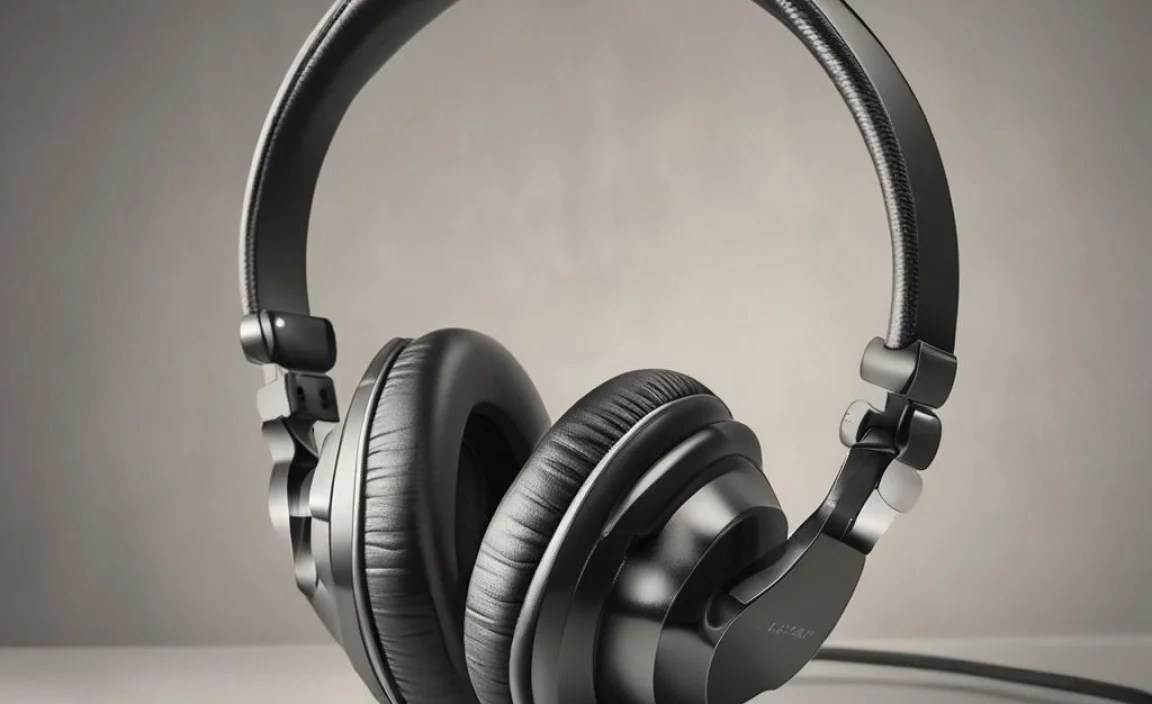
While connecting headphones is usually simple, you might occasionally run into a snag. Here are some common issues and how to resolve them:
No Sound at All
- Check Connections: Ensure the headphone plug is fully inserted into the TV’s audio output port.
- Verify TV Settings: Double-check that you’ve selected the correct audio output setting in your TV’s menu (e.g., “Headphones” or “Audio Out”).
- Test Headphones: Plug the headphones into another device (like a phone or computer) to ensure they are working correctly.
- Incorrect Port: Make sure you’re using an “Audio Out” port and not an “Audio In” or “Line In” port, which are designed for inputting audio, not outputting it.
Sound Only in One Ear
- Cable Damage: The headphone cord may be damaged internally. Try wiggling the plug and the cord near the plug to see if sound comes back. If so, the cable likely needs replacement.
- Dirty Jack: The headphone jack on your TV or the plug on your headphones might have accumulated dust or debris. Gently clean both with a dry cotton swab or compressed air.
- Headphone Issue: Test the headphones on another device. If the problem persists, the headphones themselves might be faulty.
Low Volume Even When Maxed Out
- TV Volume Setting: Ensure the TV’s volume is turned up significantly.
- Headphone In-line Control: If your headphones have an in-line volume control, make sure it’s turned up.
- Headphone Sensitivity: Some headphones are less sensitive than others and require more power to reach loud volumes. Check if your headphones are designed for high impedance, which might require a headphone amplifier for best results, though this is becoming less common for TV-specific models.
- TV Audio Output Level: Occasionally, the TV’s headphone output might be designed to provide a lower signal level. Sometimes, choosing “Line Out” instead of “Headphones” (if available and appropriate) can provide a stronger signal, but always proceed with caution and low volume.
Humming or Buzzing Noise
This is often due to electrical interference or what’s called a “ground loop.”
- Check Power Connections: Ensure all your TV and audio equipment are plugged into the same power strip or outlet. Avoid plugging devices into different circuits if possible.
- Move Cables: Keep headphone cords away from power cables or other sources of electrical interference.
- Use a Ground Loop Isolator: If the noise persists, a ground loop isolator can be purchased. This small device typically connects in-line with your audio cable and helps eliminate the buzzing sound. You can find these resources on reputable audio electronics sites or forums.
Recommended Features for Long Cord TV Headphones
When you’re shopping, keep an eye out for these features that can make your TV viewing experience even better:
Comfort is King
Padded Earcups: Look for plush, soft earcups that fully enclose your ears (over-ear) or sit comfortably on them (on-ear). Memory foam is often a good choice for long-term comfort.
Adjustable Headband: A well-padded and adjustable headband ensures a secure yet comfortable fit for different head sizes.
Sound Design for Dialogue
While you want good audio, prioritize clarity for dialogue. Headphones designed for casual listening or home theater often emphasize this. Avoid overly bass-heavy “gaming” or “bass-boosted” headphones if your primary goal is clear speech.
Durability and Build Quality
A long cord can be prone to wear and tear. Look for headphones made with sturdy materials and reinforced cable entry points. Braided cables can sometimes offer extra durability.
In-line Volume Control
As mentioned earlier, a volume control directly on the cord is incredibly convenient. It allows for quick adjustments without needing to reach for the TV remote or fiddle with on-screen menus. This is a must-have for many users.
Lightweight Design
For extended TV sessions, a pair of headphones that isn’t too heavy will make a significant difference in comfort. Over-ear designs can sometimes be heavier, so check the product specifications for weight.
Isolation/Noise Reduction
Passive noise isolation from well-fitting over-ear cups can help block out ambient room noise, allowing you to focus on the TV audio. This is different from active noise cancellation, which uses electronics and is less common in basic wired TV headphones.
Example Long Cord TV Headphone Options
While specific models can change rapidly, here are types of headphones and brands that often offer suitable long-corded options for TV viewing. Always check current product descriptions for cord length and connectivity!
Here’s a general idea of what to look for:
| Feature Type | Description | Why it’s Good for TV |
|---|---|---|
| Brand Examples | Sony, Sennheiser, Philips, Audio-Technica, Sennheiser (specifically their 400/500 series often have long cords), Koss | These brands are known for reliable audio quality and often have models designed for home use with extended cables. |
| Cord Length | 10ft (3m) to 25ft (7.5m) or more with extension cables. | Provides ample freedom of movement. |
| Plug Type | 3.5mm (1/8-inch) with potential 1/4-inch adapter. | Universally compatible with most TV headphone jacks. |
| Design | Over-ear, closed-back (for better isolation). | Comfortable for long wear, minimizes sound leakage. |
| Additional Features | In-line volume control, durable cable. | Convenience and longevity. |
When searching online, use terms like “TV headphones long cord,” “wired TV headphones,” or “extra long headphone cable.” Reading user reviews is crucial to gauge real-world performance, comfort, and durability.
Frequently Asked Questions About Headphones for TV with Long Cords
Here are answers to some common questions beginners have about using headphones with their TVs:
Can I use any headphones with my TV?
Generally, yes, as long as your TV has a standard headphone jack (typically 3.5mm). You might need an adapter if your TV has a larger 1/4-inch jack or if you’re trying to connect to RCA outputs. Always check your TV’s available ports and the headphone’s connector type.
How long should the cord on my TV headphones be?
A minimum of 10 feet (3 meters) is recommended for good freedom
