
Quick Summary: Connecting headphones to your Xbox controller enhances gameplay with immersive audio and clear communication. This guide breaks down the simple process, explains connector types, and helps you choose the best headphones for your Xbox experience, ensuring a smoother, more enjoyable gaming session.
Headphones for Xbox Controller: Your Essential Audio Upgrade Guide
Hey there, fellow gamers! Edward Cavitt here from headphonehorizon. Ever found yourself wishing you could truly dive into the soundscape of your favorite Xbox games? Or maybe you’re tired of shouting across the room to your teammates? You’re in the right place! Connecting headphones to your Xbox controller is a game-changer, transforming your gaming sessions from good to absolutely epic. It’s not just about hearing footsteps; it’s about feeling involved, strategizing better, and enjoying every rumble and explosion. Plus, clear communication makes multiplayer a breeze. Don’t worry if tech specs seem a bit daunting – I’m here to walk you through everything, from understanding what kind of plug you need to picking out the perfect pair. Let’s get your audio sorted and your game on!
Why Do You Even Need Headphones with Your Xbox Controller?

Playing games on an Xbox is an immersive experience, and that immersion is often heavily reliant on sound. While your TV or home stereo system can provide audio, headphones offer a more personal and direct connection to the game’s audio design. They can:
- Enhance Immersion: Hear every subtle detail, from the rustle of leaves in a forest to the distant roar of an engine. This pulls you deeper into the game world.
- Improve Communication: In multiplayer games, clear voice chat is crucial. Headphones with built-in microphones ensure your teammates can hear you, and you can hear them, without background noise interference.
- Provide a Competitive Edge: Pinpointing the direction of enemy footsteps or distant gunfire can be the difference between victory and defeat. Headphones offer superior positional audio compared to most speaker setups.
- Allow for Late-Night Gaming: Play your favorite titles without disturbing others in your household.
- Reduce Distractions: Eliminate external noise and focus solely on the game.
Understanding Your Xbox Controller’s Headset Port
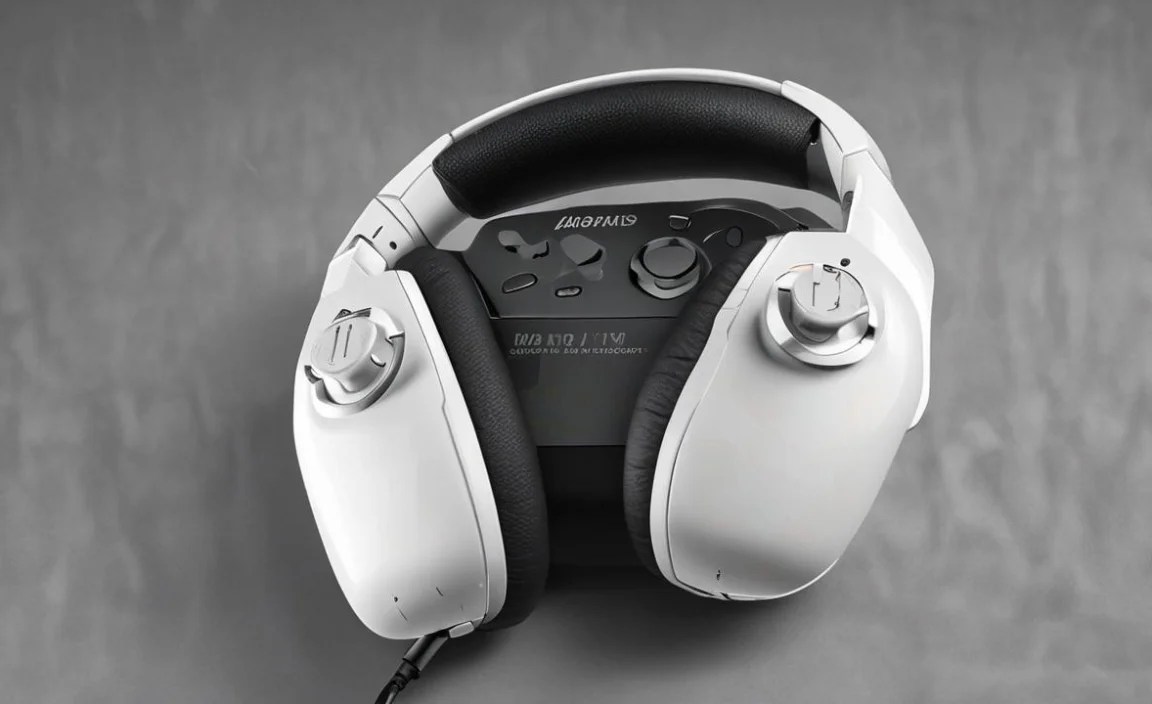
The first step to connecting headphones is knowing what kind of port your Xbox controller has. For the most part, modern Xbox controllers use a standard 3.5mm audio jack.
The Mighty 3.5mm Jack
Most Xbox controllers manufactured since 2015 (the Xbox One S and later models, including all Xbox Series X/S controllers) feature a single 3.5mm jack. This is the same type of jack found on most smartphones, laptops, and standard headphones. It’s a TRRS (Tip-Ring-Ring-Sleeve) connector, which cleverly carries both audio output (what you hear) and microphone input (what you say) over a single plug.
How to Identify the 3.5mm Jack:
- Look at the bottom edge of your controller.
- You’ll see a small, round port. If it’s your only audio port there, it’s almost certainly a 3.5mm jack.
Older Controllers and the Stereo Headset Adapter
If you have an older Xbox One controller (the original model released with the Xbox One), it might have a different port layout. These controllers might have two separate ports: one for audio output and one for microphone input. Alternatively, they might only have a proprietary port. For these older controllers, you’ll likely need an official Xbox Stereo Headset Adapter. This adapter plugs into the bottom of your controller and provides a standard 3.5mm jack for your headphones.
How to Check if You Need an Adapter:
- Examine the bottom of your controller.
- If you don’t see a single 3.5mm jack, you likely need an adapter.
- If you see two smaller ports, or no obvious audio jack, the adapter is a good bet.
Types of Headphones That Work with Your Xbox Controller

The good news is that a wide variety of headphones are compatible with Xbox controllers, primarily thanks to the ubiquitous 3.5mm jack. Here’s a breakdown:
1. Gaming Headsets
These are specifically designed for gaming and typically feature a boom microphone for clear voice chat, padded earcups for comfort during long sessions, and often, an emphasis on positional audio. They connect directly via the 3.5mm jack.
- Pros: Optimized for gaming, built-in microphones, comfortable, good sound quality.
- Cons: Can sometimes be more expensive, might have flashier designs that aren’t to everyone’s taste.
2. Standard Headphones with Inline Microphones
Many everyday headphones, like those used with smartphones or computers, come with an inline microphone (a small button or module on the cable) that also uses a 3.5mm TRRS connector. These will work perfectly with your Xbox controller.
- Pros: Versatile (can be used for music and gaming), often more discreet designs, wide price range.
- Cons: Microphone quality can vary greatly, may not be as comfortable for extended gaming sessions as dedicated gaming headsets.
3. Headphones Without a Microphone (with an Adapter)
If you have a beloved pair of high-fidelity headphones that don’t have a microphone, you can still use them. You’ll need a separate 3.5mm microphone that you can plug into the controller’s jack, or a splitter that allows you to connect separate headphone and microphone jacks from your headphones to the single controller port. Some adapters also offer volume control.
- Pros: Use your existing excellent headphones, potential for superior audio quality.
- Cons: Requires extra accessories (microphone or adapter), can be a bit more fiddly.
Connecting Your Headphones: A Simple Step-by-Step Guide

Connecting headphones to your Xbox controller is refreshingly straightforward. Here’s how:
Step 1: Identify Your Controller Port
As we discussed, check the bottom of your controller. Is there a single, medium-sized circular port? That’s your 3.5mm jack. If you have an older controller without this, make sure you have the Xbox Stereo Headset Adapter connected.
Step 2: Plug In Your Headphones
Take the 3.5mm plug from your headphones (or gaming headset) and insert it firmly into the port on your controller. You should feel a gentle click as it seats properly.
Step 3: Check Your Xbox Audio Settings
Once plugged in, your Xbox should automatically detect that you’ve connected headphones. However, it’s always a good idea to double-check your audio settings to ensure everything is configured correctly. This also allows you to adjust specific audio levels.
To access audio settings:
- Press the Xbox button on your controller to open the Guide.
- Navigate to the “Profile & system” tab.
- Select “Settings.”
- Go to “General.”
- Choose “Volume & audio output.”
In this menu, you can:
- Headset volume: Adjust the overall volume for your headphones.
- Headset mic monitoring: This allows you to hear your own voice through the headset. If it’s too loud, it can be distracting; if it’s too quiet, you might not realize your mic is on or picking up noise. Adjust this to a comfortable level.
- Headset format: For most headphones, “Stereo headset (uncompressed)” is the best option. Some high-end gaming headsets might offer specific Windows Sonic or Dolby Atmos options, which can be explored if you have them.
- Chat mixer: This slider lets you prioritize game audio or chat audio. If you’re in a crucial part of a game and need to hear everything, you might lean towards game audio. If you’re coordinating with friends, you might lean towards chat audio.
Step 4: Test Your Audio
While still in the settings menu, or by launching into a game, test both your outgoing microphone and incoming audio. Ask a friend in a party chat to confirm they can hear you clearly, and listen to the game sounds or music to confirm they sound as expected.
Choosing the Right Headphones: Key Features to Consider

Now for the fun part – selecting the perfect headphones for your Xbox controller! Here are some features to keep in mind:
1. Comfort
Gaming sessions can last for hours. Look for headphones with:
- Plush earcups: Memory foam or soft padding can make a huge difference.
- Adjustable headband: To ensure a snug but comfortable fit for your head size.
- Lightweight design: Heavy headphones can cause fatigue.
2. Sound Quality
While absolute audiophile perfection might be secondary to gaming features for some, good sound is essential. Look for:
- Clear mids and highs: For weapon sounds, character voices, and environmental cues.
- Punchy bass: For explosions and impactful moments (but not so much that it muddies the rest of the sound).
- Soundstage: This refers to how “wide” the audio feels, helping you distinguish sound sources (left, right, front, back).
3. Microphone Quality
If you play multiplayer games, this is vital. Factors to consider:
- Noise cancellation: Helps filter out background noise from your environment.
- Flexibility/Retractability: A boom mic you can position easily or tuck away is convenient.
- Clear voice reproduction: Test this if possible, or read reviews specifically mentioning mic performance.
4. Build Quality and Durability
You want headphones that will last. Look for solid construction, reinforced cables, and good quality materials. Materials like metal or reinforced plastics often indicate better durability than cheap plastics alone.
5. Wired vs. Wireless (for the Controller)
It’s important to note that while you can connect wireless headphones to your Xbox controller via Bluetooth (though Xbox controllers have limited Bluetooth support and often require a specific adapter for non-gaming Bluetooth devices), the most reliable and lowest-latency method for console gaming is almost always a wired connection using that 3.5mm jack. Wireless gaming headsets that connect directly to the Xbox console (via USB dongle or Wi-Fi) are also an option, but they don’t route through the controller itself. For this guide, we’re focusing on headphones that plug directly into the controller.
Popular Headphone Options for Your Xbox Controller

To give you a starting point, here are a few types and brands that are well-regarded and work great with Xbox controllers. Remember to always check for the 3.5mm jack compatibility:
| Type | Typical Features | Why it Works for Xbox Controller | Example Brands (Not an exhaustive list!) |
|---|---|---|---|
| Entry-Level Gaming Headsets | Padded earcups, adjustable mic, decent audio, typically under $50. | Direct 3.5mm plug, good value for essential gaming audio and chat. | Turtle Beach Recon series, HyperX Cloud Stinger, Razer Kraken X. |
| Mid-Range Gaming Headsets | Improved comfort, better microphone, enhanced sound quality, often with richer bass and clearer highs. May include volume dials on the cable. | 3.5mm connectivity, balanced audio for immersive gameplay and clear chat. | Astro A10, SteelSeries Arctis 3, HyperX Cloud Alpha. |
| Comfort-Focused Everyday Headphones | Great audio for music and general use, often very comfortable, mic quality can vary. | Many use TRRS 3.5mm jacks, making them plug-and-play for audio and chat. | Sony WH-CH series, Sennheiser HD series (some models), Audio-Technica ATH-M series (some models). Ensure microphone is TRRS compatible. |
| High-Fidelity Headphones (with separate mic) | Exceptional audio detail, excellent for immersive worlds and critical listening. No built-in mic. | Requires a 3.5mm mic adapter or splitter to use with the controller’s single jack. | Beyerdynamic DT 770 Pro, Sennheiser HD 599, AKG K240. Will need a separate mic and/or adapter. |
Troubleshooting Common Issues
Even with simple tech, you might run into a snag. Here are a few common issues and how to fix them:
- No Sound:
- Ensure the 3.5mm plug is fully inserted into the controller.
- Check the headphone volume controls on the cable or inline module.
- Verify the volume and headset format settings in your Xbox’s audio output menu.
- Try plugging the headphones into another device (like a phone) to confirm they are working.
- If using older controllers, ensure the Stereo Headset Adapter is properly connected and powered on (if applicable).
- Microphone Not Working:
- Make sure the microphone isn’t muted (check inline mute buttons or headset mute switches).
- Confirm “Headset mic monitoring” is not set to a very low or off setting in your Xbox audio settings.
- Check the “Chat mixer” setting; ensure it’s not fully turned towards game chat.
- If your headphones have a detachable mic, ensure it’s securely plugged into the headphone itself.
- Test the microphone by recording a short clip on a phone or computer, if possible.
- Ensure the mic is enabled in the specific game you are playing, as some games have their own chat settings.
- Poor Audio Quality (Static, Crackling):
- A loose connection is often the culprit. Re-seat the 3.5mm plug.
- The cable itself might be damaged. Inspect it for kinks or cuts.
- Interference can sometimes cause issues. Try playing in a different location or with wireless devices temporarily turned off.
- Ensure the headset format is set to “Stereo headset (uncompressed).”
Frequently Asked Questions (FAQ)
Q1: Can I use any headphones with my Xbox controller?
Mostly, yes! If your Xbox controller has a 3.5mm audio jack (most modern ones do), you can use headphones with a standard 3.5mm plug. This includes most gaming headsets and many standard headphones designed for smartphones and computers, as long as they have a TRRS (Tip-Ring-Ring-Sleeve) plug for combined audio and mic input.
Q2: How do I know if my headphones will work?
Look for a 3.5mm plug. If your headphones have a single plug that looks like the ones for your phone or laptop, they are very likely compatible. If your headphones have two separate plugs (one for audio, one for mic), you’ll need an adapter to convert them to a single 3.5mm jack for your controller.
Q3: My controller doesn’t have a 3.5mm jack. What do I do?
If you have an older Xbox One controller, you’ll likely need to purchase the official Xbox Stereo Headset Adapter. This small accessory plugs into the bottom of your controller and provides one or two 3.5mm ports for your headphones.
Q4: Can I use Bluetooth headphones with my Xbox controller?
Generally, no, not directly. Xbox controllers’ built-in Bluetooth is primarily for connecting to PCs or tablets, or sometimes for specific accessories. Standard Bluetooth headphones will not pair directly with the controller. You would typically need a separate Bluetooth transmitter/receiver adapter for your Xbox or controller, or use a wireless gaming headset that connects directly to the Xbox console.
Q5: How do I adjust the game audio and chat audio balance?
You can adjust this in your Xbox settings. Go to “Settings” > “General” > “Volume & audio output.” There, you’ll find a “Chat mixer” slider that lets you prioritize either game audio or voice chat from your teammates.
