
Quick Summary: Using headphones for Zoom meetings dramatically improves audio quality, reduces background noise, and enhances your professional presence. This guide explains why they’re essential and helps you choose the right pair for clear communication and a better virtual meeting experience.
Headphones for Zoom Meetings: Why They’re a Proven Essential
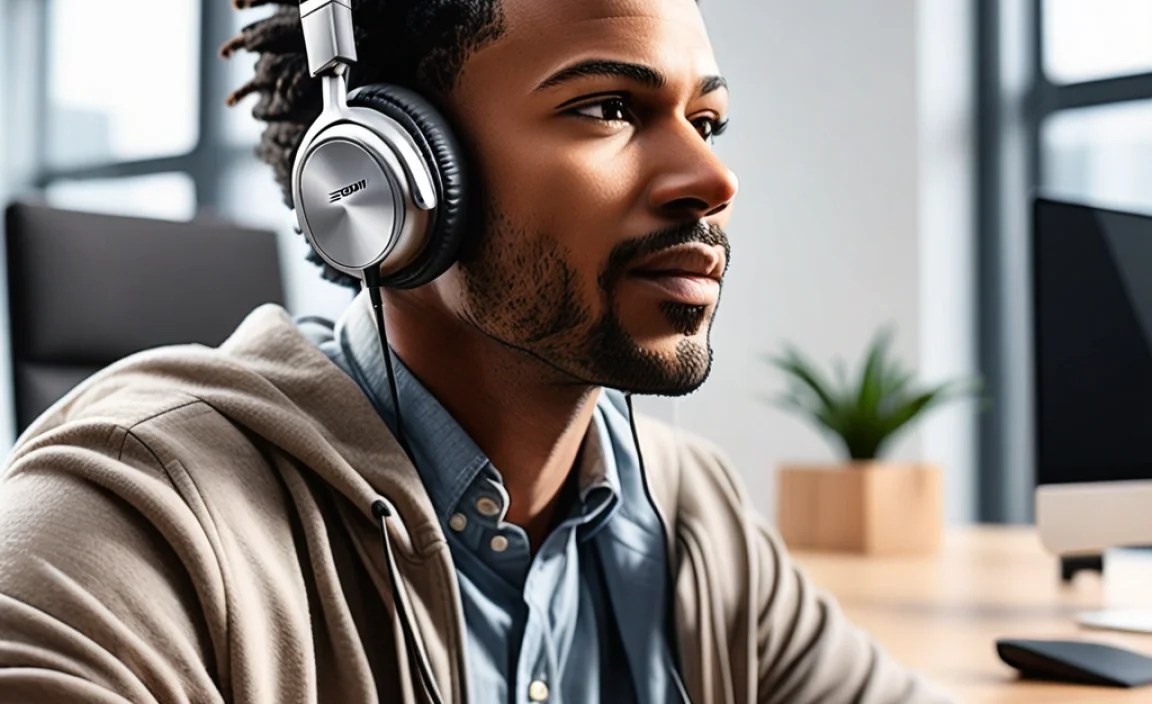
Hello everyone, Edward Cavitt here from headphonehorizon! In today’s world, video calls are as common as morning coffee. Whether you’re collaborating with colleagues, attending an online class, or catching up with family, clear communication is key. We’ve all been on a call where someone’s audio is choppy, garbled, or filled with distracting background sounds. It’s frustrating, right? This is where a simple piece of tech becomes a game-changer: good headphones for Zoom meetings. They aren’t just an accessory; they’re a proven essential for anyone who wants to be heard, understood, and sound their best in the virtual space. Let’s dive into why and how to pick the perfect pair!
The “Why”: More Than Just Listening

You might be thinking, “My laptop speakers and microphone are good enough, aren’t they?” While basic, they often fall short, especially in less-than-ideal environments. Here’s why dedicated headphones are a must for your Zoom calls:
1. Crystal-Clear Audio Input and Output
When you use your laptop’s built-in microphone, it often picks up more than just your voice. It can capture keyboard clicks, ambient room noise, and even the hum of your computer. Dedicated headphones, especially those with integrated microphones, are designed to isolate your voice and deliver a much cleaner audio signal. This means your colleagues or classmates will hear you distinctly, without struggling to decipher your words.
Think about the difference between shouting across a noisy room and having a one-on-one conversation in a quiet café. Headphones create that personal, quiet space for your voice. This directly impacts how effectively you can communicate and build rapport.
2. Eliminates Echo and Feedback Loops
This is a big one! When you use your speakers and a separate microphone (or even just your laptop’s mic and speakers), the sound from your speakers can be picked up by your microphone. This creates a feedback loop, resulting in that annoying echo or screeching noise that disrupts calls. Headphones prevent this by keeping the audio contained directly to your ears. This instantly makes your calls more professional and less disruptive for everyone involved.
According to accessibility guidelines, clear audio is crucial for effective communication. Tools that reduce background noise and echo, like headphones, are vital for inclusive and productive virtual interactions. You can explore best practices for accessible online meetings from resources like the World Wide Web Consortium (W3C), which emphasizes the importance of clear communication channels.
3. Enhances Your Focus and Reduces Distractions
A quiet environment is a focused environment. Headphones act as a personal sound bubble. They help block out distracting background noises from your surroundings – whether it’s traffic outside, family members moving about, or the TV in another room. This allows you to concentrate better on the conversation at hand, process information more effectively, and contribute more meaningfully to the discussion.
For students attending lectures or professionals in remote work settings, this enhanced focus can significantly boost learning and productivity. It transforms your workspace into a more controlled and conducive environment for concentration.
4. Improves Professionalism and Presentation
Sound quality speaks volumes about your professionalism. When you use good headphones for Zoom meetings, you project an image of preparedness and respect for everyone’s time. Clear audio demonstrates that you’ve taken steps to ensure seamless communication, making you appear more polished and engaged.
Consider the impression you make. A muffled voice or constant background chatter can make you seem less serious about the meeting. Conversely, crisp, clear audio signals that you’re attentive and professional, which can positively influence how your contributions are perceived.
5. Comfort During Extended Calls
Long meetings can be draining, and poor audio can add to the fatigue. Modern headphones are designed for comfort, allowing you to wear them for extended periods without discomfort. This is especially true for lightweight, over-ear or on-ear models. Having comfortable audio ensures you can stay engaged for the entire duration of your calls, rather than feeling physically strained.
Choosing the Right Headphones for Your Zoom Meetings

Now that we know why headphones are essential, let’s talk about how to pick the right ones. It doesn’t have to be complicated!
Types of Headphones to Consider
There are a few main types, each with its own benefits for virtual meetings:
- Over-Ear Headphones: These completely cover your ears. They offer excellent sound isolation, meaning they block out external noise well, and your voice won’t easily bleed out to be picked up by your mic. Many also come with built-in boom mics for optimal voice capture.
- On-Ear Headphones: These rest on your ears. They provide a balance between comfort and some noise isolation. They’re generally lighter than over-ear models.
- In-Ear Headphones (Earbuds): These fit inside your ear canal. They’re very portable and some models offer surprisingly good noise cancellation and clear microphone performance. Many come with inline microphones.
- Headsets: These are specifically designed for communication, typically featuring an integrated boom microphone. They can be over-ear, on-ear, or even single-ear designs.
Key Features to Look For
When shopping for headphones for Zoom meetings, keep these features in mind:
- a good microphone: This is paramount. Look for headphones with clear microphone pickup. Some have noise-canceling microphones that help filter out background sounds. Boom mics (the ones that extend in front of your face) are generally excellent for voice clarity.
- Comfort: If you spend hours in meetings, comfort is non-negotiable. Padded earcups, adjustable headbands, and lightweight designs make a huge difference.
- Connectivity: Most people prefer wireless (Bluetooth) for freedom of movement, but wired options offer plug-and-play simplicity and often no latency issues. Ensure compatibility with your computer (USB-A, USB-C, 3.5mm jack, Bluetooth).
- Noise Isolation/Cancellation: This feature helps block out ambient noise, allowing you to focus and ensuring others don’t hear your surroundings. Active Noise Cancellation (ANC) is more advanced but can be a game-changer.
- Durability: You want headphones that can withstand daily use, so look for sturdy construction.
Connectivity Options Explained
How your headphones connect to your computer matters:
- 3.5mm Audio Jack: The classic single plug for both audio and microphone. Simple and widely compatible with older laptops and desktops.
- USB-A/USB-C: Connects directly to your computer’s USB port. Often provides better audio quality and power for features like ANC. Some have a dedicated inline remote for call controls.
- Bluetooth: Wireless connection offering the most freedom. Make sure your computer supports Bluetooth or you have a Bluetooth adapter. Latency (a slight delay) can sometimes be an issue, but it’s usually minimal for calls.
- Wireless Dongle (Proprietary): Many wireless headsets come with a USB dongle that creates a dedicated connection, often offering better stability and lower latency than standard Bluetooth.
Quick Comparison Table: Types of Headphones for Calls
Here’s a quick look at how different types stack up for your Zoom needs:
| Headphone Type | Best For | Pros for Zoom | Cons for Zoom |
|---|---|---|---|
| Over-Ear Headphones | Home offices, focused work | Excellent noise isolation, comfortable for long wear, often have quality mics | Can be bulky, might get warm |
| On-Ear Headphones | Balanced use, portability | Good comfort, less ear fatigue than over-ear for some, decent audio | Less noise isolation than over-ear, sound can leak |
| In-Ear Headphones (Earbuds) | On-the-go, minimal setup | Highly portable, discreet, some offer ANC and good mics | Can be uncomfortable for long periods, mic quality varies greatly, easy to misplace |
| Dedicated Headsets | Frequent callers, call centers, clear voice focus | Optimized for voice, often with boom mics, call controls | Can look less casual, comfort varies by model |
Setting Up Your Headphones for Optimal Performance

You’ve got your new headphones for Zoom meetings. Now, let’s make sure they work their best!
Step 1: Connect Your Headphones
This is usually straightforward:
- Wired (3.5mm/USB): Plug them directly into the appropriate port on your computer.
- Wireless (Bluetooth):
- Turn on your headphones and put them in pairing mode (check the manual for how).
- On your computer, go to Bluetooth settings and select “Add Bluetooth or other device.”
- Choose your headphones from the list of available devices.
- Follow any on-screen prompts to complete pairing.
- Wireless Dongle: Plug the USB dongle into your computer. The headphones usually connect automatically.
Step 2: Configure Audio Settings in Zoom
This is where you tell Zoom to use your headphones:
- Open the Zoom desktop client.
- Click on your profile picture or initials in the top right corner, then select “Settings.”
- Go to the “Audio” tab.
- Under “Speaker,” select your headphones from the dropdown menu.
- Under “Microphone,” select your headphones’ microphone.
Tip: Zoom has a handy “Test Speaker” and “Test Mic” button. Use them! You can also select “Automatically adjust microphone volume” to let Zoom manage gain levels, which often improves consistency.
Step 3: Test Your Audio
Before your next important meeting, do a quick test:
- Go back to Zoom’s Audio Settings.
- Click “Test Speaker” and listen for the sound.
- Click “Test Mic.” Speak normally, and you should hear a playback of your voice.
- If possible, join a test meeting with a colleague or use Zoom’s Test Meeting feature. This will give you the most accurate indication of how you sound to others. Pay attention to any echo, background noise, or volume inconsistencies.
Troubleshooting Common Issues
Even with the best gear, occasional hiccups can occur. Here are solutions for common problems:
Problem: No Sound from Headphones
- Check Volume: Ensure the volume on your headphones (if they have controls) and on your computer is turned up.
- Check Connections: Make sure the plug is fully inserted or the Bluetooth connection is active.
- Check Zoom Settings: Double-check that your headphones are selected as the speaker in Zoom’s audio settings.
- Check Computer Sound Settings: Ensure your computer’s primary audio output is set to your headphones.
- Restart: Sometimes, simply restarting your computer or Zoom client can resolve temporary glitches.
Problem: Microphone Not Working
- Check Mute: Ensure the microphone isn’t muted either on the headphones, the Zoom app, or your computer’s system settings.
- Check Zoom Settings: Verify your headphones’ microphone is selected in Zoom’s audio settings.
- Grant Permissions: On Windows or macOS, ensure Zoom has permission to access your microphone. You can usually find this in your system’s privacy settings.
- Restart: Try restarting Zoom or your computer.
Problem: Echo or Feedback
- Use Headphones: This is the primary solution! Ensure you’re using headphones and not speakers.
- Lower Microphone Volume: If you still experience echo, try slightly lowering the microphone volume in your Zoom settings or your computer’s sound control panel.
- Move Microphone: If using your laptop’s mic, try moving it away from the speakers. This is less of an issue with headphones.
Problem: Background Noise is Too Loud
- Noise-Canceling Headphones: Invest in a pair with good noise isolation or Active Noise Cancellation (ANC).
- Adjust Mic Settings: In Zoom, there’s an “Suppress background noise” setting. Try setting it to “Low,” “Medium,” or “High” to see what works best without affecting your voice quality.
- Quiet Environment: If possible, take calls in the quietest room available.
- Boom Mic: Boom microphones are often better at isolating your voice from background noise than tiny, in-line mics on earbuds.
For more in-depth troubleshooting and understanding of audio principles, resources from organizations like the International Telecommunication Union (ITU) offer insights into audio signal quality and transmission standards.
Popular Headphone Options for Zoom Meetings (with Budgets in Mind)

To give you a starting point, here are a few types of headphones that are often praised for their suitability for virtual communication. Prices can vary, but this gives you an idea of what to look for across different budgets.
Budget-Friendly Picks (Under $50)
These are great starting points if you’re new to using dedicated headphones for calls.
- Logitech H151 Stereo Headset: A dependable, no-frills option with a comfortable design and a decent rotating boom microphone. Connects via a 3.5mm jack.
- Microsoft LifeChat LX-3000: USB-connected headset with good microphone clarity and comfortable earcups, designed with collaboration in mind.
Mid-Range Champions ($50 – $150)
You’ll find better build quality, more comfort, and improved audio features here.
- Jabra Evolve 30 II: A popular professional headset series known for excellent microphone quality and comfort. Available in both USB and 3.5mm versions.
- Sennheiser PC 8 USB: Sennheiser quality at a more accessible price. Features a lightweight design and a clear noise-canceling microphone.
- Anker Soundcore Life Q20: While primarily marketed for music, these over-ear headphones offer good comfort, surprisingly effective ANC for the price, and a decent microphone for casual calls if you’re on a budget and want good audio quality too. (Note: Microphone quality is secondary to its music focus when compared to dedicated headsets).
Premium Performance ($150+)
These offer top-tier comfort, advanced noise cancellation, and superior microphone technology for the most demanding users.
- Sony WH-1000XM series (e.g., XM4, XM5): Renowned for industry-leading Active Noise Cancellation and excellent audio. The microphone quality is very good for calls, though not always a boom mic. Great if you also want fantastic music listening.
- Bose QuietComfort series (e.g., QC45): Similar to Sony, these offer superb ANC and comfort. The microphones are generally well-regarded for call clarity.
- Poly (formerly Plantronics) Voyager Focus UC: A premium wireless Bluetooth headset designed specifically for professionals. Offers exceptional comfort, great audio, and advanced noise-canceling mics built for clear communication.
Remember to check out reputable review sites like Rtings.com for detailed comparisons and testing of audio gear.
Frequently Asked Questions About Headphones for Zoom
Q1: Do I really need separate headphones for Zoom, or can I use my phone earbuds?
While phone earbuds with an inline microphone can be a step up from laptop speakers, dedicated computer headphones or headsets often provide superior microphone clarity and comfort for longer calls. They are designed to manage echo and background noise more effectively. If your earbuds are comfortable and have a clear mic, they’re a good start, but upgrading can make a noticeable difference.
Q2: What’s the difference between noise isolation and noise cancellation?
Noise isolation works passively by physically blocking sound from entering your ears
