
Quick Summary: Discover the best hearing impaired headphones for TV! This guide breaks down simple, effective solutions to boost TV audio clarity and volume, making every watch enjoyable. We cover types of headphones, connection methods, and key features to look for, helping you find the perfect fit without tech overload.
Hearing Impaired Headphones for TV: Genius Solutions for Clearer Sound
Welcome to headphonehorizon! If you’re finding it a struggle to keep up with your favorite TV shows or movies due to hearing challenges, you’re not alone. The world of sound can sometimes feel a little muffled, but thankfully, there are fantastic headphone solutions designed specifically to make TV audio crystal clear. These aren’t just about turning up the volume; they’re about enhancing speech, reducing background noise, and delivering an immersive viewing experience right to your ears. Let’s explore some genius ways to reclaim your TV time with audio that’s perfectly tuned for you!
Why Dedicated TV Headphones Make a Difference
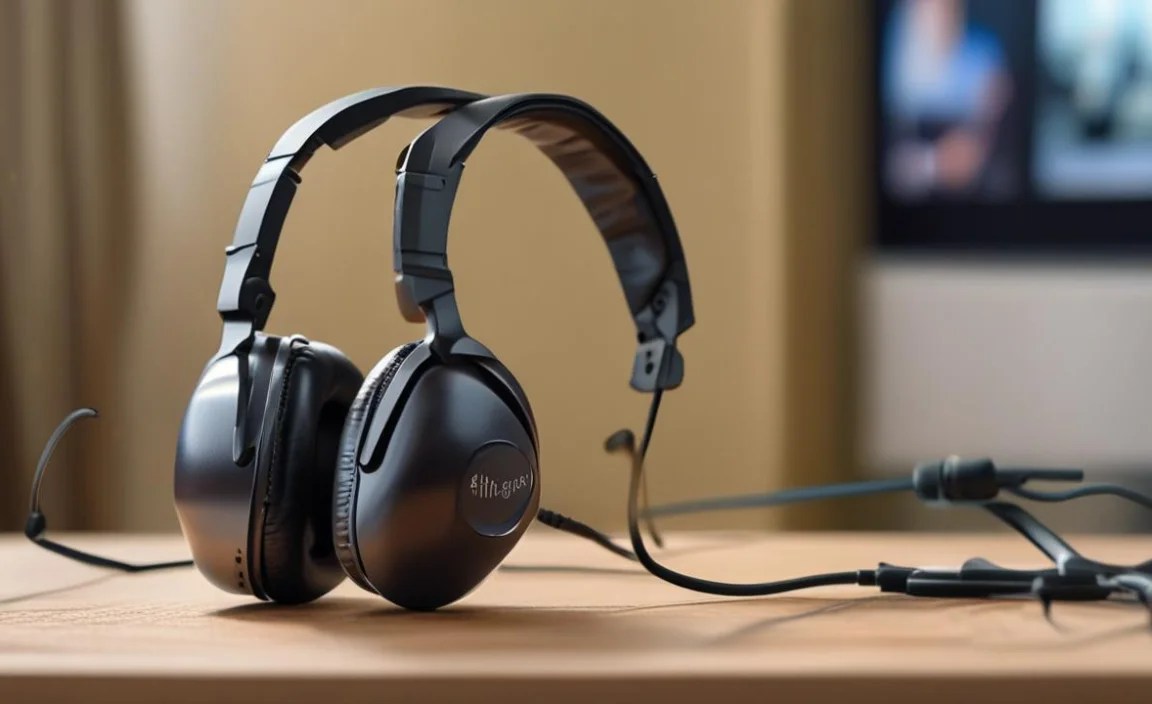
Regular headphones can help, but dedicated hearing impaired headphones for TV are designed with your specific needs in mind. They often offer features that go beyond simple amplification, focusing on intelligibility and comfort. Think about it: TV sound mixes music, sound effects, and dialogue, often all at once. For those with hearing loss, isolating and understanding the dialogue can be the biggest hurdle. These specialized headphones tackle this head-on by:
- Boosting Dialogue Clarity: Many models emphasize frequencies where human speech resides, making voices stand out.
- Reducing Background Noise: Some systems actively filter out distracting ambient sounds or game explosions, so you can focus on what’s being said.
- Offering Independent Volume Control: You get to set your personal volume without affecting anyone else in the room.
- Providing a Direct Audio Feed: This bypasses your TV’s internal speakers and any potential audio processing delays, giving you a cleaner, more immediate sound.
According to the Centers for Disease Control and Prevention (CDC), approximately 40 million American adults have some degree of hearing loss. This means the need for accessible audio solutions is significant, and thankfully, technology is rising to meet it. The goal is simple: to enjoy your entertainment without frustration.
Understanding the Types of Hearing Impaired Headphones for TV

When looking for hearing impaired headphones for TV, you’ll encounter a few main types, each with its own advantages:
1. Wireless RF (Radio Frequency) Headphones
These are incredibly popular for TV use. They consist of two main parts: the headphones themselves and a wireless transmitter base. The transmitter connects to your TV (or audio system) and broadcasts the audio signal wirelessly to the headphones. This offers you the freedom to move around your room without losing the connection.
- How they work: The transmitter plugs into your TV’s audio output (usually headphone jack, RCA, or optical port). It then sends an RF signal that the special receiver in the headphones picks up.
- Pros: Excellent range, works through walls, often come with voice enhancement and adjustable EQ settings, no pairing issues once set up.
- Cons: Can sometimes pick up interference from other wireless devices, transmitter needs to be near the TV, require charging or battery replacement.
2. Bluetooth Headphones
Bluetooth technology is ubiquitous, and it’s also a great option for TV audio. You can connect Bluetooth headphones directly to a TV that has built-in Bluetooth, or use a separate Bluetooth transmitter if your TV doesn’t. They offer convenience and a wire-free experience.
- How they work: Either directly paired with a Bluetooth-enabled TV or via a Bluetooth transmitter plugged into the TV’s audio output.
- Pros: Very common, often more portable, can be used with other Bluetooth devices (phones, tablets), some newer TVs have low-latency Bluetooth which reduces audio delay.
- Cons: Range can be shorter than RF, potential for audio lag (latency) on older setups, direct pairing can sometimes be finicky.
3. Wired Headphones
The simplest solution, wired headphones connect directly to your TV’s headphone jack. While less convenient due to the wire, they offer a direct, high-quality audio signal with no potential for wireless interference or latency.
- How they work: A cable runs from the headphones directly into the TV’s headphone port.
- Pros: No interference, no latency, generally more affordable, no batteries or charging needed for the headphones.
- Cons: The wire can be restrictive and a tripping hazard, can’t move far from the TV.
4. Amplifying TV Listeners/Soundbars
These aren’t headphones in the traditional sense, but they serve a similar purpose by amplifying TV sound. They often sit near you or on a coffee table and broadcast amplified sound directly to you, sometimes with optional earbuds or connecting to personal headphones.
- How they work: They capture the TV’s audio and broadcast it at a higher, clearer volume, often with specialized amplification for voice.
- Pros: Can be easier to manage than headphones for some, allows others to hear at their normal volume while you get a clear signal, some models are wireless.
- Cons: May not offer the same level of personalized clarity as dedicated headphones, can affect the room’s overall soundscape.
Key Features to Look For in Hearing Impaired Headphones for TV

When you’re shopping around, keep an eye out for these features that will make a big difference:
| Feature | Why It’s Important | Look For |
|---|---|---|
| Voice Clarity Enhancement | Makes dialogue easier to understand by boosting specific frequencies. | “Voice clarity,” “Speech enhancement,” “Clear dialogue” settings. |
| Adjustable Volume Control | Allows you to set your desired listening level without affecting others. | Large, easy-to-use dial or buttons on headphones or transmitter. |
| Adjustable Tone/EQ Controls | Lets you fine-tune the sound to your specific hearing needs. | Bass/Treble controls, programmable EQ presets. |
| Low Latency | Crucial for wireless headphones to ensure lip-sync. | Look for “low latency,” “digital RF,” or mention of minimal delay. |
| Comfort and Fit | You’ll be wearing them for extended periods. | Padded earcups, adjustable headband, lightweight design, over-ear for passive noise isolation. |
| Battery Life & Charging Options | Ensures you won’t miss a moment of your show. | Long battery life (8-12+ hours), easy charging (docking station or USB), optional rechargeable batteries. |
| Connectivity Options | Ensures compatibility with your TV. | Optical (Toslink), RCA, 3.5mm headphone jack support. |
Step-by-Step Guide: Setting Up Your TV Headphones

Getting your new headphones hooked up is usually straightforward. Here’s a general guide, but always check your product’s specific manual!
Step 1: Choose Your Connection Type
This depends on your TV and the headphones you’ve purchased. Common connections include:
- 3.5mm Headphone Jack: The most basic. Usually a small round port labeled with a headphone icon.
- RCA Audio Output: Two color-coded jacks (red and white) typically found on the back or side of older TVs.
- Optical Audio Output (Toslink/S/PDIF): A small, often square port with a red light inside. This is a digital connection and is preferred by many for clarity.
- HDMI ARC (Audio Return Channel): A more advanced connection, usually on newer TVs, that sends audio back through an HDMI cable. Not all transmitters support this directly.
Step 2: Connect the Transmitter (for Wireless RF/Bluetooth)
If you have wireless headphones, this is your first physical connection.
- Locate the audio output ports on your TV.
- Find the corresponding cable for your chosen connection type (e.g., 3.5mm to 3.5mm, RCA to 3.5mm, Optical cable). Cables are often included with the headphones.
- Plug one end of the cable into your TV’s audio output port.
- Plug the other end into the designated input port on your wireless transmitter base.
Pro Tip: If you have multiple options, the optical digital connection is often recommended for the best sound quality, free from interference.
Step 3: Configure Your TV’s Audio Settings
This is a crucial step to ensure the sound goes where you want it.
- Turn on your TV.
- Navigate to your TV’s ‘Settings’ or ‘Menu’.
- Look for ‘Sound,’ ‘Audio,’ or ‘Speaker’ settings.
- Find the ‘Audio Output’ or ‘Speaker Selection’ option.
- Select the output you connected the transmitter to. For example, if you used the optical port, select ‘External Speakers,’ ‘Optical Out,’ or ‘Audio Out.’ If you used the headphone jack, select ‘Headphone’ or ‘External Audio Device.’
- You may need to disable the TV’s internal speakers.
- Some TVs have a setting for ‘Digital Audio Output Format.’ Often, ‘PCM’ is the most compatible, but you might experiment with ‘Dolby Digital’ if your headphones support it and you notice issues.
Important Note on Bluetooth Latency: If you’re using Bluetooth and experience a delay between the picture and sound (lip-sync issues), check your TV’s Bluetooth settings. Many newer TVs have a “Bluetooth Audio Delay” or “Lip Sync Adjustment” setting that you can manually tweak. Some Bluetooth transmitters also offer adjustable latency settings.
Step 4: Power On and Pair Your Headphones
Now it’s time to bring your headphones to life.
- Ensure the transmitter is powered on (it might plug into a wall outlet or a USB port on the TV).
- Turn on your wireless headphones.
- For RF headphones: They should automatically connect to the transmitter. You might see an indicator light on both.
- For Bluetooth headphones: You’ll need to pair them.
- Put your headphones into pairing mode (consult your manual – usually by pressing and holding a button).
- On your TV (or Bluetooth transmitter), go to Bluetooth settings and scan for devices.
- Select your headphones from the list when they appear.
- You may be prompted to confirm a pairing code (often 0000 or 1234).
Step 5: Adjust Volume and Tone Settings
Once connected, it’s time to personalize your listening experience.
- Start with the volume on both your TV (if applicable) and headphones at a low level, then gradually increase.
- Use the volume controls on your headphones or transmitter to set a comfortable listening level.
- Experiment with any voice enhancement or tone controls available on your headphones. Small adjustments can make a big difference in clarity.
- Listen to a scene with clear dialogue and one with more action to fine-tune your settings.
Connecting Wired Headphones
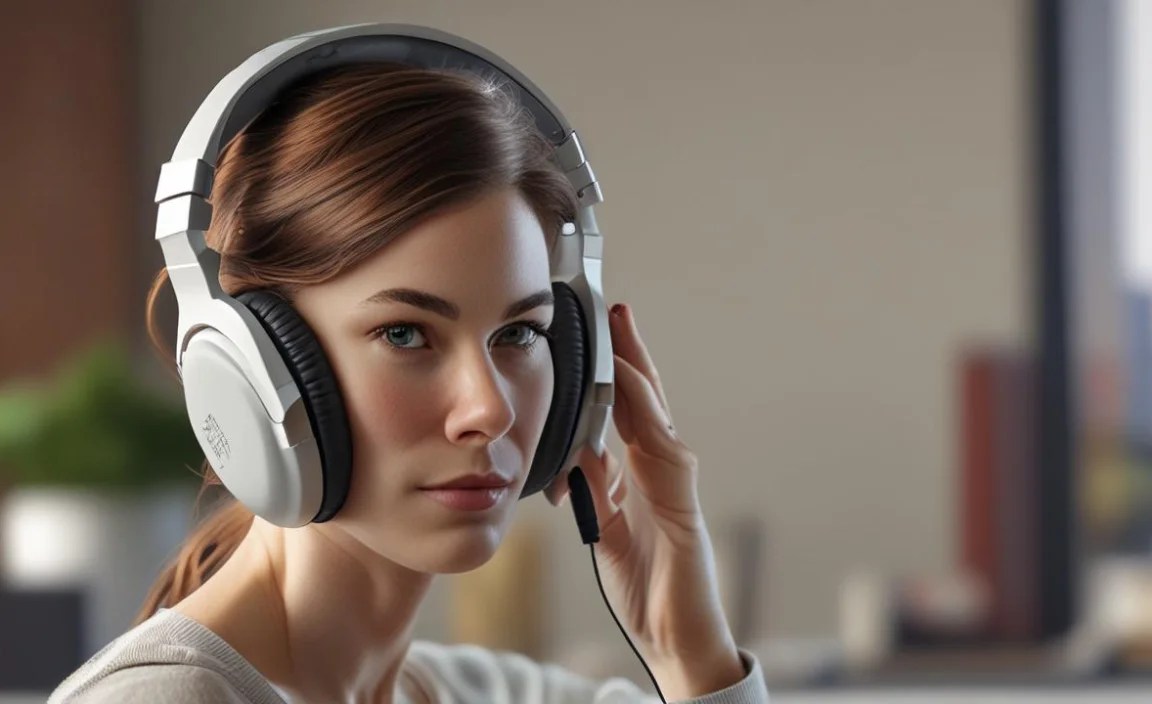
This is the most straightforward setup!
- Locate the headphone jack on your TV (usually a 3.5mm port).
- Plug the audio cable from your wired headphones directly into this port.
- If your TV has a dedicated volume control for the headphone jack, adjust it to a comfortable level.
- If your TV’s headphone jack volume is limited, you might consider using an external headphone amplifier that plugs into the TV and then into your headphones, offering more volume control.
Troubleshooting Common Issues
Even the best tech can hit a snag. Here are some common problems and their solutions:
- No Sound:
- Check all cable connections are secure.
- Ensure the TV’s correct audio output is selected in settings.
- Make sure the headphones are powered on and charged.
- Verify the headphones are properly paired (for Bluetooth).
- Turn up the volume on both the TV (if applicable) and the headphones.
- For wireless systems, ensure the transmitter and headphones are within range.
- Audio Lag/Lip Sync Issues (Wireless):
- Prioritize low-latency headphones or transmitters.
- If using Bluetooth, check for manual lip-sync adjustment settings on your TV.
- Try switching your TV’s digital audio output format (PCM or Dolby Digital).
- Reduce the distance between the transmitter and headphones.
- Distorted or Crackling Sound:
- This can be due to interference. For RF, try repositioning the transmitter away from other wireless devices (routers, microwaves).
- For Bluetooth, ensure you’re within range and that there are no obstructions.
- Check if your TV volume is too high, causing distortion before it even reaches the headphones.
- Consider a different audio output on your TV (e.g., optical might be cleaner than analog).
- Low Volume Even When Maxed Out:
- Check TV volume settings – ensure it’s not set too low for the audio output selected.
- Look for volume limits on your headphones or transmitter.
- If using wired headphones and the TV’s headphone jack has low output, consider an in-line amplifier or headphones with their own amplification.
When to Consider Special Features
Some users benefit greatly from advanced features:
- Tinnitus Masking: Some systems include features that play a gentle, soothing sound to help mask tinnitus while you watch.
- Multiple Audio Presets: For households with different levels of hearing loss, having presets that can be saved and quickly recalled is a lifesaver.
- Companion Apps: Newer Bluetooth headphones might offer app control for detailed EQ adjustments and settings management from your smartphone.
A Note on Hearing Health
While these headphones are designed to help you hear better, it’s always a good idea to maintain your hearing health. If you experience sudden changes in your hearing, or if your hearing loss significantly impacts your daily life, consulting a healthcare professional or an audiologist is recommended. You can find resources and information from organizations like the National Institute on Deafness and Other Communication Disorders (NIDCD), part of the U.S. National Institutes of Health: https://www.nidcd.nih.gov/health/hearing-loss-statistics-causes.
Frequently Asked Questions (FAQ)
Q1: Can I use my regular noise-canceling headphones for TV?
Yes, you absolutely can! If your TV has a headphone jack or Bluetooth, you can connect your existing headphones. However, specialized hearing impaired headphones for TV are often designed to specifically enhance dialogue and offer more customizable volume and tone controls that regular headphones might lack.
Q2: How do I know if my TV has a headphone jack or Bluetooth?
Look on the back, side, or front panel of your TV. A headphone jack is usually a small circular port with a headphone icon. For Bluetooth, you’ll typically find this option within your TV’s ‘Settings’ menu, often under ‘Network,’ ‘Connections,’ or ‘Sound.’ If your TV doesn’t have built-in Bluetooth, a separate Bluetooth transmitter can be added.
Q3: Will wireless TV headphones work if I move to another room?
It depends on the type of wireless technology. RF (Radio Frequency) headphones generally offer the best range and can often transmit through walls and floors for a considerable distance (sometimes up to 100 feet or more). Bluetooth headphones typically have a shorter range, usually around 30 feet, and are more susceptible to signal interruption by obstacles.
Q4: What is “latency” and why is it important for TV headphones?
Latency refers to the delay between when the sound is produced by the TV and when you actually hear it through wireless headphones. For TV and movies, this delay can cause the audio to be out of sync with what’s happening on screen, which is known as “lip-sync issues.” Low-latency headphones or transmitters are designed to minimize this delay so the audio and video stay perfectly aligned.
Q5: Are these headphones comfortable for long listening sessions?
Most manufacturers of hearing impaired headphones for TV understand that comfort is key. Look for models with plush, over-ear earcups that create a seal around your ears
