
Quick Summary: Navigating your iPhone’s headphone connection is straightforward. This guide explains the evolution from the traditional headphone jack to modern Lightning and wireless solutions, helping you choose the right adapter or accessory for seamless audio on your iPhone.
Hello audiophiles and everyday listeners alike! Edward Cavitt here from headphonehorizon. If you’ve ever reached for your favorite headphones only to realize your iPhone doesn’t have the familiar port, you’re not alone. Apple’s journey with iPhone headphone connectors has been a significant shift, moving from the universal 3.5mm audio jack to the proprietary Lightning port and embracing wireless audio. But don’t worry! Understanding these changes is simpler than you think, and with this guide, you’ll be able to connect your headphones and enjoy your music, podcasts, or calls without a hitch. Let’s demystify the iPhone connector for headphones and get you connected.
The Evolution of iPhone Headphone Connectors

For years, the 3.5mm headphone jack was the undisputed king of audio connections for portable devices, including the iPhone. It was ubiquitous, allowing users to plug in virtually any pair of headphones. However, with the introduction of the iPhone 7 in 2016, Apple made a bold move by removing the traditional headphone jack altogether, citing reasons like creating more space for internal components and encouraging the adoption of wireless audio. This decision, while controversial at first, has reshaped the landscape of how we connect headphones to our iPhones.
From 3.5mm Jack to Lightning: A Generational Shift
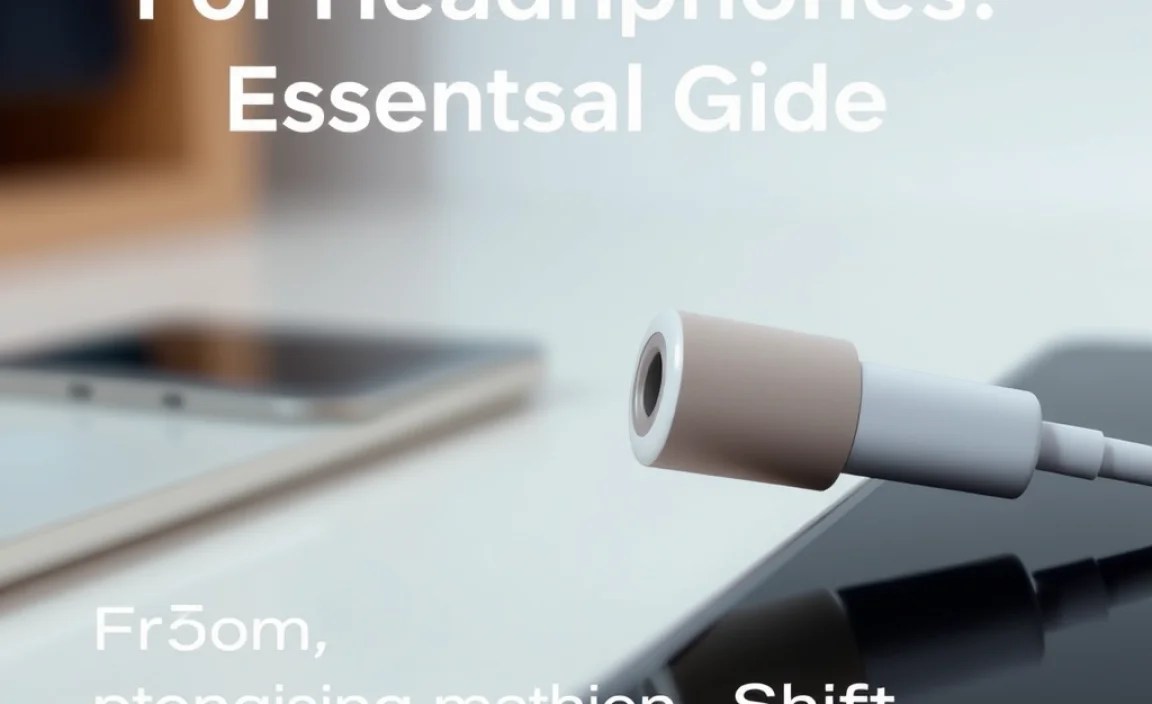
The removal of the 3.5mm jack meant that users of newer iPhone models would need an alternative way to connect their wired headphones. This led to two primary solutions: adapters and headphones with direct Lightning connectors.
The 3.5mm Headphone Jack (Pre-iPhone 7)
Before the iPhone 7, virtually all iPhones featured a standard 3.5mm audio port. This was a universal standard, meaning most headphones, earbuds, and audio accessories designed for other devices would work seamlessly with your iPhone.
Pros of the 3.5mm Jack:
- Universality: Works with almost any traditional headphones.
- Simplicity: Plug and play, no additional hardware needed.
- No Battery Dependency: Doesn’t require power to function (unlike some wireless options).
- No Audio Degradation: Direct analog signal transmission.
Cons of the 3.5mm Jack:
- Takes up Space: Requires a dedicated port on the phone, which Apple decided to repurpose.
- Limited Functionality: Typically only carries audio, not charging or data simultaneously.
The Lightning Connector (iPhone 7 and later)
Apple’s proprietary Lightning connector, introduced with the iPhone 5, became the primary port for charging and data transfer on newer iPhones. Apple creatively leveraged this port for audio output on models without a headphone jack.
How Lightning Handles Audio:
For audio to be transmitted through the Lightning port, one of two things needs to happen:
- Lightning Headphones: These headphones have a Lightning connector that plugs directly into your iPhone. They often have a built-in digital-to-analog converter (DAC) and amplifier, allowing for high-quality audio.
- Lightning to 3.5mm Headphone Jack Adapter: This small dongle plugs into your iPhone’s Lightning port and provides a standard 3.5mm female jack where you can plug in your existing wired headphones.
Pros of the Lightning Connector for Audio:
- Digital Audio Quality: Can deliver higher fidelity audio because the signal is digital until it reaches the headphones’ DAC.
- Versatility: Can support audio, charging, and sometimes data transfer simultaneously with specific accessories (like Apple’s own adapter).
- More Internal Space: Allowed Apple to design thinner iPhones or fit in more technology.
Cons of the Lightning Connector for Audio:
- Proprietary: Requires Apple-certified accessories (MFi Certified).
- Adapter Needed for Old Headphones: You’ll need the adapter for your 3.5mm headphones.
- Can’t Charge and Listen Simultaneously (without an adapter with a charging port): If you’re using a simple adapter, you can’t charge your iPhone and listen to music at the same time.
Connecting Your Headphones: Options and How-To
Now that we understand the evolution, let’s get down to how you can actually connect your headphones to your iPhone. Your choice will largely depend on the iPhone model you have and the type of headphones you want to use.
Option 1: Using a Lightning to 3.5mm Headphone Jack Adapter

This is the most common solution for users who have a collection of traditional 3.5mm wired headphones and an iPhone that lacks a headphone jack (iPhone 7 and later). Apple’s official adapter is known as the Lightning to 3.5mm Headphone Jack Adapter. Many third-party manufacturers also produce MFi (Made for iPhone) certified adapters.
How to Use the Adapter:
- Ensure Your iPhone is Unlocked: Your iPhone needs to be unlocked for the adapter to be recognized.
- Plug the Adapter into Your iPhone: Insert the Lightning end of the adapter firmly into your iPhone’s Lightning port.
- Plug Your Headphones into the Adapter: Connect the 3.5mm plug of your headphones into the female jack on the adapter.
- Enjoy Your Audio: Your iPhone should automatically detect the headphones and route audio through them.
When to Choose This Option:
- You own high-quality 3.5mm wired headphones you love.
- You don’t want to invest in new wireless or Lightning-specific headphones.
- Portability and simplicity are key.
Buying an Adapter: What to Look For
When purchasing a Lightning to 3.5mm adapter, always look for the MFi (Made for iPhone) certification. This ensures that the adapter has been tested and approved by Apple to work with iPhones and meets their safety and performance standards. Non-MFi adapters can sometimes cause issues like poor sound quality, connectivity problems, or even damage your device.
You can find more information on MFi certification on Apple’s official developer website or by looking for the MFi logo on product packaging.
Some adapters offer an additional Lightning port, allowing you to charge your iPhone while listening to music. This is a very convenient feature for long listening sessions or travel.
Option 2: Using Headphones with a Built-in Lightning Connector
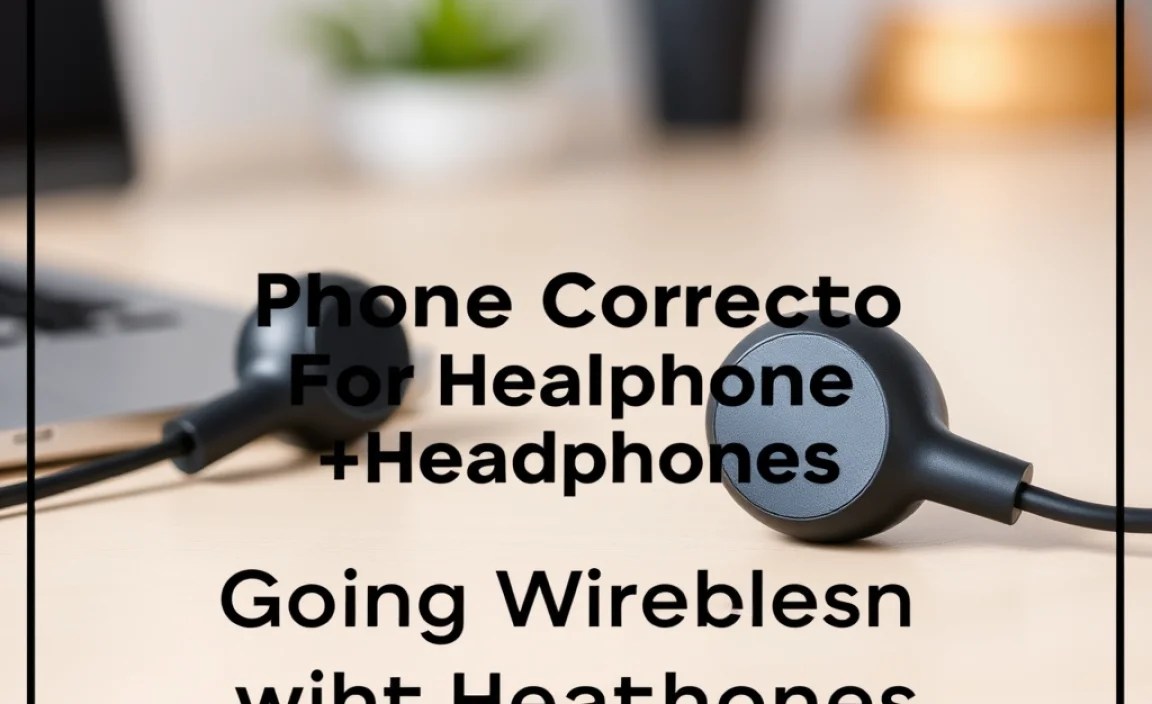
These headphones plug directly into your iPhone’s Lightning port, bypassing the need for an adapter. Apple’s own EarPods with Lightning Connector are a prime example. Many other audio brands also offer Lightning-equipped headphones.
How to Use Lightning Headphones:
- Plug Directly into Your iPhone: Connect the Lightning plug of the headphones directly into your iPhone’s Lightning port.
- Enjoy Your Audio: Your iPhone will instantly recognize the headphones.
When to Choose This Option:
- You want the highest possible digital audio quality from wired headphones on your iPhone.
- You’re looking for a streamlined setup without a separate adapter.
- You want headphones that can potentially offer advanced features like noise cancellation directly through the Lightning connection.
Benefits of Lightning Headphones
Headphones with Lightning connectors can leverage the digital audio capabilities of the iPhone more directly. This means the digital-to-analog conversion (DAC) happens within the headphones themselves, often using high-quality components included by the manufacturer. This can result in clearer, more detailed sound compared to analog audio passed through an adapter, where the iPhone’s internal DAC is used.
Option 3: Going Wireless with Bluetooth Headphones
The removal of the headphone jack also accelerated the trend towards wireless audio. Bluetooth headphones and earbuds are now incredibly popular and offer the ultimate freedom from cables.
How to Connect Bluetooth Headphones:
- Turn On Your Bluetooth Headphones: Make sure your headphones are charged and in pairing mode. Consult your headphone’s manual for instructions on how to activate pairing mode (often involves holding down a power or Bluetooth button).
- Open iPhone Settings: Go to the Settings app on your iPhone.
- Tap on “Bluetooth”: Find and tap the Bluetooth option.
- Turn Bluetooth On: Ensure the Bluetooth toggle is switched to the ON position (it will be green).
- Wait for Your Headphones to Appear: Your iPhone will scan for available Bluetooth devices. Your headphones should appear in the list under “Other Devices.”
- Tap on Your Headphones to Pair: Select your headphones from the list. They might prompt you for a PIN code (often ‘0000’ or ‘1234’ for older devices, but typically not needed for modern headphones).
- Confirm Pairing: Once successfully paired, your headphones will move to the “My Devices” list and show as “Connected.”
- Enjoy Wireless Audio: Your iPhone’s audio will now play through your Bluetooth headphones.
When to Choose This Option:
- You value freedom from wires.
- You want to listen to music and charge your iPhone simultaneously.
- You want to use accessories like smartwatches or fitness trackers that also use Bluetooth.
Key Considerations for Bluetooth Headphones:
- Battery Life: You need to ensure your headphones are charged.
- Audio Latency: For some activities like gaming or watching videos, there might be a slight delay between the video and audio. Newer Bluetooth codecs are significantly reducing this.
- Audio Quality: While Bluetooth audio quality has improved dramatically, some audiophiles still prefer the direct connection of wired headphones for critical listening. However, for most everyday listening, the quality is excellent.
- Discoverability: Learn how to put your specific model into pairing mode.
For more on Bluetooth technology and its impact on audio, you can explore resources from organizations like the Bluetooth SIG.
iPhone Models and Their Corresponding Headphone Connectors
Knowing which iPhone model you have can quickly tell you what headphone connection options are available to you. Here’s a quick rundown:
| iPhone Model | Primary Connector(s) for Audio | Notes |
|---|---|---|
| iPhone 14 Series (14, 14 Plus, 14 Pro, 14 Pro Max) | Lightning, Bluetooth | No 3.5mm jack. USB-C is used for charging and data. |
| iPhone 13 Series (13 mini, 13, 13 Pro, 13 Pro Max) | Lightning, Bluetooth | No 3.5mm jack. |
| iPhone 12 Series (12 mini, 12, 12 Pro, 12 Pro Max) | Lightning, Bluetooth | No 3.5mm jack. |
| iPhone 11 Series (11, 11 Pro, 11 Pro Max) | Lightning, Bluetooth | No 3.5mm jack. |
| iPhone SE (2nd generation, 2020) | Lightning, Bluetooth | No 3.5mm jack. |
| iPhone XR, XS, XS Max | Lightning, Bluetooth | No 3.5mm jack. |
| iPhone X | Lightning, Bluetooth | No 3.5mm jack. |
| iPhone 8, 8 Plus | Lightning, Bluetooth | No 3.5mm jack. |
| iPhone 7, 7 Plus | Lightning, Bluetooth | First iPhone model to remove the 3.5mm jack. Requires adapter or Lightning headphones. |
| iPhone 6s, 6s Plus and earlier (including iPhone SE 1st gen) | 3.5mm Audio Jack, Bluetooth | All these models feature the traditional 3.5mm headphone jack. |
As you can see, if you’re rocking an iPhone 7 or newer, you’ll be relying on the Lightning port for wired connections or embracing the wireless world of Bluetooth. If you have an older iPhone, you’re still in luck with that trusty 3.5mm jack!
Troubleshooting Common iPhone Headphone Connection Issues
Even with the best technology, sometimes things don’t work as expected. If you’re having trouble with your iPhone’s headphone connection, here are a few common issues and their solutions.
No Sound, or Intermittent Sound
Possible Cause: Loose connection, software glitch, or damaged headphones/adapter.
Solutions:
- Check Connections: Ensure the headphone plug is fully inserted into the adapter or iPhone, and the adapter is securely in the iPhone’s Lightning port.
- Restart Your iPhone: A simple restart can resolve many temporary software glitches.
- Try Different Headphones/Adapter: If possible, test with another set of headphones or a different adapter to determine if the issue is with your current accessory.
- Check MFi Certification: If using a third-party adapter, confirm it’s MFi certified.
- Inspect for Damage: Look for any visible damage to the headphone cable, plug, or the adapter itself.
Adapter Not Recognized
Possible Cause: Adapter not MFi certified, software issue, or physical obstruction.
Solutions:
- Ensure iPhone is Unlocked: The adapter will not work if the iPhone is locked.
- Update iOS: Make sure your iPhone is running the latest version of iOS. Apple often releases updates that improve compatibility. You can check for updates in Settings > General > Software Update.
- Clean the Lightning Port: Dust or debris in the iPhone’s Lightning port can prevent a proper connection. Gently clean it with a dry, soft brush or a can of compressed air. Be careful not to damage the pins.
- Try Another Adapter/Source: Test the adapter with another compatible iPhone or try a known working adapter.
Bluetooth Connection Problems
Possible Cause: Bluetooth is off, headphones are not in pairing mode, or a conflict with another device.
Solutions:
- Ensure Bluetooth is ON: Check your iPhone’s Settings > Bluetooth.
- Resync Headphones: Turn off Bluetooth on your iPhone. Turn your headphones off and on, and then put them back into pairing mode. Turn Bluetooth back on on your iPhone and try to find and pair them again.
- “Forget This Device”: Go to Settings > Bluetooth, tap the “i” icon next to your headphones, and select “Forget This Device.” Then, re-pair them from scratch.
- Check Distance: Ensure your headphones are within range (typically about 30 feet or 10 meters) of your iPhone.
- Check Battery: Make sure your Bluetooth headphones have sufficient battery charge.
For official troubleshooting steps directly from Apple, you can refer to their support pages, such as their guide on connecting a Bluetooth device.
Frequently Asked Questions (FAQ)
Q1: Can I use my old 3.5mm headphones with the latest iPhone?
A: Yes, you can! You will need a Lightning to 3.5mm Headphone Jack Adapter, which plugs into your iPhone’s Lightning port and provides a standard headphone jack for your existing headphones. Ensure it’s an MFi-certified adapter for best results.
Q2: Do Lightning headphones sound better than 3.5mm headphones with an adapter?
A: They can. Lightning headphones have their own digital-to-analog converter (DAC) and amplifier, which can be higher quality than the internal DAC in your iPhone (which is used by the adapter). This can lead to crisper, more detailed sound. However, excellent 3.5mm headphones paired with a good adapter can also sound fantastic.
Q3: Can I charge my iPhone and listen to music through headphones at the same time?
A: If you are using a simple Lightning to 3.5mm adapter, no, you cannot charge and listen simultaneously because the Lightning port is occupied.
