
Quick Summary: Enhance your PC audio experience with Logitech headphones. This guide helps you choose, connect, and get the most from your Logitech headphones for clear calls, immersive gaming, and better music listening. Learn essential setup and maintenance tips for reliable sound.
Hello everyone, Edward Cavitt here from Headphone Horizon! Ever feel like your PC’s audio is just… “there”? You’re missing out on sparkling call clarity, the thrilling roar of a game, or the subtle nuances in your favorite tunes. That’s where a great pair of headphones comes in, and for PC users, Logitech offers a fantastic range of options that are both reliable and budget-friendly. Think of your PC headphones as your personal sound portal – they can transform your daily digital interactions from ordinary to exceptional. We’re going to dive deep into why Logitech headphones are a smart choice for your computer and how to make sure you get the absolute best from them. Let’s get your sound life looking and sounding bright!
Why Logitech Headphones for Your PC?

When it comes to PC peripherals, Logitech has built a reputation for delivering quality and value. Their headphones are no exception. They strike a wonderful balance, offering features that enhance your listening experience without breaking the bank. This makes them an ideal choice for anyone who uses their PC for work, gaming, or simply enjoying media. Whether you’re on long video calls, diving into an epic gaming session, or just want to enjoy music with better definition, Logitech headphones can elevate that experience significantly.
Reliability and Durability
Logitech products are known for their robust build quality. Their headphones are designed to withstand daily use, whether that’s being tossed into a bag (gently, of course!) or simply sitting on your desk. This means you’re investing in gear that’s built to last, reducing the worry about frequent replacements.
Versatile Features for Different Needs
From simple plug-and-play USB headsets for crystal-clear voice calls to wireless options offering freedom of movement, Logitech caters to a wide spectrum of PC audio needs. Many models include features like adjustable microphones, comfortable earcups, and inline controls, adding to their practical appeal.
Affordability
One of Logitech’s strongest selling points is their commitment to affordability. You can find excellent Logitech headphones for your PC at various price points, making high-quality audio accessible to more people. This democratizes good sound, ensuring that beginners and budget-conscious users don’t have to compromise on essential audio performance.
Choosing the Right Logitech Headphones for Your PC
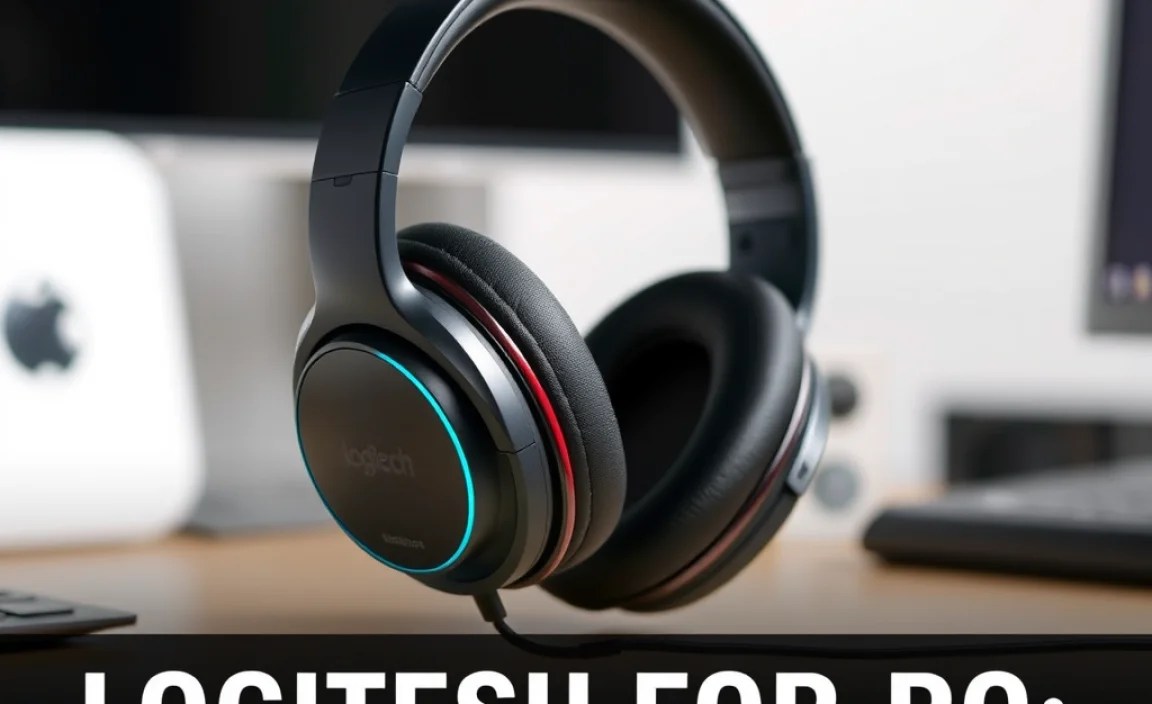
With several types of Logitech headphones available, picking the right one depends on how you’ll primarily use your PC. Let’s break down the common categories to help you find your perfect match.
Wired vs. Wireless
This is often one of the first decisions you’ll make. Each has its own set of advantages:
- Wired Headphones: Generally offer a more stable connection, no need for charging, and can sometimes provide superior audio quality at the same price point. They plug directly into your PC’s USB or audio jack.
- Wireless Headphones: Offer the freedom to move around without being tethered to your computer. They typically connect via Bluetooth or a USB dongle and require charging.
Over-Ear vs. On-Ear vs. In-Ear
The style of the earcup significantly impacts comfort and sound isolation:
- Over-Ear (Circumaural): Cups fully enclose your ears. These are typically the most comfortable for long sessions and offer the best passive noise isolation.
- On-Ear (Supra-aural): Cups rest on your ears. They are often more compact than over-ear designs but can sometimes cause discomfort after extended wear and offer less noise isolation.
- In-Ear (Earbuds): Fit directly into your ear canal. They are highly portable but can be less comfortable for some and offer minimal noise isolation unless they come with noise-canceling features.
Key Features to Consider
Beyond the basics, think about what specific features will enhance your PC experience:
- Microphone Quality: If you make a lot of calls or stream, a clear, noise-canceling microphone is crucial.
- Comfort and Fit: Look for adjustable headbands, padded earcups, and a lightweight design, especially if you’ll wear them for hours.
- Connectivity Options: USB connectors are common for PCs and often provide a more stable connection than traditional 3.5mm jacks. Bluetooth is convenient for wireless freedom.
- Volume and Mute Controls: Built-in controls on the cable or earcup are incredibly convenient.
- Durability: Check reviews for comments on build quality and materials.
Popular Logitech Headphone Models for PC

Logitech offers a wide array of headphones. Here are a few popular series and what they’re great for, to give you a starting point for your search:
1. Logitech H Series (e.g., H390, H151)
These are often budget-friendly, USB-connected headsets designed primarily for clear voice communication. They feature simple, comfortable designs and easy plug-and-play functionality, making them excellent for everyday office calls, online classes, and casual online chats.
Key Features:
- Lightweight and comfortable for extended wear.
- Noise-canceling microphone for clearer voice input.
- USB connectivity ensures simple setup with most PCs.
- Inline controls for volume and mute.
2. Logitech G Series (e.g., G Pro X, G435 LIGHTSPEED)
Targeted at gamers, the Logitech G series headphones often boast advanced audio technologies, superior comfort for long gaming marathons, and high-quality microphones. They are engineered for immersive soundscapes and precise audio cues essential for competitive gaming.
Key Features:
- DTS Headphone:X v2.0 surround sound for positional audio.
- PRO-G drivers for clear, accurate sound reproduction.
- Comfortable, breathable earcups.
- Detachable or flip-to-mute microphones with advanced noise reduction.
- Available in wired and LIGHTSPEED wireless options.
3. Logitech Zone Series (e.g., Zone Wireless, Zone Vibe 100)
These headsets are designed for the modern professional who navigates between work and life. They offer a blend of professional features like active noise cancellation (ANC) and seamless device switching with a more lifestyle-oriented design, making them stylish for both office and casual use.
Key Features:
- Active Noise Cancellation (ANC) to block distractions.
- Bluetooth connectivity with multi-device pairing.
- Comfortable, often stylish design.
- Clear microphones for professional calls.
- Long battery life.
Logitech Headphone Comparison Table (Simplified Example)
| Model Series | Primary Use Case | Connectivity | Key Strengths | Typical Price Range |
|---|---|---|---|---|
| H Series (e.g., H390) | Voice Calls, Online Classes | USB | Affordability, Comfort, Plug-and-Play | $ (Budget-Friendly) |
| G Series (e.g., G Pro X) | Gaming, Immersive Audio | USB, Wireless (LIGHTSPEED) | Surround Sound, High-Fidelity Audio, Gaming Features | $$ – $$$ (Mid-Range to Premium) |
| Zone Series (e.g., Zone Wireless) | Professional Calls, Hybrid Work | Bluetooth, USB Dongle | ANC, Multi-Device Connectivity, Comfort | $$ – $$$ (Mid-Range to Premium) |
Setting Up Your Logitech Headphones for the First Time
Getting your new Logitech headphones up and running is usually a breeze. The setup process might vary slightly depending on whether you’re using wired or wireless, USB or Bluetooth, but the general steps are straightforward. Let’s walk through it.
Step 1: Unboxing and Inspection
Carefully unbox your headphones. Check that all the components are present: the headphones themselves, any included cables (USB, 3.5mm audio jack), a wireless receiver/dongle if applicable, and any user manuals or warranty information. Inspect for any signs of physical damage that might have occurred during shipping.
Step 2: Connecting to Your PC
For Wired USB Headphones:
- Locate an available USB port on your PC.
- Simply plug the USB connector of your headphones into the port.
- Your PC should automatically detect the new hardware. You might see a notification indicating that drivers are being installed or that the device is ready.
For Wired 3.5mm Jack Headphones:
- Locate the audio input/microphone jacks on your PC. These are usually color-coded (green for audio out, pink for microphone in) or have headset symbols.
- Plug the headphone’s 3.5mm jack into the appropriate audio output port. If your headset has separate plugs for audio and mic, ensure they go into the correct ports.
For Wireless Headphones (USB Dongle):
- Locate a USB port on your PC.
- Plug the USB dongle into the port.
- The headphones should automatically pair with the dongle. If not, check the manual for pairing instructions (usually involves pressing a button on both the dongle and the headset).
For Wireless Headphones (Bluetooth):
- Ensure your headphones are in pairing mode (check your manual for how to activate this, often by holding down the power button).
- On your PC, go to “Settings” > “Devices” > “Bluetooth & other devices”.
- Turn on Bluetooth.
- Click “Add Bluetooth or other device”.
- Select “Bluetooth”.
- Your PC will scan for devices. Select your Logitech headphones from the list when they appear.
- Follow any on-screen prompts to complete the pairing.
Step 3: Configuring Audio Settings in Windows
Even after connecting, you might need to tell Windows to use your new headphones. Follow these steps:
- Right-click on the speaker icon in your system tray (usually in the bottom-right corner of your screen).
- Select “Open Sound settings” or “Playback devices”.
- Under the “Output” section, choose your Logitech headphones from the drop-down menu (e.g., “Logitech USB Headset,” “Headphones (Logitech G435)”).
- If you have a microphone, go to the “Input” section and select your Logitech headphones’ microphone from the list.
- Click “Device properties” to adjust volume levels or test your microphone.
For more advanced features, especially with Logitech G series gaming headsets, you may need to install Logitech’s G HUB software. You can download this from the official Logitech G website. G HUB allows for EQ adjustments, surround sound configuration, and microphone settings customization.
Step 4: Testing Your Headphones and Microphone
It’s vital to confirm everything is working as it should:
- Audio Test: Play some music or a YouTube video. Does the sound come clearly from your headphones? Is the volume adjustable?
- Microphone Test: Open a voice recording app (like the built-in Voice Recorder in Windows) or join an online meeting platform. Speak naturally and check if your voice is being picked up clearly. Most conferencing apps also have a microphone test feature within their settings.
If you encounter issues, refer to the troubleshooting section below!
Optimizing Your Logitech Headphones for Specific Tasks
Once your headphones are set up, you can fine-tune them for different activities to get the best possible experience. This is where features like EQ settings, microphone adjustments, and even positioning play a role.
For Crystal-Clear Communication (Work Calls & Chat)
The primary goal here is to ensure your voice is heard clearly and background noise is minimized.
- Ensure the Microphone is Positioned Correctly: Most headsets have a flexible boom mic. Position it about one to two finger-widths from the corner of your mouth. This helps capture your voice directly while reducing breath sounds and ambient noise.
- Utilize Noise Cancellation (if available): If your headset has a noise-canceling microphone, ensure it’s enabled. Many Logitech headsets do this automatically, but check software settings if available.
- Adjust Mic Sensitivity: In your PC’s sound settings or Logitech software, you can adjust microphone sensitivity. If people can’t hear you, increase it. If your mic sounds distorted or picks up too much background noise, decrease it.
- Use Dedicated Software: For Logitech Zone or G series headsets, Logitech G HUB or Logi Tune software allows for fine-tuning microphone EQ and noise reduction profiles.
- Minimize Background Noise: While your mic might help, reducing your physical environment’s noise (e.g., closing windows, turning off distracting appliances) will significantly improve clarity.
For Immersive Gaming
Gaming requires precise audio cues and an immersive soundstage. The goal is to hear every footstep, explosion, and dialogue clearly.
- Enable Surround Sound: Many Logitech G series headsets support virtual surround sound technologies like DTS Headphone:X or Windows Sonic. Engage these through your PC’s sound settings or the G HUB software. This helps pinpoint the direction of sounds in-game.
- Adjust EQ Settings: Use the equalizer (EQ) in G HUB or other audio software to emphasize frequencies crucial for gaming. Many gamers prefer boosting mids to hear footsteps and dialogue clearly, and controlling bass to avoid muddiness. Online guides often share popular EQ presets for specific games.
- Check Game Audio Settings: Ensure your game’s audio settings are configured for headset output and that you’ve selected the correct audio profile within the game (e.g., “Headphones” or “Stereo”).
- Comfort is Key: Make sure your headset is comfortable for long sessions. Over-ear designs with good padding are often preferred.
For Enjoying Music and Media
When listening to music or watching movies, you’ll want a balanced and rich sound profile.
- Focus on Balanced Audio: While gaming EQs might boost specific frequencies, music often sounds best with a more balanced response. Experiment with EQ settings to find what sounds pleasing to your ears, perhaps a slight V-shape (scooped mids, boosted highs and lows) or a neutral profile.
- High-Quality Audio Sources: The quality of your audio source matters. Streaming music at higher bitrates (e.g., Spotify Premium, Tidal) or listening to well-mastered audio files will bring out the best in your headphones.
- Consider Noise Cancellation (if applicable): If your headphones have ANC, activate it to block out ambient noise and allow you to focus on the nuances of the music or dialogue.
- Test Different Genres: Try listening to a variety of music genres. A setup that’s great for electronic music might need tweaking for orchestral pieces.
Basic Maintenance and Care for Longevity
To keep your Logitech headphones sounding and feeling great for years to come, a little bit of maintenance goes a long way. Here’s how to care for them:
Cleaning Your Headphones
Over time, earcups can accumulate sweat and oil, and microphones can gather dust.
- Earcups: For leather or pleather earcups, use a slightly damp cloth (water only, or with a tiny amount of mild soap if very dirty) and wipe them gently. Avoid soaking them. For fabric earcups, a soft brush or a vacuum cleaner with a brush attachment can help remove surface dust. Some earcup pads are detachable and can be carefully washed according to the manufacturer’s instructions (usually hand-wash with mild soap and air dry completely).
- Headband: Wipe the headband with a damp cloth, similar to the earcups.
- Microphone: Gently wipe the microphone boom with a dry or slightly damp cloth. Use a soft brush or compressed air (held at a distance) to remove any dust from the microphone grille.
- Cables: Wipe down cables with a dry or slightly damp cloth. Avoid any harsh chemicals or excessive moisture.
- General Exterior: Use a dry, soft cloth to wipe down the plastic and metal parts of the headset.
Storing Your Headphones
Proper storage is key to preventing damage:
- Avoid Extreme Temperatures: Don’t leave your headphones in hot cars or direct sunlight for extended periods, as this can damage the materials.
- Keep Away from Liquids: Always store them in a dry place.
