
Quick Summary: Learn how selecting the right microphone for your headphones enhances communication and audio quality for calls, gaming, and content creation. This guide explains the different types, connection methods, and key features to consider in a mic for headphones so you can make an informed choice with confidence.
Hello, audio adventurers! Edward Cavitt here from Headphone Horizon. If you’ve ever found yourself talking to a brick wall during an online meeting, or if your gaming teammates can barely hear your brilliant strategies, it might not be them – it could be your microphone. Specifically, the microphone that works with your headphones! Many headphones today come with built-in mics, but not all are created equal. For those who need crystal-clear audio for calls, immersive gaming, or even starting a podcast, understanding the “mic for headphones” landscape is crucial. Don’t worry, I’m here to break down all the tech talk into simple terms, helping you find the perfect mic solution to make sure you’re heard loud and clear, effortlessly.

Why You Need a Good Mic for Your Headphones

In our increasingly connected world, clear communication is no longer a luxury; it’s a necessity. Whether you’re collaborating with colleagues across the globe, strategizing with your squad in a competitive game, or recording your next great idea, the quality of your voice input significantly impacts the entire experience. A basic headphone mic might suffice for casual chats, but for anything more demanding, investing in a dedicated or higher-quality mic solution can make all the difference. It’s about ensuring your voice is heard with clarity, minimizing background noise, and projecting professionalism and engagement.
Understanding Different Types of Headphone Mics

When we talk about a “mic for headphones,” it can refer to several different scenarios. Let’s break them down:
1. Integrated Microphones (Built-in)
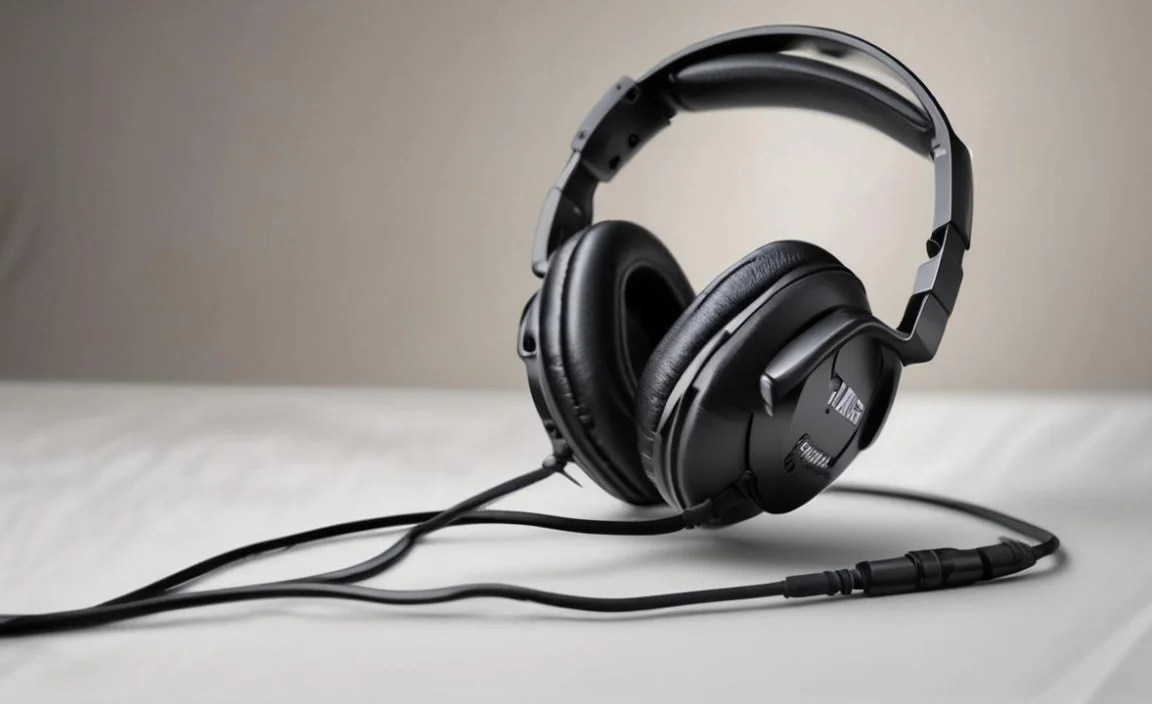
These are the microphones you’ll find attached directly to the headphone cable or built into the earcups of many gaming headsets or communication headsets. They are convenient because they are all one unit.
- Boom Mics: These are the most common type on gaming headsets. They typically extend from one of the earcups and position themselves close to your mouth, offering good voice isolation. Many are also detachable or can be flipped up to mute.
- In-line Mics: Often found on standard headphone cables for smartphones or portable devices, these are usually small buttons or capsules along the wire. They are convenient for quick calls but might pick up more ambient noise.
- Embedded Ear-cup Mics: Some higher-end headsets have microphones subtly integrated into the earcups themselves. These are discreet but can sometimes pick up more room noise compared to a boom mic positioned closer to your mouth.
2. Detachable/Removable Microphones
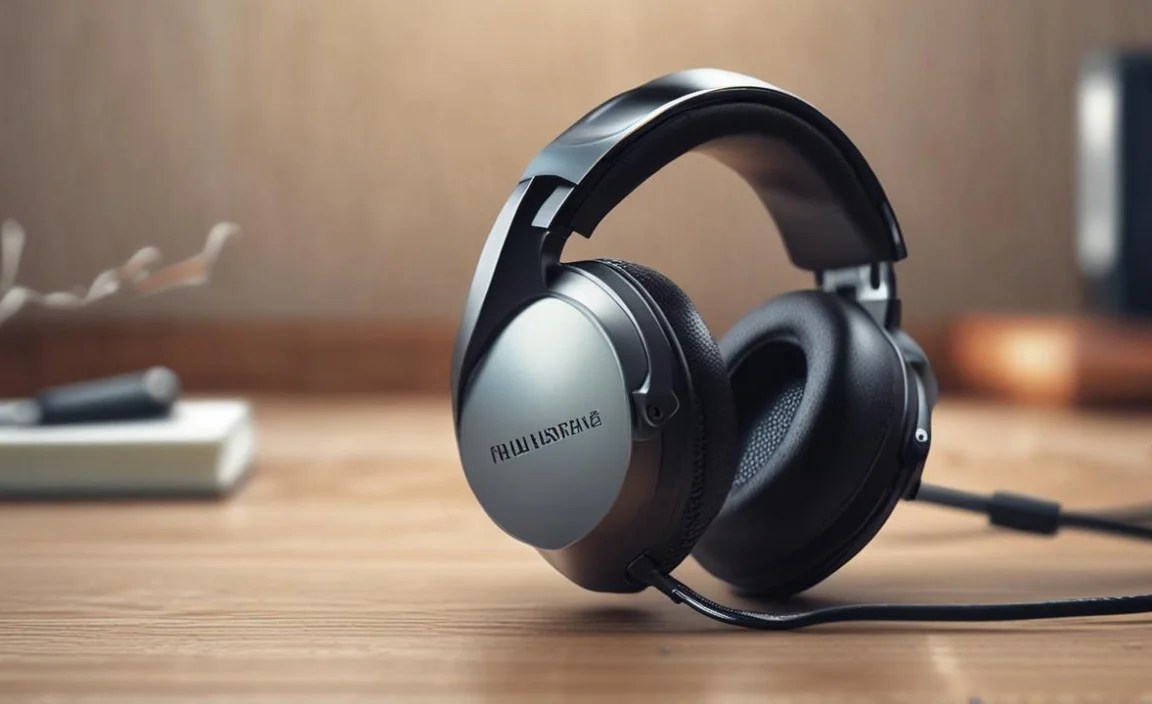
These mics are designed to plug into a specific port on your headphones. They offer more flexibility, allowing you to attach a better-quality microphone when needed and remove it when you just want to listen to music.
- 3.5mm Jack Mics: Some headphones have a dedicated 3.5mm input specifically for a microphone. This allows you to connect a separate, often higher-quality, boom mic.
- Proprietary Connectors: Certain gaming headsets or audio devices might use a unique connector for their optional or upgradeable microphone.
3. Separate Microphones (Used with Headphones)

This category includes standalone microphones that you use in conjunction with your existing headphones. This is often the path for content creators, streamers, or anyone prioritizing audio quality above all else.
- USB Microphones: These plug directly into your computer’s USB port and are very popular due to their plug-and-play simplicity and excellent sound quality. You wear your headphones and monitor your audio through the computer or directly from the USB mic (if it has a headphone jack).
- XLR Microphones: These are the professional standard, offering the highest audio fidelity. They require an audio interface or mixer to connect to your computer but provide unparalleled control and sound quality. Again, you’ll wear your headphones to monitor.
- Lavalier (Lapel) Microphones: Tiny clip-on mics that can be connected to your computer or recording device. They capture sound directly from your voice but require careful placement and can sometimes be visible.
Key Features to Consider When Choosing a Mic for Headphones

Not all microphones are created equal. When you’re looking for a “mic for headphones” solution, here are the critical features that will impact your audio experience:
1. Microphone Type (Polar Patterns)
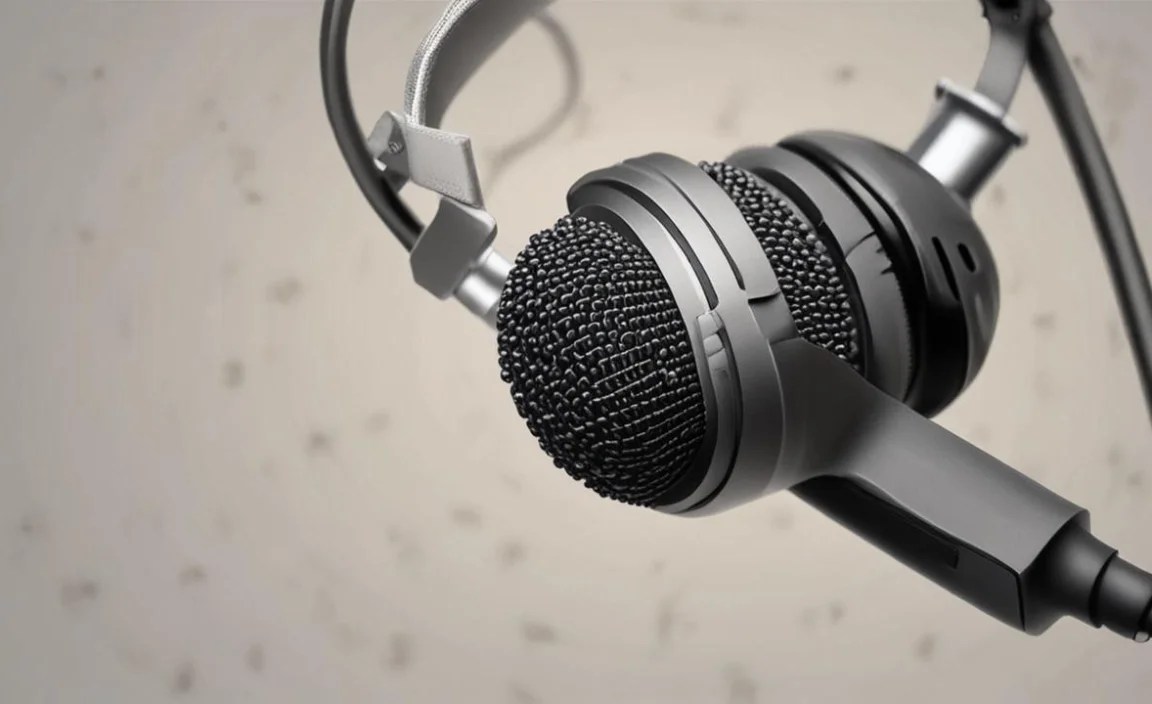
This refers to how well the microphone picks up sound from different directions. For most headphone mics, especially those for communication, a cardioid pattern is ideal. It picks up sound primarily from the front, reducing background noise.
- Cardioid: Picks up sound from the front, rejects sound from the rear and sides. Great for isolating your voice.
- Omnidirectional: Picks up sound equally from all directions. Less common for primary voice input on headphones as it can capture a lot of ambient noise.
- Bidirectional: Picks up sound from the front and rear, rejects sound from the sides. Useful for interviews but not typical for headphone mics.
2. Noise Cancellation Technology
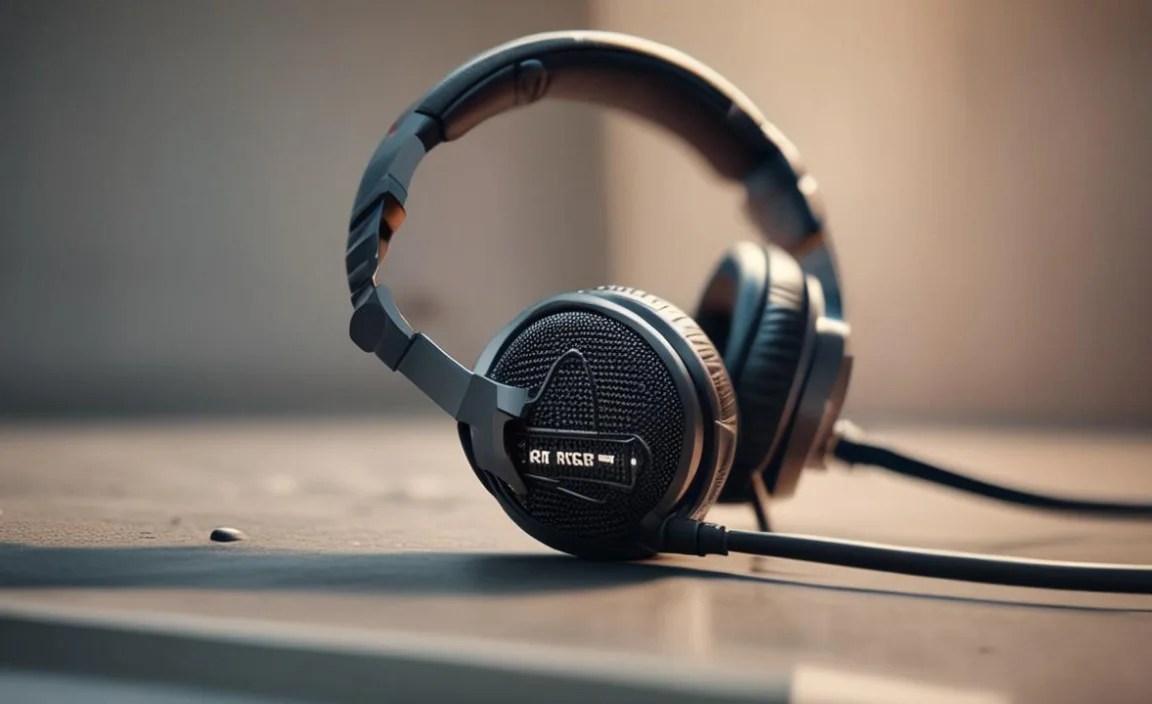
This is a game-changer for noisy environments. Advanced noise cancellation can filter out background sounds like fans, keyboard typing, traffic, or chatter, ensuring only your voice is transmitted clearly to others.
- Passive Noise Cancellation: Achieved through the physical design of the microphone and its proximity to your mouth.
- Active Noise Cancellation (ANC): Uses electronic processing to detect and neutralize unwanted background noise. This is far more effective.
3. Connectivity
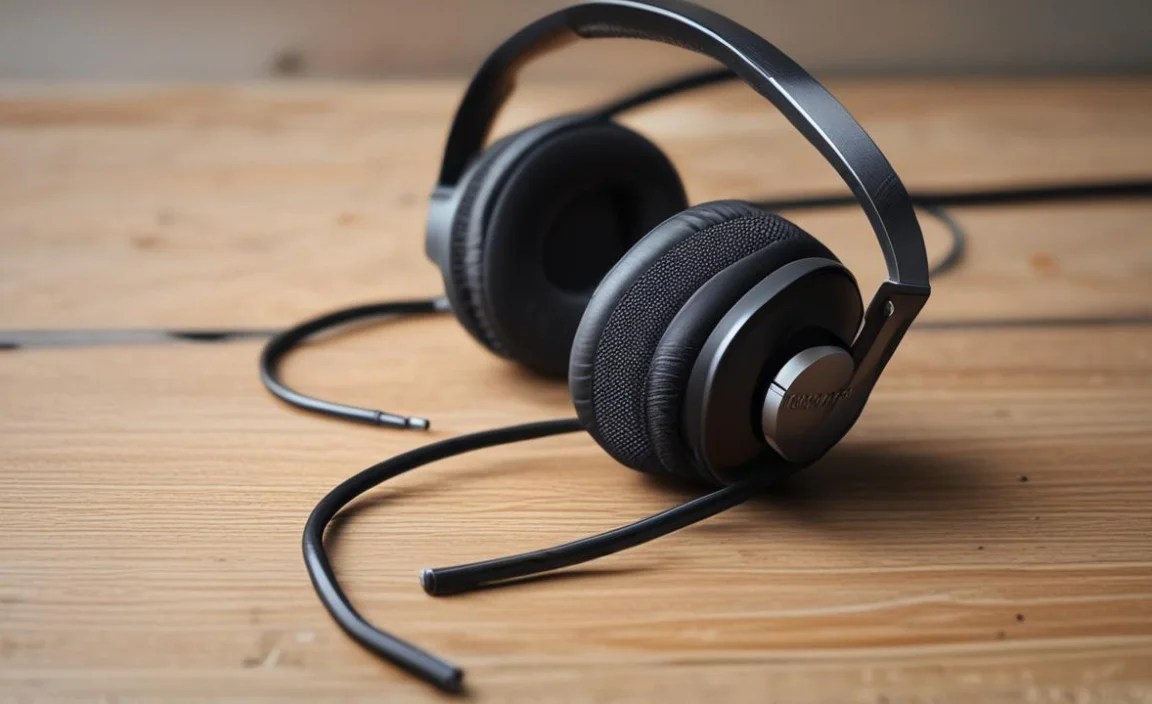
How does the mic connect to your device? This is crucial for compatibility and ease of use.
- 3.5mm Jack: The traditional headphone jack. Many PCs use separate mic and headphone jacks (pink and green), while some laptops and consoles use a single TRS or TRRS (Tip-Ring-Ring-Sleeve) jack that handles both audio and mic.
- USB (Type-A, Type-C): Plugs directly into your computer. USB-C is becoming more common on newer devices.
- Bluetooth/Wireless: For completely untethered setups, though latency can sometimes be an issue for real-time applications like gaming.
- Proprietary Connectors: Specific to certain brands or models.
4. Microphone Sensitivity and Frequency Response
Sensitivity refers to how well a microphone converts sound waves into electrical signals. Higher sensitivity generally means it can pick up quieter sounds. Frequency response indicates the range of sound frequencies a microphone can capture. A balanced frequency response ensures your voice sounds natural, not muffled or tinny.
For most users, you’ll want a mic that accurately captures the human voice range (roughly 80 Hz to 15 kHz) without excessive emphasis on high or low frequencies that can sound unnatural.
5. Durability and Build Quality
Especially for boom mics that are frequently adjusted or detachable mics that are plugged and unplugged, durability is important. Look for sturdy materials and well-designed joints.
6. Mute Functionality
A quick and easy way to mute your microphone is essential for privacy and convenience. This can be a physical button on the cable, a flip-to-mute boom mic, or a software control.
Step-by-Step Guide: Choosing and Using Your Mic for Headphones

Let’s walk through the process of finding and getting the most out of your microphone solution.
Step 1: Assess Your Needs
Before you start shopping, ask yourself:
- What will I primarily use this mic for? (e.g., gaming, work calls, streaming, music production)
- What devices will I connect it to? (e.g., PC, laptop, gaming console, smartphone)
- What is my budget?
- How important is portability?
- What kind of audio quality am I aiming for?
Step 2: Identify Your Headphone’s Input Capabilities
This is often the most important technical step. Take a close look at your headphones or the device you’ll use:
- Headphone Jack: Does it have a single combined jack (TRRS) or separate mic and headphone jacks (TRS)? You can often tell by the number of black rings on the plug. Headphones with a single combo jack usually require a TRRS-compatible microphone or adapter.
- USB Port: Most computers and modern consoles have these.
- Bluetooth: Can your headphones connect wirelessly?
- Specific Ports: Some gaming headsets have dedicated ports for detachable mics. Check your headphone manual if unsure.
For example, if your laptop has a single 3.5mm jack with two black rings, it’s a TRRS jack. You’ll need a mic or headset with a TRRS plug, or an adapter if you have a separate mic and headphone plug. You can often find inexpensive TRRS to dual TRS splitters for PCs with separate ports.
Step 3: Explore Microphone Options Based on Your Needs and Compatibility
Based on steps 1 and 2, you can narrow down your choices:
Scenario A: I have headphones and need a mic for my PC/Laptop (Gaming, Calls)
- Option 1 (Best Budget/Convenience): Look for a gaming headset with an integrated, high-quality boom mic. Many reputable brands offer these, with features like noise cancellation and easy mute functions. Brands like HyperX, SteelSeries, and Logitech are great starting points.
- Option 2 (Upgrade Path): If your headphones have a good sound quality but a weak mic, or if you want a better mic without replacing your headphones, consider a detachable microphone that plugs into a 3.5mm mic input on your headphones or an adapter. Companies like V-MODA and Antlion Audio offer popular “mod mic” solutions that attach magnetically to your earcups and plug into your audio jack.
- Option 3 (Standalone Quality): Purchase a separate USB microphone and use your existing headphones for monitoring. This offers excellent sound quality for voice chat or streaming. Popular choices include the Blue Yeti or Rode NT-USB+.
Scenario B: I have headphones and need a mic for my Smartphone/Tablet (Calls, Voice Notes)
- Look for headphones with an integrated in-line microphone with a TRRS plug. Most standard earbuds and headphones designed for smartphones come with these. For better quality, you might consider a lavalier microphone that plugs into your phone’s microphone jack (or via an adapter for Lightning/USB-C devices).
Scenario C: I want the best possible audio quality for content creation (Streaming, Podcasts)
- This usually involves investing in a separate XLR microphone with an audio interface or a high-quality USB microphone. You would then wear your headphones to monitor your audio. While not directly “mic for headphones” in the sense of being attached, it’s the most common setup for professional voice recording where headphones are essential for monitoring.
Step 4: Check Compatibility and Connections
Once you’ve chosen a type of microphone, double-check:
- Connector Type: Ensure it matches your device (3.5mm TRS, TRRS, USB-A, USB-C, etc.).
- System Compatibility: Is it compatible with your operating system (Windows, macOS, Linux) or console (PlayStation, Xbox, Nintendo Switch)?
- Driver Requirements: Most USB mics are plug-and-play, but some professional audio interfaces or complex setups might require drivers or specific software.
Step 5: Installation and Setup
This process varies depending on the type of mic:
- Integrated/In-line Mics: Simply plug your headphones into the correct audio jack on your device.
- Detachable Boom Mics: Attach the mic to your headphones as instructed. Plug the mic’s connector into the designated port.
- USB Microphones: Plug the USB cable into your computer and the microphone. Your operating system should automatically detect it. You might need to go into your sound settings to select the USB mic as the default recording device.
- XLR Microphones: Connect the mic via XLR cable to your audio interface, and connect the interface to your computer via USB. Configure the audio interface software and select it as your input device in your computer’s sound settings or in your recording/streaming software.
Step 6: Configure Audio Settings
This is critical for optimal performance.
- Set as Default Device: On your computer, go to Sound Settings (Windows) or Sound Preferences (macOS) and ensure your new microphone is selected as the default input device.
- Adjust Input Volume: Speak into the microphone at a normal volume. You should see the input meter in your sound settings fluctuate. Adjust the mic’s gain or the system’s input volume so that your voice registers clearly without “peaking” (distorting) or being too quiet. For most voice applications, you want the meter to average around -12dB to -6dB.
- Enable Noise Cancellation (if available): If your mic or audio software has noise cancellation, enable it and test its effectiveness. Too much noise cancellation can make your voice sound robotic.
- Test in Application: Open the application you’ll be using (Discord, Zoom, OBS, Audacity) and find its audio settings. Select your microphone there if you have multiple options and perform a test recording or call.
Step 7: Positioning for Best Results (for Boom and Detachable Mics)

The physical placement of your microphone matters!
- Boom Mics: Position the tip of the microphone roughly one to two finger-widths away from the corner of your mouth. Angle it slightly so it’s aimed towards your mouth, not directly at it, to avoid plosive sounds (like “P” and “B” sounds that can sound like a burst of air).
- In-line Mics: Try to position the mic capsule as close to your mouth as possible without being visible or touching your clothing (which can create rustling noise). Clipping it to your shirt collar is often ideal.
Troubleshooting Common Mic Issues
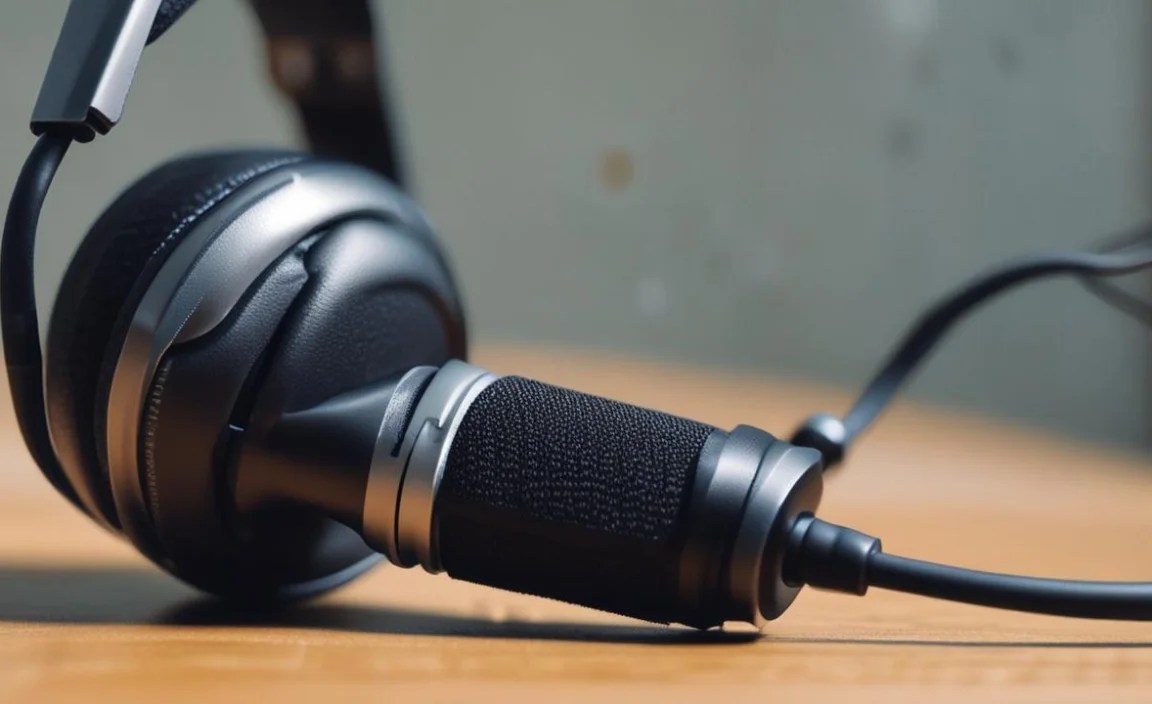
Even with the best gear, you might encounter hiccups. Here are some common problems and their solutions:
Low Volume/Can’t Hear Me

- Check that the microphone is selected as the default input device in your system settings.
- Ensure the microphone is not muted (check physical mute switch, flip-to-mute, or software settings).
- Increase the microphone’s input gain or volume in your system’s sound settings or on the microphone itself.
- Ensure the microphone is properly plugged in.
- If using an XLR mic or interface, check the gain knob on the interface.
Static, Hiss, or Background Noise
- Try moving the microphone slightly further away from your mouth if it’s too close.
- Ensure cables are not frayed or damaged. Try a different cable if possible.
- Reduce microphone gain/input volume if it’s set too high, as this amplifies all sounds, including noise.
- If using a USB or external mic, try plugging it into a different USB port, preferably one directly on the motherboard (at the back of a desktop PC) rather than a hub.
- Ensure you are in a relatively quiet environment or enable noise cancellation features.
- Some USB microphones have filters or EQ settings in their associated software that can help.
Echoing
- This often happens when the microphone picks up the sound coming from your headphones.
- Solution: Lower your headphone volume, reposition your headphones so they don’t leak sound towards the mic, or use audio software that implements echo cancellation. For gaming, ensure “voice chat volume” is set appropriately.
No Sound at All
- Check that the microphone is plugged in securely and recognized by your computer.
- Is the microphone selected as the default input device? (See “Low Volume” solutions).
- Try restarting your computer.
- If it’s an XLR mic, ensure the audio interface is powered on and connected.
- If it’s a USB mic, check for driver issues or try a different USB cable/port.
Best Practices for Using Your Mic
To get the most out of any microphone for your headphones, consider these tips:
- Regular Testing: Periodically do test recordings or calls to ensure your mic sounds as good as you think it does.
- Keep it Clean: Gently clean the microphone mesh if it gets dusty or dirty. Use a soft brush or compressed air carefully.
- Protect Your Investment: Store your microphone and cables properly to prevent damage, especially if they are detachable or separate components.
- Understand Software Settings: Familiarize yourself with the audio settings in your operating system and your most-used applications (Discord, Zoom, OBS, etc.). This knowledge empowers you to fine-tune your sound.
- Consider Ambient Noise: If you can, try to minimize background noise in your recording space
