
Quick Summary: Learn how to protect your headphones from volume-related damage. This guide offers simple, actionable steps to manage listening levels, prevent hearing strain, and extend the life of your audio gear. Keep your sound crystal clear and your ears safe with these essential volume fixes.
Prevent Headphone Damage Volume Fix: Your Essential Guide
Hello audio adventurers! Edward Cavitt here from Headphone Horizon, your go-to spot for all things headphones. We all love getting lost in our music, podcasts, or games, but sometimes, that can come at a cost. Cranked-up volume might feel immersive in the moment, but it’s a leading cause of both headphone damage and, more importantly, hearing damage.
It’s a double whammy! The good news is, preventing this damage is far simpler than you might think. This guide is designed to be your friendly roadmap to managing headphone volume, keeping both your ears and your gear in top-notch condition for years to come. We’ll break down the ‘why’ and the ‘how’ in easy-to-understand terms, so you can enjoy your audio without worry. Let’s dive in and make sure your listening experience is always a safe and sound one!
Understanding the Risks: Why Volume Matters
Before we get to the fixes, it’s helpful to understand why keeping your volume in check is so crucial. Think of your headphones and your ears like a delicate ecosystem. Pushing one too hard can upset the balance of the other.
How Loud is Too Loud?
It’s not just about how loud it feels, but how loud it is in terms of decibels (dB). The louder the sound, the shorter the time you can safely listen. Here’s a general guideline:
| Sound Level (Decibels) | Example | Safe Listening Time |
|---|---|---|
| 30 dB | Whispering | Indefinite |
| 60 dB | Normal Conversation | Indefinite |
| 70 dB | Busy Street Traffic | Indefinite |
| 85 dB | Lawn Mower, Garbage Disposal | About 8 hours |
| 90 dB | Motorcycle, Power Saw | About 2 hours |
| 100 dB | Car Horn at 3 Feet, Chainsaw | About 15 minutes |
| 110 dB | Rock Concert, MP3 Player at Max Volume | Less than 5 minutes |
| 120 dB | Jackhammer, Fire Siren | Immediate danger of damage |
| 140 dB | Jet engine at takeoff | Instantaneous damage |
As you can see, prolonged exposure to sounds at or above 85 dB can start to cause damage. Many smartphones and MP3 players can reach well over 100 dB, which is why it’s so easy to accidentally overdo it. For more detailed information on noise exposure and hearing health, the National Institute on Deafness and Other Communication Disorders (NIDCD) offers excellent resources.
Headphone Strain: More Than Just Hearing
When you constantly blast your headphones, you’re not just straining your ears. You’re also putting undue stress on the tiny drivers (the speakers inside your headphones) and other components. This can lead to:
- Distorted sound: Drivers can be pushed beyond their capabilities, leading to crackling, fuzziness, or a loss of clarity.
- Reduced lifespan: Components wear out faster under constant high-volume operation.
- Permanent damage: In extreme or prolonged cases, drivers can burn out and require replacement or a whole new pair of headphones.
Your Step-by-Step Volume Fix Guide
Now, let’s get to the actionable steps you can take to prevent headphone damage and keep your audio enjoyable. These are designed to be easy to implement, whether you’re a tech novice or a seasoned audiophile.
Step 1: Master Your Device’s Volume Controls
This is the most fundamental step. Your device (phone, tablet, computer, MP3 player) has the primary control over sound output. Get to know it well!
- Find the Volume Buttons: These are usually on the side of your device.
- Understand Max Volume: Know where your device’s maximum volume level sits.
- Set a Safe Limit: Try to keep your typical listening volume between 50% and 75% of the maximum. This is often well within safe listening ranges for most modern devices, but it’s a good general rule of thumb.
Step 2: Utilize Volume Limiter Features
Many modern devices and operating systems come with built-in features to help you automatically manage volume levels. These are incredibly useful!
- iOS (iPhone/iPad):
- Go to Settings > Sounds & Haptics > Headphone Safety.
- Toggle on Reduce Loud Sounds.
- Set the decibel level. The NIDCD recommends 85 dB as the maximum to prevent damage, so setting your limit around that is a good idea.
- Android:
- The exact path varies by manufacturer, but look in Settings > Sound & Vibration or Sound & Display.
- Search for “Volume,” “Media Volume,” or “Volume Limiter.” Some phones have a dedicated “Media Volume Limiter” that lets you set a maximum.
- If your phone doesn’t have a direct limiter, you might need a third-party app, but always be cautious and download from reputable sources. Look for apps that mention “volume control” or “sound booster” (but use the booster feature sparingly and with caution for listening).
- Windows:
- Here, it’s more about knowing your audio driver settings. Right-click the speaker icon on your taskbar, select “Sounds,” go to the “Playback” tab, select your headphones, and click “Properties.” Look for an “Enhancements” tab or similar where volume limiting might be available, though it’s less common than on mobile.
- macOS:
- Go to System Preferences > Sound > Output. You won’t find a strict limiter here, but you can often adjust output volume. Again, using a third-party app might be an option if precise limiting is crucial.
These features help prevent accidental volume spikes that can damage both your hearing and your headphones.
Step 3: Be Mindful of Your Listening Environment
The environment you’re in significantly impacts how loud you perceive sound to be. This is often where the temptation to turn up the volume arises.
- Noisy Commutes: Public transport is a major culprit. You might find yourself turning up music to drown out engine noise or chatter. Consider noise-canceling headphones in these situations. They actively reduce ambient sound, allowing you to listen at a lower, safer volume.
- Gym Workouts: Gyms can be loud! Again, noise-canceling or even just well-fitting, isolating earbuds can help you hear your audio clearly without cranking the volume.
- Quiet Environments: In a quiet office or at home, there’s no need to blast your audio. Enjoy the clarity at a lower, more comfortable level.
Think of it this way: a good seal (for earbuds) or effective noise cancellation (for over-ear headphones) is your first line of defense against needing to turn the volume up too high.
Step 4: The 60/60 Rule (for music lovers)
This is a popular guideline for safe listening, especially with portable music players:
- Listen at no more than 60% of the maximum volume.
- Listen for no more than 60 minutes at a time.
- After 60 minutes, take at least a 10-minute break from listening.
This simple rule helps ensure you’re not constantly bombarding your ears and headphones with high-intensity sound.
Step 5: Give Headphones a Break
Just like your ears, your headphones can benefit from periods of rest. Prolonged, continuous high-volume use can heat up components and accelerate wear and tear.
- Don’t leave them on max 24/7: If you’re not actively listening, turn the volume down or take them off.
- Allow cool-down: If you’ve had a particularly long listening session at a higher volume, give your headphones a break afterward.
Step 6: Understand Your Headphones’ Capabilities
Different headphones are designed for different purposes and can handle different levels of abuse. While most modern, reputable headphones are built to handle typical listening volumes effectively, some higher-fidelity or specialized headphones might be more sensitive.
- Check Reviews: When buying new headphones, look for reviews that mention sound quality at various volume levels.
- Start Low: Always start with the volume low and gradually increase it until it’s comfortable.
- Listen for Distortion: If you hear any crackling, popping, or a general loss of clarity as you increase the volume, you’ve likely hit the headphones’ limit. Lower it immediately!
Step 7: Consider a Dedicated Volume Management App (if needed)
If your device lacks robust volume limiting, or you want more granular control, consider a third-party app. These can help enforce safe listening levels.
Popular options to look for (availability may vary by OS):
- Equalizer apps: Many equalizer apps have built-in volume limiting or gain control features.
- Dedicated Volume Control Apps: Search your device’s app store for “volume limiter” or “safe volume.”
Caution: Always read app reviews, check permissions requested, and ensure they are from trusted developers. Some apps might be overly aggressive or even harmful if not used correctly. For official guidance on noise and hearing, the World Health Organization (WHO) also provides excellent information and fact sheets.
Troubleshooting Volume Issues
Sometimes, volume problems aren’t just about setting it too high; they can be about your headphones malfunctioning.
Problem: My headphones sound distorted even at moderate volumes.
Likely Cause: Driver damage due to prolonged high-volume use, or a defect.
Fix: First, try the headphones on a different device to rule out your source. If the distortion persists, the drivers may be damaged. Unfortunately, driver repair is usually not feasible for average users. It might be time to consider new headphones or professional repair if they are high-end and under warranty.
Problem: One headphone is significantly quieter than the other.
Likely Cause: Clogged earbud tip, loose connection, or partial driver failure.
Fix:
- Clean the Eartips: If you have earbuds, ensure the mesh or tip isn’t blocked by earwax.
- Check Connections: For wired headphones, ensure the jack is fully plugged in. If it’s a detachable cable, try reseating it.
- Test on Another Device: See if the problem follows the headphones.
- Balance Settings: On some devices, there’s a “balance” slider for left/right channels. Ensure it’s centered. (e.g., on iOS: Settings > Accessibility > Audio/Visual > Balance).
If these don’t work, the internal component might be failing.
Problem: My headphones don’t get loud enough.
Likely Cause: Device volume limits, headphone impedance, or low-power audio source.
Fix:
- Check Device Limits: Ensure no volume limiter is active on your phone or computer.
- Verify Headphone Impedance: High-impedance headphones (often found in professional studio gear) require a stronger amplifier to reach loud volumes. A standard phone might not have enough power. You might need a dedicated headphone amplifier.
- Try a Different Source: Connect the headphones to a device known for stronger audio output.
For most everyday headphones and devices, this isn’t an issue, but it’s worth noting for more specialized setups.
When to Replace Your Headphones
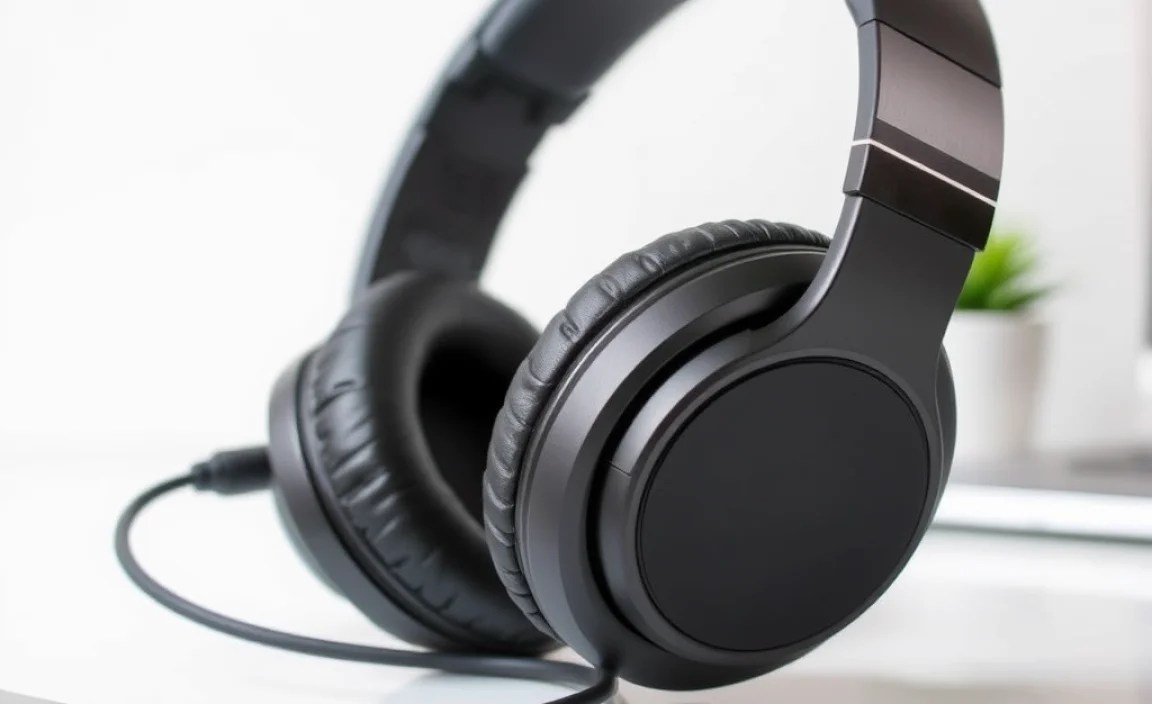
Even with the best care, headphones have a lifespan. If you notice persistent:
- Physical damage (cracked headband, torn earpads)
- Consistent distortion or sound dropouts
- Loss of sound in one or both ears
- Unresponsive controls
It might be time to invest in a new pair. Remember, hearing health is paramount, and if you’re constantly fighting with struggling headphones, it’s a sign to upgrade.
Conclusion
Taking care of your headphones and your hearing is a win-win situation. By understanding the risks associated with high volumes and implementing these simple volume-fixing strategies, you can significantly extend the life of your audio gear and, more importantly, protect your precious hearing. From utilizing your device’s built-in safety features to being mindful of your listening environment and practicing the 60/60 rule, you have a powerful toolkit at your disposal. Don’t let a few too many moments of blasting your favorite tracks lead to lasting damage. Keep your volume at a healthy level, enjoy your audio with pristine clarity, and keep that headphone horizon wide open for many years to come!
Frequently Asked Questions (FAQ)
Q1: How can I tell if my headphone volume is too high?
A1: If you have to strain to hear conversations around you, if you experience ringing in your ears after listening (tinnitus), or if you have to turn the volume up very high to overcome background noise, it’s likely too loud. A good rule of thumb is to keep your volume at or below 60-70% of your device’s maximum.
Q2: Will using a volume limiter on my phone damage my headphones?
A2: No, absolutely not. Volume limiters are designed to prevent damage. They cap the maximum output volume, protecting both your hearing from overexposure and your headphones’ drivers from being pushed too hard, which can cause distortion or burnout.
Q3: I have noise-canceling headphones. Do I still need to worry about volume?
A3: Yes, absolutely! Noise-canceling headphones excel at reducing ambient noise. This means you won’t need to turn the volume up as high in noisy environments to hear your audio clearly. However, if you still choose to listen at high volumes, you’re still exposing your ears and headphones to potentially damaging sound pressure levels. Use the noise cancellation to your advantage to keep the volume lower.
Q4: What’s the difference between hearing damage and headphone damage from volume?
A4: Hearing damage refers to the negative impact on your auditory system, such as loss of hearing sensitivity or tinnitus. Headphone damage refers to physical wear and tear or failure of the audio components (like the drivers) within the headphones themselves, often caused by being overworked at excessively high volumes.
Q5: Can Bluetooth headphones be damaged by volume too?
A5: Yes, any headphone with audio drivers can be damaged by excessive volume. While Bluetooth technology itself doesn’t increase the risk, the digital signal sent from your device to the headphones can still be too high, leading to damage to the headphone drivers if played at maximum volume consistently.
Q6: Is there a specific app for Android that’s good for volume limiting?
A6: While specific app recommendations can change, searching the Google Play Store for “volume limiter” or “safe volume” will yield results. Always check recent reviews, download from reputable developers, and be cautious of apps requesting excessive permissions. Some popular equalizer apps also include volume limiting features which can be a reliable option.
