
Razer Headphones for Xbox: Essential Gaming Gear
Hey gamers! Edward Cavitt here from headphonehorizon, your go-to spot for all things audio. If you’re diving into the epic worlds of Xbox, you know that top-notch sound isn’t just a luxury – it’s a necessity. It’s what pulls you into the action, helps you pinpoint enemy footsteps, and lets you coordinate strategies with your squad. That’s where Razer headphones for Xbox come in. They’re crafted not just to sound good, but to give you that competitive edge and deep immersion. Today, we’re going to explore why Razer is a fantastic option for Xbox gamers and help you find the perfect headset to complete your gaming arsenal.

Why Razer for Your Xbox Audio Experience?
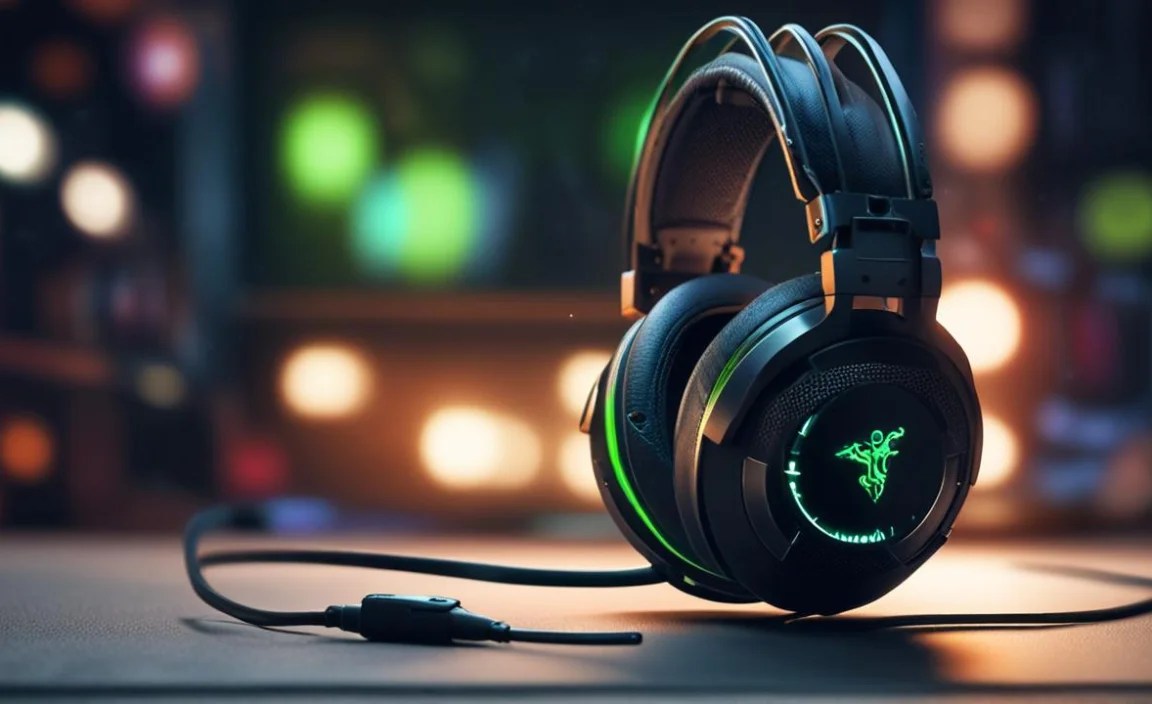
Razer has a reputation for building gear that’s both stylish and seriously performant, and their Xbox headsets are no exception. They’re designed with gamers in mind, focusing on a few key areas that make a real difference in your gameplay.
- Immersive Sound Quality: Razer headsets often feature large, custom-tuned drivers that deliver rich, detailed audio. This means you’ll hear the subtle rustle of leaves, the roar of an engine, or the precise direction of incoming fire with incredible clarity.
- Crystal-Clear Communication: For multiplayer games, clear comms are vital. Razer microphones are engineered to pick up your voice distinctly while minimizing background noise, ensuring your teammates hear every crucial callout.
- Comfort for Marathon Sessions: Long gaming sessions demand comfort. Razer headsets typically use plush memory foam earcups and adjustable headbands to ensure a snug yet comfortable fit, reducing fatigue.
- Durable and Stylish Design: Built with robust materials and featuring Razer’s iconic aesthetic, these headsets are made to last and look great doing it.
- Seamless Xbox Integration: Most Razer Xbox headsets are plug-and-play, connecting directly to your Xbox controller or console via a 3.5mm jack or USB, making setup a breeze.
Choosing the Right Razer Headset for Your Xbox

With a range of options from Razer, picking the right one can feel a bit overwhelming at first. Let’s break down some popular choices and what makes them stand out for Xbox gamers. We’ll focus on models that offer excellent performance without being overly complicated for beginners.
Wired vs. Wireless: What’s Best for You?
This is often the first big decision you’ll make. Both wired and wireless Razer headsets for Xbox have their unique advantages:
| Feature | Wired Headsets | Wireless Headsets |
|---|---|---|
| Connection | 3.5mm audio jack or USB (direct to controller or console) | Proprietary wireless dongle (USB) or Bluetooth |
| Latency | Virtually zero, ideal for competitive play | Generally very low, but can vary slightly |
| Power | No battery required, powered by the console/controller | Requires charging; battery life varies by model |
| Convenience | Less freedom of movement due to cable | Maximum freedom of movement |
| Cost | Typically more affordable | Often a higher price point |
For beginners, a wired headset is a fantastic starting point. It’s usually more budget-friendly, requires no charging or pairing, and offers the absolute best in lag-free performance. If you’re just getting into serious gaming or want something straightforward, wired is a solid bet. For those who crave freedom and a cleaner setup, wireless is a game-changer, but be prepared for the added cost and the need to keep them charged.
Key Razer Headsets for Xbox (Beginner-Friendly Focus)
Razer offers a spectrum of headsets, but here are a few that consistently hit the mark for Xbox gamers, balancing features, performance, and ease of use:
- Razer BlackShark V2 X for Xbox: This is a fantastic entry-level option. It leverages Razer’s Triforce™ drivers for impressive audio separation (lows, mids, and highs), a HyperClear Cardioid Mic for clear voice chat, and breathable memory foam earcups for comfort. It’s wired, so it’s super simple to connect directly to your Xbox controller. It’s a no-fuss, high-performance headset that delivers excellent value.
- Razer Kaira X for Xbox: Similar to the BlackShark V2 X, the Kaira X is designed specifically for Xbox and is typically wired. It boasts similar audio and mic quality with comfortable earcups. Its design might feel a bit more modern and sleek, fitting perfectly with the Xbox aesthetic. It’s another go-to for reliable, quality sound without breaking the bank.
- Razer Kaira Pro Wireless for Xbox: If you’re ready to jump into the wireless world, the Kaira Pro is a premium choice. It connects wirelessly to your Xbox using a high-speed connection (often a dedicated USB dongle for minimal latency) and also supports Bluetooth for mobile device connectivity. It features advanced audio features like Razer TriForce™ Titanium drivers for even crisper sound, a detachable, voice-isolating microphone, and intelligent mic noise cancellation. While more advanced, its wireless convenience and superior audio make it a worthwhile upgrade for dedicated players.
When looking at Razer headphones for Xbox, pay attention to which specific Xbox console they are optimized for. Some are designed for Xbox Series X|S, while others are compatible with older Xbox One models. Most will use a standard 3.5mm jack, which is universally compatible with Xbox controllers, but always check the product description to be sure.
Understanding Headset Features: What to Look For
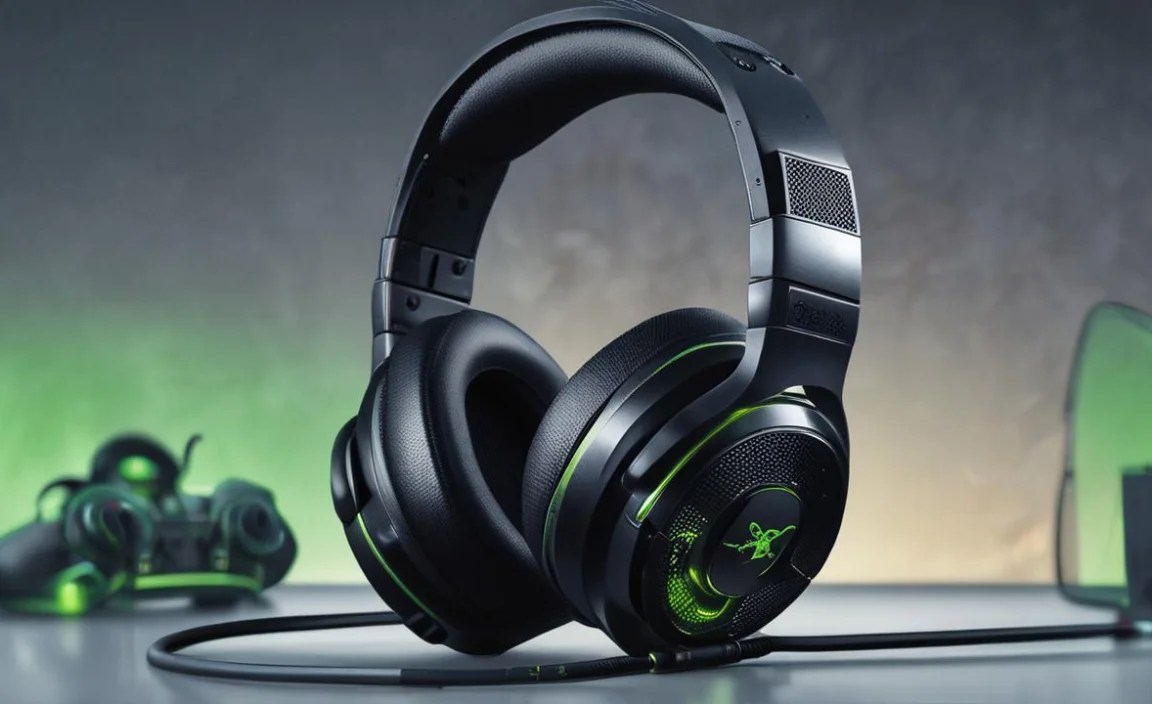
Even with a beginner-friendly headset, it’s helpful to know what a few key terms mean. This will help you appreciate your new Razer headset even more!
- Drivers: These are the small speakers within the earcups that produce sound. Larger drivers (like Razer’s 50mm drivers found in many of their headsets) generally produce a more powerful and detailed sound.
- Frequency Response: This indicates the range of sound frequencies a headset can produce, from deep bass to high treble. A wider range usually means a more complete audio experience. Most gaming headsets aim for a balanced response, but some might emphasize bass for that extra “oomph” in explosions.
- Microphone Type:
- Cardioid: Picks up sound primarily from the front, reducing background noise and focusing on your voice. Great for noisy environments.
- Omnidirectional: Picks up sound from all directions. Less common in gaming headsets aiming for clarity.
- Noise-Cancelling: These mics actively filter out ambient sounds, ensuring your voice comes through loud and clear.
- Comfort Factors:
- Earcups: Look for memory foam or plush cushioning. Over-ear designs (cups that fully encompass your ears) are generally more comfortable for long sessions and provide better noise isolation than on-ear designs.
- Headband: A padded and adjustable headband ensures a good fit for different head sizes without causing pressure.
- Connectivity: As discussed, 3.5mm is standard for controllers, USB dongles for wireless, and Bluetooth for added versatility.
Setting Up Your Razer Headset for Xbox
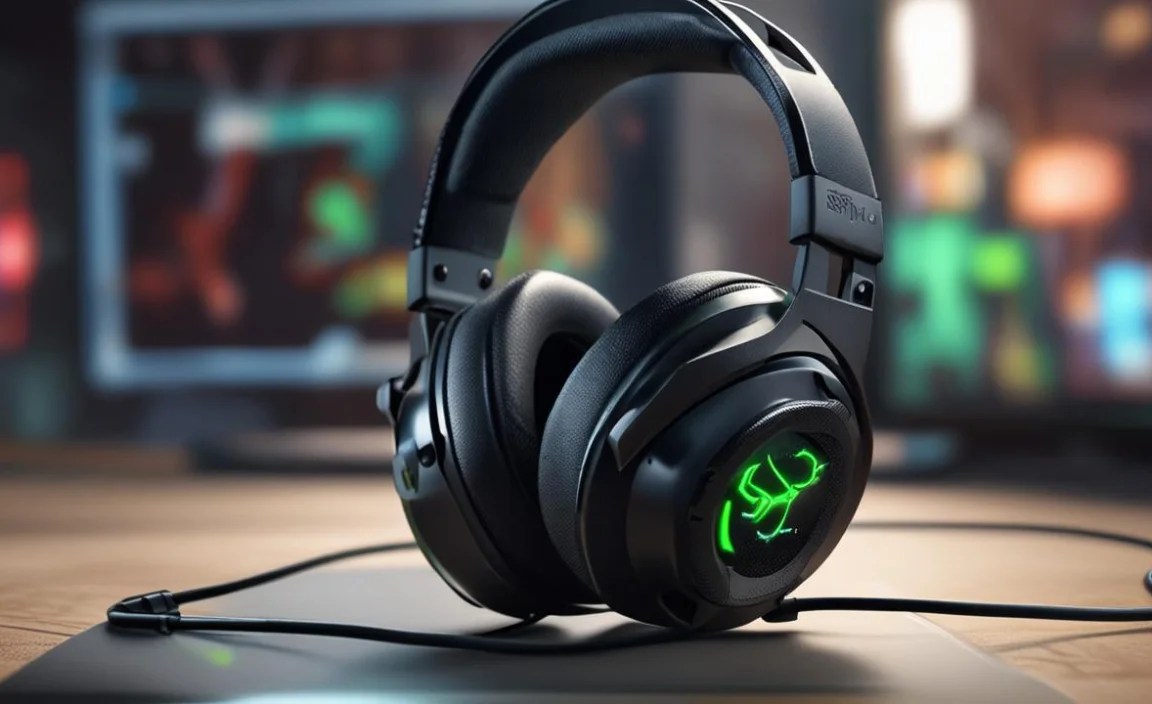
Getting your new Razer headphones for Xbox up and running is typically a straightforward process. Here’s how to do it:
Wired Headset Setup (Most Common)
This is the simplest method and works for the vast majority of Razer wired Xbox headsets.
- Locate the 3.5mm Jack: On your Xbox controller, look for a small, circular port labeled with a headphone icon. This is your 3.5mm audio jack.
- Plug In the Headset: Insert the 3.5mm connector from your Razer headset firmly into the jack on your controller.
- Check Audio Settings (If Needed): Your Xbox should automatically detect the headset. To ensure everything is set correctly, press the Xbox button on your controller, navigate to the Audio settings (usually under the Mixer icon), and make sure the headset output is set to “Headset” and the microphone input is also set to “Headset.” You can also adjust the chat mixer here to prioritize game audio or chat audio based on your preference.
If your headset has an in-line volume and mic mute control, you can use those directly on the cable.
Wireless Headset Setup (Razer Kaira Pro Example)
Wireless setup involves a few more steps, but it’s still very manageable.
- Connect the Wireless Dongle: If your wireless Razer headset uses a USB dongle (common for Xbox wireless), plug it into a free USB port on your Xbox console.
- Power On Your Headset: Press and hold the power button on your Razer headset until the indicator light shows it’s on.
- Pairing: The headset should automatically pair with the dongle. If not, there might be a sync button on both the dongle and the headset that you need to press to initiate pairing. Refer to your headset’s specific manual for details.
- Check Xbox Audio Settings: Similar to wired headsets, ensure your Xbox is recognizing the headset. Press the Xbox button, go to Settings > General > Volume & audio output, and select the headset as your output device.
- Charging: Remember to charge your wireless headset when not in use to ensure it’s ready for your next gaming session. Use the provided USB cable and a compatible power source.
Some wireless headsets might also offer Bluetooth pairing for devices like your phone or PC. This is usually done through a separate pairing process, often initiated by holding down the Bluetooth button on the headset.
Maintenance and Care for Your Razer Headset

To keep your Razer headphones for Xbox performing at their best and lasting for years, a little bit of care goes a long way. Think of it like keeping your favorite controller clean!
Cleaning Your Headset
Regular cleaning prevents dirt and earwax buildup, which can affect sound quality and hygiene.
- Earcups: For fabric or leatherette earcups, use a slightly damp (not wet!) microfiber cloth with a bit of mild soap or an electronics-safe cleaner. Gently wipe them down. For stubborn grime, you might need an old, dry toothbrush to get into nooks and crannies. If your earcups are detachable, you might be able to wash them gently according to the manufacturer’s instructions (check your manual!).
- Headband: Wipe down the headband with the same damp microfiber cloth.
- Microphone: Gently brush off any dust with a dry microfiber cloth or a soft-bristled brush. Never spray liquid directly onto the microphone.
- Chassis and Cables: Wipe down the plastic parts of the headset and any cables with a dry or slightly damp cloth.
Important Note: Always unplug your headset before cleaning, and never submerge any part of it in water. Allow all parts to air dry completely before reconnecting or using.
Storage
When you’re not gaming, store your headset properly to protect it from dust and damage:
- Use a Stand or Rack: A dedicated headset stand keeps your headset off the desk and prevents the earcups or headband from being crushed.
- Original Box or Case: If you have the original packaging or a dedicated headset case, this is an excellent way to store it safely.
- Avoid Extreme Temperatures: Don’t leave your headset in direct sunlight or in very hot or cold environments.
Troubleshooting Common Issues
Even the best gear can sometimes have a hiccup. Here are a few common issues with Razer headphones for Xbox and how to fix them:
- No Sound:
- Check that the headset is plugged in securely.
- Ensure the volume control on the headset cable or headset itself isn’t turned all the way down or muted.
- Verify your Xbox audio settings (as mentioned in the setup section).
- Try the headset on another device (like a phone or PC) to see if it works, which helps determine if the issue is with the headset or the Xbox.
- Microphone Not Working:
- Make sure the microphone isn’t muted via the in-line control or a dedicated mute button.
- In wired headsets, ensure the microphone portion of the 3.5mm plug is fully seated in the controller.
- Check Xbox audio settings to ensure the microphone input is set to the headset.
- For detachable mics, ensure it’s firmly attached.
- Crackling or Static Sound:
- Wired: Inspect the 3.5mm cable for any visible damage. Try a different cable if possible. Ensure the connection is clean.
- Wireless: Ensure the headset is within range of the dongle/console. Other wireless devices can sometimes cause interference. Try moving closer to the Xbox or ensuring no other high-frequency devices are too close.
- Ensure your headset’s firmware is up to date (usually managed via a PC app if applicable).
- Discomfort:
- Adjust the headband to find the most comfortable position.
- Take breaks during long gaming sessions.
- If earcups feel too tight, you might look into third-party replacement earcups that offer a different fit or material.
For more in-depth troubleshooting, Razer’s official support website is an excellent resource. You can often find detailed FAQs, diagnostic tools, and even driver/firmware updates there. You can explore general troubleshooting tips on reputable tech sites, for instance, the RTINGS.com guide to gaming headsets offers comprehensive technical reviews and advice.
Frequently Asked Questions (FAQ)
Here are some common questions beginners have about Razer headphones for Xbox:
Q1: Do all Razer headphones work with Xbox?
Not all, but many do! Razer specifically designs many headsets for Xbox, often indicated by “for Xbox” in the product name. Most headsets with a standard 3.5mm audio jack are compatible with the Xbox controller, and Razer’s wireless Xbox headsets are built for seamless integration with the console’s wireless protocol. Always check the product description or packaging to confirm Xbox compatibility.
Q2: Can I use my Razer headset with my PC and Xbox?
Many Razer headsets are designed for cross-platform compatibility. If a headset uses a 3.5mm jack, it will likely work with both. Some models with USB dongles might require specific drivers or may not support Xbox wireless on PC, but often support Bluetooth or a separate USB connection for PC use. Check the specific model’s specifications. The Razer Kaira Pro, for instance, often supports both Xbox Wireless and Bluetooth.
Q3: How often do I need to charge a wireless Razer Xbox headset?
This varies greatly by model. Battery life can range from 10 hours to over 20 hours on a single charge. It’s good practice to charge your headset after each long gaming session or at least once every couple of days if you use it regularly. Most modern wireless headsets will have battery indicator lights or software alerts when the charge is getting low.
Q4: Are Razer headsets comfortable for long gaming sessions?
Yes, comfort is a major selling point for Razer. They typically use plush memory foam earcups, breathable materials, and adjustable headbands to ensure a snug yet comfortable fit. While comfort is subjective, Razer consistently receives praise for the ergonomics of their gaming headsets, designed to minimize pressure and heat buildup during extended play.
Q5: What’s the difference between the Razer Kaira and Kaira Pro?
The main differences lie in audio technology and microphone quality. The Kaira Pro typically features upgraded drivers (like TriForce Titanium drivers for clearer highs and richer bass), a detachable, higher-quality microphone with advanced noise cancellation, and potentially additional features like customizable RGB lighting or advanced EQ settings via an app. The standard Kaira offers excellent core performance, while the Pro version provides a more premium audio and communication experience.
Q6: Is a wired or wireless Razer headset better for competitive gaming?
For competitive gaming where milliseconds matter, a wired headset is generally preferred due to its absolutely zero latency. Wireless technology has improved dramatically, and Razer’s proprietary wireless connections are very low-latency, but there’s still a tiny, imperceptible delay that can matter at the highest levels
