
Quick Summary: Connect your Samsung Bluetooth headphones to your TV effortlessly with this beginner’s guide. Learn how to pair devices, troubleshoot common issues, and enhance your home viewing experience without tangled wires. Discover the best Samsung headphones for TV and enjoy superior sound.
Samsung Bluetooth Headphones For TV: Your Essential Guide

Tired of the tangled mess of wires or disturbing others with your TV’s volume? Samsung Bluetooth headphones offer a fantastic solution for a more immersive and private viewing experience. But how do you get them connected to your television? Don’t worry, it’s simpler than you might think! This guide is designed to break down the process, explain your options, and help you enjoy crystal-clear audio from your favorite shows and movies, all with the ease of wireless sound. Whether you’re new to Bluetooth technology or just looking for a straightforward guide, we’ve got you covered.
Why Use Samsung Bluetooth Headphones with Your TV?
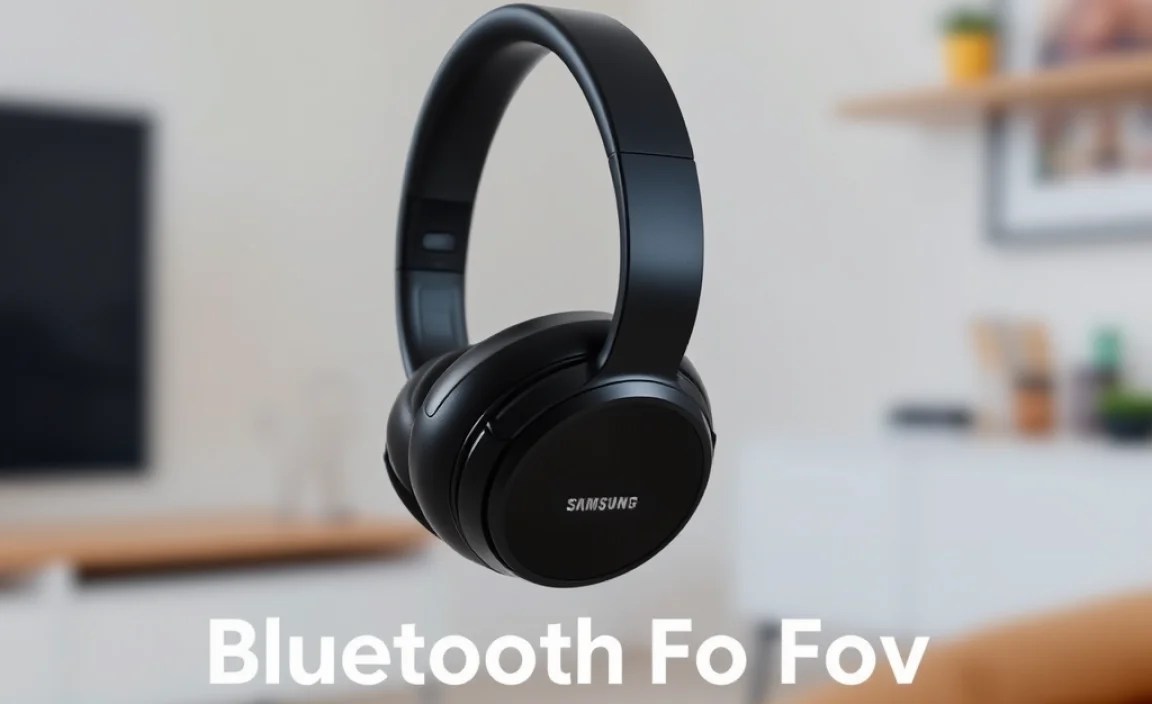
The benefits of connecting Bluetooth headphones to your TV are plentiful, especially when you opt for a brand known for quality like Samsung. They aim to enhance your audio experience in several key ways:
- Improved Sound Quality and Immersion: Many Bluetooth headphones, particularly those from Samsung, are engineered for superior audio. This means you can hear dialogue more clearly, feel the rumble of explosions in action movies, and appreciate the nuances of your favorite music in a way that TV speakers often can’t replicate.
- Personalized Listening Experience: No more fighting over the volume control! Bluetooth headphones allow everyone in the room to enjoy the TV at their preferred volume level, or for one person to listen at a much louder or quieter volume without disturbing others. This is especially beneficial for families with varying hearing abilities or preferences.
- Freedom of Movement: Say goodbye to being tethered to your seat. Bluetooth offers a wireless connection, giving you the freedom to move around your living room, grab a snack from the kitchen, or even do some light chores while still catching every word of your program.
- Enhanced Accessibility: For individuals with hearing impairments, Bluetooth headphones can be a game-changer. They bring the audio directly to the listener, often with adjustable volume controls on the headphones themselves, making TV viewing more accessible and enjoyable.
- Privacy: Enjoy late-night viewing or private conversations without worrying about disturbing housemates or family members who are trying to sleep or focus on other tasks.
Understanding Bluetooth on Your TV

Before we dive into the connection process, it’s crucial to understand how your TV interacts with Bluetooth devices. Not all TVs come equipped with built-in Bluetooth audio support. Newer models, especially smart TVs from Samsung, are far more likely to have this feature.
If your TV doesn’t have built-in Bluetooth, don’t despair! There are external Bluetooth transmitters you can purchase that plug into your TV’s audio output (like an optical or headphone jack) and broadcast the audio signal wirelessly to your Samsung headphones. We’ll cover this possibility later in the guide.
How to Check if Your Samsung TV Has Bluetooth
The easiest way to find out is to navigate through your TV’s settings menu. The exact path can vary slightly depending on your Samsung TV model and year, but generally, you’ll look for something like this:
- Press the Home button on your Samsung remote.
- Navigate to Settings.
- Look for a section labeled Sound or Audio.
- Within the Sound menu, search for an option like Sound Output, Bluetooth Speaker List, or Bluetooth Audio.
- If you find an option to search for or connect Bluetooth devices, your TV has built-in support!
If you can’t find these options, your TV likely doesn’t have native Bluetooth audio capabilities. Consult your TV’s user manual for specific instructions on checking for Bluetooth features.
Choosing the Right Samsung Bluetooth Headphones for Your TV

Samsung offers a variety of Bluetooth headphones, and while many can be paired with a TV, some are better suited for the task than others. Consider these factors:
- Latency: This is the delay between the video and the audio. For watching TV and movies, low latency is crucial to avoid that annoying “lip-sync” issue where the sound seems to lag behind what’s happening on screen. Samsung’s newer models often feature advanced Bluetooth codecs like aptX Low Latency (if supported by both the headphones and the TV/transmitter), which significantly reduces this delay.
- Comfort and Fit: You’ll likely be wearing them for extended periods, so comfort is paramount. Over-ear headphones generally offer a more comfortable and immersive experience for long viewing sessions than earbuds.
- Battery Life: Ensure the headphones have enough battery life to last through your longest movie or TV series binging sessions.
- Features: Some headphones offer active noise cancellation (ANC) for an even more immersive experience, or multi-point pairing, allowing you to connect to your TV and phone simultaneously.
Top Samsung Bluetooth Headphones for TV Viewing (Examples)
While specific models change, here are types of Samsung headphones that generally perform well for TV use:
| Headphone Type | Pros for TV Use | Considerations |
|---|---|---|
| Samsung Galaxy Buds Series (e.g., Buds2 Pro, Buds FE) | Compact, good sound quality, often with decent battery life. Easy to use for casual viewing. | Earbuds might not be as comfortable for very long sessions. Latency can be an issue on older models or non-compatible TVs. Primarily designed for mobile use, but can work with TVs. |
| Samsung Level Series (Discontinued but still relevant if found) | Often featured good audio quality and comfortable designs. Some models supported lower latency codecs. | Availability might be limited as they are older models. Newer Samsung headphones generally offer better Bluetooth standards. |
| Samsung H-Series Over-Ear Headphones (e.g., H7 or similar) | Ergonomic design for long-term comfort, premium sound, often with ANC. Aimed at a more immersive listening experience. | Can be bulkier and more expensive. Ensure explicit Bluetooth TV compatibility or use with a transmitter. |
Note: Always check the product specifications for Bluetooth version and supported codecs (like aptX Low Latency) if latency is a primary concern.
How to Connect Samsung Bluetooth Headphones to Your Samsung TV
This is the core of our guide. We’ll walk through the steps for TVs with built-in Bluetooth and then address options for TVs without it.
Method 1: Connecting to a Samsung TV with Built-in Bluetooth
This is the most straightforward method. Make sure your headphones are charged and in their pairing mode.
- Put Your Headphones in Pairing Mode: This process varies by model.
- Galaxy Buds: Open the charging case and press and hold the touchpads on both earbuds until you hear a sound or see an LED indicator blink blue.
- Samsung Over-Ear Headphones: Typically, there’s a Bluetooth button. Press and hold it until the indicator light flashes (often blue and red, or just blue).
Always refer to your specific headphone model’s manual for exact pairing instructions.
- Access Your TV’s Bluetooth Settings:
- Press the Home button on your Samsung remote.
- Go to Settings.
- Select Sound.
- Choose Sound Output.
- Look for Bluetooth Speaker List or a similar option.
- Scan for Devices: Your TV will now start searching for nearby Bluetooth devices that are in pairing mode. It might say “Searching…” or “Scanning.”
- Select Your Headphones: When your Samsung headphones appear in the list on your TV screen, select them using your remote.
- Pair and Connect: Confirm the connection if prompted. Your TV should indicate when the headphones are successfully connected (“Paired” or “Connected”).
- Test the Audio: Play something on your TV and check if the sound is coming through your headphones. You might need to ensure “Bluetooth” is selected as the sound output on your TV.
Once paired, your TV should automatically reconnect to your headphones the next time they are both turned on and within range, provided your TV’s Bluetooth is enabled and the headphones are in pairing or discoverable mode.
Method 2: Using a Bluetooth Transmitter for TVs Without Built-in Bluetooth
If your Samsung TV lacks native Bluetooth, a Bluetooth transmitter is your best friend. These small devices broadcast audio from your TV to your headphones.
What You’ll Need:
- A Bluetooth transmitter (ensure it supports low latency if possible, often advertised with aptX Low Latency).
- Your Samsung Bluetooth headphones.
- The necessary audio cables (usually included with the transmitter, e.g., 3.5mm to 3.5mm audio cable, or digital optical audio cable).
Steps for Using a Bluetooth Transmitter:
- Connect the Transmitter to Your TV:
- Identify Audio Output Ports: Look at the back or side of your TV for audio output options like “Audio Out,” “Optical Out” (digital audio), or a headphone jack (3.5mm).
- Plug in the Transmitter: Connect the transmitter to one of these ports using the appropriate cable. Digital optical (TOSLINK) is often preferred for better audio quality if available.
For more information on audio ports, you can refer to guides on your TV’s connectivity, such as those from Samsung Support on understanding TV ports.
- Power the Transmitter: Most transmitters are powered via USB. You can use a USB port on your TV or a separate USB power adapter. Turn the transmitter on.
- Put the Transmitter in Pairing Mode: Press and hold the power or pairing button on the transmitter until its indicator light starts flashing, signaling it’s ready to pair.
- Put Your Headphones in Pairing Mode: Follow the same steps as in Method 1 to get your Samsung headphones ready to pair.
- Allow Devices to Pair: Place the transmitter and headphones close to each other. They should automatically detect and pair. A solid light on the transmitter usually indicates a successful connection.
- Configure TV Audio Output: This is a critical step. You need to tell your TV to send audio to the port you connected the transmitter to.
- Go back to your TV’s Settings > Sound > Sound Output.
- If you used the optical port, select Optical or External Speaker.
- If you used the headphone jack, select Headphone or Audio Out.
- Your TV’s manual can provide specific guidance on changing audio output settings.
- Test the Audio: Play some content on your TV. If everything is connected correctly, you should hear the audio through your Samsung headphones.
Recommended Bluetooth Transmitters (Examples):
While not Samsung branded, these types of transmitters are widely available and effective:
| Transmitter Type | Key Features for TV | Connection Method |
|---|---|---|
| Digital Optical (TOSLINK) Transmitter | High-quality audio, low latency (if aptX LL supported), stable connection. | Plugs into TV’s optical audio out port. Often powered via USB. |
| 3.5mm Auxiliary (AUX) Transmitter | Widely compatible, easy to use. Ensure it supports low latency codecs. | Plugs into TV’s headphone jack or 3.5mm audio out port. Often powered via USB. |
| Dual-Link Transmitters | Allows two pairs of headphones to connect simultaneously. Ideal for couples. | Same connection methods as above, but with the added benefit of supporting two output devices. |
Troubleshooting Common Connection Issues
Even with the best technology, sometimes things don’t go as planned. Here are common issues and how to fix them:
Issue 1: Headphones Not Found or Not Pairing
- Ensure Both Devices are in Pairing Mode: Double-check that both your headphones and your TV (or transmitter) are actively in pairing mode.
- Check Distance: Keep the devices close to each other, ideally within 3 feet (1 meter) during the initial pairing process.
- Turn Bluetooth Off and On: On your TV or transmitter, try toggling Bluetooth off and then back on. Do the same for your headphones if possible.
- Restart Devices: Turn off your TV, headphones, and transmitter, wait 30 seconds, and then turn them all back on and try pairing again.
- Clear Paired Devices: If your headphones have been paired with many devices, try clearing their memory. This is often done by holding down a specific button for an extended period. Likewise, your TV might have a list of paired devices you can “forget” and then re-pair.
- Low Battery: Ensure both your headphones and any transmitter have sufficient battery charge.
Issue 2: Audio is Lagging (Latency/Lip-Sync Issues)
This is the most common complaint with Bluetooth audio on TVs. It’s caused by the time it takes for the audio data to be processed and transmitted wirelessly.
- Use Low Latency Codecs: If both your TV/transmitter and headphones support aptX Low Latency (or similar low-latency codecs like LDAC, AAC), choose them. You might find this option in your TV’s sound settings or your transmitter’s settings.
- Use a Transmitter with Low Latency: If your TV has built-in Bluetooth, it might not support low latency. A good quality Bluetooth transmitter specifically designed for TV viewing with aptX LL will make a huge difference.
- Wired Solution as a Last Resort: If Bluetooth latency remains unbearable, consider a long headphone extension cable or a dedicated wireless headphone system designed for TV (which often uses RF technology, not Bluetooth, and offers near-zero latency).
- Check App-Specific Settings: Some streaming apps have their own audio delay settings. Check within the app you’re using.
Issue 3: No Sound from Headphones
- Check Volume Levels: Ensure the volume is turned up on your headphones and that the TV’s volume is not muted or set to zero.
- Verify Sound Output: On your TV, confirm that Bluetooth headphones are selected as the primary sound output device. If using a transmitter, ensure the TV’s own audio output is set correctly (e.g., Optical, Headphone Out).
- Re-pair Devices: Sometimes, a simple re-pairing process can resolve connection glitches.
- Test Headphones with Another Device: Pair your headphones with your phone or another Bluetooth-enabled device to confirm they are working correctly.
Issue 4: Intermittent Disconnections
- Signal Interference: Other wireless devices (Wi-Fi routers, microwaves, other Bluetooth devices) can interfere. Try to minimize these or move your TV/transmitter away from potential sources of interference.
- Battery Life: A low battery in either device can lead to unstable connections.
- Firmware Updates: For some headphones and transmitters, firmware updates can improve stability. Check the manufacturer’s website.
- Distance and Obstructions: While Bluetooth has a decent range (often up to 30 feet or 10 meters), thick walls or multiple obstacles can degrade the signal. Try to maintain a clear line of sight or reduce the distance.
External Link for Further Reading
For a deeper dive into Bluetooth technology and its various codecs, which directly impact audio quality and latency, you can explore resources like the official Bluetooth SIG website. They provide detailed information on how Bluetooth ensures a reliable connection for your devices.
