
Quick Summary: Discover how Sennheiser wireless headphones can elevate your TV viewing experience. This guide explains how to set them up, troubleshoot common issues, and choose the right model for clear, immersive audio without disturbing others. Enjoy your favorite shows and movies with unparalleled sound freedom.
Sennheiser Wireless Headphones For TV: Your Essential Guide
Tired of straining to hear dialogue or worrying about waking the household? Sennheiser wireless headphones for TV offer a fantastic solution, bringing crystal-clear audio directly to your ears. Whether you’re a movie buff, a sports fan, or just enjoy catching up on your favorite series, the freedom and sound quality these headphones provide can truly transform your entertainment. Setting them up might seem a bit techy, but I’m here to break it down step-by-step, making it super simple and stress-free. Let’s dive in and unlock a better way to enjoy your TV!
Why Choose Sennheiser Wireless Headphones for Your TV?

Sennheiser has a long-standing reputation for incredible audio quality. When it comes to their wireless headphones for TV, this dedication shines through. You can expect:
- Superior Sound Clarity: Hear every whisper, every explosion, and every note with remarkable detail.
- Wireless Freedom: Move around your living room without being tethered by a cable.
- Comfortable Design: Many models are built for extended wear, perfect for long movie marathons.
- Easy Connectivity: Designed to integrate smoothly with your television setup.
- Reduced Disturbance: Enjoy your shows at your preferred volume without disturbing family or neighbors.
Understanding the Types of Sennheiser Wireless TV Headphones
Sennheiser offers a few distinct approaches to wireless TV audio, catering to different needs and budgets. Knowing the difference will help you pick the perfect pair.
1. Digital Wireless Headphones (RF)**
These are often the go-to choice for dedicated TV watching. They use a radio frequency (RF) transmitter base station that plugs into your TV. The headphones then wirelessly connect to this base station.
- How they work: The transmitter connects to your TV’s audio output (usually optical or headphone jack). It then broadcasts a digital audio signal that your Sennheiser headphones pick up.
- Range: Typically offers a good range, often up to 100-200 feet (30-60 meters), allowing you to move freely within your home.
- Latency: Modern digital RF systems have very low latency, meaning the audio syncs almost perfectly with the video on your screen. This is crucial for avoiding that annoying “lip-sync” issue.
- Ease of setup: Generally straightforward – connect the base to your TV and power, then pair the headphones.
2. Bluetooth Wireless Headphones
While many everyday Bluetooth headphones can connect to newer TVs with built-in Bluetooth, dedicated Sennheiser Bluetooth solutions for TV are designed for optimal performance in this specific use case.
- How they work: The headphones connect directly to your TV’s Bluetooth transmitter or to a separate Bluetooth transmitter plugged into your TV.
- Range: Bluetooth range can vary, but is typically around 30 feet (10 meters).
- Latency: This is the key differentiator. Standard Bluetooth can have noticeable latency (delay). Sennheiser often implements advanced codecs like aptX Low Latency (if supported by both the TV/transmitter and headphones) to minimize this. If your TV doesn’t support low-latency Bluetooth, you might need an external low-latency Bluetooth transmitter.
- Versatility: Bluetooth headphones are also great for connecting to smartphones, tablets, and computers.
3. Infrared (IR) Wireless Headphones (Less Common for Sennheiser TV Sets)
You might encounter these in other brands, but Sennheiser primarily focuses on RF and Bluetooth for their TV solutions. IR headphones require a line-of-sight between the transmitter and the headphones, making them less practical for general TV watching where you might move around.
Popular Sennheiser Wireless Headphone Models for TV

Sennheiser offers excellent options. While product lines evolve, here are some examples that represent their commitment to TV audio solutions:
- Sennheiser RS Series (e.g., RS 5000, RS 700, RS 880): These are prime examples of their RF digital wireless systems. They typically come with a comfortable headset and a dedicated transmitter base. They are designed for ease of use and excellent audio quality, with features like adjustable hearing profiles and volume controls on the headset.
- Sennheiser MB/EP Series (sometimes adapted with transmitters): While often geared towards business or general use, some of these can be paired with a suitable Bluetooth transmitter for TV, offering a more discreet headphone design. However, watch out for latency if not using aptX Low Latency.
When looking for a new model, always check the product description for “TV audio,” “wireless TV headphones,” or “dialogue clarity” features.
Setting Up Your Sennheiser Wireless Headphones for TV: A Step-by-Step Guide

Let’s get your new Sennheiser wireless TV headphones connected and ready to go. The process is generally very similar for most Sennheiser RF digital wireless systems, which are the most common for this purpose.
Step 1: Unpack and Identify Components
Carefully unpack your Sennheiser wireless TV headphone system. You should typically find:
- The Wireless Headphones
- The Transmitter Base Station
- An Audio Cable (often an optical audio cable and/or a 3.5mm to 3.5mm cable)
- A Power Adapter for the Transmitter
- (Optional) Other adapters or charging accessories
Step 2: Connect the Transmitter to Your TV
This is the most crucial step. You need to get the audio signal from your TV to the transmitter base. There are usually two main ways to do this:
Option A: Using an Optical Audio Cable (Recommended for best quality)
Modern TVs often have an “Optical Digital Audio Out” port. This provides the cleanest digital audio signal.
- Locate the optical audio output port on your TV. It’s usually labeled “Optical Out” or “Digital Audio Out” and has a small, often red, covered port.
- Gently remove the protective cap from the optical cable.
- Plug one end of the optical cable firmly into the TV’s optical output port.
- Locate the corresponding optical input port on your Sennheiser transmitter base. It will likely be labeled “Optical In” or “Digital In.”
- Plug the other end of the optical cable into the transmitter base.
Option B: Using a 3.5mm Headphone Jack (If Optical Isn’t Available)
Many TVs also have a standard headphone jack (usually 3.5mm). If your TV and transmitter both have this, you can use it.
- Locate the headphone jack on your TV. It’s often on the side or back and looks like a standard earphone port.
- Plug one end of the 3.5mm audio cable into your TV’s headphone jack.
- Locate the corresponding 3.5mm audio input on your Sennheiser transmitter base (e.g., “Audio In,” “Line In”).
- Plug the other end of the 3.5mm audio cable into the transmitter base.
Step 3: Power Up the Transmitter and TV
- Plug the power adapter into the transmitter base station and then into a wall outlet.
- Turn on your TV.
- Turn on the Sennheiser transmitter base. It usually has a power button or indicator light.
Step 4: Configure Your TV’s Audio Settings
This is critical for ensuring the audio is sent correctly to the headphones. The menu options vary greatly by TV brand and model, but here’s a general guide:
- On your TV remote, navigate to the ‘Settings’ or ‘Menu’.
- Look for ‘Sound,’ ‘Audio,’ or ‘Audio Output’ settings.
- If you used an optical cable: Select the audio output to be ‘Optical,’ ‘Digital Audio Out,’ or ‘External Speaker.’ Make sure to set the digital audio format to ‘PCM’ if available, as some headphones may not support Dolby Digital or other surround formats directly.
- If you used a 3.5mm headphone jack: Select the audio output to be ‘Headphones’ or ‘Audio Out.’
- You might need to disable your TV’s internal speakers. Look for an option like “TV Speaker” and set it to “Off” or “External Speakers.”
Pro Tip: For detailed instructions specific to your TV, consult your TV’s user manual. You can often find these manuals online by searching for “[Your TV Brand] [Your TV Model] manual.”
Step 5: Pair the Headphones with the Transmitter
Most Sennheiser digital wireless systems are pre-paired for convenience. However, if they aren’t connecting, or if you need to re-pair them:
- Ensure the headphones are charged or have fresh batteries.
- Turn on the Sennheiser headphones.
- Follow the instructions in your Sennheiser manual for initiating pairing mode on both the transmitter and headphones. This often involves pressing and holding a button on each device.
- The indicator lights on the transmitter and headphones will usually change (e.g., from blinking to solid) to show they are successfully paired.
Step 6: Adjust Volume and Test
- Put on the Sennheiser headphones.
- Adjust the volume using the controls on the headphones themselves or on the transmitter base.
- Play some content on your TV. You should now hear the audio through your headphones!
- If you experience no sound, low volume, or no audio sync, go back to your TV’s audio settings and double-check your selections.
Troubleshooting Common Issues
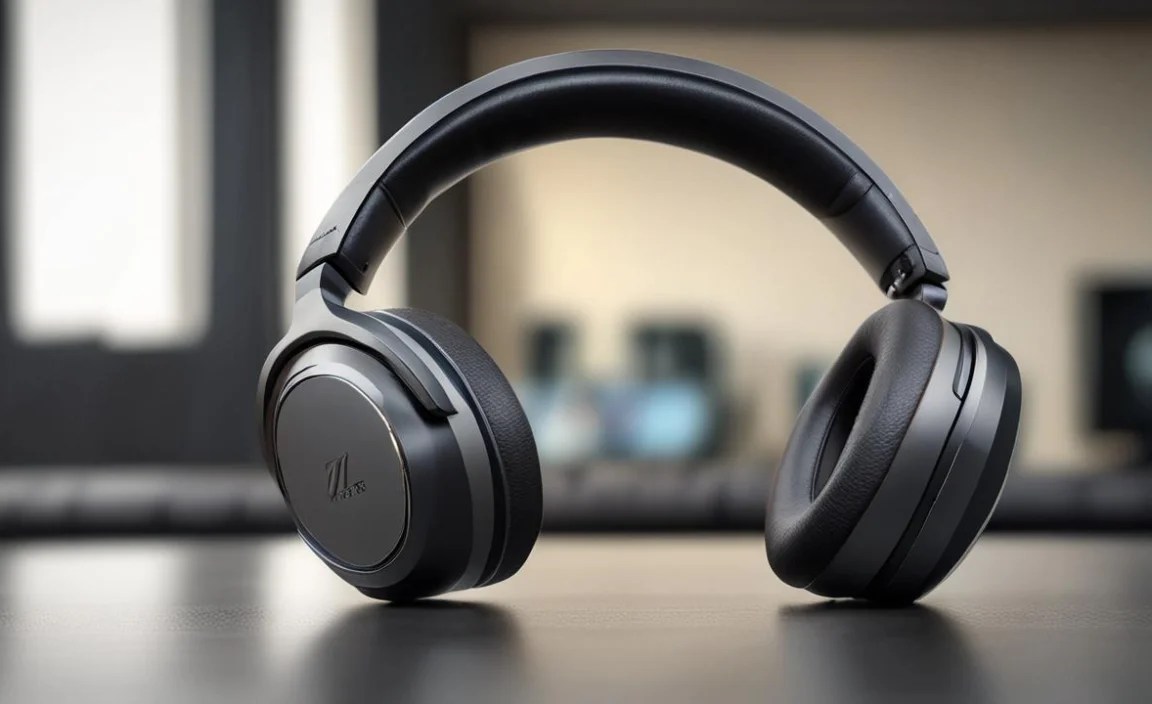
Even with straightforward setup, occasional glitches can happen. Here are solutions to common problems:
No Sound
- Check Power: Ensure both the transmitter base and the headphones are powered on and charged.
- Verify Connections: Make sure all audio cables are securely plugged in at both the TV and the transmitter ends.
- TV Audio Settings: Re-confirm that your TV’s audio output is set to the correct source (Optical or Headphone) and that the TV speakers are turned off or set to external.
- Volume Levels: Turn up the volume on both the transmitter and the headphones.
- Pairing: Try re-pairing the headphones with the transmitter following the manual’s instructions.
- Source Audio: Ensure your TV is actually playing sound. Try briefly connecting regular wired headphones to the TV’s headphone jack to check.
Audio Delay (Lip-Sync Issues)
This is most common with Bluetooth unless low-latency codecs are used. For RF systems:
- RF Systems: Modern digital RF systems have very low latency. If you’re experiencing a noticeable delay, ensure you are using an RF system designed for TV and not just a general-purpose Bluetooth headset without low-latency support.
- Bluetooth Systems: If using Bluetooth, check if your TV or external transmitter supports aptX Low Latency. If not, and the delay is significant, consider purchasing a dedicated Bluetooth transmitter with aptX Low Latency and pairing your Sennheiser headphones (if they also support it) or their specific TV Bluetooth headphones to that.
- Digital Audio Format: Some TVs send surround sound formats (like Dolby Digital). While some headphones can decode these, others might struggle, leading to delay or no sound. Try setting your TV’s digital audio output to ‘PCM’ or ‘Stereo’ in the audio settings. This is a common fix found on resources like Rtings.com’s guide to audio formats.
Intermittent Sound or Static
- Interference: RF wireless signals can be affected by other wireless devices (Wi-Fi routers, microwaves, cordless phones) or even physical obstructions like thick walls. Try moving the transmitter to a more open location or away from interfering devices.
- Range: Ensure you are within the effective range of the transmitter.
- Low Battery: Low battery power in the headphones can sometimes cause audio dropouts. Ensure they are fully charged.
- Headphone Fit: For some models, ensuring the headphones are properly seated on your head can improve signal reception.
One Earbud/Headphone Not Working
- Balance Setting: Check your TV’s or headphone’s balance settings to ensure the audio isn’t skewed to one side.
- Headphone Damage: This could indicate internal damage to the headphone unit. Try pairing it with another compatible transmitter if possible, or contact Sennheiser support.
- Re-pair: A simple re-pairing process can sometimes resolve connectivity issues with individual earcups.
Choosing the Right Sennheiser Wireless Headphones for Your TV: Key Features to Consider

Not all Sennheiser wireless headphones are created equal, especially when it comes to TV use. Here’s what to look for:
| Feature | For TV Viewing, It Means… | Why It’s Important |
|---|---|---|
| Type of Wireless Technology | Digital RF is generally preferred for dedicated TV sets. Bluetooth with aptX Low Latency is excellent if your TV supports it or you use a compatible transmitter. | Minimizes audio delay (lip-sync issues) and ensures a stable connection. |
| Comfort and Fit | Over-ear designs with plush earcups are common for immersive comfort over long periods. | You’ll be wearing them for hours during movies or shows; comfort is key. |
| Sound Profile | Look for models that emphasize vocal clarity (dialogue) and a balanced sound. Some Sennheiser TV models have customizable hearing profiles. | You want to clearly hear dialogue and enjoy dynamic soundtracks without the audio becoming fatiguing. |
| Range | Digital RF systems typically offer 100-200 feet (30-60 meters). | Freedom to move around your house without losing the audio feed. |
| Ease of Use | Simple setup, intuitive controls on the headphones, and automatic pairing. | You want to enjoy your TV without a complicated technical setup each time. |
| Battery Life | Aim for at least 15-20 hours of playback on a single charge. | Ensures you can get through multiple episodes or a long movie without needing to recharge. Look for charging docks for convenience. |
| Connectivity Options | Ensure the transmitter supports your TV’s audio outputs (Optical, 3.5mm). | Guarantees a physical connection can be made. |
Benefits of Dedicated Sennheiser TV Headphones vs. Standard Bluetooth

While using standard Bluetooth headphones with your TV is an option, dedicated Sennheiser wireless TV headphone systems offer distinct advantages:
| Feature | Dedicated Sennheiser TV (RF) | Standard Bluetooth Headphones (Generic) |
|---|---|---|
| Latency (Audio Delay) | Extremely low (virtually imperceptible). | Can be noticeable unless using aptX Low Latency and compatible devices. |
| Connection Stability | Highly stable, designed for fixed base station broadcasting. | Can be more susceptible to interference and dropouts depending on the quality of the Bluetooth signal and TV transmitter. |
| Setup for TV | Optimized and straightforward plug-and-play for TV audio. | May require pairing with TV’s Bluetooth or an external adapter; can be less intuitive. |
| Range | Typically much longer (up to 200 ft). | Shorter (up to 30 ft). |
| Sound Customization for TV | Often includes presets for dialogue clarity, hearing profiles. | General audio tuning, less specific to TV dialogue enhancement. |
| Versatility | Primarily for TV listening. | Can connect to multiple devices (phone, tablet, PC). |
| Cost | Can be a higher initial investment. | Highly variable; |
