
Quick Summary: Elevate your PlayStation 5 gaming with Sony headphones. This guide explains why they’re a fantastic upgrade, how to connect them easily, and offers top picks for an immersive audio experience. Get clearer game sounds and comms for ultimate victory.
Sony Headphones for PS5: Your Essential Gaming Upgrade

Stepping into the vibrant world of the PlayStation 5 is an adventure, and what better way to truly immerse yourself than with incredible sound? While your PS5 might come with standard audio capabilities, upgrading to a dedicated pair of Sony headphones can be a game-changer. Not only do they unlock a richer, more detailed audio landscape for your favorite titles, but they also ensure crystal-clear communication with your teammates. Whether you’re a seasoned gamer or just starting, this guide will walk you through why Sony headphones are a smart choice for your PS5 and how to get the most out of them.
Why Sony Headphones Are a Must-Have for PS5 Gamers

Sony is renowned for its audio expertise, and this extends to their headphone offerings, especially when it comes to enhancing the gaming experience on their own console. When you pair Sony headphones with your PS5, you’re tapping into a synergy that’s designed to deliver premium sound quality, advanced features, and seamless integration. Let’s break down why this combination is so powerful:
Unparalleled Audio Fidelity
The PS5 boasts impressive audio capabilities, thanks to its Tempest 3D AudioTech. This technology creates a 3D soundscape, allowing you to pinpoint the direction of in-game sounds, helping you react faster and feel more present in the game. Sony headphones are engineered to reproduce this 3D audio faithfully, often with custom drivers and tuning that capture every subtle footstep, distant shot, or atmospheric whisper. This means:
- Enhanced Immersion: Hear the game world come alive around you, making every explosion more impactful and every quiet moment more atmospheric.
- Positional Awareness: Quickly identify enemy locations based on sound, giving you a tactical advantage.
- Deeper Emotional Connection: Experience the full emotional weight of a game’s soundtrack and dialogue.
Seamless PS5 Integration
When you choose Sony headphones, especially those designed with PlayStation in mind (like the official Pulse 3D wireless headset), you benefit from “plug-and-play” simplicity. Many Sony headsets connect wirelessly via a USB dongle or Bluetooth, offering a stable, low-latency audio experience. This means:
- Easy Setup: No complicated configurations needed. Just plug in the adapter or pair via Bluetooth, and you’re ready to go.
- Optimized Performance: These headsets are often tuned to work optimally with the PS5’s audio engine.
- Controller Integration: Some headsets even offer intuitive controls that integrate with your DualSense controller’s functions.
Superior Microphone Quality for Comms
Multiplayer gaming is all about coordination. A good headset with a clear microphone is essential for communicating effectively with your squad. Sony’s gaming headsets typically feature noise-canceling microphones that isolate your voice from background noise, ensuring your teammates hear you loud and clear. This leads to:
- Clearer Callouts: Reduce misunderstandings and improve team strategy.
- Less Background Distraction: Your teammates can focus on what you’re saying, not the sounds happening around you.
- Professional Sounding Voice: Feel more confident knowing your voice comes through crisply.
Comfort for Long Gaming Sessions
Gaming marathons can put a strain on your ears and head if you’re not using the right equipment. Sony headphones, particularly their gaming-focused models, are designed with ergonomics in mind. They feature plush earcups, adjustable headbands, and lightweight constructions to ensure comfort even after hours of play. This means:
- Reduced Fatigue: Avoid discomfort that can pull you out of the game.
- Better Seal: Comfortable earcups often provide a better seal for improved passive noise isolation and audio clarity.
- Extended Playtime: Focus on enjoying your game for longer periods.
Choosing the Right Sony Headphones for Your PS5

Sony offers a wide range of headphones, and knowing which ones are best suited for your PS5 can be a bit daunting. We’ll categorize them to help you find the perfect match.
Official PlayStation Headsets: The Premium Choice
Sony’s official PlayStation headsets are designed from the ground up to work seamlessly with the PS5 and leverage its unique features, especially Tempest 3D AudioTech. These are often the easiest to set up and offer the most integrated experience.
1. Sony Pulse 3D Wireless Headset
This is the headset most often associated with the PS5, and for good reason. It’s built to take full advantage of the PS5’s 3D audio capabilities.
- Pros:
- Specifically designed for PS5 to fully utilize Tempest 3D AudioTech.
- Wireless connectivity via a USB dongle for low latency.
- Comfortable design with plush earcups and adjustable headband.
- Built-in microphone with noise-canceling technology.
- Intuitive on-ear controls and a companion mobile app for audio customization.
- Affordable price point for a wireless PS5-optimized headset.
- Cons:
- Microphone quality, while good, might not satisfy professional streamers.
- Soundstage might be slightly less expansive than higher-end audiophile headphones.
- Can only be used with PS5, PC, and PS4 (without 3D audio benefits).
2. Sony INZONE H9 / H7 / H3
Sony’s INZONE line represents a more premium approach to gaming audio, offering features that even surpass the Pulse 3D headset for discerning gamers. The H9 is the flagship, offering noise cancellation and premium comfort, while the H7 is a strong wireless mid-range option, and the H3 is a wired, more budget-friendly choice.
Key Features across INZONE line:
- Tempest 3D AudioTech Support: Like the Pulse 3D, these leverage the PS5’s 3D audio engine.
- High-Quality Microphone: Typically a flip-to-mute boom microphone with excellent voice clarity.
- Comfort and Build: Focus on ergonomic design for extended wear.
- Wireless Options (H9 & H7): Low-latency wireless connectivity via USB dongle, plus Bluetooth for mobile devices.
- Active Noise Cancellation (H9): This flagship feature immerses you deeper by blocking out ambient sounds.
- Companion App: The INZONE Hub software allows for advanced EQ customization, sound profiling, and more.
Pros & Cons Comparison:
| Feature/Model | INZONE H9 | INZONE H7 | INZONE H3 |
|---|---|---|---|
| Connectivity | 2.4GHz Wireless (Dongle) + Bluetooth | 2.4GHz Wireless (Dongle) + Bluetooth | 3.5mm Wired |
| Noise Cancellation | Yes (Active Noise Cancellation) | No | No |
| Microphone | Boom mic with noise reduction | Boom mic with noise reduction | Boom mic with noise reduction |
| Battery Life | Up to 32 hours | Up to 40 hours | N/A |
| Comfort | Premium, leather-like earcups, very light | Soft, nylon earcups, lightweight | Lightweight, ergonomically designed |
| Price Point | Premium | Mid-Range | Budget-Friendly |
| Best For | Immersive experience, quiet environments, audiophiles | Excellent wireless audio, long battery life | Simple, reliable wired audio for PS5 & other devices |
Other High-Quality Sony Headphones
While not specifically branded for gaming, many of Sony’s flagship consumer headphones offer superb sound quality that can significantly enhance your PS5 experience, especially if you enjoy single-player games or prioritize music and media consumption alongside your gaming.
1. Sony WH-1000XM5 / WH-1000XM4
These are Sony’s industry-leading noise-canceling headphones. While they lack a dedicated boom mic for gaming comms, their sound quality, comfort, and active noise cancellation are exceptional.
- Pros:
- World-class Active Noise Cancellation (ANC) for ultimate immersion.
- Exceptional audio fidelity suitable for music, movies, and games.
- Extremely comfortable for long listening sessions.
- Excellent battery life.
- Can connect to PS5 via Bluetooth (latency might be a consideration for fast-paced competitive games).
- High-quality built-in microphones for calls (though not ideal for gaming comms without an adapter).
- Cons:
- Higher latency over Bluetooth compared to dedicated gaming headsets with dongles, potentially affecting fast-paced games.
- No dedicated boom microphone for gaming.
- Higher price point.
- Requires a Bluetooth adapter for PS5 if your console doesn’t have built-in Bluetooth support or if you want to bypass the PS5’s native Bluetooth limitations.
2. Sony WF-1000XM4/XM5 (True Wireless Earbuds)
For gamers who prefer a more discreet and less bulky option, Sony’s premium true wireless earbuds can also be a viable choice, especially for casual gaming or when portability is key.
- Pros:
- Excellent sound quality and ANC in a compact form factor.
- Good for casual gaming or when a full headset is too cumbersome.
- Decent battery life with the charging case.
- Can connect to PS5 via Bluetooth.
- Cons:
- Bluetooth latency can be an issue for competitive gaming.
- Not ideal for long gaming sessions due to earbud fit for some users.
- No boom microphone for clear voice comms.
- Less immersive than over-ear headphones.
How to Connect Sony Headphones to Your PS5
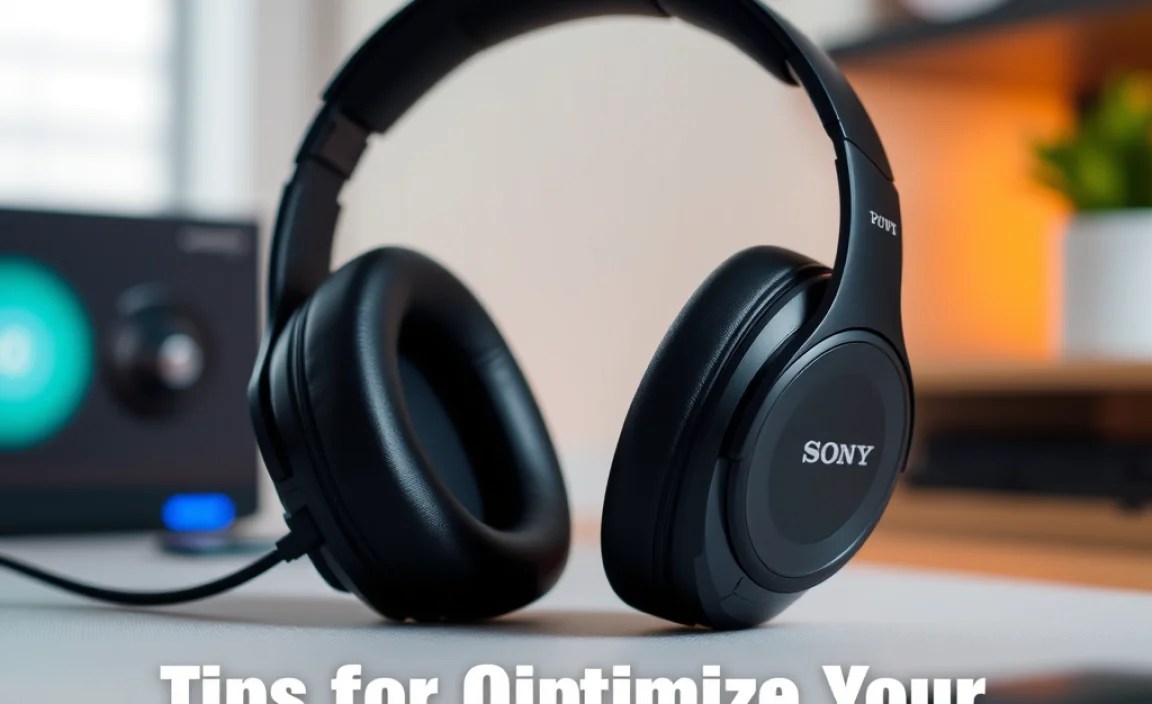
Connecting your Sony headphones to your PS5 is generally straightforward. The method will depend on the type of headphones you have.
Wireless Connection (USB Dongle)
This is the most common method for dedicated gaming headsets like the Pulse 3D and INZONE series. It provides a stable, low-latency connection.
- Locate a USB Port: Find an available USB-A port on your PS5 (front or back).
- Insert the Dongle: Plug the wireless USB adapter that came with your headphones into the USB port.
- Power On Headset: Turn on your Sony headphones. They should automatically pair with the dongle. A light on the dongle will usually indicate a successful connection.
- Select Audio Output: On your PS5, navigate to Settings > Sound > Audio Output. Ensure the “Input Device” and “Output Device” are set to your headset (it will often have a name like “USB Headset” or the headset’s model name).
- Adjust Volume: Use the volume controls on your headphones or directly on your PS5’s quick menu.
Wireless Connection (Bluetooth)
Many Sony consumer headphones (like the WH-1000XM series) and some gaming models connect via Bluetooth. Note that the PS5’s native Bluetooth support can be a bit limited for audio devices, and latency can be a factor compared to dongle-based connections.
- Enable Pairing Mode on Headphones: Consult your headphone’s manual to put them into Bluetooth pairing mode. This usually involves pressing and holding a specific button.
- Access PS5 Bluetooth Settings: On your PS5, go to Settings > Accessories > Bluetooth Devices.
- Scan for Devices: Select “Register New Device.” Your PS5 will search for nearby Bluetooth devices.
- Pair Your Headphones: Select your Sony headphones from the list when they appear. You may need to confirm the pairing.
- Select Audio Output: Once paired, go to Settings > Sound > Audio Output and select your headphones as both the “Input Device” and “Output Device.”
- Consider Latency Adapters: For a more stable, low-latency Bluetooth connection for gaming, consider purchasing a dedicated PS5 Bluetooth adapter that supports low-latency codecs like aptX Low Latency. You can often find these that connect via USB.
- For Wired USB-C to DC Output: Some Sony headphones, like the INZONE H3 or H5, might require a USB-C to 3.5mm adapter that connects to your controller or console. Follow the specific instructions for your model.
Wired Connection (3.5mm Audio Jack)
Some Sony gaming headsets, like the INZONE H3, and many of their consumer headphones can be connected directly using a 3.5mm audio cable. This usually offers the lowest latency and is a reliable option.
- Connect the Cable: Plug one end of the 3.5mm audio cable into the headphone jack on your headphones and the other end into the headphone jack on your PS5 controller, or into a compatible USB-to-audio adapter if connecting directly to the console.
- Check PS5 Settings: Navigate to Settings > Sound > Audio Output. Ensure the “Output Device” is set to “Game and Music” or “Chat Audio” (depending on your preference and headphone capabilities) and that the output volume is adjusted.
- Adjust Volume: Use the inline volume controls on the cable or your headphones, or adjust it via the PS5’s quick menu.
Important Note on PS5 Audio: The PS5 primarily pushes 3D audio through its own Pulse 3D headset format. While other headphones will receive audio, they might not fully replicate the Tempest 3D AudioTech experience unless they are specifically designed to receive and process that signal, like the INZONE series. For non-PlayStation branded headphones connected via Bluetooth, you might need to toggle the audio format in PS5 settings (Settings > Sound > Audio Format (Priority)) to PCM.
Tips for Optimizing Your Sony Headphones on PS5
Once connected, a few tweaks can further enhance your audio experience.
Utilize the PS5’s Sound Settings
Navigate to Settings > Sound on your PS5. Here you can:
- Adjust Volume Levels: Set separate volumes for game chat and game audio.
- Microphone Level: Adjust your microphone’s sensitivity to ensure you’re heard clearly without distortion.
- Audio Format (Priority): For non-PlayStation headsets, experiment with “Tempest 3D Audio for Headphones” or “Bitstream (Dolby)” / “Bitstream (DTS)” if your headphones support those formats and if you’re using a PS5 with AV receiver that decodes them. For most Sony gaming headsets, “Tempest 3D Audio for Headphones” is recommended.
Explore Companion Apps
If you have Sony INZONE headphones, download the INZONE Hub PC software or companion app. This allows you to:
- Customize EQ: Adjust bass, treble, and mid-frequencies to your liking.
- Create Sound Profiles: Save different audio settings for various game genres.
- Implement “Sound Focus”: This feature analyzes your hearing to create a personalized 3D audio profile.
- Firmware Updates: Ensure your headset is always running with the latest features and improvements.
Test and Adjust
Every gamer’s ears and preferences are different. Play a variety of games to see how your headphones perform. Do you need more bass for explosions? Is clear dialogue crucial for story-driven titles? Adjust your EQ settings or PS5 sound profiles accordingly.
For a fantastic resource on 3D audio and console compatibility, check out Sony’s official PlayStation support pages for the latest information and troubleshooting tips. You can often find detailed guides on their support websites.
