
Quick Summary: Enhance your TV experience with Sony wireless headphones. This guide helps you choose, set up, and troubleshoot Sony headphones for TV, ensuring clear, immersive audio without disturbing others. Enjoy your shows and movies with unparalleled sound quality and comfort, making every viewing session an essential part of your entertainment.
Ever found yourself wanting to crank up the volume on a thrilling movie scene or a captivating documentary, only to remember that someone else in the house needs peace and quiet? Or perhaps you’re looking to catch every whisper of dialogue without straining your ears? If any of this sounds familiar, then diving into the world of Sony wireless headphones for TV might just be your audio dream come true. Sony offers a fantastic range of headphones designed to deliver exceptional sound directly to your ears, transforming your television viewing into a personal, immersive experience. Forget tangled wires and the constant struggle to find a comfortable listening volume. With the right pair of wireless headphones, you can enjoy crystal-clear audio, deep bass, and all the nuances of your favorite content, all while moving freely around your room. Let’s explore how to make this essential upgrade to your home entertainment system.
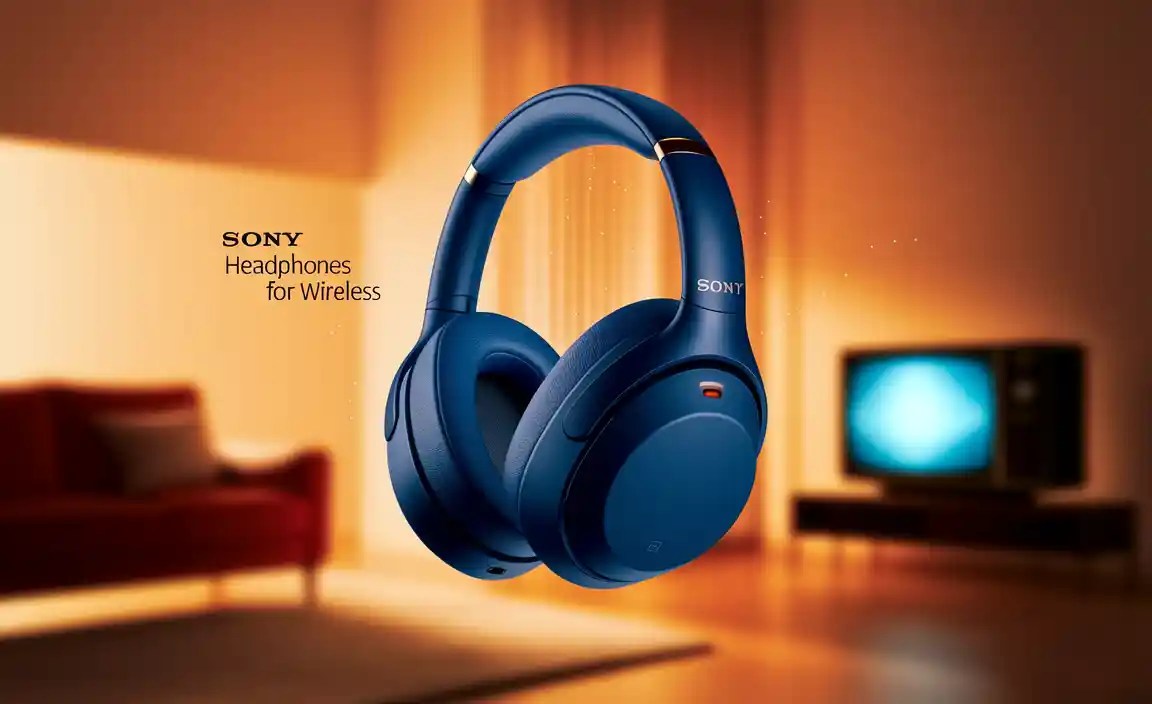
Why Choose Sony Wireless Headphones for Your TV?

Sony has a long-standing reputation for delivering high-quality audio products, and their wireless headphones are no exception. When it comes to pairing them with your television, several key benefits make them an essential choice for many households. They offer a blend of advanced technology, user-friendly design, and superior sound performance that can significantly elevate your viewing experience.
Superior Sound Quality
Sony headphones are engineered with audio fidelity in mind. Many models feature advanced acoustic technology, including large drivers and precise tuning, which reproduce sound with remarkable clarity. This means you’ll hear dialogue more clearly, appreciate the subtle sound effects in movies, and feel the impact of the music soundtrack like never before. This enhanced audio immersion helps you connect more deeply with whatever you’re watching.
Unwanted Noise Reduction
For those who need to keep the volume down to avoid disturbing others, wireless headphones are a game-changer. Sony’s noise-canceling technologies, present in many of their models, can also be beneficial. While primarily designed for listening to music, the ability to block out ambient distractions means you can focus solely on your TV audio, even at lower volumes. This is particularly useful for late-night viewing or in busy households.
Freedom of Movement
The “wireless” aspect is, of course, a major draw. No more being tethered to your TV by a short, restrictive cable. With Sony wireless headphones, you gain the freedom to get up, grab a snack, or even move to another room (within the transmission range) without interrupting your audio. This convenience adds a layer of comfort and practicality to your TV watching habits.
Easy Connection and Setup
Sony designs its products with the user in mind. While technologies can vary, they generally strive for straightforward setup processes that most users can manage with minimal fuss. We’ll cover the common connection methods shortly, but generally, you can expect a relatively seamless integration with most modern TVs.
Comfort and Ergonomics
Long viewing sessions demand comfortable headphones. Sony offers a variety of designs, from over-ear models with plush earcups to lighter, more compact options. Many are designed for extended wear, ensuring you can enjoy even the longest movie marathons or binge-watching sessions without discomfort.
Types of Sony Wireless Headphones for TV

When choosing Sony wireless headphones for your TV, you’ll encounter a few primary technologies and styles that cater to different needs and budgets. Understanding these will help you make the best choice for your specific setup and preferences.
Bluetooth Headphones
Bluetooth is the most common wireless technology today, found in most smartphones, tablets, and modern TVs. For TV use, you’ll want to ensure your TV has Bluetooth capability. If it doesn’t, you can often add it with a Bluetooth transmitter. Sony offers a wide range of Bluetooth headphones, many with features like Active Noise Cancellation (ANC) and high-quality audio codecs (like LDAC or aptX HD) that can improve sound fidelity.
Pros of Bluetooth Headphones for TV:
- Widely compatible with modern devices, including many smart TVs.
- Offers excellent freedom of movement.
- Many models feature advanced audio technologies and ANC.
- No specific base station required if your TV has Bluetooth.
Cons of Bluetooth Headphones for TV:
- Can sometimes experience audio lag (latency), especially with older Bluetooth versions or inexpensive transmitters. This is less common with newer, higher-quality codecs.
- Range can be limited (typically around 30-50 feet).
- Requires the TV to have built-in Bluetooth or the use of a separate transmitter.
RF (Radio Frequency) Headphones
RF headphones typically come with a dedicated base station or transmitter that connects directly to your TV’s audio output (like headphone jack or optical port). The headphones then wirelessly connect to this base station using radio frequencies. This technology often provides a more stable connection with lower latency than basic Bluetooth, making it a popular choice specifically for TV viewing.
Pros of RF Headphones for TV:
- Excellent for TV use due to minimal to no audio lag.
- Often have a longer transmission range than Bluetooth.
- Can offer multi-device pairing with the same base station for multiple listeners.
- Generally very reliable and easy to set up with the included transmitter.
Cons of RF Headphones for TV:
- Requires the dedicated base station, which needs to be plugged in and connected to the TV.
- Can be more expensive than basic Bluetooth headphones.
- May be susceptible to interference from other RF devices.
- Less portable and versatile for use with other devices compared to Bluetooth headphones.
Infrared (IR) Headphones
Similar to RF, Infrared headphones use a transmitter plugged into the TV, but they operate on infrared light signals. These are less common for general home use than RF or Bluetooth and typically require a direct line of sight between the transmitter and the headphones, which can be a significant limitation.
Pros of IR Headphones for TV:
- No interference from other RF devices.
- Generally low latency.
Cons of IR Headphones for TV:
- Requires a direct line of sight, making movement restrictive.
- Limited range.
- Less common and generally not recommended over RF or Bluetooth for modern home entertainment.
Key Features to Look For in Sony TV Headphones

Beyond the connection type, several features can make your Sony wireless headphones perfect for TV:.
- Comfort and Fit: Over-ear headphones usually offer the best comfort for long sessions, with plush earcups that surround your ears. Check for adjustable headbands for a secure fit.
- Battery Life: Ensure the headphones offer sufficient battery life for your typical viewing habits. Many Sony models boast 20-40 hours of playback on a single charge.
- Audio Quality: Look for features like large drivers (e.g., 40mm or larger) and support for high-definition audio codecs if using Bluetooth.
- Ease of Use: Simple controls for volume, power, and pairing are essential.
- Transmission Range: For wireless freedom, a good range is important. RF systems often excel here, but newer Bluetooth versions offer significant improvements.
- Voice Clarity: Some headphones are specifically tuned to enhance vocal frequencies, making dialogue easier to understand.
- Multi-Device Connectivity: Useful if you want to switch between your TV and another device like a phone.
How to Connect Sony Wireless Headphones to Your TV

Connecting your Sony wireless headphones to your TV is usually straightforward, but the exact steps depend on your TV’s capabilities and the type of headphones you have.
Method 1: Connecting via Bluetooth (If Your TV Supports It)
This is the most modern and often the most convenient method if your smart TV has built-in Bluetooth. You’ll need Sony Bluetooth headphones for this.
- Enable Bluetooth on Your TV: Navigate to your TV’s settings menu. Look for options like “Sound Output,” “Bluetooth,” or “Device Connections.” Turn Bluetooth on.
- Put Your Sony Headphones in Pairing Mode: Refer to your Sony headphones’ manual. Typically, this involves pressing and holding the power button or a dedicated Bluetooth button until an indicator light flashes (often blue and red, or blue rapidly).
- Scan for Devices on Your TV: On your TV, select the option to “Scan for Devices” or “Add Device.”
- Select Your Headphones: Your Sony headphones should appear in the list of available devices. Select them to initiate the pairing process.
- Confirm Pairing: Your TV might ask you to confirm the pairing. Once successful, the headphones should show as connected.
- Select Headphones as Audio Output: In your TV’s sound settings, ensure that your newly connected headphones are selected as the audio output device.
Tip: If you encounter issues, try moving the headphones closer to the TV or resetting both devices. You can find great resources on Bluetooth pairing from organizations like the Bluetooth SIG.
Method 2: Connecting via a Bluetooth Transmitter
If your TV does not have built-in Bluetooth, a Bluetooth transmitter is your best friend. This small device connects to your TV’s audio output and broadcasts the sound wirelessly via Bluetooth to your Sony Bluetooth headphones.
- Connect the Transmitter to Your TV: Plug the Bluetooth transmitter into your TV’s audio output port. This is usually a 3.5mm headphone jack, RCA (red and white audio jacks), or an optical (TOSLINK) port. Use the appropriate cable provided with the transmitter.
- Power the Transmitter: Most transmitters are powered via USB. Plug the USB cable into a USB port on your TV or a USB wall adapter.
- Put the Transmitter in Pairing Mode: Press and hold the button on the transmitter until its indicator light starts flashing, indicating it’s ready to pair.
- Put Your Sony Headphones in Pairing Mode: Follow the same steps as in Method 1 (step 2).
- Pair the Devices: Bring the headphones close to the transmitter. They should automatically detect and pair with each other. Wait for the indicator lights on both devices to show a stable connection (often a solid blue light).
- Select the Transmitter as Audio Output (if applicable): Some TVs might require you to select the analog audio out or optical out as the sound source.
Note on Latency: To minimize audio delay with this method, look for a Bluetooth transmitter that supports low-latency codecs like aptX Low Latency (aptX LL). Both your transmitter and your headphones need to support aptX LL for it to work.
Method 3: Connecting via RF Headphones (with Base Station)
RF headphones come with their own dedicated transmitter/base station and are designed for a plug-and-play experience with TVs.
- Connect the Base Station to Your TV: Use the included audio cables (usually 3.5mm or RCA) to connect the base station to your TV’s audio output. Some base stations also support optical connections.
- Power the Base Station: Connect the power adapter for the base station and plug it into a wall outlet.
- Turn on the Headphones and Base Station: Power on both your RF headphones and the base station.
- Automatic Pairing: Most RF systems are pre-paired out of the box. Simply turn them on, and they should connect automatically. You’ll usually see an indicator light on both the base station and the headphones confirming the connection.
- Select Base Station as Audio Output (if applicable): Ensure your TV is set to output audio through the port you connected the base station to.
Important for RF: If the audio doesn’t work immediately, check that the base station is connected to the correct audio output on your TV and that your TV’s sound settings are configured to use that output. You can learn more about audio output options from resources like RTINGS.com’s comprehensive guide.
Troubleshooting Common Issues
Even with the best technology, you might occasionally run into snags. Here are solutions to common problems:
No Sound
- Check Volume: Ensure the volume on both your TV and your headphones is turned up.
- Check Connection: Make sure the headphones are properly paired and selected as the audio output device in your TV settings. For RF systems, ensure the base station is powered and connected correctly.
- Check Audio Output Settings: Verify that your TV’s audio output is set to the correct port (e.g., Bluetooth, headphone jack, optical) that your headphones or transmitter/base station are connected to.
- Restart Devices: Turn off your TV, headphones, and transmitter/base station, then turn them back on.
Audio Lag (Lip Sync Issues)
This is most common with Bluetooth. Solutions include:
- Use Low-Latency Codecs: Ensure both your headphones and transmitter (if used) support aptX Low Latency.
- Tweak TV Settings: Some TVs have an “AV Sync” or “Lip Sync Adjustment” setting that allows you to manually delay the video to match the audio. Learn more about this from your TV’s manual.
- Try RF Headphones: For the best low-latency experience, RF headphones are often the superior choice.
- Reduce Distance/Obstructions: Move closer to the TV or transmitter.
Intermittent Connection or Dropouts
- Check Range: Move closer to your TV or Bluetooth transmitter/RF base station.
- Minimize Interference: Other wireless devices (Wi-Fi routers, microwaves, other Bluetooth devices) can interfere. Try turning off other wireless devices temporarily.
- Update Firmware: Check if your Sony headphones or Bluetooth transmitter have firmware updates available.
- Battery Level: Ensure both your headphones and transmitter (if applicable) have sufficient battery charge.
Headphones Won’t Pair
- Reset Both Devices: Clear the pairing history on your TV, headphones, and transmitter/base station, then try pairing again.
- Ensure Correct Pairing Mode: Double-check your headphone’s manual for the exact steps to put them into pairing mode.
- Check Compatibility: Ensure your TV and headphones are compatible (e.g., using the right Bluetooth version).
Popular Sony Headphones for TV Use
While specific models change, Sony consistently offers excellent options. Here are some categories and popular examples to consider:
| Headphone Type | Key Features | Ideal For | Considerations |
|---|---|---|---|
| Sony WH-1000XM Series (e.g., XM4, XM5) | Industry-leading noise cancellation, excellent sound quality, comfortable over-ear design, Bluetooth, multipoint connection. | Movie lovers, audiophiles, frequent travelers, anyone seeking premium experience. | Premium price point, may require a Bluetooth transmitter for older TVs. |
| Sony MDR-RF Series (e.g., MDR-RF855RK) | Dedicated RF wireless system with transmitter, excellent range, low latency, comfortable design. | Dedicated TV watchers, users prioritizing ease of use and no lag, households with multiple listeners (some models). | Requires dedicated base station, not as portable for other uses. |
| Sony WF-1000XM Series (e.g., WF-1000XM4, XM5) | Premium truly wireless earbuds, excellent noise cancellation, good sound, compact and portable. | Users who prefer earbuds, portability, and modern tech. | Fit can be subjective, battery life may be less than over-ear, might need a Bluetooth transmitter. |
| Sony INZONE (Gaming Headsets) | Low latency wireless (often 2.4GHz USB dongle), spatial audio features, boom mic, comfortable. | Gamers who also want to use for TV, users prioritizing absolute minimal latency. | Primarily designed for gaming; may have features less relevant for pure TV watching. |
When looking for models, always check compatibility with your TV’s audio output and the latest Bluetooth versions if going the Bluetooth route. For older TVs unfamiliar with Bluetooth, consider purchasing a TV-friendly Bluetooth transmitter kit that includes both a transmitter and receiver, or opt for models like the Sony MDR-RF series designed specifically for easy TV connection.
FAQ: Your Questions Answered
Q1: Do I need a special TV for Sony wireless headphones?
No, not usually. Most modern smart TVs have built-in Bluetooth. If your TV doesn’t have
