
Quick Summary: A splitter for headphones and mic is a simple gadget that lets you use a single audio jack for both listening and speaking. This guide explains what it is, why you need one, and how to choose and use the right one for your devices, making sharing audio and connecting your headset a breeze.
Splitter for Headphones and Mic: Your Essential Audio Solution

Hey everyone, Edward here from Headphone Horizon! Ever found yourself wanting to share your favorite tunes with a friend, or perhaps needing to use a gaming headset with a built-in microphone on a device that only has one audio port? It can be frustrating when your trusty headphones have a separate plug for the mic, and your laptop or console only offers a single combined jack.
Well, I’ve got good news! There’s a super handy and affordable little gadget that solves this problem in a flash: the splitter for headphones and mic. Think of it as a simple yet powerful tool that unlocks the full potential of your audio gear, ensuring you can listen, speak, and connect without a hitch. Let’s dive into why this becomes an essential part of your audio setup.
What Exactly is a Headphone and Mic Splitter?

At its core, a splitter for headphones and mic is a small adapter that takes a single audio port and splits it into two distinct outputs: one for your headphones (audio playback) and one for your microphone (audio input). Most modern laptops, smartphones, and many gaming consoles have a single combo jack that handles both microphone and headphone signals. These combo jacks typically use a TRRS (Tip-Ring-Ring-Sleeve) connection, which has more contacts than a standard TRS (Tip-Ring-Sleeve) stereo headphone jack to accommodate the microphone line. A splitter essentially “unbundles” these signals, separating the microphone input from the headphone output so you can plug in traditional headphones that have separate jacks for audio and mic.
You’ll usually see these splitters with a single TRRS male plug on one end (which inserts into your device’s combo jack) and two female jacks on the other end: typically a 3.5mm pink jack for the microphone, and a 3.5mm green jack for the headphones. It’s a straightforward concept that makes a world of difference for compatibility.
Why Do You Need a Splitter for Headphones and Mic?

The need for a headphone and mic splitter arises from changes in how audio ports are designed on our devices. Here are the most common reasons why you might find yourself needing one:
- Device Compatibility: Many newer laptops and smartphones have ditched the separate microphone and headphone jacks in favor of a single TRRS combo jack. If you have a gaming headset or a pair of professional audio headphones with two separate plugs (one for audio, one for mic), you’ll need a splitter to make them work with these newer devices.
- Sharing Audio: While not its primary function, some splitters can also be used to share audio. If you have a device with a single stereo headphone jack and you want to plug in two pairs of headphones to listen to something with a friend, a basic audio splitter will do the trick. However, it’s crucial to distinguish between an audio-only splitter and one designed for both headphones and a mic.
- Upgrading Peripherals: You might have a fantastic pair of headphones with an excellent microphone, but your computer only has one combined audio jack. A splitter allows you to leverage the full functionality of your existing audio gear without needing to buy a new headset.
- Optimizing Workspace: It simplifies your setup. Instead of having multiple dongles or adapters, a single, compact splitter connects your headset cleanly to your device.
Types of Splitters
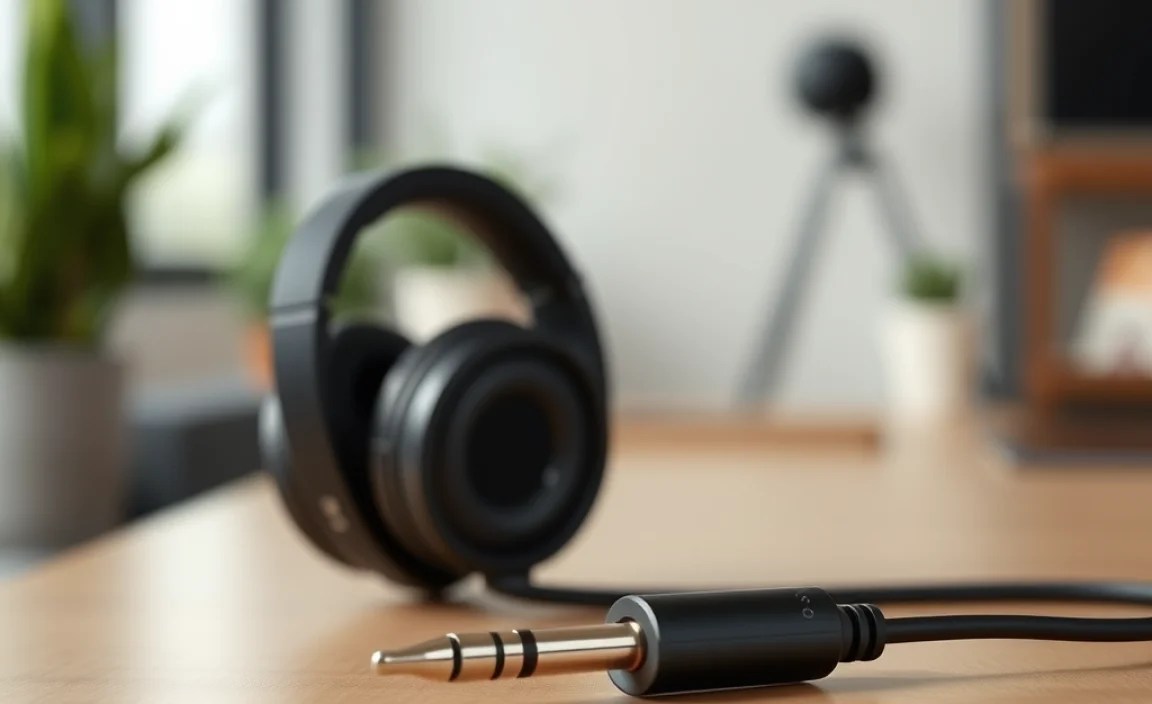
When you start looking for a splitter, you’ll notice a few variations. Understanding these differences will help you pick the perfect one for your needs.
1. TRRS to Dual TRS Splitter (The Most Common)
This is the type of splitter we’ve been discussing. It features one TRRS male plug that goes into your device’s combo jack and two 3.5mm female TRS jacks on the other end – usually color-coded (pink for mic, green for headphones) or clearly labeled.
Use Case: Connecting a headset with separate microphone and headphone plugs to a laptop, gaming console, or smartphone with a single combo audio jack.
2. Y-Splitter / Audio-Only Splitter
This type of splitter usually takes one stereo audio output and splits it into two stereo audio outputs. It typically has one 3.5mm male plug and two 3.5mm female jacks. It does not handle microphone signals.
Use Case: Listening to music with a friend by plugging two pairs of headphones into a single headphone jack on a device like an older MP3 player, tablet, or a standalone headphone output on some audio equipment.
3. USB to Dual 3.5mm Adapter/Splitter
These are slightly more advanced. Instead of plugging into a standard audio jack, they plug into a USB port on your computer. The USB port then handles the audio processing and provides separate headphone and microphone outputs. This is particularly useful if your computer’s onboard audio jacks are faulty or if you want to bypass your computer’s internal sound card for potentially better audio quality.
Use Case: Providing separate mic and headphone jacks on computers that might lack them, or as an alternative if built-in audio ports don’t work correctly. They can also offer a more robust audio signal.
4. Splitters with Integrated DACs
Similar to USB splitters, these devices often use a USB connection but include a Digital-to-Analog Converter (DAC). A DAC is a component that converts digital audio signals (like those from your computer) into analog signals that your headphones can play. Splitters with integrated DACs can offer superior sound quality compared to your device’s built-in audio, and they provide dedicated ports for your mic and headphones.
Use Case: Audiophiles, gamers, or professionals looking for improved sound fidelity and dedicated ports for their audio equipment, especially when the device’s built-in audio is a bottleneck.
How to Choose the Right Splitter

With the different types in mind, let’s break down how to select the best splitter for your specific setup.
1. Identify Your Device’s Audio Port
This is the most critical step. Look at your laptop, tablet, or smartphone. Does it have one circular hole that looks like a headphone jack, or does it have two separate jacks (one often green for headphones, one often pink for a microphone)?
- Single Combo Jack: You need a TRRS splitter (Type 1) or a USB splitter (Type 3 or 4) if you have separate headphone and mic plugs on your headset.
- Separate Headphone and Mic Jacks: You generally don’t need a splitter for your headset. If you want to share audio, you’d need an audio-only Y-splitter (Type 2), but this won’t help with a headset’s mic.
2. Check Your Headset/Microphone Connector
Look at the plug(s) on your headphones or headset. Do you have:
- One TRRS Plug: This indicates it’s designed for combo jacks. You might not need a splitter unless you specifically want to route the mic and headphone signals separately, which is uncommon.
- Two TRS Plugs (one for Mic, one for Headphones): This is where a TRRS splitter (Type 1) is essential for use with devices that have a single combo jack.
3. Consider Audio Quality Needs
For casual listening and basic communication, a standard TRRS splitter is perfectly adequate. However, if you’re serious about audio quality for music production, professional calls, or immersive gaming, a USB splitter with an integrated DAC might be a worthwhile investment. USB audio devices often bypass your computer’s internal sound card, which can sometimes be noisy or of lower quality.
4. Cable Length and Build Quality
Splitters are often small, but paying attention to build quality can save you headaches later. Look for:
- Braided Cables: These are generally more durable and less prone to tangling than standard plastic-coated cables.
- Gold-Plated Connectors: While not strictly necessary for every user, gold plating can offer slightly better conductivity and corrosion resistance, which can be important for long-term reliability.
- Strain Relief: Check where the cable meets the connector. Good strain relief prevents the cable from fraying or breaking under tension.
- Compact Size: If portability is key, a small, lightweight splitter is ideal.
5. Brand Reputation and Reviews
Like any tech accessory, some brands are known for producing reliable products. Reading reviews from other users can give you insights into potential issues or highlight excellent features. Stick to reputable brands for audio accessories to ensure compatibility and longevity.
How to Use a Headphone and Mic Splitter: A Step-by-Step Guide
Using a splitter is incredibly simple. Here’s a breakdown of the process:
Step 1: Identify Your Ports
Familiarize yourself with the audio port on your device (e.g., laptop, tablet, console) and the connector(s) on your headset or headphones. As we discussed, your device will likely have a single combo jack or separate mic/headphone jacks. Your headset will have either one TRRS plug or two TRS plugs.
Step 2: Connect the Splitter to Your Device
If you have a splitter with a single male plug (like a TRRS splitter), insert that plug firmly into the corresponding audio port on your device. For USB splitters, plug them into an available USB port on your computer.
Step 3: Connect Your Headset/Microphone
Now, take the separate headphone and microphone plugs from your headset. Plug the headphone plug into the jack designated for headphones on the splitter (often green or labeled “Audio Out”). Plug the microphone plug into the jack designated for the microphone (often pink or labeled “Mic In”). If your headset has a single TRRS plug, you’ll need a Y-splitter cable that converts that TRRS plug into two separate TRS plugs (one for mic, one for headphones) before plugging them into the splitter. However, most TRRS splitters are designed to accept the dual TRS plugs from the headset. Always double-check the port labels and your headset’s connectors.
Step 4: Test Your Audio Input and Output
Once everything is connected, it’s time to test!
- Audio Output: Play some music or a video. You should be able to hear sound through your headphones.
- Audio Input: Open a voice recording app, a communication program (like Discord or Zoom), or your device’s microphone settings. Speak into your microphone and check if your device is picking up the sound. You can often see a visual indicator in the software’s settings or during a test call.
Troubleshooting Common Issues
If you encounter problems, don’t worry! Most issues are simple to fix.
- No Sound: Ensure all plugs are firmly seated in their respective jacks. Check that the volume is turned up on both your device and within any applications you’re using.
- Microphone Not Working: Double-check that the microphone plug is in the correct “Mic In” jack and not the headphone jack. In your device’s sound settings, make sure the microphone input is selected and enabled. Sometimes, you might need to explicitly select the microphone from the splitter as your input device. You can explore detailed microphone settings and troubleshooting on resources like the Federal Communications Commission (FCC) information on electronic devices, which sometimes covers audio-related aspects in broader consumer tech guides.
- Static or Poor Sound Quality: Try a different splitter if possible, as the current one might be faulty. Ensure connectors are clean. For USB splitters, try a different USB port.
- Device Recognizes Wrong Input/Output: Some operating systems might require manual configuration. Go to your sound settings (e.g., in Windows, go to Sound Settings; on Mac, go to System Preferences > Sound) and explicitly select the splitter’s input and output devices.
Pros and Cons of Using a Splitter for Headphones and Mic
Like any tech accessory, splitters bring their own set of advantages and disadvantages. Here’s a quick rundown:
Pros:
- Enhanced Compatibility: Allows a wider range of headsets to connect to modern devices with combo jacks.
- Cost-Effective: Much cheaper than buying a new headset or a dedicated external sound card.
- Simple to Use: Plug-and-play functionality with no software installation required for most basic splitters.
- Portability: Small and lightweight, easy to carry in a laptop bag or pocket.
- Versatility: Solves a common problem for gamers, students, professionals, streamers, and everyday users.
Cons:
- Potential for Lower Audio Quality: Basic passive splitters don’t enhance audio; they just reroute it. If your device’s internal audio is poor, the splitter won’t fix it.
- Durability Concerns: Cheaper models can sometimes have flimsy connectors or cables that break easily.
- Signal Degradation: While usually negligible for most users, very long or poorly made cables can sometimes introduce minor signal loss or interference.
- Limited Functionality for Advanced Setups: Not ideal for complex professional audio setups requiring specific impedance matching or high-fidelity conversion without a dedicated audio interface.
When a Splitter May Not Be Enough
While incredibly useful, a simple splitter for headphones and mic isn’t always the ultimate solution for everyone. If you’re looking for:
- Superior Sound Quality: If you’re an audiophile or music producer, the audio quality from your device’s integrated sound card might be limiting. In such cases, investing in a dedicated USB DAC (Digital-to-Analog Converter) or an external audio interface would be a better choice. These devices offer higher-quality audio conversion and often better amplification. For example, an external audio interface from companies like Focusrite or PreSonus provides professional-grade audio I/O.
- Advanced Microphone Control: If you need features like phantom power for professional microphones, hardware volume controls for both mic and headphones, or the ability to mix multiple audio sources, a basic splitter won’t suffice. You would need an audio interface or a dedicated microphone preamplifier.
- Simultaneous Monitoring with Different Devices: If you need to send audio to speakers and headphones at the same time, or monitor different audio feeds, more specialized hardware is required.
However, for the vast majority of everyday users needing to make their existing headsets work with modern devices, a splitter is an excellent and affordable first step.
FAQ Section
Q1: Can I use a regular headphone splitter to connect a microphone?
A: No, a standard headphone splitter (sometimes called an audio Y-splitter) is designed to split a stereo audio output into two stereo audio outputs. It does not have the ability to handle a microphone input signal. You need a specific “splitter for headphones and mic” that has separate jacks for microphone and headphone signals.
Q2: My laptop has only one audio jack. Do I need a splitter if my headset also has only one plug?
A: If your headset has a single plug, it’s likely a TRRS plug designed for combo jacks. In this case, you probably don’t need a splitter; your headset should plug directly into your laptop’s single audio jack. A splitter is typically needed when your headset has two separate plugs (one for mic, one for headphones) and your device has one combo jack.
Q3: Will a splitter affect my audio quality?
A: For most basic TRRS splitters, the impact on audio quality is negligible for the average listener. They are passive adapters that simply reroute the existing signal. However, very cheap or poorly made splitters could potentially introduce some minor interference or signal degradation. For significant audio quality improvements, consider a USB audio adapter with a built-in DAC.
Q4: Can I use a splitter with my PS4, PS5, Xbox, or Nintendo Switch?
A: It depends on the console. Many modern versions of these consoles have controllers with combo audio jacks or headphone jacks. If your console controller has a single 3.5mm audio jack that accepts headsets, you can often use a TRRS splitter for headphones and mic. Always check your console’s specifications or the controller’s manual to confirm its audio port type and compatibility.
Q5: How do I know which plug goes into which jack on the splitter?
A: Splitters are usually color-coded or labeled. The microphone jack is typically pink and labeled “Mic In” or simply “Mic.” The headphone jack is usually green and labeled “Headphones,” “Audio Out,” or simply “Audio.” Your headset’s plugs should also visually match these (e.g., a pink connector for the mic and a green one for headphones).
