
Quick Summary: Choosing the best TV headphones enhances your viewing experience with clearer dialogue and immersive sound, avoiding disruptions. This guide covers essential features, connection types, and maintenance tips for optimal audio enjoyment, making it easy to find your perfect pair.
TV Headphones Best: Essential Sound for a Superior Viewing Experience
Ever found yourself leaning closer to the TV, straining to catch that crucial dialogue? Or perhaps you wish you could crank up the volume for that explosive movie scene without bothering anyone else in the house? If so, finding the best TV headphones is your ticket to a whole new level of home entertainment. It’s not just about hearing the TV; it’s about fully experiencing it – from the subtlest whisper to the most thrilling soundtrack – all on your own terms. This guide is designed to cut through the jargon and help you select, set up, and savor the incredible difference quality TV headphones can make. Let’s dive into the world of essential TV sound!
Why Invest in Dedicated TV Headphones?

In today’s world of smart TVs and streaming services, the audio experience is just as critical as the visual. While TV speakers have improved, they often struggle to deliver the nuanced sound needed for a truly immersive experience, especially in larger rooms or when background noise is present. Dedicated TV headphones offer a solution by:
- Enhancing Dialogue Clarity: Many TV headphones are tuned to emphasize speech frequencies, making it easier to understand dialogue even at lower volumes or amidst action.
- Providing Immersive Soundscapes: Whether it’s the subtle rustle of leaves in a nature documentary or the booming score of an action film, headphones can place you right in the middle of the soundstage.
- Enabling Private Listening: Enjoy your favorite shows at any volume, day or night, without disturbing family members, roommates, or neighbors. This is particularly beneficial for late-night viewing or for individuals with hearing sensitivities.
- Reducing Distractions: By blocking out ambient room noise, headphones allow you to focus entirely on what’s on screen, leading to a more engaging and enjoyable viewing session.
- Accommodating Hearing Loss: For those with mild to moderate hearing impairments, specialized TV headphones can offer amplified sound and clearer audio reproduction than built-in TV speakers, often with easy-to-use volume controls.
Key Features to Look For in TV Headphones

When searching for the best TV headphones, several features significantly impact your experience. Understanding these will help you make an informed choice tailored to your needs.
1. Wireless vs. Wired
This is arguably the most significant decision. Each has its distinct advantages and disadvantages:
- Wireless Headphones: Offer freedom of movement and a clutter-free setup. Most connect via Bluetooth or a dedicated wireless transmitter.
- Wired Headphones: Typically offer superior audio quality with no latency (delay between video and audio). They connect directly to your TV’s headphone jack or an audio output.
2. Connection Type
How your headphones talk to your TV matters. Here are the common methods:
- Bluetooth: The most common wireless technology. It’s convenient and widely compatible with newer TVs. However, Bluetooth can sometimes introduce a slight audio delay (latency), which can be noticeable with fast-paced action or gaming. Look for headphones with technologies like aptX Low Latency to minimize this.
- Radio Frequency (RF) Wireless: These headphones use a dedicated base station that plugs into your TV. RF generally offers a more stable connection with less interference and lower latency than standard Bluetooth, making them excellent for TV. They typically have a good range within a home.
- Infrared (IR) Wireless: Less common now, IR headphones also use a transmitter but require a direct line of sight between the headset and the transmitter, limiting your movement.
- 3.5mm Headphone Jack: The traditional wired connection. Simple, reliable, and no latency. The main drawback is the cord, which can be restrictive.
- Optical Audio Output (TOSLINK): Some TVs allow you to connect headphones via an optical audio converter, often used with wireless transmitter bases. This connection provides high-quality digital audio.
- RCA Connectors: Older TVs might use red and white RCA audio outputs. You might need an adapter to connect these to a wireless transmitter or wired headphones.
3. Comfort and Design
You’ll likely be wearing these for extended periods, so comfort is paramount. Consider:
- Over-Ear (Circumaural): These fully enclose your ears, offering excellent noise isolation and comfort for long sessions. They can be a bit bulky.
- On-Ear (Supra-aural): These rest on your ears. They are generally lighter but might not provide as good a seal or isolation as over-ear models and can sometimes cause discomfort after prolonged wear.
- Earbud Style: While less common for dedicated TV use, some wireless earbuds can connect via Bluetooth. They are very portable but may not offer the same comfort or audio immersion for long viewing.
- Weight: Lighter headphones are usually more comfortable for extended use.
- Padding: Look for plush earcups and well-padded headbands.
4. Battery Life (for Wireless)
For wireless models, check the battery life. Aim for headphones that offer at least 15-20 hours per charge to get through multiple movie sessions or a full day of watching. Some models come with a second battery that can be charged while the first is in use, offering continuous playback.
5. Audio Quality and Features
While budget models can suffice, investing a bit more can yield significant improvements:
- Sound Profile: Some headphones are tuned for clarity, others for a more bass-heavy experience. For TV, a balanced sound profile with emphasis on mid-range frequencies (where voices sit) is often ideal.
- Volume Control: Easy-to-access volume controls directly on the headphones or headset are incredibly convenient.
- Mute Button: Useful for quickly pausing audio without taking off the headphones.
- Voice Enhancement: Some specialized TV headphones offer modes to further boost voice clarity.
- Surround Sound: While often virtual, simulated surround sound can add depth to movies and games.
Choosing the Right Type: Wireless Transmitter vs. Bluetooth

For the absolute best TV headphone experience, especially if you frequently encounter latency issues with standard Bluetooth, a system with a dedicated wireless transmitter is often the top choice. These systems, typically using Radio Frequency (RF) technology, offer a more robust and direct connection to your TV’s audio output.
Benefits of Wireless Transmitter Systems (RF)
- Minimal to No Latency: RF connections are designed for low latency, ensuring audio and video stay perfectly synced. This is crucial for a smooth viewing experience, especially with dialogue-heavy shows or action sequences.
- Stable Connection: RF generally provides a more stable and reliable signal throughout your home compared to standard Bluetooth, which can be susceptible to interference from other devices.
- Easy Setup: Most RF systems involve simply plugging the transmitter base into your TV’s audio output (often a 3.5mm jack, optical port, or RCA) and pairing it with the headphones.
- Universal Compatibility: As long as your TV has a suitable audio output, these systems are generally compatible.
Benefits of Bluetooth Headphones
- Convenience and Portability: Bluetooth headphones can be used with multiple devices (smartphones, tablets, computers), not just your TV.
- No Extra Base Station: If your TV has built-in Bluetooth, you don’t need an additional transmitter, leading to a simpler setup for some.
- Wide Variety: The market for Bluetooth headphones is vast, offering numerous styles, brands, and price points.
When Latency is a Concern
If you’re opting for Bluetooth and are sensitive to audio delay, look for models that specifically mention support for low-latency codecs like aptX Low Latency. This technology significantly reduces the delay, making Bluetooth a viable option even for many demanding users. You can check your TV’s specifications to see if it supports aptX Low Latency or similar technologies. For more in-depth information on Bluetooth codecs and their impact on latency, resources like Bluetooth SIG’s official audio page can be helpful.
Connecting Your TV Headphones: A Step-by-Step Guide
Getting your new headphones hooked up should be straightforward. Here’s how to connect most types:
Setting Up Wireless Transmitter Headphones (RF)
- Unpack Everything: Lay out your headphones, the wireless transmitter base, and all included cables (e.g., 3.5mm audio cable, optical cable, RCA adapter, power adapter).
- Connect the Transmitter to Your TV:
- Using 3.5mm Audio Jack: Plug one end of the 3.5mm audio cable into the TV’s headphone output (usually marked with a headphone icon) and the other end into the corresponding audio input on the transmitter base.
- Using Optical Audio (TOSLINK): If your TV has an optical out port (often a small, rectangular port with a little flap or glass cover), plug one end of the optical cable into the TV and the other into the transmitter. Make sure to remove the tiny plastic protective tips from both ends of the cable.
- Using RCA: If your TV only has red and white RCA audio outputs, use the provided RCA adapter cable connected to the transmitter’s input.
- Power the Transmitter: Connect the transmitter’s power adapter to a wall outlet and to the transmitter base. Some transmitters may also draw power via USB from the TV if a USB port is available.
- Turn On Headphones and Transmitter: Switch on both your headphones and the transmitter base. They should automatically pair or have a simple pairing button. Follow the manufacturer’s instructions.
- Adjust TV Audio Settings:
- Go to your TV’s audio settings menu.
- Select the correct audio output source that matches your connection (e.g., Headphone, Optical Out, Audio Out).
- If using optical, ensure the digital audio format is set to PCM or Stereo, as many transmitters may not support Dolby Digital or DTS directly.
- Lower the TV’s internal speaker volume to zero or mute the TV speakers to avoid sound coming from both simultaneously.
- Test and Adjust: Put on the headphones and test the volume using the controls on the headset. You should now hear your TV audio.
Setting Up Bluetooth Headphones
- Ensure TV Bluetooth Compatibility: Check your TV’s manual or settings menu to confirm it has Bluetooth audio output capabilities. You may need a separate Bluetooth transmitter if your TV doesn’t have built-in Bluetooth.
- Put Headphones in Pairing Mode: Refer to your headphone manual. This usually involves pressing and holding a power or Bluetooth button until an indicator light flashes or an audio prompt is heard.
- Enable Bluetooth on Your TV: Navigate to your TV’s Bluetooth settings menu.
- Scan for Devices: Select the option to “Scan” or “Search for Devices.” Your TV should detect nearby Bluetooth devices.
- Select and Pair: Choose your headphones from the list of available devices and select “Pair” or “Connect.” You might be prompted to enter a PIN (often 0000 or 1234 if required).
- Confirm Connection: Once paired, your TV should indicate that the headphones are connected. You may hear a confirmation sound in the headphones.
- Adjust TV Audio Settings: Ensure the TV’s audio output is set to Bluetooth and that the internal speakers are muted or set to output to the connected device.
- Test Volume: Use the headphone’s volume controls to adjust your listening level.
Connecting Wired Headphones
- Locate Headphone Jack: Find the 3.5mm headphone jack on your TV. It’s usually on the side, front, or back panel and marked with a headphone icon.
- Plug In Headphones: Insert the headphone plug firmly into the jack.
- Adjust TV Volume: You may need to use the TV’s remote to increase the volume. Ensure the TV is set to output audio to its headphone jack.
- Control Volume on Headphones: Most wired headphones also have their own in-line volume control, which you can use to fine-tune your listening level.
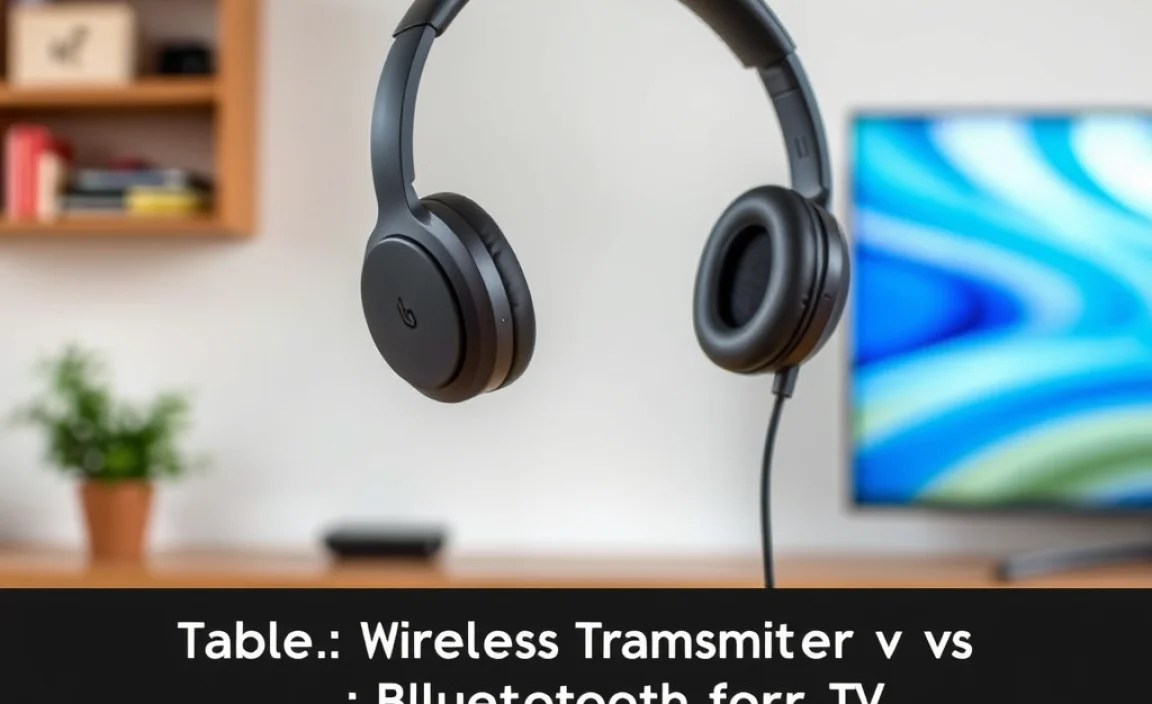
Table: Wireless Transmitter vs. Bluetooth for TV
Here’s a quick comparison to help you decide:
| Feature | Wireless Transmitter (RF) | Bluetooth |
|---|---|---|
| Latency (Audio Delay) | Very Low / Negligible | Variable (Can be high without aptX LL) |
| Connection Stability | Excellent, less interference | Good, can be affected by other devices |
| Range | Typically good whole-house range | Standard Bluetooth range (~30ft/10m) |
| Ease of Setup | Plug-and-play transmitter | Easy if TV has built-in Bluetooth; requires transmitter otherwise |
| Compatibility | Any TV with appropriate audio out | Requires TV with Bluetooth or Bluetooth transmitter |
| Other Device Use | Primarily for the TV system | Can be used with phones, tablets, laptops |
| Cost | Often requires buying a system | Wide range; headphones can be bought separately |
Popular Brands and Models to Consider
While specific models change rapidly, here are some reputable brands known for quality TV headphone solutions:
- Sennheiser: Often considered a leader in wireless audio, Sennheiser offers dedicated TV wireless headphone systems (like the RS series) known for excellent sound quality, comfort, and reliable RF connections.
- Avantree: This brand specializes in Bluetooth audio solutions and offers many transmitter/receiver combos and headphones specifically designed for low latency TV viewing, such as their Audition Pro or Aria 80 models.
- Sony: Sony offers a range of wireless headphones, some of which are suitable for TV use, particularly their models with good battery life and comfortable designs. They also have some models with dedicated transmitters.
- Bose: While known more for active noise cancellation and premium sound in their QuietComfort series (often Bluetooth), their comfort and audio fidelity can make them a good choice if your TV has reliable Bluetooth.
- JVC: Has historically offered affordable and reliable RF wireless headphone systems for TVs, which are a great entry point for budget-conscious buyers.
- Artículos: A brand focusing on Bluetooth transmitters and receivers, often paired with affordable Bluetooth headphones for a customizable low-latency TV listening experience.
When looking at models, search for terms like “TV wireless headphones,” “long-range wireless headphones,” or “low latency Bluetooth headphones” to find options tailored for your viewing needs. Always check reviews for specific commentary on latency and ease of setup with various TV models.
Essential Maintenance and Care for Your TV Headphones
To ensure your headphones deliver great sound for years to come, a little maintenance goes a long way. Here’s how to keep them in top shape:
Cleaning Your Headphones
- Earcups: For fabric earcups, a gentle wipe with a slightly damp cloth (water only) or a dry microfiber cloth is usually sufficient. For leather or pleather earcups, use a mild, alcohol-free leather cleaner and conditioner sparingly, following the Environmental Protection Agency’s (EPA) guidance on safe cleaning practices for general household items. Always ensure they are completely dry before use.
- Headband: Wipe down with a damp cloth as needed.
- Plastic Housing: Use a dry or slightly damp microfiber cloth to remove dust and smudges. Avoid harsh chemicals or solvents.
- Grilles/Mesh: GENTLY use a soft, dry brush (like a clean makeup brush or toothbrush) to remove dust and debris. Be extremely careful not to push debris further in.
- For Wired Connections: Occasionally, gently clean the 3.5mm plug and the TV’s headphone jack with a dry cotton swab to ensure a clean connection.
Battery Care (Wireless Headphones)
- Avoid Deep Discharge: Try not to let the battery completely die regularly. Charge them when the low battery indicator appears.
- Avoid Extreme Temperatures: Store and charge your headphones at room temperature. Heat and cold can degrade battery life.
- Use the Right Charger: Always use the original charger or a reputable replacement designed for your headphones.
