
Quick Summary: This guide simplifies choosing TV headphones for seniors, focusing on ease of use, comfort, and clear sound. We cover audio quality, wireless options, comfortable designs, and simple setup to help you enjoy TV without disturbing others and hear every word clearly.
TV Headphones for Seniors: Your Essential Guide to Clearer Sound and Comfort
Watching television should be a relaxing and enjoyable experience, but sometimes, hearing dialogue or understanding the nuances of a show can be a challenge, especially for seniors. Maybe you’re worried about disturbing a partner or spouse with the TV volume, or perhaps you simply find yourself straining to catch every word. Fortunately, a fantastic solution exists: TV headphones designed with seniors in mind. These aren’t just any headphones; they’re crafted to offer superior comfort, crystal-clear audio, and straightforward operation. In this guide, we’ll walk you through everything you need to know to find the perfect pair, ensuring your favorite programs are more accessible and enjoyable than ever before.
Why TV Headphones Are a Game-Changer for Seniors
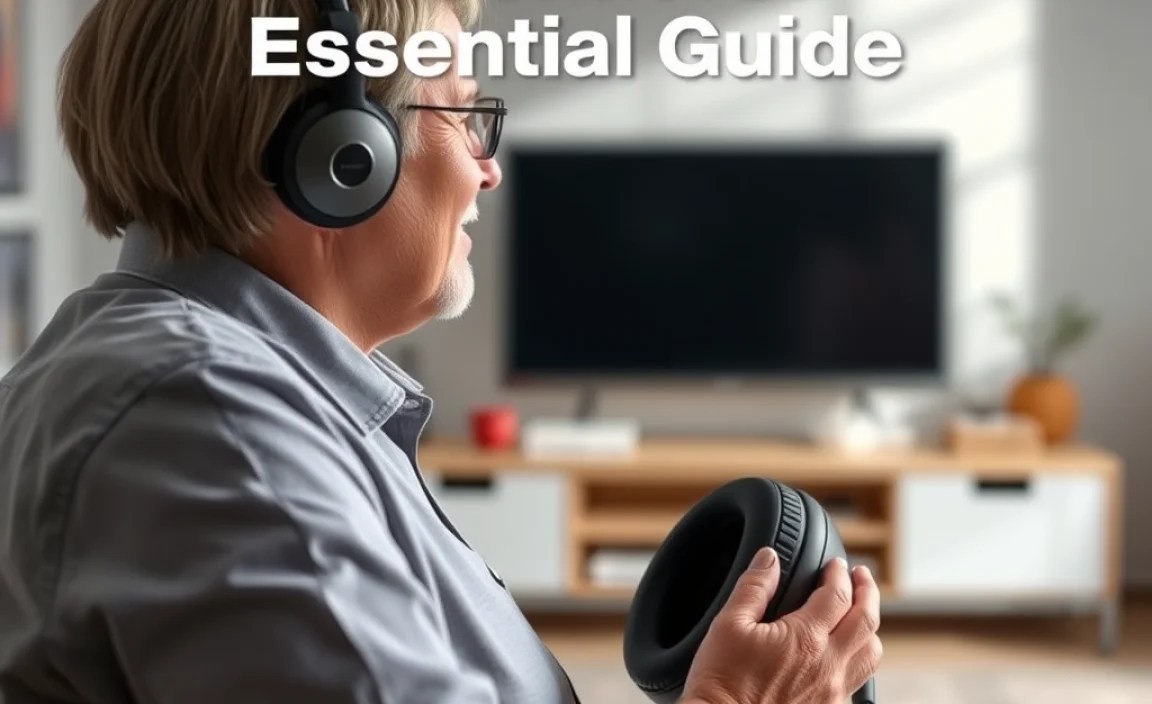
Traditional TV viewing can sometimes be a juggling act. You might need to turn the volume up so high it disturbs others in the household, or perhaps you miss important dialogue because of background noise or hearing difficulties. TV headphones solve these problems elegantly. They provide a private listening experience, allowing you to set the volume perfectly for your needs without affecting anyone else. This independence can significantly enhance the enjoyment of television, making it a more personal and less stressful activity.
Beyond volume control, modern TV headphones are designed with specific user needs in mind. This includes considerations for comfort during extended wear, ease of setup so you don’t need to be a tech whiz, and audio quality that prioritizes clear speech reproduction. Whether you’re catching up on the news, enjoying a captivating drama, or watching a favorite movie, the right pair of headphones can transform your viewing experience.
Understanding Key Features to Look for

When selecting TV headphones, several features are particularly important for seniors. Focusing on these will ensure you get a product that is both effective and easy to use. Let’s break down what to consider:
Audio Quality: Clarity is King
This is perhaps the most crucial aspect. You need headphones that deliver clear, crisp audio, especially for spoken dialogue. Look for:
- Clear Voice Technology: Some headphones are specifically engineered to enhance the frequencies most important for human speech, making dialogue easier to understand.
- Balanced Sound: While voice clarity is key, you still want a balanced sound profile that doesn’t make music or sound effects sound tinny or muffled.
- Low Latency: For wireless headphones, low latency is vital. It means there’s minimal delay between the sound from your TV and what you hear through the headphones. This prevents that jarring effect where the audio is out of sync with the on-screen action.
Comfort and Fit: For Extended Viewing Sessions
You’ll likely be wearing these for a while, so comfort is paramount. Consider:
- Earcup Design: Over-ear headphones tend to be more comfortable for long periods than earbuds. Look for plush, soft earcups that fit gently around your ears.
- Adjustable Headband: A padded and adjustable headband ensures a secure but not tight fit.
- Lightweight Construction: Heavy headphones can cause discomfort or headaches. Opt for a pair that feels light on your head.
- Wireless vs. Wired: Wireless headphones offer freedom of movement, which can be a big plus. However, ensure the wireless connection is stable and easy to manage. Wired options can be simpler for some users as they require no charging or pairing.
Ease of Use: Simple Setup and Operation
Technology should simplify, not complicate. Good TV headphones for seniors will be:
- Easy to Connect: Many systems come with a base station that connects to your TV. Look for straightforward connections, often via an optical audio cable or a standard headphone jack.
- Intuitive Controls: Simple volume dials or buttons are best. Avoid complex menus or tiny buttons.
- Rechargeable or Long Battery Life: For wireless models, long battery life or a simple charging dock is highly convenient.
Connectivity Options: How They Hook Up
How the headphones connect to your TV is a significant consideration. There are a few common methods:
- 3.5mm Headphone Jack: This is the most common analog connection. Your TV will have an output port labeled “Headphone” or with a headphone symbol.
- Optical Audio Output (Toslink): This digital connection offers excellent sound quality. It uses a fiber optic cable and is often labeled “Optical Out” or “Digital Audio Out.”
- RCA Audio Outputs: Some older TVs might use red and white RCA jacks. You may need an adapter if your headphones don’t connect directly.
- Bluetooth: While increasingly common, Bluetooth can sometimes introduce latency issues, which might be a concern for perfectly synchronized audio. However, newer Bluetooth versions and specific TV headphone systems are designed to minimize this. Brands like Sony and LG often integrate good Bluetooth support into their TVs, which can sometimes be paired with compatible headphones.
Top Types of TV Headphones for Seniors

Let’s explore the different kinds of headphones that are particularly well-suited for senior viewers:
1. Wireless Over-Ear Headphones with Base Station
These are often the gold standard for seniors. A charging base station connects to your TV, and the wireless headphones connect to this station. This setup usually offers a stable, long-range connection with very little audio delay.
- Pros: Excellent range, minimal latency, comfortable fit, easy charging via the base station, often designed for TV sound enhancement.
- Cons: Can be bulkier than other options, might require plugging the base station into both power and the TV’s audio output.
Brands like Sennheiser and Power Acoustik offer popular models in this category. For instance, the Sennheiser RS 5000 is known for its clarity and comfort, specifically designed to make TV audio more intelligible.
2. Lightweight Wireless Headphones
These are similar to the base station models but might connect directly to the TV via Bluetooth or a small wireless transmitter. They are often more compact and lighter.
- Pros: Lightweight and comfortable, good wireless range, often simpler to set up than traditional systems.
- Cons: May have higher latency if using standard Bluetooth, battery life might be less than base station models.
Some models from Logitech or RCA offer simplified wireless listening experiences that can be very user-friendly.
3. Closed-Back Wired Headphones
For those who prefer simplicity and are always near their TV, high-quality wired headphones can be an excellent, budget-friendly option. Closed-back designs help isolate sound, preventing audio leakage.
- Pros: No batteries to charge, no pairing issues, generally more affordable, excellent sound fidelity.
- Cons: Limited freedom of movement due to the cable, cable can be a tripping hazard if not managed carefully.
When choosing wired, look for a good cable length (e.g., 10-15 feet) and comfortable earcups. Brands like Audio-Technica offer reliable wired options.
4. Hearing Amplifier TV Headphones
These are specialized headphones designed to boost TV sound frequencies that are most commonly affected by age-related hearing loss. They often feature adjustable tone and volume controls.
- Pros: Specifically designed to enhance speech clarity, adjustable for individual hearing needs.
- Cons: Can be more expensive, audio profile might be less balanced for music or general content.
Companies like Occupational Health & Safety Products (OHSP) and Clarity often develop these types of devices. These are excellent for individuals with mild to moderate hearing loss who find standard headphones don’t offer enough amplification or clarity.
Step-by-Step: Connecting Your TV Headphones

Connecting your new TV headphones might seem daunting, but most systems are designed to be straightforward. Here’s a general guide, which you should adapt based on your specific headphone model and TV:
Step 1: Identify Your TV’s Audio Output Ports
Turn your TV around or look at the side panels. You’re looking for ports labeled:
- “Audio Out”
- “Headphone” (often a 3.5mm jack)
- “Optical Out” or “Digital Audio Out” (a small, often squarish port with a cover)
- RCA Jacks (usually red and white ports labeled “Audio Out”)
You can find detailed information about your TV’s ports in its user manual or by searching online for your TV model number.
Step 2: Connect the Base Station or Transmitter (for Wireless)
Most wireless TV headphone systems come with a base station or a small transmitter that plugs into your TV.
- Using a 3.5mm Headphone Jack: Plug one end of the included 3.5mm audio cable into your TV’s headphone port and the other end into the designated audio input on the base station.
- Using an Optical Cable: If your TV has an optical out and your base station supports it, connect the Toslink cable from the TV’s optical out to the optical input on the base station. You’ll likely need to ensure your TV’s audio output is set to PCM or Bitstream in its settings, and sometimes you might need to detach a small plastic cap from the end of the optical cable before plugging it in. For more information on optical audio, explore resources like TechRadar’s guide on the subject.
- Using RCA Cables: If your base station has RCA inputs and your TV has RCA outputs, connect the red cable to the red port and the white cable to the white port.
Step 3: Power Up Your System
Plug the base station or transmitter into a power outlet. Some may also require a USB connection for power, which you can often get from the TV itself or a separate adapter.
Step 4: Connect Wired Headphones (If Applicable)
If you’re using wired headphones, simply plug the headphone cable directly into the headphone jack on your TV. Ensure the cable is long enough to reach your comfortable viewing position.
Step 5: Pair or Activate Wireless Headphones
For wireless systems, you might need to “pair” the headphones with the base station. This often involves pressing a button on both the base and the headphones, or it might happen automatically.
- Follow the specific instructions for your model.
- Ensure the headphones are charged or have fresh batteries.
Step 6: Adjust TV Audio Settings (Crucial!)
This is a vital step that many people overlook. After connecting your headphones, you often need to tell your TV to send audio to the headphones rather than the built-in speakers.
-
For Volume Control:
- If using the headphone jack: Adjusting the TV’s headphone volume control usually works independently of the TV speakers.
- If using optical/digital out or RCA: You may need to go into your TV’s audio settings and select “Audio Out,” “External Speakers,” or “Headphones” as your audio output device. In some cases, you might need to set the TV’s digital audio output to “PCM” (rather than Dolby Digital or Bitstream) for the base station to receive the signal correctly. This setting is critical for optical connections.
- Muting TV Speakers: Often, once headphones are connected via the headphone jack or optical out, the TV speakers will automatically mute. If they don’t, find a “Mute TV Speakers” option in your TV’s audio settings.
Consulting reliable sources like the FCC’s guidance on accessible television can also provide context on how these features improve accessibility.
Step 7: Test and Adjust
Put on your headphones and play some content. Check if you hear sound. Adjust the volume on the headphones and, if necessary, on your TV or the base station. Ensure the audio is clear and balanced.
Maintenance and Care for Your TV Headphones

To ensure your TV headphones last and continue to perform well, a little regular care goes a long way. This is especially true for delicate electronics and comfortable earcups.
Cleaning Your Headphones
Keeping your headphones clean is essential for hygiene and performance.
- Earpads/Earcups: Gently wipe the earcups with a slightly damp, soft cloth. For tougher grime, you can use a mild soap solution, but be sure to wring out the cloth well so it’s not dripping wet. Avoid harsh chemicals or abrasive materials. Some earpads are removable and can be washed more thoroughly according to the manufacturer’s instructions.
- Headband: Wipe the headband with a soft, dry or slightly damp cloth.
- Exterior Casing: Use a dry or slightly damp cloth for the plastic parts of the headphones and the base station.
- Grilles: If the speaker grilles get dusty, you can use a soft brush (like a clean paintbrush or a soft toothbrush) to gently dislodge debris. Never poke anything sharp into the grilles.
Storage
When not in use, store your headphones properly to prevent damage.
- Base Station Models: Place the headphones back on their charging base if available. This keeps them charged and protected.
- Other Models: Store them in a safe place where they won’t be crushed or exposed to excessive dust. A sturdy case or a dedicated shelf works well.
- Avoid Extreme Temperatures: Don’t leave headphones in hot cars or near direct heat sources.
Battery Care (Wireless Headphones)
Most modern wireless headphones use rechargeable lithium-ion batteries.
- Charge Regularly: Keep them charged. For models with a charging dock, simply placing them on the dock after use is the easiest way.
- Avoid Full Draining: While modern batteries are less prone to the “memory effect,” it’s generally good practice to charge them before they completely die, if possible.
- Replacement: If battery life significantly degrades over time, check if the battery is replaceable. Some higher-end models allow for this, though many have integrated batteries.
Cable Management (Wired Headphones)
If you use wired headphones, take care of the cable:
- Don’t Yank: Never pull the cable forcefully from the plug. Grasp the plug itself.
- Avoid Kinks: Don’t wrap the cable too tightly or in sharp bends, as this can damage the internal wires.
- Keep Off the Floor: If possible, position the cable so it doesn’t trail on the floor where it can be stepped on or snagged.
Troubleshooting Common Issues
Even with the best intentions, you might encounter a hiccup. Here are some common problems and how to solve them:
No Sound
- Check Power: Ensure headphones and base station are powered on.
- Check Connections: Verify all audio cables are securely plugged into both the TV and the base station.
- Check TV Audio Settings: Make sure the correct audio output is selected on your TV (headphone jack, optical, RCA, etc.) and that the TV speakers are muted or turned off if intended.
- Check Headphone Volume: Ensure the volume on the headphones themselves is turned up.
- Check Pairing (Wireless): For wireless models, ensure the headphones are properly paired with the base station. Try re-pairing them.
- Try a Different Port: If your TV has multiple audio output options, try another one.
Distorted or Muffled Sound
- Check Volume Levels: Too high or too low can distort sound. Adjust to a comfortable level.
- Check Connections: Loose cables can cause crackling.
- Clean Grilles: Blocked speaker grilles can muffle sound.
- Audio Format Issues: If using an optical cable, ensure your TV’s digital audio output is set to PCM. Some advanced audio formats might not be compatible with all headphone systems.
