
Quick Summary: A USB adapter for a headphone jack is a handy device that lets you connect your headphones to devices lacking a traditional 3.5mm port, often converting the digital USB signal to an analog one your headphones understand. This guide explains what they are, why you might need one, and how to choose and use the right adapter for a seamless audio experience.
USB Adapter for Headphone Jack: Your Essential Fix for Modern Audio
Hey everyone, Edward Cavitt here from Headphone Horizon! We’ve all been there, right? You’ve got your favorite pair of headphones, but your shiny new laptop, tablet, or phone suddenly lacks that familiar headphone jack. Don’t panic! This is where the humble, yet mighty, USB adapter for a headphone jack comes to the rescue. It’s a game-changer that ensures you can still enjoy your music, podcasts, or calls without missing a beat. In this guide, we’ll demystify these little gadgets, explore why they’ve become so essential in our tech-driven world, and walk you through how to pick the perfect one and get it working. Let’s dive in and fix that audio connection!
Why You Might Need a USB Adapter for Your Headphone Jack
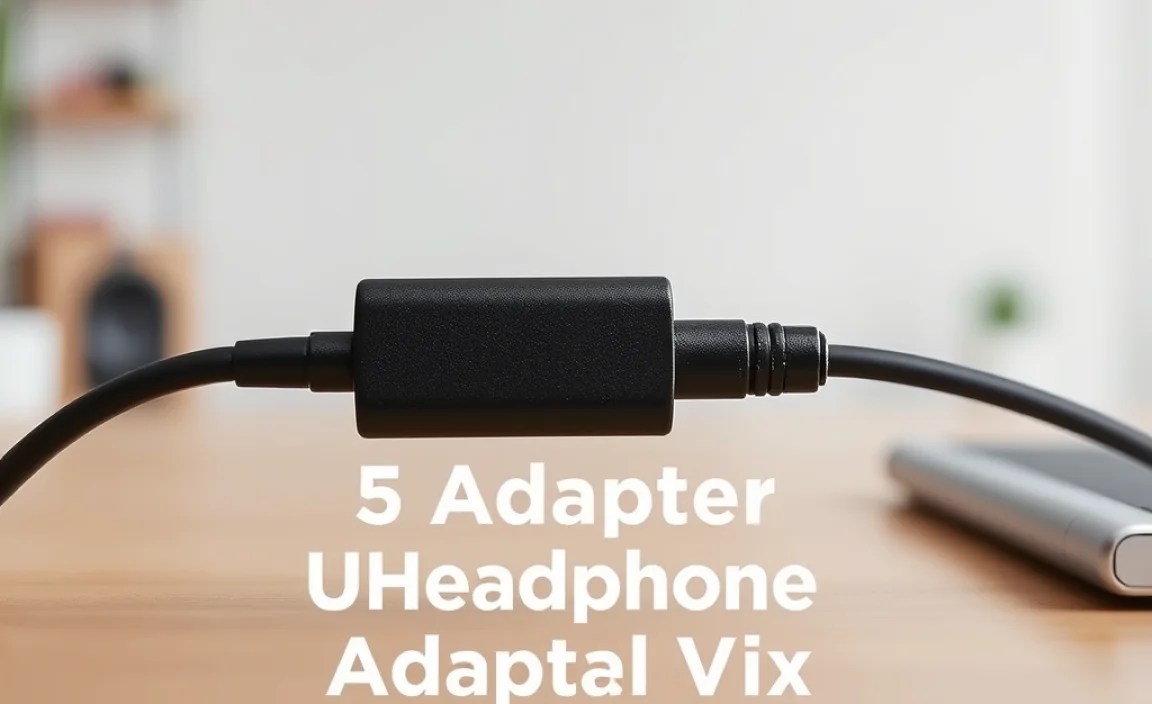
The landscape of our portable devices is constantly evolving, and for many manufacturers, freeing up space means saying goodbye to the 3.5mm headphone jack. While this trend allows for sleeker designs and better water resistance, it leaves many of us reaching for our trusty wired headphones wondering, “Now what?”. That’s precisely where a USB adapter for a headphone jack becomes indispensable. It acts as a bridge, a translator, ensuring your analog audio can still find its way to your ears, even when the direct path is gone.
Here are some common scenarios where this adapter becomes your audio savior:
- Newer Smartphones: Many flagship phones have ditched the headphone jack in favor of USB-C or Lightning ports.
- Modern Laptops & Tablets: Some ultrabooks and tablets slimmed down so much that the traditional audio port was sacrificed.
- Gaming Consoles: Certain iterations of gaming consoles might only offer USB ports for audio output.
- Restoring Functionality: If your device’s built-in headphone jack is damaged or malfunctioning, a USB adapter can provide a reliable workaround.
Understanding How USB Headphone Adapters Work

At its core, a USB adapter for a headphone jack is a small piece of technology that performs a crucial conversion. Most wired headphones still use an analog signal via their 3.5mm plug. However, USB ports, whether they are USB-A or the more modern USB-C, output a digital signal. The adapter’s job is to intercept this digital data from the USB port, process it, and convert it into an analog audio signal that your headphones can understand and reproduce as sound.
This conversion process involves a key component called a Digital-to-Analog Converter (DAC). Think of the DAC as the ‘brain’ of the adapter. It takes the stream of digital zeros and ones from your device and transforms them into the continuous, wave-like analog signal that our ears perceive as sound.
Many adapters also include a built-in amplifier. An amplifier takes that analog audio signal and boosts its power, ensuring that it’s strong enough to drive your headphones properly. This is especially important for headphones that require a bit more power to sound their best, or if you simply want your audio at a comfortable listening volume without straining your device’s internal components.
Types of USB Adapters
When you’re looking for a USB adapter for your headphone jack, you’ll primarily encounter a few main types based on the connector they use:
- USB-C to 3.5mm: This is the most common type for modern Android phones, iPads, and newer laptops. It connects to the USB-C port on your device and provides a standard 3.5mm headphone jack.
- Lightning to 3.5mm: Designed specifically for Apple devices like iPhones and some iPads that use the Lightning connector.
- USB-A to 3.5mm: Less common now for portable devices but might be found for older laptops or certain desktop setups.
You might also see adapters that are DACs and amplifiers in one unit, offering superior audio quality compared to basic dongles. These often have their own drivers or software for more advanced control over your sound.
Choosing the Right USB Adapter: Key Features to Consider
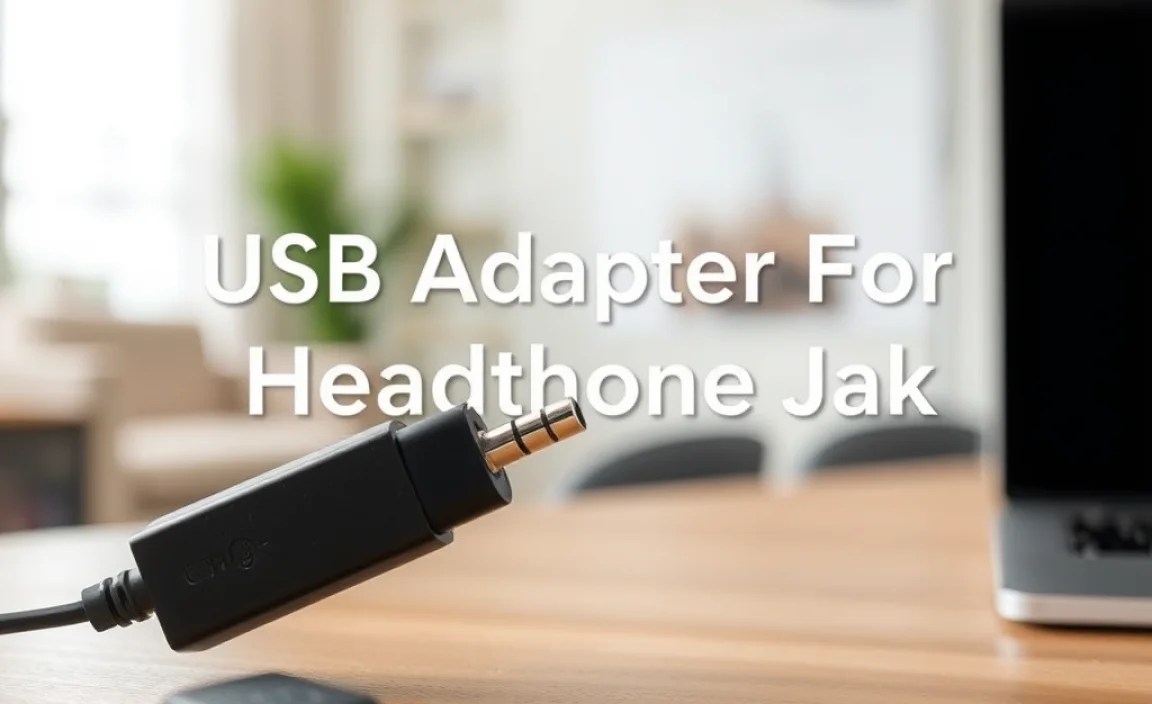
Not all USB headphone adapters are created equal. To ensure you get the best listening experience, here are the key features you should keep in mind:
1. Connector Type
This is the most fundamental aspect. Ensure the adapter’s plug matches the port on your device.
- USB-C: For most modern Android phones, tablets, and MacBooks/Windows laptops.
- Lightning: For iPhones and iPads.
- USB-A: For older devices or specific desktop/gaming setups.
2. Built-in DAC and Amplifier Quality
Even basic adapters have a DAC, but the quality can vary significantly. A better DAC and amplifier will provide:
- Clearer Sound: Reduced distortion and a cleaner audio signal.
- Wider Frequency Response: A more balanced sound across bass, mids, and treble.
- Improved Power Output: The ability to drive more demanding headphones effectively, leading to better volume and dynamics.
For audiophiles or those with high-impedance headphones, an adapter with a dedicated, high-quality DAC/amp combo is worth the investment. Websites like RTINGS.com offer detailed reviews and comparisons of audio gear, including adapters, that can help you make an informed decision.
3. Compatibility
While most adapters are plug-and-play, it’s always wise to check compatibility.
- Operating System: Ensure the adapter works with your device’s OS (iOS, Android, Windows, macOS).
- Device Specifics: Some phone manufacturers might have specific requirements, though this is becoming rarer.
- Headphone Compatibility: While most 3.5mm headphones will work, very niche or professional audio setups might have specific needs.
4. Build Quality and Durability
The adapter will likely be plugged in and unplugged frequently, and might be carried around in a bag. Look for:
- Robust Materials: Metal casings or reinforced connectors tend to last longer.
- Cable Reinforcement: If it’s a cable-style adapter, check for sturdy braiding or strain relief at the connector points.
- Compact Design: For portability, a small, lightweight adapter is often preferred.
5. Additional Features
Some adapters offer extra perks:
- Microphone Support: Ensures your headset’s microphone works for calls and voice commands. (Most do, but it’s good to confirm).
- In-line Controls: Some might support volume up/down and play/pause functionality if your headphones don’t have them.
- High-Resolution Audio Support: If you listen to lossless audio files, an adapter capable of handling higher sample rates and bit depths can make a difference.
Step-by-Step Guide: Using Your USB Headphone Adapter
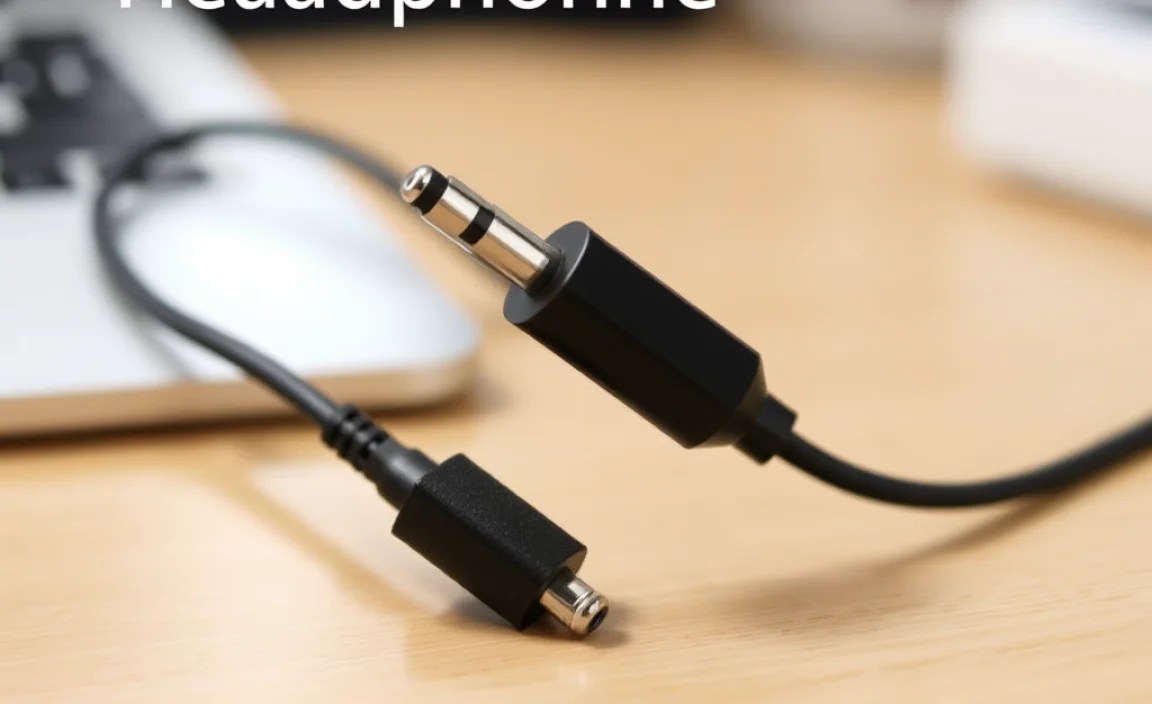
Getting your USB adapter up and running is usually a straightforward process. Here’s how to do it:
Step 1: Identify Your Device’s Port
First, locate the USB port on your device: Is it USB-C, Lightning, or USB-A? This will dictate which type of adapter you need.
Step 2: Connect the Adapter to Your Device
Plug the USB end of your adapter firmly into the corresponding port on your smartphone, tablet, or computer. You should feel a snug connection.
Step 3: Connect Your Headphones to the Adapter
Take your standard 3.5mm headphone cable and insert it into the headphone jack on the adapter. Ensure it’s fully seated.
Step 4: Configure Your Device’s Audio Settings (If Necessary)
In most cases, your device will automatically detect the adapter and route audio to it. You might see a notification or a new audio output icon appear. However, if you don’t hear sound:
- Check Device Settings: Go to your device’s sound or audio settings. Look for an option to select the audio output device. Your USB adapter should be listed there.
- Restart Your Device: Sometimes, a simple restart can help your device recognize new hardware.
- Check Microphone Input: If you’re using headphones with a microphone, ensure your device is also recognizing the microphone input from the adapter.
For a deeper understanding of how audio signals are processed by operating systems, resources from university departments can be enlightening. For example, the CCRMA (Center for Computer Research in Music and Acoustics) at Stanford University has materials that touch upon audio processing in various environments, offering a glimpse into the sophisticated systems at play.
Step 5: Test the Audio
Play some music, a podcast, or make a test call. Adjust the volume using your device’s volume controls. Ensure you’re getting clear sound from both the left and right earbuds/speakers.
Step 6: Test Microphone Functionality (If Applicable)
If your headphones have a microphone, test it by recording a voice memo or making a call. Ask the person on the other end if your voice comes through clearly.
Troubleshooting Common Issues
While the process is usually seamless, you might encounter a few hiccups. Here’s how to tackle them:
- No Sound:
- Ensure the adapter is plugged in securely at both ends.
- Check your device’s volume and ensure it’s not muted.
- Verify the adapter is selected as the audio output in your device’s settings.
- Try a different pair of headphones to rule out an issue with your headphones.
- Restart your device.
- Low Volume:
- Check your device’s volume level.
- Some adapters have lower amplification. Consider an adapter with a better DAC/amp if this is a recurring issue.
- Ensure your headphones are not low-impedance headphones that require a dedicated amplifier.
- Audio Distorted or Crackling:
- Reseat the headphone jack in the adapter.
- Try a different USB port on your device if available.
- A faulty adapter or damaged headphone cable could be the culprit. Test with different sets.
- Ensure your device’s USB port is clean and free of debris.
- Microphone Not Working:
- Check your device’s microphone settings and ensure the USB adapter is selected as the input device.
- Make sure your headphones’ microphone is not muted.
- Some adapters are designed for audio output only or may have specific compatibility needs for microphones. Double-check the adapter’s specifications.
Brands and Features: A Quick Comparison Table
To give you an idea of what’s out there, here’s a simplified comparison of common adapter types and what to look for. Performance can vary greatly by specific model, so always check reviews for individual products.
| Feature | Basic Dongle (e.g., USB-C to 3.5mm) | Mid-Range Adapter (e.g., DAC/Amp Combo) | High-End Audiophile Adapter |
|---|---|---|---|
| Primary Function | Connect 3.5mm headphones to USB port. | Improves audio quality with a better DAC and amplifier. | For critical listening, high-impedance headphones, and maximum audio fidelity. |
| Typical Price Range | $10 – $25 | $25 – $75 | $75+ |
| Audio Quality | Adequate for everyday listening. May lack detail or power. | Noticeably clearer sound, better bass response, and improved volume. | Professional-grade fidelity, minimal distortion, excellent sonic detail. |
| Build Quality | Often plastic, functional. | More durable materials (metal, reinforced cables). | Premium materials, robust construction. |
| Power Output | Low to moderate. | Moderate to high, suitable for most headphones. | High, can drive demanding audiophile headphones. |
| Connector Types | USB-C, Lightning, USB-A. | USB-C, Lightning, USB-A. | Primarily USB-C, sometimes USB-A. |
| Microphone Support | Usually included. | Usually included. | Often included, but check specs for compatibility. |
Maintenance and Care for Your Adapter
Your USB headphone adapter is a small but vital piece of tech. A little care will ensure it lasts:
- Keep it Clean: Regularly dust off the USB connector and headphone jack. Avoid using liquids directly on the adapter; a dry, soft cloth is best.
- Handle with Care: Avoid bending the connectors sharply or yanking on the cable (if it has one). Unplug by holding the connector itself.
- Store Properly: When not in use, store the adapter in a small pouch or a dedicated compartment in your bag to prevent damage from keys or other sharp objects.
- Avoid Extreme Temperatures: Like most electronics, extreme heat or cold can affect performance and longevity.
- Inspect Regularly: Keep an eye out for any signs of wear and tear, such as frayed cables or damaged connectors.
The Future of Audio Ports and Adapters
The trend of removing the 3.5mm headphone jack isn’t likely to reverse anytime soon. Manufacturers are pushing for wireless audio solutions like Bluetooth, and for wired connections, USB-C is becoming the universal standard. This means that USB headphone adapters, particularly USB-C to 3.5mm, will continue to be essential for many users. As technology advances, we can expect to see adapters with even higher fidelity Digital-to-Analog Converters, improved power efficiency, and perhaps even support for emerging audio standards. The good news is that even basic adapters offer a reliable way to maintain compatibility with your existing wired headphones, making them a worthwhile investment for any modern tech user.
Frequently Asked Questions (FAQ)
Q1: Do I need a special driver for a USB headphone adapter?
Most basic USB headphone adapters are plug-and-play and do not require special drivers on modern operating systems like Windows, macOS, iOS, or Android. Your device should recognize it automatically. However, some higher-end adapters designed for superior audio quality might come with optional driver software for advanced customization or optimization.
Q2: Will a USB adapter work with my specific phone model?
If your phone has a USB-C port, a USB-C to 3.5mm adapter is highly likely to work. For iPhones, you’ll need a Lightning to 3.5mm adapter. It’s always a good idea to check the adapter’s product description or reviews to confirm compatibility with your specific device model or operating system version.
Q3: Can I use any headphones with a USB adapter?
Generally, yes. As long as your headphones have a standard 3.5mm plug, they should work with a 3.5mm jack on the adapter. However, if you have very high-impedance headphones designed for professional studio use, a basic adapter might not provide enough power. In such cases, you would need an adapter with a more powerful built-in amplifier.
Q4: What’s the difference between a USB headphone adapter and a Bluetooth adapter?
A USB headphone adapter (often called a dongle) allows you to connect wired headphones to a device that lacks a headphone jack, converting a digital USB signal to an analog audio signal. A Bluetooth adapter, on the other hand, allows a device to send an audio signal wirelessly via Bluetooth to compatible wireless headphones or speakers.
Q5: Can a USB adapter for a headphone jack improve my sound quality?
Yes, it absolutely can! While simple adapters offer basic functionality, many USB adapters include a dedicated Digital-to-Analog Converter (DAC) and amplifier that are superior to the audio chips found in some devices.
