
Quick Summary: Learn how USB connectors are revolutionizing headphone audio. This guide demystifies USB headphone tech, explores its benefits, compatibility, and how it enhances your listening experience. We cover what to look for when buying and simple steps to ensure yours work seamlessly.
USB Connector for Headphones: Your Essential Guide
Hey everyone, Edward Cavitt here from Headphone Horizon! Today, we’re diving into a feature that’s becoming more common and more crucial for your audio experience: the USB connector for headphones. Forget the classic headphone jack for a moment, because USB is shaking things up in the best way possible. Whether you’re a gamer, a music aficionado, or just someone who enjoys clear calls, understanding how USB headphones work can unlock a new level of audio quality and convenience. Let’s break down what makes USB so special, what to look for, and how to make sure your audio gear sounds its absolute best.
Why USB Connectors Are Changing the Headphone Game

For years, the 3.5mm headphone jack was the undisputed king. But technology marches on, and the humble USB port has quietly but powerfully made its way into the headphone world. Why? Because USB isn’t just a plug; it’s a conduit for more power, more data, and more advanced features. This allows for better sound quality, active noise cancellation, integrated microphones, and even virtual surround sound, all delivered through a single, versatile connection. It’s about simplifying your setup while boosting your audio performance.
Understanding the Different Types of USB Ports

Before we get too deep, it’s important to know the different USB types you might encounter. This can affect compatibility and performance:
USB-A
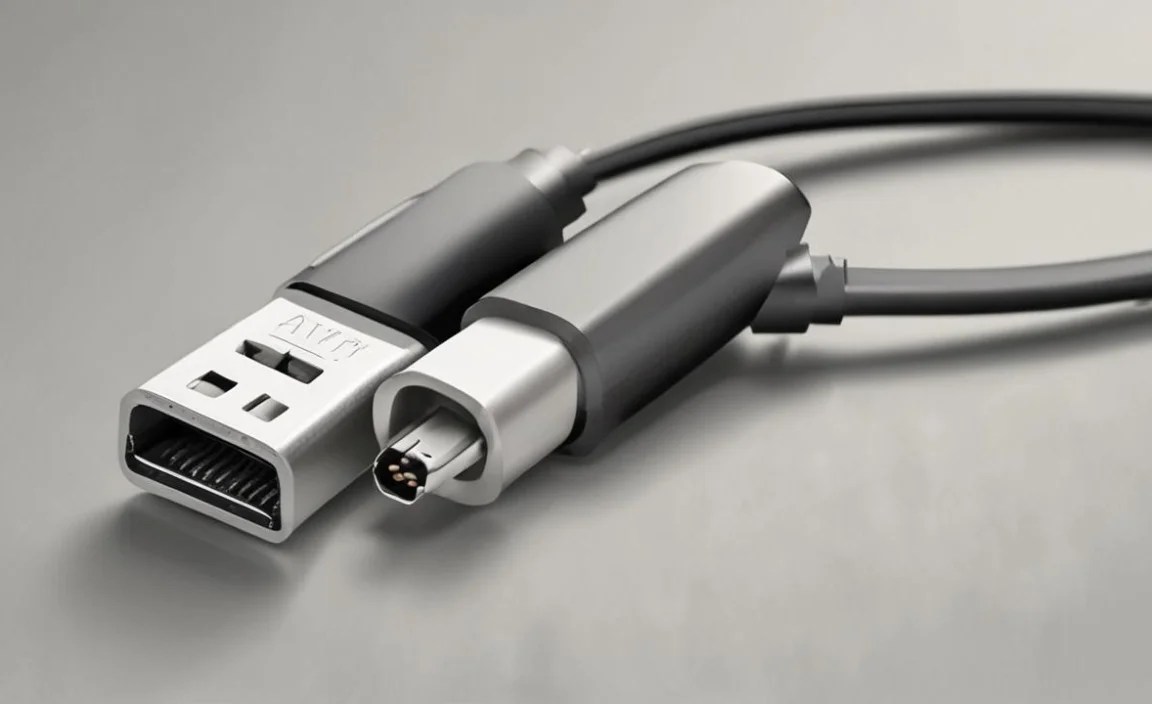
This is the classic, rectangular USB port you see on most computers, charging bricks, and older devices. Many gaming headsets and professional audio devices still use a USB-A connection, often with a dongle for wireless connectivity or directly wired for power and audio output.
USB-C
The sleek, oval, and reversible USB-C port is the future, and it’s already widespread on modern smartphones, tablets, laptops, and even some gaming consoles. USB-C offers higher data transfer speeds and power delivery capabilities than older USB types. Many newer headphones, especially those designed for mobile devices, use USB-C to bypass the need for separate DACs (Digital-to-Analog Converters) and provide a direct digital audio stream.
Micro-USB
While less common for full audio connections now, you might still find Micro-USB ports on some older wireless headphone earbuds or charging cases. It’s important to be aware of it, but USB-C is rapidly replacing it.
The Advantages of USB Headphones

So, what’s the big deal about using USB for your headphones? The benefits are substantial:
Superior Audio Quality
Unlike the analog signal sent over a 3.5mm jack, USB transmits a digital signal. This means the conversion from digital to analog happens directly within the headphones themselves, often using a higher-quality, dedicated DAC (Digital-to-Analog Converter). This bypasses your device’s internal sound card, which might not be optimal, leading to clearer, more detailed, and richer sound. Imagine hearing subtle nuances in your music you’ve never noticed before! For more on how sound is processed, you can check out some basic audio engineering principles from sources like the Audio Engineering Society.
Enhanced Features and Functionality
The higher bandwidth of USB allows for more advanced features to be packed into your headphones. This includes:
- Active Noise Cancellation (ANC): USB-powered ANC is often more effective and can be more sophisticated.
- High-Resolution Audio Support: Many USB headphones are designed to handle uncompressed or high-resolution audio formats, delivering a truly audiophile experience.
- Integrated Microphones: USB connections can easily handle the data for high-quality built-in microphones, making them ideal for gaming, online meetings, and calls.
- Virtual Surround Sound: Some USB headsets use software processing over the USB connection to create immersive surround sound environments, perfect for movies and games.
- Customization Software: Many USB headsets come with dedicated software that allows you to tweak EQ settings, microphone levels, ANC modes, and more, all through your computer.
Plug-and-Play Simplicity
In most cases, USB headphones are plug-and-play. This means you can connect them to your device, and they should work immediately without needing to install complex drivers or software (though advanced features might require optional software). This is especially true for modern operating systems like Windows 10/11 and macOS.
Power and Charging Capabilities
USB ports provide power, meaning your headphones can be powered directly from the device they’re connected to. For many USB-powered headphones, this also means they can draw power for features like ANC or even charge their internal batteries if they have them, all through the single USB cable. This is a significant advantage over analog jacks, which rely solely on the audio signal for power.
Compatibility: What You Need to Know

While USB headphones offer many advantages, ensuring compatibility is key to a frustration-free experience. Here’s how to navigate it:
Device Support
Most modern devices come equipped with USB ports. However, older devices might be limited:
- Smartphones: Most newer smartphones (those with USB-C) will support USB-C headphones directly. If your phone only has a Lightning port (Apple), you might need a specific adapter or Lightning-compatible USB headphones. Some Android phones might require specific driver support or might not output audio via USB-C by default in certain configurations.
- Computers (Laptops & Desktops): PCs and Macs, especially those made in the last decade, generally offer excellent support for USB audio devices.
- Tablets: Similar to smartphones, tablets with USB-C ports will have good compatibility.
- Gaming Consoles: PlayStation and Xbox consoles often have USB-A ports that can be used for gaming headsets. Compatibility can vary, so check your console’s specifications.
USB Standard and Speeds
Different USB standards (USB 2.0, 3.0, 3.1, 3.2, USB4) offer varying data transfer speeds. For audio, most USB headphones will work perfectly fine with USB 2.0. However, higher-end headsets aiming for uncompressed, high-resolution audio or advanced features might benefit from the greater bandwidth of USB 3.0 or higher.
Driver Requirements
As mentioned, many USB headphones are plug-and-play. However, for advanced features like EQ customization, surround sound settings, or specific microphone controls, you might need to download and install proprietary software or drivers from the manufacturer’s website. Always check the product description and manufacturer’s support page for any driver requirements.
Power Delivery (PD)
Some headsets might take advantage of USB Power Delivery standards for faster charging of their internal batteries or to power more demanding features. Ensure your charging source (e.g., laptop, wall adapter) also supports the relevant PD standard if this is a key feature for you.
Connecting Your USB Headphones: A Step-by-Step Guide

Connecting your USB headphones is usually very straightforward. Here’s a general guide:
Step 1: Identify Your USB Port
Locate the available USB ports on your device. Note whether they are USB-A, USB-C, or Micro-USB and if they match the connector on your headphone cable.
Step 2: Connect Your Headphones
Plug the USB connector of your headphones firmly into the corresponding USB port on your device. If you’re using a USB-C to USB-A adapter or a USB hub, ensure all connections are secure.
Step 3: Wait for Device Recognition
Your device should automatically detect the new audio hardware. You might see a notification indicating that a new device has been found or that drivers are being installed. This typically takes a few seconds.
Step 4: Select Your USB Headphones as the Audio Output (If Necessary)
In most cases, your device will automatically switch to using the USB headphones as the default audio output. If it doesn’t, you’ll need to manually select them:
- On Windows: Click the speaker icon in the taskbar, then click the arrow next to the current playback device, and select your USB headphones from the list.
- On macOS: Go to System Preferences > Sound > Output, and choose your USB headphones from the list.
- On Smartphones/Tablets: This is usually automatic. If not, check the Bluetooth & Device Connection settings or explore audio output options within the device settings.
Step 5: Install Manufacturer Software (Optional)
If your headphones come with advanced features (like ANC, EQ, or surround sound), visit the manufacturer’s website and download any recommended software or drivers. Install them and follow the on-screen instructions to configure your headphones.
Step 6: Test Your Audio
Play some music, watch a video, or start a game to test that audio is coming through your USB headphones correctly. Check your microphone by using a voice recording app or initiating a call.
Troubleshooting Common USB Headphone Issues
Even with plug-and-play technology, you might run into a few hiccups. Here are some common issues and how to fix them:
No Sound
- Check Connections: Ensure the USB cable is securely plugged into both the headphones and the device. Try a different USB port.
- Confirm as Default Device: Double-check that your USB headphones are selected as the default audio output in your device’s sound settings (see Step 4 above).
- Restart Device: A simple restart of your computer, phone, or console can often resolve detection issues.
- Test on Another Device: If possible, try plugging the headphones into a different device to see if they work. This helps determine if the issue is with the headphones or your original device.
- Update Drivers: Ensure your system’s USB drivers and audio drivers are up-to-date.
Microphone Not Working
- Check as Input Device: In your device’s sound settings, ensure your USB headphones are also selected as the default recording or input device.
- Allow Microphone Access: On some operating systems (especially mobile ones or in certain browser contexts), you might need to grant specific apps or the system permission to access the microphone.
- Check Mute Switches: Some headsets have physical mute buttons on the cable or earcups. Make sure they’re not accidentally engaged.
- Ensure Proper Connection: Some USB headsets have a detachable microphone boom. Make sure it’s fully inserted.
Sound Quality Issues (Crackling, Distortion)
- Check Cable Integrity: Inspect the USB cable for any damage, kinks, or fraying.
- Try a Different USB Port: Sometimes, a specific USB port might have issues or be overloaded.
- Reduce USB Hub Usage: If you’re using a USB hub, try connecting the headphones directly to the computer. Unpowered hubs can sometimes cause performance issues with audio devices.
- Close Unnecessary Software: Too many background applications can sometimes consume system resources, affecting audio performance.
- Check for Interference: While less common with wired USB, ensure other strong electronic devices aren’t causing interference if you’re experiencing unusual audio artifacts.
Headphones Not Recognized
- Try a Different USB Standard: If you’re using a USB-C to USB-A adapter, try a different adapter or a direct connection if your device supports it.
- Check Manufacturer Website: Look for specific troubleshooting guides or driver downloads for your model.
- Check Device Manager (Windows): Open Device Manager, look under “Sound, video and game controllers” or “Universal Serial Bus controllers” for any devices with a yellow exclamation mark, indicating a driver problem.
Key Features to Look for in USB Headphones

When shopping for USB headphones, consider these features to ensure you get the best set for your needs:
| Feature | Description | Who It’s For |
|---|---|---|
| Connector Type | USB-A, USB-C. Decide based on your primary devices. USB-C is more future-proof. | Everyone, but especially mobile users opting for USB-C. |
| DAC Quality | The quality of the built-in converter. High-resolution audio support (e.g., 24-bit/96kHz) is a good indicator. | Audiophiles, music lovers who seek the best possible sound. |
| Microphone Quality | Look for clear voice capture, noise reduction features, and whether it’s detachable or built-in. | Gamers, remote workers, podcast enthusiasts. |
| Active Noise Cancellation (ANC) | Blocks out ambient sound. Different levels and modes are available. | Commuters, frequent travelers, office workers, anyone needing focus. |
| Surround Sound Technology | Virtual 5.1 or 7.1 surround sound for immersive gaming or movie experiences. | Gamers, movie buffs. |
| Wired vs. Wireless (with USB Dongle) | Some wireless headphones use a USB dongle for a direct, low-latency connection to PCs/consoles. | Gamers, users who prioritize a stable, lag-free wireless audio experience. |
| Build Quality & Comfort | Durable materials, comfortable earcups, and adjustable headband for long listening sessions. | Everyone who wears headphones for extended periods. |
| Software Support | Companion apps for EQ, mic settings, ANC control, and firmware updates. | Users who like to customize their audio experience. |
Maintaining Your USB Headphones
To ensure your USB headphones last and perform optimally, a little maintenance goes a long way:
Cable Care
The most common point of failure for any wired device is the cable. Avoid:
- Tightly wrapping the cable or yanking it from the port.
- Storing them with the cable bent sharply.
- Exposing the cable to extreme temperatures or moisture.
Instead:
- Use loose loops to wrap the cable.
- Invest in a good carrying case or pouch.
- Store them in a dry, temperate environment.
Port Cleaning
Dust and debris can accumulate in USB ports, affecting the connection. Gently clean:
- Use a can of compressed air to blow out dust from both the headphone connector and your device’s USB port.
- For stubborn debris, use a dry, non-metallic implement like a wooden or plastic toothpick very carefully. Never use metal objects.
Earcups and Headband
Keep them clean for hygiene and comfort:
- For leather or pleather earcups, wipe them down with a slightly damp, soft cloth. Avoid harsh chemicals.
- For fabric earcups, check the manufacturer’s instructions; some can be gently spot-cleaned.
- Ensure the headband padding is also kept clean and dry.
Storage
When not in use, store your headphones responsibly:
- In a protective case or on a stand.
- Away from direct sunlight or high humidity.
- Consider unplugging them from your device if storing for a long period, especially if the cable is not detached from the headphones.
Frequently Asked Questions About USB Headphones
Do all USB headphones sound better than 3.5mm headphones?
Not necessarily. While USB can offer better audio quality due to dedicated DACs and digital transmission, the actual sound quality depends heavily on the quality of the DAC, amplifier, and drivers within the USB headphones themselves. A high-quality 3.5mm headphone can still outperform a poorly designed USB headset. However, the potential for higher fidelity and more advanced features is significantly greater with USB.
Can I use my USB-C headphones with my iPhone?
If your iPhone has a USB-C port (like the iPhone 15 series and later), then generally yes, USB-C headphones should work directly. For older iPhones with a Lightning port, you will typically need a Lightning to USB Camera Adapter or a specific adapter that converts USB-C audio output to Lightning. Always check compatibility specifics.
Will USB headphones drain my laptop battery faster?
They can, especially if they have features like Active Noise Cancellation or require significant power for their internal components. However, modern laptops and USB power standards are quite efficient. For basic headphones, the drain is usually minimal and comparable to
