
Quick Summary: Enhance your headphone listening experience with simple volume booster techniques and software. Discover how to safely increase audio levels for clearer sound, whether you’re using smartphones, PCs, or wireless earbuds. This guide offers easy-to-follow steps and practical tips for everyday users.
Volume Booster for Headphones: Proven Essential Sound

Ever found yourself wishing your favorite tunes or podcasts were just a little bit louder? It’s a common feeling! Many of us enjoy our audio content at moderate volumes to protect our hearing, but sometimes, you just need that extra kick. Perhaps your environment is a bit noisy, or your headphones aren’t as powerful as you’d hoped. Whatever the reason, there are effective and safe ways to boost your headphone volume. In this guide, we’ll explore simple, beginner-friendly methods to get the most out of your audio experience, ensuring you don’t miss a single detail. Let’s dive in and unlock the full potential of your sound!
Why Do We Need a Volume Booster for Headphones?

There are several reasons why a little extra volume can make a big difference. Sometimes, it’s not just about making things louder; it’s about clarity and enjoying the full spectrum of the audio. Let’s break down the common scenarios:
- Noisy Environments: Whether you’re commuting on a busy train, working in a bustling cafe, or just dealing with background noise at home, higher volume can help you drown out distractions and focus on your audio.
- Underpowered Devices: Source devices like older smartphones or some laptops might not have particularly powerful audio outputs. This can lead to frustratingly low listening volumes, even at maximum settings.
- Hearing Protection Needs: While we advocate for safe listening levels, there are times when even a slightly higher volume is needed to overcome ambient noise without straining to hear. For instance, during a brisk walk outdoors where wind noise can be significant.
- Individual Preference: Simply put, some people prefer listening at higher volumes, especially for certain genres of music that benefit from a more impactful sound.
- Accessibility: For individuals with mild hearing loss, a volume booster can be a crucial tool for enjoying audio content without relying on specialized hearing aids when using standard headphones.
Understanding Headphone Sensitivity and Impedance

Before we jump into boosting volume, it’s helpful to understand a couple of key terms that affect how loud your headphones can get:
- Sensitivity: This is measured in decibels (dB) per milliwatt (mW) or decibels per volt (dB/V). Higher sensitivity means the headphones will produce a louder sound with the same amount of power. Think of it like a car engine – a more sensitive engine needs less gas to go faster.
- Impedance: Measured in Ohms (Ω), impedance relates to the electrical resistance of your headphones. Lower impedance headphones (typically below 50Ω) are easier for source devices (like your phone) to drive and will generally play louder at the same volume setting compared to high impedance headphones. High impedance headphones (often 100Ω or more) usually require a dedicated amplifier to reach their full potential.
Understanding these can help you realize why some headphones seem naturally louder than others. However, even with less sensitive or higher impedance headphones, there are ways to improve the listening experience.
Methods to Boost Headphone Volume
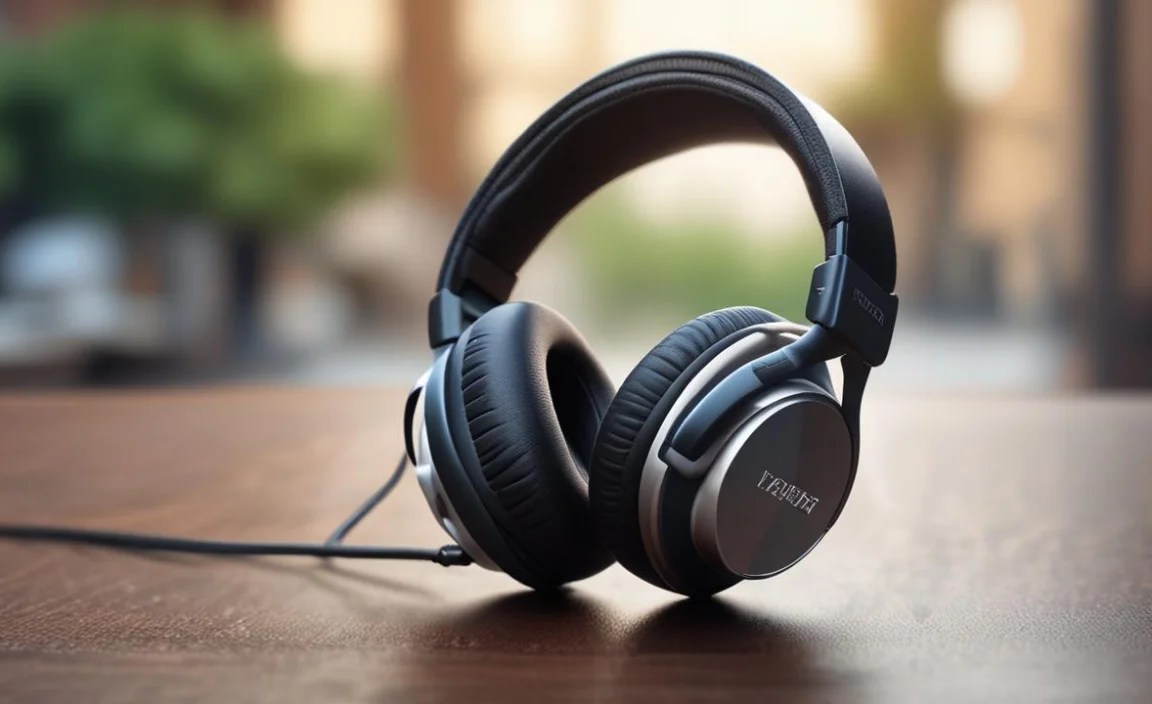
There are several approaches to increasing the volume of your headphones, ranging from in-built device settings to external hardware. We’ll cover the most common and accessible ones.
1. Adjusting Built-in Volume Settings (Smartphone & Tablet)
Your smartphone or tablet is likely the most common audio source. Most devices have standard volume controls, but also hidden settings and equalization (EQ) options that can help.
On iOS Devices:
- Go to Settings.
- Tap on Sounds & Haptics (or Sounds on older versions).
- Under “Ringer and Alerts,” you’ll find a volume slider. Adjust this slider to your preference.
- Scroll down and tap on Headphone Safety. Here, you can enable Reduce Loud Sounds. While this feature is for hearing protection, paradoxically, if you disable it or set the slider to a higher dB level, it can indirectly allow for a slightly higher perceived volume from your device before it caps out. However, extreme caution is advised here to prevent hearing damage.
- Also, explore Music (under settings) then select EQ. Choosing an EQ preset like “Bass Booster” or “Live” can sometimes make the overall sound feel louder and more impactful.
On Android Devices:
Android settings can vary slightly between manufacturers, but the general path is similar.
- Go to Settings.
- Tap on Sound & vibration (or similar).
- You’ll see a master volume slider.
- Look for an option like Volume Adjust Steps or Media Volume Limiter. If a limiter is enabled, you can often disable it or increase its threshold.
- Some Android phones have a dedicated Equalizer (EQ) setting accessible via a sound settings menu or through the music player app itself. Experiment with presets or manual adjustments.
- Many Android phones also have a “Dolby Atmos” or “DTS:X” audio enhancement option that can sometimes be tweaked to increase perceived loudness or overall sound presence.
2. Boosting Volume on Windows PCs
Computers offer more flexibility when it comes to audio adjustments.
Using Windows Sound Settings:
- Right-click the Speaker icon in the system tray (bottom-right corner).
- Select Open Sound settings.
- Under the “Output” section, ensure your headphones are selected as the output device.
- Look for Device properties.
- In the new window, go to the Enhancements tab. (If you don’t see this tab, your audio driver might not support it. You may need to update your audio drivers or look for an alternative method.)
- Check the box for Loudness Equalization. This feature attempts to make quiet sounds louder and loud sounds quieter, effectively compressing the dynamic range and making the overall volume seem higher.
- Click Apply and OK.
Using Third-Party Software (Windows):
If Loudness Equalization isn’t available or doesn’t give you the desired result, dedicated software can help.
- Volume Booster (Chrome Extension): If you primarily use your PC for web-based audio (YouTube, Spotify Web Player), a Chrome extension like “Volume Booster” can increase the volume of your browser tab beyond the system’s default maximum. Be cautious, as these can sometimes degrade audio quality if pushed too hard.
- Equalizer APO with Peace GUI: For more advanced control, Equalizer APO is a powerful system-wide equalizer. It’s a bit more technical to set up, but when paired with the Peace GUI (a user-friendly graphical interface), it allows for precise EQ adjustments and volume boosts. You can download it from SourceForge. SourceForge Equalizer APO.
- Voicemeeter Banana/Potato: These are advanced virtual audio mixers that can route and manipulate audio from various sources. They offer extensive control over volume and effects but have a steeper learning curve for beginners.
3. Boosting Volume on macOS
macOS has its own set of tools and considerations.
Using Built-in Audio MIDI Setup:
- Open Applications > Utilities > Audio MIDI Setup.
- In the left-hand sidebar, click on your audio output device (e.g., your headphones).
- Under the “Output” tab, you can adjust the Master Volume slider.
- For a subtle boost, you can also experiment with the Aggregate Device Manager or Multi-Output Device Manager to combine audio devices, though this is more advanced and can sometimes introduce latency.
Using Third-Party Software (macOS):
- eqMac: This free, open-source application provides a system-wide equalizer for macOS, allowing you to boost frequencies and overall volume. It’s relatively user-friendly. You can find it at eqmac.app.
- SoundSource (Paid): From Rogue Amoeba, SoundSource is a powerful audio control application for Mac that lets you adjust the volume of individual applications, apply effects, and more. It’s a premium option but offers a lot of control.
4. Utilizing Headphone Amplifier Apps
These apps are designed specifically to boost audio signals passed through your device. They often work by increasing the gain of the audio signal before it’s sent to the headphone jack or Bluetooth transmitter.
- Android: Search the Google Play Store for “Volume Booster” or “Amplifier.” Popular options include “Volume Booster Equalizer” and “Speaker Booster.” Be extremely mindful of the maximum volume settings and user reviews, as some apps can be very aggressive and potentially damaging to your hearing or headphones.
- iOS: iOS is more restrictive regarding deep audio system access without jailbreaking. Many “volume booster” apps on iOS primarily work by adjusting the EQ settings in a way that perceives the sound as louder, or by allowing you to access specific EQ presets that boost certain frequencies. Directly bypassing system volume limits is generally not possible without jailbreaking.
Important Note: When using any volume booster app, it’s crucial to start with very low gain settings and gradually increase them. Push the volume too high, and you risk damaging your hearing or even your headphones.
5. Hardware Solutions: External Amplifiers
For those seeking the best possible sound quality and volume, a dedicated headphone amplifier is the most effective solution. These are external devices that take the audio signal from your source (phone, computer, hi-fi system) and amplify it specifically for headphones.
Types of Headphone Amplifiers:
- Portable Headphone Amps: These are small, often battery-powered devices that connect to your smartphone or DAP (Digital Audio Player) via USB or a 3.5mm jack. They are great for boosting volume on the go.
- Desktop Headphone Amps: These are larger, mains-powered units that connect to your computer or audio source. They offer more power and often better sound quality.
- DAC/Amps: A combination of a Digital-to-Analog Converter (DAC) and an amplifier. A DAC converts the digital audio signal from your device into an analog signal that the amplifier can then boost for your headphones. This is often the best option for significantly cleaner and louder sound.
Pros and Cons of Hardware Amplifiers:
| Pros | Cons |
|---|---|
| Significant increase in volume potential. | Can be expensive. |
| Improved sound quality (especially with DAC/Amps). | Adds another device to carry/manage. |
| Can better drive high-impedance headphones. | Requires charging (for portable models). |
| Reduces strain on the source device’s audio circuitry. | Can add complexity to your setup. |
6. Wireless Earbud/Headphone Specific Features
Many modern wireless headphones and earbuds come with companion apps that offer advanced control over sound.
- Manufacturer Apps: Brands like Sony, Bose, Jabra, and Apple often have dedicated apps. These apps frequently include:
- Customizable EQs: You can manually boost certain frequencies or select presets that make your audio sound louder.
- Sound Modes: Some offer “Ambient Sound” or “Transparency” modes that can inadvertently make external sounds louder, which might be a cue for adjusting your main audio volume.
- Firmware Updates: Ensure your headphones are updated, as firmware can sometimes include audio performance improvements.
- Bluetooth Settings (Advanced): On some operating systems (like Android), you might find advanced Bluetooth settings where you can tweak audio codecs or volume settings. This is generally for more advanced users attempting to fine-tune their connection and sound.
Safety First: Protecting Your Hearing

While boosting volume can be beneficial, it’s paramount to do so safely. The World Health Organization (WHO) recommends limiting exposure to loud noise to protect hearing. Consistent exposure to levels above 85 decibels (dB) can lead to hearing loss that accumulates over time.
Here are some tips:
- The 60/60 Rule: Listen at no more than 60% of the maximum volume for no more than 60 minutes at a time.
- Take Breaks: Give your ears a rest regularly.
- Be Mindful of the Environment: If you need to turn the volume up extremely high just to hear over background noise, consider if the environment is suitable for listening.
- Use Volume Limiters: Most smartphones have software limiters. Use them as a safeguard.
- Listen to Your Body: If you experience ringing in your ears (tinnitus) or muffled hearing after listening, your volume was likely too high. Learn more about Noise-Induced Hearing Loss from the National Institute on Deafness and Other Communication Disorders (NIDCD).
Choosing the Right Volume Booster Method for You

The best method depends on your primary device and your needs:
| Scenario | Recommended Method(s) |
|---|---|
| Casual listening on smartphone, need a little more volume | Built-in OS settings (EQ, limiter adjustments), reputable volume booster apps (with caution). |
| Listening on a Windows PC for music/videos, need clearer/louder sound | Windows Loudness Equalization, Equalizer APO with Peace GUI. |
| Need best possible volume and quality for high-end headphones | Dedicated portable or desktop headphone amplifier/DAC. |
| Using wireless earbuds, want to fine-tune sound | Manufacturer’s companion app (EQ settings). |
| Concerned about phone battery drain from low volume | Volume booster apps can sometimes reduce perceived strain by boosting internally, but a hardware amp is best. |
For most everyday users, starting with your device’s built-in settings and exploring its EQ is the safest and easiest first step. If that’s not enough, a tried-and-tested third-party app can be a good next option, always with a focus on safe listening levels.
Frequently Asked Questions About Volume Boosters for Headphones
Q1: Can volume booster apps damage my headphones?
Yes, they can. If you push the volume too high, especially for extended periods, it can overwork your headphone drivers, leading to distortion or permanent damage. Always start with minimal settings and gradually increase.
Q2: Is it safe to use a “loudness equalization” feature on my computer?
The loudness equalization feature itself is safe in that it’s a processing effect. However, it makes quiet sounds louder, meaning your overall perception of volume can increase significantly, putting you at risk of listening too loud and potentially harming your hearing if you’re not careful with the master volume controls.
Q3: My phone’s volume is still too low even with a booster app. What else can I do?
Your phone’s built-in amplifier might not be powerful enough, or your headphones might have high impedance/low sensitivity. In this case, your best bet is a dedicated external hardware headphone amplifier or a DAC/Amp combo. This bypasses your phone’s weaker internal amp.
Q4: Do volume booster apps drain my phone’s battery faster?
Generally, no. In fact, some might argue they could slightly reduce battery drain because the phone’s internal amplifier doesn’t have to work as hard. The actual amplification is done digitally by the app. However, exceptionally poor app design could lead to inefficient processing and battery usage.
