
Quick Summary: A headphone volume controller offers precise audio control, protecting your hearing and enhancing your listening experience. This guide breaks down how to find, use, and troubleshoot these essential accessories for everyday listeners, music lovers, and students.
Volume Controller for Headphones: Essential Genius
Hey there, fellow music lovers and anyone who enjoys losing themselves in a podcast or a crucial online meeting! It’s Edward Cavitt from Headphone Horizon, and today we’re diving deep into something that’s become a small but mighty hero in the world of personal audio: the humble headphone volume controller. You might think, “My phone or computer already has a volume slider, right?” And you’re absolutely correct! But what if I told you there’s a way to get finer control, protect your precious hearing, and even improve the overall sound quality? Stick around, because we’re about to explore the essential genius of a dedicated volume controller for your headphones.
Why You Need a Dedicated Headphone Volume Controller
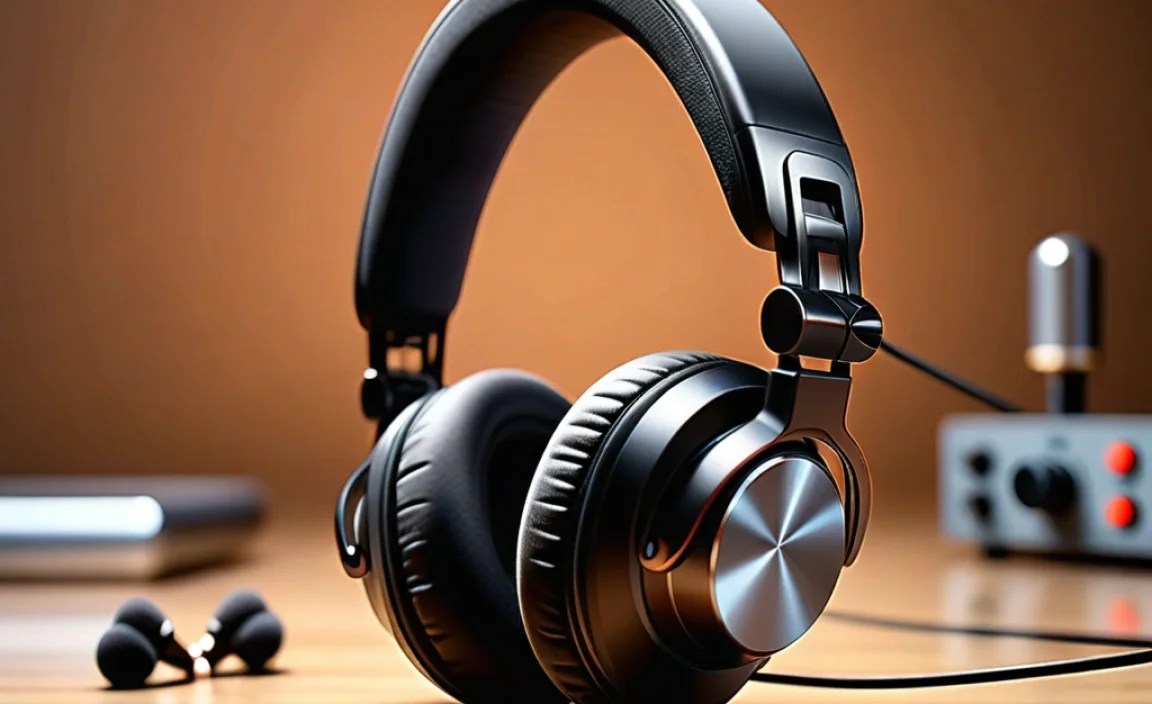
We all love podcasts, music, and crystal-clear calls. But the way we adjust volume on our devices isn’t always ideal. Often, the steps in volume are quite significant. A tiny nudge can send the sound from barely audible to painfully loud, especially with sensitive headphones. This is where a dedicated volume controller shines.
Protecting Your Hearing: The Most Crucial Benefit
Our hearing is incredibly precious, and sadly, often taken for granted. Listening at high volumes for extended periods can lead to irreversible hearing damage. According to the National Institute on Deafness and Other Communication Disorders (NIDCD), prolonged exposure to loud sounds can damage the delicate structures of the inner ear. A good volume controller allows you to find that “just right” sweet spot, keeping the volume at a safe and enjoyable level without those jarring jumps.
Precision Control for an Immersive Experience
Think about the subtle nuances in your favorite song – the soft strum of a guitar, a whispered vocal line. Sometimes, the default volume steps on your devices are too large to capture these delicate audio details. A dedicated controller, often with a smooth dial or even finer incremental steps, lets you dial in the exact loudness you desire. This precision can make a huge difference in your overall listening enjoyment, allowing you to truly appreciate the artistry of the sound.
Convenience and Accessibility
Fumbling for your phone or computer to adjust the volume can be disruptive, especially when you’re on the go, wearing headphones, or engaged in an activity. A conveniently placed inline volume controller on your headphone cable, or a small standalone device, puts that control right at your fingertips. This is a game-changer for anyone who frequently switches between different audio sources, environments, or needs to quickly mute their sound.
Compatibility and Versatility
Not all devices have equal audio output capabilities. Some laptops or older audio players might have weaker headphone amplifiers, while others might have a tendency to pump out too much volume too quickly. A dedicated volume controller can act as a bridge, providing a consistent and controllable output level, regardless of the source device’s quirks. This makes it incredibly versatile for use with a range of devices, from smartphones and tablets to PCs and audio interfaces.
Types of Headphone Volume Controllers

When you start looking for a volume controller, you’ll notice a few different types. Each has its own strengths and ideal use cases.
Inline Volume Controls
These are the most common type and are usually integrated directly into the headphone cable. They often feature a small slider or a rotary wheel. Some headphones come with these built-in, but you can also find adapter cables that add this functionality.
Pros:
- Extremely convenient, always attached to your headphones.
- Minimal fuss, no extra devices to carry.
- Often inexpensive if you’re buying an adapter.
Cons:
- Can sometimes be a point of failure if the cable is stressed.
- Limited functionality beyond volume adjustment.
- Quality can vary wildly between generic and high-end versions.
Standalone Rotary Volume Knobs
These are small, external devices that connect between your audio source (like a phone’s headphone jack or a computer’s audio output) and your headphones. They typically feature a larger, more tactile rotary knob for very precise volume adjustments. Some even include a mute button.
Pros:
- Offers the most precise physical control due to larger knobs.
- Feels more premium and easier to manipulate than small inline sliders.
- Can sometimes include additional features like mute buttons or even EQ adjustments on higher-end models.
Cons:
- Requires an extra cable and device to carry.
- Adds a potential point of signal loss if the internal components aren’t of high quality.
- More expensive than simple inline adapters.
Digital In-line Controllers (with DACs)
These are more advanced devices, often connecting via your device’s USB-C or Lightning port. They contain a Digital-to-Analog Converter (DAC) and may offer controls beyond just volume, like EQ settings, and can significantly improve audio quality by bypassing your device’s internal, often lower-quality, audio chip.
Pros:
- Can significantly improve sound quality by using a better DAC.
- Offers digital control for potentially more granular adjustments.
- Modern connections (USB-C, Lightning) are becoming standard.
Cons:
- Typically the most expensive option.
- Requires a specific type of port on your device.
- Can be more complex to set up initially, though most are plug-and-play.
Software-Based Volume Controls
While not a physical “controller” in the same sense, it’s worth mentioning that many operating systems and audio playback applications have sophisticated software volume controls. These can offer finer adjustments than the hardware buttons on your device. Some advanced audio software allows for setting maximum volume limits or adjusting volume curves.
Pros:
- No extra hardware needed.
- Can be integrated with other audio processing.
- Highly customizable within the software.
Cons:
- Less intuitive for quick, on-the-fly adjustments.
- Relies entirely on the software and your device’s audio output.
- May not offer the same tactile feel or precision as physical controls.
How to Choose the Right Volume Controller for You

With so many options, how do you pick the one that’s perfect for your listening habits? Here’s a breakdown to help you decide.
Consider Your Primary Device
- Smartphone/Tablet: If your device has a headphone jack, an inline adapter or a small standalone rotary knob is usually ideal. If it’s USB-C or Lightning only, a digital in-line controller with a DAC might be the best bet for both control and sound quality.
- Laptop/Desktop Computer: Most computers offer decent audio output, but a standalone rotary knob can provide more comfortable and precise control, especially for long work or gaming sessions. For audiophiles using a PC, a USB DAC with volume control offers the most significant upgrade.
- Gaming Consoles/Audio Mixers: These often have their own volume controls, but if you find yourself wanting more granular control or a dedicated headphone output, a standalone controller can be beneficial.
Think About Your Needs
- For Extreme Portability: Inline adapters are the way to go. They add almost no bulk.
- For Precise Audio Adjustment: Standalone rotary knobs or digital controllers will give you the most control.
- For Best Sound Quality: A digital controller with a good DAC will likely offer the most significant improvement over your device’s built-in audio.
- For Budget-Conscious Listeners: Simple inline volume adapter cables are the most affordable option.
Check for Compatibility and Connectors
This might sound obvious, but ensure the controller you choose uses the correct connector for your device and headphones. Most headphone jacks are 3.5mm (often called 1/8 inch), but some professional audio equipment uses larger 6.35mm (1/4 inch) jacks. Similarly, for digital controllers, make sure it matches your device’s USB port type (USB-A, USB-C, Lightning).
Using Your Volume Controller Effectively
Once you have your volume controller, using it correctly ensures you get the most out of it. It’s usually quite straightforward, but a few tips can enhance the experience.
Step-by-Step Usage Guide
- Connect Your Headphones: Plug your headphones into the designated output port on the volume controller.
- Connect Controller to Source: Plug the volume controller’s input into your audio source device (e.g., smartphone, computer, MP3 player).
- Start with Volume Low: Always begin with the volume controller turned all the way down or at its lowest setting.
- Adjust Source Volume (If Necessary): For some digital controllers or DACs, you might want to set your source device’s volume to about 80-90% of its maximum to ensure a strong, clean signal before using the controller for final adjustments. This bypasses any potential digital volume limiting in your source device.
- Gradually Increase Volume: Slowly turn up the volume on your controller until you reach your desired listening level.
- Use the Mute Function (If Available): Many standalone controllers have a mute button. This is incredibly useful for quickly silencing your audio during interruptions without having to find your device.
- Store Safely: When not in use, store your controller and cables carefully to prevent damage. Avoid excessive bending or pulling.
Tips for Optimal Performance
- Keep it Clean: Dust and debris can get into ports. Use a soft brush or compressed air to keep connectors clean.
- Manage Cables: Proper cable management prevents tangles and reduces strain on connectors, extending the life of your controller.
- Test Different Levels: Don’t be afraid to experiment with different volume levels. You might discover that slightly lower volumes reveal more detail in your music.
- Understand Your Device’s Limits: Especially with built-in inline controllers, very high volume from the source device can still potentially send a signal that overpowers the controller, leading to distortion.
Troubleshooting Common Volume Controller Issues
Even the best gear can sometimes act up. If your volume controller isn’t working as expected, don’t panic! Most issues are easily resolved.
Issue: No Sound or Intermittent Sound
- Check Connections: Ensure all cables are firmly plugged in at both ends (headphones to controller, controller to source).
- Test Components Individually: Plug your headphones directly into your source device. If they work, the issue is likely with the volume controller or its adapter cable. If they don’t work, your headphones might be the problem.
- Clean Connectors: Dirt or lint in the 3.5mm jacks can cause poor contact. Gently clean with a dry cotton swab or compressed air.
- Try a Different Source/Headphones: If possible, test the controller with a different device or different headphones to isolate the problem.
Issue: Volume Adjustments Are Choppy or Distorted
This often indicates a problem with the internal components of the controller or a signal issue.
- Check for Damage: Inspect the cable for any kinks, cuts, or signs of wear, especially near the plug and the controller itself.
- Ensure Volume is Appropriate: If using an inline controller, make sure your source device’s volume isn’t turned to its absolute maximum, which can sometimes overload the controller. Try lowering the source volume slightly.
- Faulty Unit: Unfortunately, if the controller itself is damaged internally, it may need to be replaced. If it’s a standalone unit, ensure it’s seated correctly.
Issue: Controller Not Recognized by Device (Digital Controllers)
- Verify Port Compatibility: Ensure the controller is designed for your device’s port (USB-C, Lightning) and that your device supports external audio accessories.
- Restart Your Device: A simple restart can often resolve temporary software glitches that prevent a device from recognizing new hardware.
- Check for Driver/Firmware Updates: Some advanced digital controllers might require specific drivers or firmware updates from the manufacturer’s website.
- Try a Different Port: If your device has multiple USB ports, try another one.
Issue: One Side of Headphones Has No Sound
This is a very common issue for headphone accessories.
- Inspect the Headphone Plug: Ensure the plug is fully inserted into the controller. If it’s a TRS (Tip-Ring-Sleeve) connector, it’s possible only the tip and ring are making contact, which usually means only one channel is working.
- Test Cables Separately: If you have an adapter cable, try unplugging the headphones and plugging them directly into your source. If both sides work, the issue is the adapter.
- Check Inline Controls: Some inline volume controls have a balance adjustment (rare, but possible). Ensure this hasn’t been accidentally moved. More likely, the internal wiring for one channel within the cable is damaged.
Popular Brands and Options
The world of audio accessories is vast! While specific models can change rapidly, here are some reputable brands and types of controllers that are generally well-regarded for their quality and performance:
| Brand/Type | Typical Features | Best For | Price Range (Approx.) |
|---|---|---|---|
| 3.5mm Inline Adapter Cables (e.g., Cable Matters, UGREEN) | Simple slider or rotary wheel on cable, 3.5mm TRRS connector. | Adding volume control to basic headphones, budget-friendly. | $10 – $25 |
| Standalone Rotary Knobs (e.g., FiiO, Sabaj, XUELONG) | Tactile rotary dial, mute button, 3.5mm input/output. Some may include basic DACs. | Precise physical control, portability, enhanced tactile feel. | $20 – $70 |
| USB DAC/Amps with Volume Control (e.g., FiiO, iBasso, Tempotec, DragonFly) | Digital input (USB-C/Lightning/USB-A), high-quality DAC, headphone amp, physical volume buttons/dial. | Significantly improved sound quality, digital control, use with modern devices. | $50 – $300+ |
| Headphones with Integrated Controls (e.g., Audio-Technica, Sennheiser, Sony) | Varies by model: inline buttons for play/pause/volume/mic. | Convenience if buying new headphones; built-in functionality. | Varies by headphone model |
Note: Prices are estimates and can vary based on retailer, region, and sales. Always check specifications for compatibility!
Frequently Asked Questions (FAQ)
Q1: Will a volume controller affect my headphone’s sound quality?
It depends on the controller. Simple inline adapters generally have minimal impact, especially at lower volumes. However, a poorly made controller can introduce noise or degrade the signal. High-quality standalone knobs and, especially, digital controllers with good DACs can often improve sound quality by providing a cleaner signal path.
Q2: Can I use a headphone volume controller with my gaming headset?
Generally, yes, if your gaming headset uses a standard 3.5mm audio jack. For USB-based headsets or those with proprietary connectors, you’ll need to check the headset’s specifications and the controller’s compatibility. Some gaming headsets also come with their own built-in volume controls on the cable or headset earcups.
Q3: What’s the difference between a volume knob and a volume slider?
A volume knob (rotary dial) usually offers more granular control, allowing for very fine adjustments by turning it. A volume slider (linear control) allows you to move a physical piece along a track. Both can be effective, but many users prefer the tactile feel and precision of a rotary knob for music listening.
Q4: Do I need a separate app to use a volume controller?
For simple inline analog controllers (sliders, knobs), no app is needed. They work directly through the audio connection. For digital controllers (USB DACs), most are plug-and-play and don’t require special apps. However, some manufacturers offer companion apps for firmware updates or to access advanced features like EQ settings.</
