
Quick Summary: Enhance your PS4 gaming with wired headphones. This guide makes connecting and optimizing them simple, ensuring you hear every in-game sound and communicate clearly with friends. Discover easy setup, essential features, and troubleshooting tips for a frustration-free audio experience.
Hello, fellow gamers! Edward Cavitt here from headphonehorizon. If you’re looking to dive deeper into your PlayStation 4 adventures, something as simple as a good pair of wired headphones can make a world of difference. Forget the crackles of your TV speakers or the limitations of basic headsets; with the right wired option, you’ll unlock a richer, more immersive gaming world. You’ll hear every distant footstep, every whispered clue, and experience the full impact of game soundtracks. Plus, crystal-clear communication with your teammates can turn the tide of any online battle. This guide is all about making that happen, effortlessly.
Why Wired Headphones Are Your PS4’s Best Friend

When it comes to gaming on the PS4, wired headphones offer a steadfast and reliable audio solution. Unlike their wireless counterparts, they don’t suffer from frustrating latency issues (that slight delay between action on screen and sound in your ears), which is crucial for reaction-based gaming. They also tend to have a more direct and cleaner audio signal, often delivering superior sound quality for the price. Plus, no charging required means you can plug in and play for as long as you want. They are straightforward, dependable, and get the job done without fuss.
The Advantages of Going Wired for PS4 Gaming
Let’s break down the key benefits of choosing wired headphones for your PlayStation 4:
- Zero Latency: Essential for competitive gaming where split-second timing is everything. You hear what’s happening, exactly when it happens.
- Superior Sound Quality (Often): Wired connections generally provide a more stable and robust signal, leading to clearer, more detailed audio for immersive experiences.
- No Batteries, No Charging: Plug them in and they work. This means uninterrupted gaming sessions, always.
- Cost-Effective: You can often find high-quality wired headsets at a lower price point than comparable wireless models.
- Simplicity: Plug and play. It doesn’t get much easier than this.
Choosing the Right Wired Headphones for Your PS4

Not all wired headphones are created equal. For PS4 gaming, you’ll want to consider a few key features to ensure the best experience. Think of it like picking the right tool for the job – you want something that fits perfectly and performs exceptionally.
Essential Features to Look For
- 3.5mm Jack Compatibility: The universal standard for most modern headphones. Your PS4 controller features a 3.5mm audio jack, making this the simplest connection method.
- Microphone Quality: If you play multiplayer games, a clear microphone is non-negotiable for effective team communication. Look for headsets with built-in, adjustable, or noise-canceling microphones.
- Comfort and Fit: Gaming sessions can last for hours. Over-ear headphones with plush earcups and an adjustable headband are typically the most comfortable for extended wear.
- Durability: Gaming gear can take a beating. A sturdy build with flexible materials will ensure your headphones last.
- Cord Length: A decent cord length (around 4-6 feet) gives you enough freedom to move without feeling tethered to the controller.
- Sidetone Feature (Optional but Recommended): This feature allows you to hear your own voice through the headset, which helps prevent you from shouting too loudly.
Understanding Different Connection Types
While the 3.5mm jack is the most common and easiest for PS4, some higher-end headsets might offer USB connections. For PS4, connecting via the controller’s 3.5mm jack is usually the most straightforward for both audio and microphone input/output.
The Magic of the 3.5mm Jack
The 3.5mm audio jack, often called an auxiliary or headphone jack, is your gateway to effortless audio. It carries both the game’s audio to your ears and your voice to your teammates. It’s a unified connection that simplifies everything.
When to Consider USB Connections
Some advanced gaming headsets might use a USB connection, either directly to the console or via a USB adapter. This can sometimes offer higher fidelity audio or dedicated control options. However, for the vast majority of users, the simplicity and pervasiveness of the 3.5mm jack make it the go-to choice for PS4.
Connecting Your Wired Headphones to the PS4: A Step-by-Step Guide

Connecting wired headphones to your PS4 is incredibly simple. You’ll be gaming with enhanced audio in no time. Let’s walk through it.
Step 1: Locate the Headphone Jack
On your DUALSHOCK 4 wireless controller, you’ll find a single 3.5mm jack. It’s usually located at the bottom edge, between where the triggers meet the controller’s body. It’s a standard-sized port, easily identifiable.
Step 2: Plug In Your Headphones
Take the plug from your wired headphones and firmly insert it into the 3.5mm jack on your PS4 controller. You should feel a slight resistance, and it should fit snugly. Ensure it’s fully inserted.
Step 3: PS4 Automatically Detects Headphones
In most cases, your PS4 will automatically detect that headphones have been plugged in. You should see a small headphone icon appear briefly on your screen, indicating that audio is now being routed through your headset. If you’re using a headset with a separate microphone, both will be enabled.
Step 4: Adjusting Audio Output Settings (If Necessary)
While automatic detection is common, sometimes you might want to fine-tune the audio settings. Here’s how:
- Navigate to the PS4’s main menu.
- Go to Settings.
- Scroll down and select Devices.
- Choose Audio Devices.
- Under Output to Headphones, select All Audio. This ensures you hear game sound, party chat, and system notifications through your headphones.
- You can also adjust the Volume Control (Headphones) here if it’s too loud or too quiet.
For microphone settings, under Audio Devices, you’ll also find Input Device. Ensure your headset’s microphone is selected if you have multiple audio input options. You can test your microphone levels here as well.
Optimizing Your Wired Headset for Peak Performance
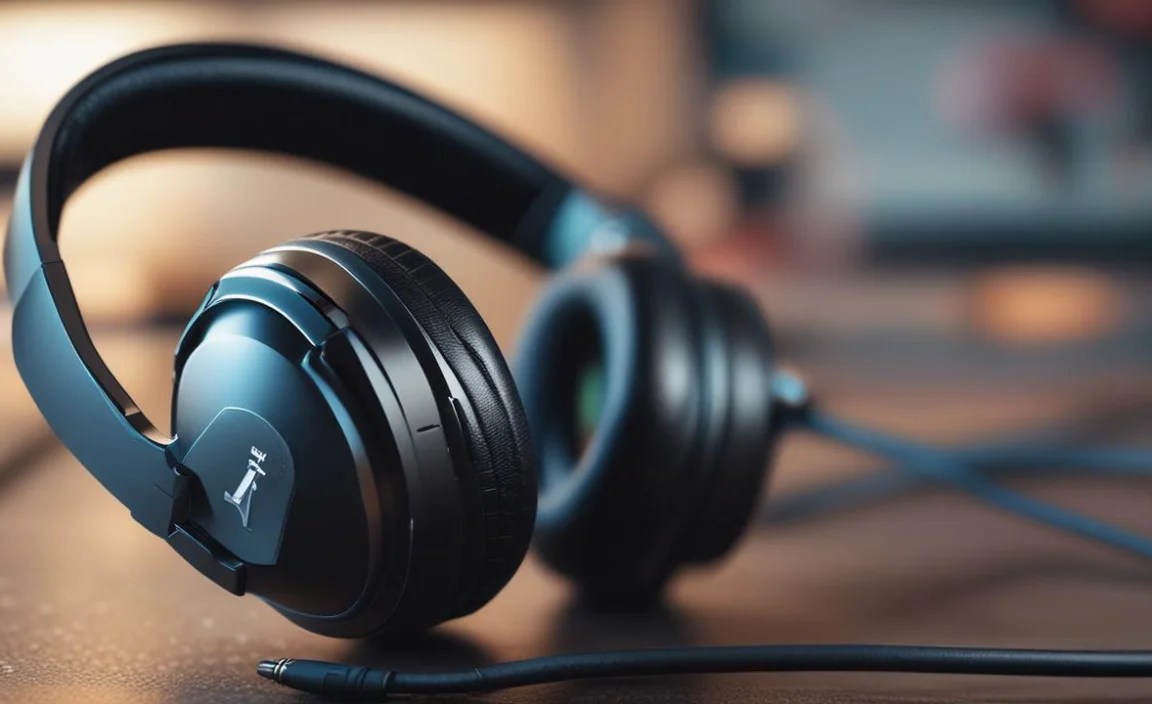
Once connected, there are a few tweaks you can make for the ultimate gaming audio experience.
Sound Settings for Immersive Gaming
Beyond the basic output, pay attention to in-game audio settings. Many games offer customizable audio profiles. For instance, a “Chat/Game Audio Balance” slider in party settings can prioritize voice chat or game sounds, which is incredibly useful during intense online matches.
For a more detailed look at audio settings, you can explore the official PlayStation support page on audio settings, which provides in-depth explanations.
Microphone Setup and Troubleshooting
If your teammates can’t hear you, or if your voice sounds muffled, a few simple checks can fix it:
- Ensure the microphone is unmuted: Many headsets have an inline mute switch or a button on the earcups.
- Check it’s selected as the input device: As mentioned, go to Settings > Devices > Audio Devices and confirm your headset is listed under Input Device.
- Adjust mic sensitivity: Some PS4 games or system settings (under Audio Devices) allow you to adjust microphone levels. If it’s too low, your voice might be too quiet. If it’s too high, it might distort.
- Position the microphone correctly: If it’s an attachable boom mic, ensure it’s positioned near your mouth but not directly in front of it, to minimize breath noise.
Popular Wired Headset Options for PS4 Gamers

While I won’t recommend specific models that can change rapidly, I can highlight the types of features and brands that consistently offer great wired PS4 headsets. When you’re shopping, look for these categories:
| Type | Key Features | Best For |
|---|---|---|
| Entry-Level Gaming Headsets | Basic 3.5mm connection, built-in mic, decent comfort. Often budget-friendly. | Casual gamers, those on a tight budget, or players who don’t need advanced features. |
| Mid-Range Gaming Headsets | Improved audio drivers, better microphone quality (often noise-canceling), enhanced comfort and durability, sometimes inline volume controls and mic mute. | Most PS4 gamers looking for a significant upgrade in sound and communication without breaking the bank. |
| Audiophile-Oriented Wired Headphones | Focus on superior sound fidelity, comfort, and build quality. May or may not have an integrated mic, requiring a separate adapter or boom mic for chat. | Gamers who also use their headphones for music or movies and prioritize the absolute best audio quality, and are willing to purchase a separate mic if needed. |
Brands like HyperX, SteelSeries, Razer, and Logitech consistently produce solid wired options that are well-regarded by the gaming community. Always check reviews and compare specifications to find the best fit for your needs and budget.
Common Troubleshooting Tips for Wired PS4 Headsets
Even the best tech can sometimes have a hiccup. Here are some common issues and their simple fixes:
No Sound Through Headphones
- Check the connection: Make sure the 3.5mm plug is fully inserted into the controller. Try unplugging and re-plugging it.
- Verify volume settings: Ensure the volume isn’t turned all the way down on the headset’s inline controls (if it has them) and in the PS4’s Audio Devices menu.
- Confirm audio output setting: Double-check that Output to Headphones is set to All Audio in Settings > Devices > Audio Devices.
- Test on another device: Try your headphones with a phone or computer to see if they work elsewhere. If not, the headphones themselves might be the issue.
Microphone Not Working
- Check mute switch: Locate and disengage any mute button on the headset or inline cable.
- Confirm input device: In Settings > Devices > Audio Devices, ensure your headset’s microphone is selected under Input Device.
- Restart the PS4: Sometimes a simple console restart can resolve temporary glitches.
- Try a different controller port (if using USB): If your headset uses a USB adapter, try a different USB port on the PS4.
Sound is Distorted or Crackling
- Loose connection: Ensure the 3.5mm plug is clean and firmly seated. Dust or debris in the jack can cause issues.
- Damaged cable: Inspect the headphone cable for any visible damage, kinks, or fraying. A compromised cable often leads to distorted sound.
- Interference (less common for wired): While less of an issue with wired connections, ensure the cable isn’t being pinched or damaged by other devices.
- Headphone volume too high: Pushing your headphones or the PS4 volume too high can cause distortion. Try turning the volume down slightly.
For more advanced troubleshooting, the PlayStation support site offers further guidance on headset compatibility and issues.
Frequently Asked Questions About PS4 Wired Headphones
Q1: Can I use any wired headphones with my PS4?
Yes, generally any wired headphones with a standard 3.5mm audio jack will work with your PS4 controller for audio output. If you need microphone functionality, ensure the headphones have a built-in microphone or are compatible with a headset adapter.
Q2: Do I need to charge my wired headphones for PS4?
No, wired headphones draw power directly from the PS4 controller through the 3.5mm jack. They do not have batteries and therefore do not need charging.
Q3: How can I make my PS4 headset louder?
You can adjust the volume through the PS4’s system settings in Settings > Devices > Audio Devices > Volume Control (Headphones). Also, check for any inline volume controls on the headset’s cable itself.
Q4: My friends can’t hear me. What should I do?
First, ensure the microphone isn’t muted. Go to Settings > Devices > Audio Devices and check that your headset is selected as the Input Device. You can also test your microphone levels there and ensure your voice is being picked up clearly.
Q5: What’s the difference between stereo and surround sound with PS4 headphones?
Stereo sound uses two channels (left and right) to create an audio image. Virtual surround sound, often simulated by gaming headsets, uses software and psychoacoustics to create the illusion of sound coming from multiple directions, enhancing immersion. Most PS4 wired headsets will output stereo sound, but some can process virtual surround if the game supports it.
Q6: Can I use my gaming headset for music and other media on PS4?
Absolutely! When set to “All Audio,” your wired headset will output sound from games, menus, music players, and video apps. The sound quality for music will depend on the quality of the headphones themselves.
Conclusion
Elevating your PS4 gaming experience with wired headphones is a simple yet incredibly effective upgrade. By understanding which features to look for, how to connect them seamlessly, and how to fine-tune your settings, you’re set for hours of immersive gameplay and clear communication. Whether you’re tracking enemy footsteps in a tactical shooter, enjoying the rich soundscape of an RPG, or coordinating strategies with your squad, the right wired headset brings you closer to the action. Don’t let muddy audio or communication breakdowns hold you back. With the straightforward steps and tips in this guide, you’re now equipped to achieve effortless gaming audio on your PS4. Happy gaming!
